Fonts - Change

How to Change the Default Fonts in Windows 7

   Information
This will show you how to change most or all of the default fonts in Windows 7 for Active Title Bar, Icon, Inactive Title Bar, Menu, Message Box, Palette Title, Selected Items, ToolTip, and various Dialog Box text and buttons.

:warn:Changing a Windows 7 font doesn't change your program fonts.

For a list of all default fonts that come supplied with Windows 7, see: Fonts supplied with Windows 7


OPTION ONE

Through Advanced Appearance Settings


   Note
This will let you change the default font, font size, and font color for the Active Title Bar, Icon, Inactive Title Bar, Menu, Message Box, Palette Title, Selected Items, and ToolTip text. See this link under step 8 there for the default Advanced Appearance settings: http://www.sevenforums.com/tutorials/282-window-color-appearance-change.html
   Tip
All Advanced Appearance settings for a single user are stored in the three registry keys below.


  • HKEY_CURRENT_USER\Control Panel\Colors
  • HKEY_CURRENT_USER\Control Panel\Desktop\Colors
  • HKEY_CURRENT_USER\Control Panel\Desktop\WindowMetrics
1. If you have Windows 7 Starter or Home Basic
A) Open the Control Panel (icons view), and click on the Display icon.

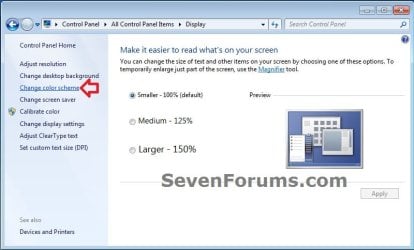
B) In the left blue pane, click on the Change color scheme link. (see screenshot below)
Starter_Basic-1.jpg
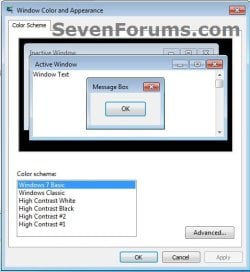
C) Click on the Advanced button. (see screenshot below)
Starter_Basic-2.jpg
D) Go to step 3.
2. If you have Windows 7 Home Premium, Professional, Ultimate, or Enterprise
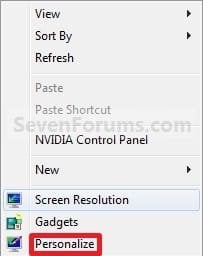
A) Right click on a empty space on the desktop and click on Personalize. (see screenshot below)
Right_Click.jpg
B) Click on the Window Color link at the bottom of the window. (See screenshot below)
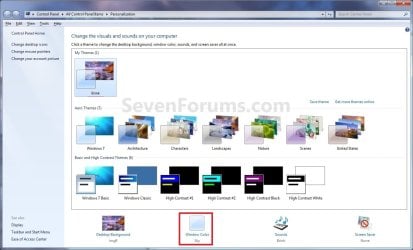
Personalize.jpg
C) Click on the Advanced appearance settings link. (See screenshot below)


   Warning

  • If you have selected a Basic and High Contrast Themes, then you will not see the screenshot. Instead, you will see the screenshot below step 4.
  • If you have selected a Aero Themes, then you will see the screenshot. Continue to step 4.
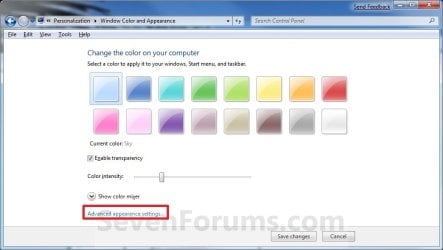
Color_and_Appearance-1.jpg
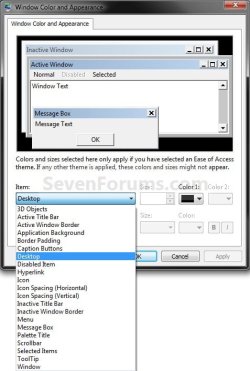
3. Select a Item that you want to change the font for. (see screenshots below)
NOTE: Not all of these items will have a font for them.
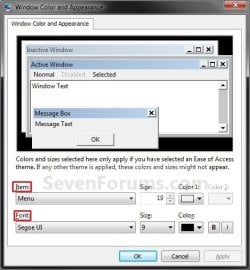
Classic_Color_and_Appearance-2.jpg

Classic_Color_and_Appearance-1.jpg

4. To Change the Item Font
A) Click on the Font drop down menu and select a font. (see screenshot below)
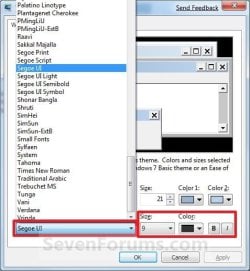
Select_Font.jpg
5. To Change the Item Font Size
A) Click on the Size drop down menu and select a number for the size. The higher the number, the larger the size. (see screenshot above)
6. To Change the Item Font Color
A) Click on the Color drop down menu and select a color. (see screenshot below step 4)
7. To Have the Item Font in Bold
A) Click the B button to highlight it. If it is not highlighted, then the font will not be in bold. (see screenshot below step 4)
8. To Have the Item Font in Italic
A) Click on the I button to highlight it. If it is not highlighted, then the font will not be in italic. (see screenshot below step 4)
9. Repeat steps 3 to 8 until you have changed all of the fonts for the select items that you wanted.

10. When done, click on OK. (see screenshots below step 3)

11. Close the Window Color and Appearance window. (see screenshot below step 2B)
NOTE: You will not have this to do if you have a Basic and High Contrast Themes selected.


OPTION TWO

To Change or Restore Default Dialog Box Text and Buttons Fonts


NOTE: This will let you change the default fonts for most of the Windows 7 dialog box text and button text through the registry.
1. To Change the Dialog Box Text and Buttons Fonts
A) Open the Start Menu, type regedit in the search box, and press Enter.

B) If prompted by UAC, then click on Yes.

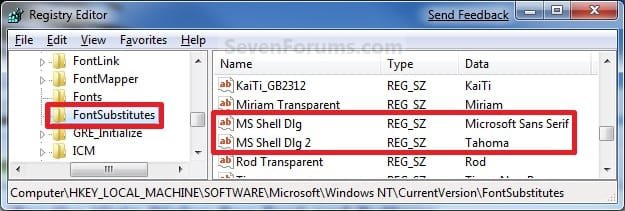
C) In regedit, navigate to the location below (See screenshots below)
NOTE: The default fonts are the ones displayed below.

Code:
HKEY_LOCAL_MACHINE\SOFTWARE\Microsoft\Windows NT\CurrentVersion\FontSubstitutes
Reg.jpg
D) In the right pane, right click on MS Shell Dlg and click on Modify. (See screenshot above)

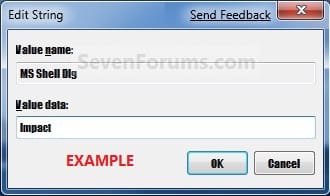
E) Type in the name of the font you want to use and click on OK. (See left screenshot below)
NOTE: You can get the name of the font from the Font Folder Location C:\Windows\Fonts. Right click on the single font and click on Properties to see the file name. For a font group, you will need to open it first to see the single fonts in it. Be sure that you use the exact same font name that is listed. Do not include the Regular part or file extension in the font name. For example, I would type Impact instead of Impact Regular or Impact.ttf.
Modify1.jpg

Modify1B.jpg

F) In the right pane, right click on MS Shell Dlg 2 and click on Modify. (See screenshot below step 1C)

G) Type in the name of the font you want to use and click on OK. (See left screenshot below)
NOTE: You can get the name of the font from the Font Folder Location C:\Windows\Fonts. Be sure that you use the exact same font name that is listed. Do not include the Regular part in the font name. For example, I would type Impact instead of Impact Regular.
Modify2.jpg

Modify2B.jpg

H) Close regedit.

I) Go to step 3.
2. To Restore Default Dialog Box Text and Buttons Fonts
A) Click on the Download button below, and download the file below.
Restore_Default_Dialog_Box_Fonts.reg


Download


B) Save the .reg file to the desktop.

C) Right click the downloaded .reg file, and click on Merge.

D) Click on Run, Yes (UAC), Yes, and OK when prompted.

E) Continue on to step 3.
3. Log off and log on, or restart the computer to apply the font changes.


OPTION THREE

To Change All Default Fonts


NOTE: This will let you change the default fonts used by Windows 7 using the registry.
1. To Change Default Fonts Using a REG File Download
NOTE: This changes the default fonts in Windows 7 to the Tahoma font. You could use this REG file download to make doing step 2 below easier by editing the REG file for the font you want to use instead of Tahoma.
A) Click on the Download button below, and download the file below.
Set_Tahoma_Default_Font.reg


Download


B) Save the .reg file to your desktop.

C) Double click on the downloaded .reg file to merge it.

D) Click on Run, Yes (UAC), Yes, and OK when prompted to approve the merge.

E) Log off and log on, or restart the computer to apply changes.

F) When done, you can delete the downloaded .reg file if you like.
2. To Manually Change Default Fonts by Creating a REG File
NOTE: The REG file in step 1 is the same as in step 2B below. You can use it and just edit the font that you would like to use instead of Tahoma in step below.
A) Open Notepad.

B) Copy and Paste the code below into Notepad.

Code:
Windows Registry Editor Version 5.00
 
[HKEY_LOCAL_MACHINE\SOFTWARE\Microsoft\Windows NT\CurrentVersion\Fonts]
"Segoe UI (TrueType)"=""
"Segoe UI Bold (TrueType)"=""
"Segoe UI Italic (TrueType)"=""
"Segoe UI Bold Italic (TrueType)"=""
"Segoe UI Semibold (TrueType)"=""
"Segoe UI Light (TrueType)"=""
 
[HKEY_LOCAL_MACHINE\SOFTWARE\Microsoft\Windows NT\CurrentVersion\FontSubstitutes]
"Segoe UI"="[B][COLOR=red]Tahoma[/COLOR][/B]"
All-1.jpg
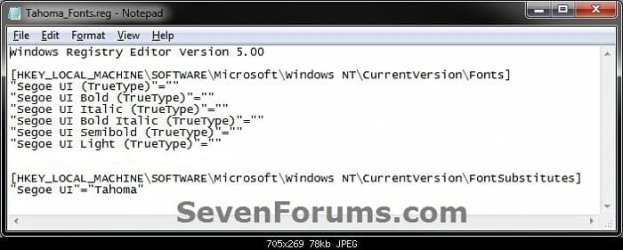
C) In Notepad, edit Tahoma in quotes with the name of the font that you would like to use in instead with it still in quotes. (see screenshot below)
NOTE: You can get the name of the font from the Font Folder Location C:\Windows\Fonts. Be sure that you use the exact same font name that is listed. Do not include the Regular part in the font name. For example, I would type Impact instead of Impact Regular.
All-2.jpg

All-3.jpg

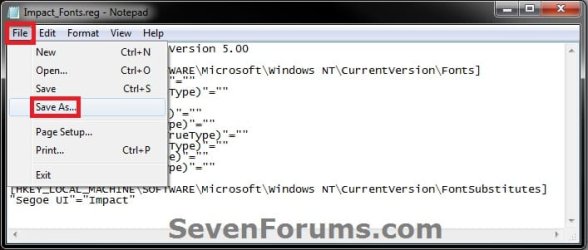
D) In Notepad, click on File (Menu bar) and Save As. (see screenshot below)
All-4.jpg
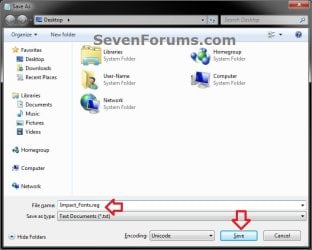
E) Type in a name you would like with a .reg file extension (ex: Impact-Fonts.reg), then click on the Save button. (see screenshot below)
All-5.jpg
D) Double click on the downloaded .reg file to merge it.

E) Click on Run, Yes (UAC), Yes, and OK when prompted to approve the merge.

F) Log off and log on, or restart the computer to apply changes.
3. To Restore the Default Fonts
NOTE: This will ONLY undo all changes that you made using either step 1 or step 2 in OPTION THREE above, and restore the original default fonts used by Windows 7.
A) Click on the Download button below, and download the file below.
Default_Fonts.reg


Download


B) Save the .reg file to your desktop.

C) Double click on the downloaded .reg file to merge it.

D) Click on Run, Yes (UAC), Yes, and OK when prompted to approve the merge.

E) Log off and log on, or restart the computer to apply changes.

F) When done, you can delete the downloaded .reg file if you like.
That's it,
Shawn


Attachments

Last edited:
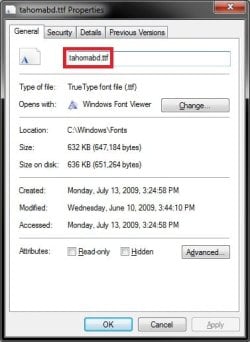
LOL, yeah it can be a bit tricky. You can right click on the font, and click on Properties to see the name of the font to use to make it easier. You would use the name without the file extention. :)

I have updated the registry entries above as for this. It should be tahomabd for the Tahoma Bold font.

Properties.jpg
 

My Computer

Computer type
PC/Desktop
Computer Manufacturer/Model Number
Self built custom
OS
64-bit Windows 11 Pro for Workstations
CPU
Intel i7-8700K OC'd to 5 GHz
Motherboard
ASUS ROG Maximus XI Formula Z390
Memory
64 GB (4x16GB) G.SKILL TridentZ RGB DDR4 3600 MHz
Graphics Card(s)
ASUS ROG-STRIX-GTX1080TI-O11G-GAMING
Sound Card
Integrated
Monitor(s) Displays
2 x Samsung Odyssey G7 27"
Screen Resolution
2560x1440
Hard Drives
1TB Samsung 990 PRO M.2,
4TB Samsung 990 PRO PRO M.2,
TerraMaster F8 SSD Plus NAS
PSU
Seasonic Prime Titanium 850W
Case
Thermaltake Core P3
Cooling
Corsair Hydro H115i
Keyboard
Logitech wireless K800
Mouse
Logitech MX Master 4
Internet Speed
2 Gb/s Download and 100 Mb/s Upload
Antivirus
Malwarebyte Anti-Malware Premium
Browser
Google Chrome
Other Info
Logitech Z625 speaker system,
Logitech BRIO 4K Pro webcam,
HP Color LaserJet Pro MFP M477fdn,
APC SMART-UPS RT 1000 XL - SURT1000XLI,
Galaxy S23 Plus phone
Just so you know it works both ways. Simply entering Tahoma Bold would work too.
 

My Computer

Computer Manufacturer/Model Number
Dell XPS M1530
OS
Windows 7 Ultimate x64
CPU
Intel Core Duo T7500 @ 2.20 GHz
Memory
4 GB
Graphics Card(s)
GeForce 8400m GS
Thank you. I thought that it should, but I had always just used the name in properties. :)
 

My Computer

Computer type
PC/Desktop
Computer Manufacturer/Model Number
Self built custom
OS
64-bit Windows 11 Pro for Workstations
CPU
Intel i7-8700K OC'd to 5 GHz
Motherboard
ASUS ROG Maximus XI Formula Z390
Memory
64 GB (4x16GB) G.SKILL TridentZ RGB DDR4 3600 MHz
Graphics Card(s)
ASUS ROG-STRIX-GTX1080TI-O11G-GAMING
Sound Card
Integrated
Monitor(s) Displays
2 x Samsung Odyssey G7 27"
Screen Resolution
2560x1440
Hard Drives
1TB Samsung 990 PRO M.2,
4TB Samsung 990 PRO PRO M.2,
TerraMaster F8 SSD Plus NAS
PSU
Seasonic Prime Titanium 850W
Case
Thermaltake Core P3
Cooling
Corsair Hydro H115i
Keyboard
Logitech wireless K800
Mouse
Logitech MX Master 4
Internet Speed
2 Gb/s Download and 100 Mb/s Upload
Antivirus
Malwarebyte Anti-Malware Premium
Browser
Google Chrome
Other Info
Logitech Z625 speaker system,
Logitech BRIO 4K Pro webcam,
HP Color LaserJet Pro MFP M477fdn,
APC SMART-UPS RT 1000 XL - SURT1000XLI,
Galaxy S23 Plus phone
Ineed of assistance.......... :[

hello Brink i need help here i have three captures of my out of no where fonts of my desktops


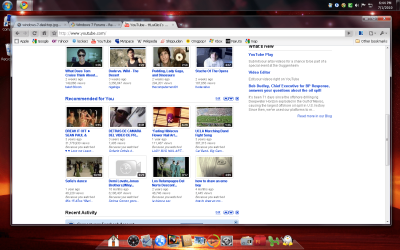
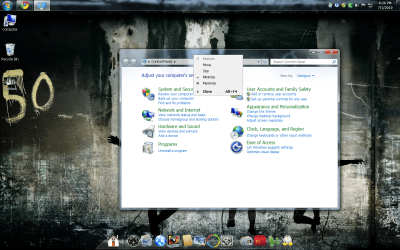
i really would like my fonts to be like these two pictures [like it was before] in the windows7-explorer and windows-7-desktop...:(


one day i have my computer good as a newborn and now this ugly fonts replaces please help me changing my fonts back to like it was
btw.. i have no nerve in my brain and/or body to think of complete restoration on my windows but i guess if its the only ticket out:huh:
 

Attachments

  • windows-7-desktop.jpg
    windows-7-desktop.jpg
    45.9 KB · Views: 474
  • windows7-explorer.png
    windows7-explorer.png
    71 KB · Views: 264
  • Untitled3.png
    Untitled3.png
    203 KB · Views: 324
  • Untitled2.png
    Untitled2.png
    578.4 KB · Views: 355
  • Untitled.png
    Untitled.png
    506.2 KB · Views: 228

My Computer

Computer Manufacturer/Model Number
Compaq
OS
Windows 7 Home Premuim (64-Bit)
CPU
Windows
Motherboard
AMD Athlon II X2 215 Processor 2.70GHz
Memory
3GB
Graphics Card(s)
NviDia 6150GE Force 125MB
Sound Card
Realteak High Definition
Monitor(s) Displays
Emachines Somethin" 1440x900 Display
Hard Drives
500GB Harddrive
Hello Luis, and welcome to Seven Forums.

Do you remember installing, setting, or changing anything right before this happened?

If you are not sure, then you can do a system restore using a restore point (if available) only dated before the fonts got messed up to undo it and hopefully fix it for you.

Hope this helps,
Shawn
 

My Computer

Computer type
PC/Desktop
Computer Manufacturer/Model Number
Self built custom
OS
64-bit Windows 11 Pro for Workstations
CPU
Intel i7-8700K OC'd to 5 GHz
Motherboard
ASUS ROG Maximus XI Formula Z390
Memory
64 GB (4x16GB) G.SKILL TridentZ RGB DDR4 3600 MHz
Graphics Card(s)
ASUS ROG-STRIX-GTX1080TI-O11G-GAMING
Sound Card
Integrated
Monitor(s) Displays
2 x Samsung Odyssey G7 27"
Screen Resolution
2560x1440
Hard Drives
1TB Samsung 990 PRO M.2,
4TB Samsung 990 PRO PRO M.2,
TerraMaster F8 SSD Plus NAS
PSU
Seasonic Prime Titanium 850W
Case
Thermaltake Core P3
Cooling
Corsair Hydro H115i
Keyboard
Logitech wireless K800
Mouse
Logitech MX Master 4
Internet Speed
2 Gb/s Download and 100 Mb/s Upload
Antivirus
Malwarebyte Anti-Malware Premium
Browser
Google Chrome
Other Info
Logitech Z625 speaker system,
Logitech BRIO 4K Pro webcam,
HP Color LaserJet Pro MFP M477fdn,
APC SMART-UPS RT 1000 XL - SURT1000XLI,
Galaxy S23 Plus phone
captureee.jpg


Is there a way to force or change font type and size for system menus and dialog boxes like the one above which now looks incomplete or part of the window is visible? it seems i deleted the wrong font, but anyway i want to use a simple font like times new roman.
 

My Computer

Computer type
Laptop
Computer Manufacturer/Model Number
Acer Aspire 5810T8929
OS
Windows 10 Home 64b
CPU
Intel Core Solo 1.4Ghz 800Mhz FSB
Memory
Samsung 4GB DDR3
Graphics Card(s)
Intel GMA 4500MHD
Screen Resolution
1366x768
Hard Drives
Seagate Momentus XT (Hybrid HD) 750GB
Internet Speed
40 Mbs
Antivirus
Kaspersky Free Antivirus
Browser
Chrome 60.0.3112.113 (Official Build) (64-bit)
Hello LM,

That's one of the unfortunate drawbacks to changing the fonts. If you change the font or size to be to large, then the text might no longer fit in the default dialog box size and causes the content to extend out of display inside the dialog box like that. You'll need to play with using a different smaller font. Using a fint that is not bolded helps to keep it smaller a bit.
 

My Computer

Computer type
PC/Desktop
Computer Manufacturer/Model Number
Self built custom
OS
64-bit Windows 11 Pro for Workstations
CPU
Intel i7-8700K OC'd to 5 GHz
Motherboard
ASUS ROG Maximus XI Formula Z390
Memory
64 GB (4x16GB) G.SKILL TridentZ RGB DDR4 3600 MHz
Graphics Card(s)
ASUS ROG-STRIX-GTX1080TI-O11G-GAMING
Sound Card
Integrated
Monitor(s) Displays
2 x Samsung Odyssey G7 27"
Screen Resolution
2560x1440
Hard Drives
1TB Samsung 990 PRO M.2,
4TB Samsung 990 PRO PRO M.2,
TerraMaster F8 SSD Plus NAS
PSU
Seasonic Prime Titanium 850W
Case
Thermaltake Core P3
Cooling
Corsair Hydro H115i
Keyboard
Logitech wireless K800
Mouse
Logitech MX Master 4
Internet Speed
2 Gb/s Download and 100 Mb/s Upload
Antivirus
Malwarebyte Anti-Malware Premium
Browser
Google Chrome
Other Info
Logitech Z625 speaker system,
Logitech BRIO 4K Pro webcam,
HP Color LaserJet Pro MFP M477fdn,
APC SMART-UPS RT 1000 XL - SURT1000XLI,
Galaxy S23 Plus phone
That .reg file to restore defaults doesn't seem to work. Any ideas why not?

In regedit for (Default) the data field is (value not set)
 
Last edited:

My Computer

OS
Windows 7 64-bit Home Premium
CPU
Intel Core i7 920 D0
Motherboard
EVGA X58 3X SLI E758
Memory
OCZ3X1600R2LV6GK 6GB
Graphics Card(s)
EVGA GTX 260
Hard Drives
OCZ Agility2 120GB; WD Caviar Black 1TB
PSU
Rosewill Bronze 1000W
Case
Antec Nine Hundred
Cooling
Zalman CNPS 9900
Hello Monumental,

The Default_Fonts.reg download will only undo changes that you made using either step 1 or step 2 in OPTION THREE.

Was that how you made changes to the fonts? If not, then it will not work to undo it. :(
 

My Computer

Computer type
PC/Desktop
Computer Manufacturer/Model Number
Self built custom
OS
64-bit Windows 11 Pro for Workstations
CPU
Intel i7-8700K OC'd to 5 GHz
Motherboard
ASUS ROG Maximus XI Formula Z390
Memory
64 GB (4x16GB) G.SKILL TridentZ RGB DDR4 3600 MHz
Graphics Card(s)
ASUS ROG-STRIX-GTX1080TI-O11G-GAMING
Sound Card
Integrated
Monitor(s) Displays
2 x Samsung Odyssey G7 27"
Screen Resolution
2560x1440
Hard Drives
1TB Samsung 990 PRO M.2,
4TB Samsung 990 PRO PRO M.2,
TerraMaster F8 SSD Plus NAS
PSU
Seasonic Prime Titanium 850W
Case
Thermaltake Core P3
Cooling
Corsair Hydro H115i
Keyboard
Logitech wireless K800
Mouse
Logitech MX Master 4
Internet Speed
2 Gb/s Download and 100 Mb/s Upload
Antivirus
Malwarebyte Anti-Malware Premium
Browser
Google Chrome
Other Info
Logitech Z625 speaker system,
Logitech BRIO 4K Pro webcam,
HP Color LaserJet Pro MFP M477fdn,
APC SMART-UPS RT 1000 XL - SURT1000XLI,
Galaxy S23 Plus phone
Hello Monumental,

The Default_Fonts.reg download will only undo changes that you made using either step 1 or step 2 in OPTION THREE.

Was that how you made changes to the fonts? If not, then it will not work to undo it. :(

Yes, I used option 3-2.
 

My Computer

OS
Windows 7 64-bit Home Premium
CPU
Intel Core i7 920 D0
Motherboard
EVGA X58 3X SLI E758
Memory
OCZ3X1600R2LV6GK 6GB
Graphics Card(s)
EVGA GTX 260
Hard Drives
OCZ Agility2 120GB; WD Caviar Black 1TB
PSU
Rosewill Bronze 1000W
Case
Antec Nine Hundred
Cooling
Zalman CNPS 9900
Sorry, but I have to ask. Did you restart the computer after merging the REG download?
 

My Computer

Computer type
PC/Desktop
Computer Manufacturer/Model Number
Self built custom
OS
64-bit Windows 11 Pro for Workstations
CPU
Intel i7-8700K OC'd to 5 GHz
Motherboard
ASUS ROG Maximus XI Formula Z390
Memory
64 GB (4x16GB) G.SKILL TridentZ RGB DDR4 3600 MHz
Graphics Card(s)
ASUS ROG-STRIX-GTX1080TI-O11G-GAMING
Sound Card
Integrated
Monitor(s) Displays
2 x Samsung Odyssey G7 27"
Screen Resolution
2560x1440
Hard Drives
1TB Samsung 990 PRO M.2,
4TB Samsung 990 PRO PRO M.2,
TerraMaster F8 SSD Plus NAS
PSU
Seasonic Prime Titanium 850W
Case
Thermaltake Core P3
Cooling
Corsair Hydro H115i
Keyboard
Logitech wireless K800
Mouse
Logitech MX Master 4
Internet Speed
2 Gb/s Download and 100 Mb/s Upload
Antivirus
Malwarebyte Anti-Malware Premium
Browser
Google Chrome
Other Info
Logitech Z625 speaker system,
Logitech BRIO 4K Pro webcam,
HP Color LaserJet Pro MFP M477fdn,
APC SMART-UPS RT 1000 XL - SURT1000XLI,
Galaxy S23 Plus phone
Sorry, but I have to ask. Did you restart the computer after merging the REG download?

Yes, tried logging off and back on as well.
 

My Computer

OS
Windows 7 64-bit Home Premium
CPU
Intel Core i7 920 D0
Motherboard
EVGA X58 3X SLI E758
Memory
OCZ3X1600R2LV6GK 6GB
Graphics Card(s)
EVGA GTX 260
Hard Drives
OCZ Agility2 120GB; WD Caviar Black 1TB
PSU
Rosewill Bronze 1000W
Case
Antec Nine Hundred
Cooling
Zalman CNPS 9900
What is the problem?

Messagebox, tooltip, etc
 

My Computers

System One System Two

  • Computer type
    PC/Desktop
    OS
    7 X64
    CPU
    i5 8400
    Motherboard
    gigabyte b365m ds3h
    Memory
    2x8gb 3200mhz
    Hard Drives
    various
    PSU
    pure power 11 400w cm
    Case
    Coolermaster
    Cooling
    cryorig m9i
  • Computer type
    PC/Desktop
    OS
    7x64
    CPU
    g5400
    Motherboard
    ga b365m ds3h
    Memory
    8gb ddr4 2400
    PSU
    xfx pro 450w
Fixed it- user error. I had changed one font manually-inactive title bar and for whatever reason, it seemed to be bleeding over to other things. I undid that and it fixed everything.
 

My Computer

OS
Windows 7 64-bit Home Premium
CPU
Intel Core i7 920 D0
Motherboard
EVGA X58 3X SLI E758
Memory
OCZ3X1600R2LV6GK 6GB
Graphics Card(s)
EVGA GTX 260
Hard Drives
OCZ Agility2 120GB; WD Caviar Black 1TB
PSU
Rosewill Bronze 1000W
Case
Antec Nine Hundred
Cooling
Zalman CNPS 9900
That's great news Monumental. Happy to hear that you got it sorted. :)
 

My Computer

Computer type
PC/Desktop
Computer Manufacturer/Model Number
Self built custom
OS
64-bit Windows 11 Pro for Workstations
CPU
Intel i7-8700K OC'd to 5 GHz
Motherboard
ASUS ROG Maximus XI Formula Z390
Memory
64 GB (4x16GB) G.SKILL TridentZ RGB DDR4 3600 MHz
Graphics Card(s)
ASUS ROG-STRIX-GTX1080TI-O11G-GAMING
Sound Card
Integrated
Monitor(s) Displays
2 x Samsung Odyssey G7 27"
Screen Resolution
2560x1440
Hard Drives
1TB Samsung 990 PRO M.2,
4TB Samsung 990 PRO PRO M.2,
TerraMaster F8 SSD Plus NAS
PSU
Seasonic Prime Titanium 850W
Case
Thermaltake Core P3
Cooling
Corsair Hydro H115i
Keyboard
Logitech wireless K800
Mouse
Logitech MX Master 4
Internet Speed
2 Gb/s Download and 100 Mb/s Upload
Antivirus
Malwarebyte Anti-Malware Premium
Browser
Google Chrome
Other Info
Logitech Z625 speaker system,
Logitech BRIO 4K Pro webcam,
HP Color LaserJet Pro MFP M477fdn,
APC SMART-UPS RT 1000 XL - SURT1000XLI,
Galaxy S23 Plus phone
Yeah I tried option three, manually change files. All I kept getting was Tahoma over and over even when using a different registry name. Is there a place where I can find a list of correct Registry Names for a reg file? I must be using the wrong one when replacing "Tahoma" with something else. Thanks!
 

My Computer

OS
Windows 7 64 bit
Hello Gums, and welcome to Seven Forums.

What font were you wanting to use instead?

I'll be happy to see what I can do to help. :)
 

My Computer

Computer type
PC/Desktop
Computer Manufacturer/Model Number
Self built custom
OS
64-bit Windows 11 Pro for Workstations
CPU
Intel i7-8700K OC'd to 5 GHz
Motherboard
ASUS ROG Maximus XI Formula Z390
Memory
64 GB (4x16GB) G.SKILL TridentZ RGB DDR4 3600 MHz
Graphics Card(s)
ASUS ROG-STRIX-GTX1080TI-O11G-GAMING
Sound Card
Integrated
Monitor(s) Displays
2 x Samsung Odyssey G7 27"
Screen Resolution
2560x1440
Hard Drives
1TB Samsung 990 PRO M.2,
4TB Samsung 990 PRO PRO M.2,
TerraMaster F8 SSD Plus NAS
PSU
Seasonic Prime Titanium 850W
Case
Thermaltake Core P3
Cooling
Corsair Hydro H115i
Keyboard
Logitech wireless K800
Mouse
Logitech MX Master 4
Internet Speed
2 Gb/s Download and 100 Mb/s Upload
Antivirus
Malwarebyte Anti-Malware Premium
Browser
Google Chrome
Other Info
Logitech Z625 speaker system,
Logitech BRIO 4K Pro webcam,
HP Color LaserJet Pro MFP M477fdn,
APC SMART-UPS RT 1000 XL - SURT1000XLI,
Galaxy S23 Plus phone
I know this is a hackneyed font but I wanted to try Comic Sans MS and only because I wanted to see if I was doing everything correctly. However I've been drawn to the Georgia font as of late. Now there's two fonts from either end of the spectrum!

One other thing. I found the FontSubstitutes registry folder and the choices seem rather limited. However, I noticed that directly above (or maybe right next door) to that folder is one titled simply "Fonts". What is the difference between the two folders and couldn't someone use fonts from the "Fonts" folder? There's quite a selection there.
 

My Computer

OS
Windows 7 64 bit
Gums,

I just tried it with the Comic Sans MS and Georgia fonts, and they worked fine for me. Here is what I have for them below. I also included a REG file download for each if you wanted to use it instead. Using the Restore REG in the tutorial will restore the default font.

Hope this helps. :)


Comic Sans MS
Code:
Windows Registry Editor Version 5.00
 
[HKEY_LOCAL_MACHINE\SOFTWARE\Microsoft\Windows NT\CurrentVersion\Fonts]
"Segoe UI (TrueType)"=""
"Segoe UI Bold (TrueType)"=""
"Segoe UI Italic (TrueType)"=""
"Segoe UI Bold Italic (TrueType)"=""
"Segoe UI Semibold (TrueType)"=""
"Segoe UI Light (TrueType)"=""
"Segoe UI Symbol (TrueType)"=""
 
[HKEY_LOCAL_MACHINE\SOFTWARE\Microsoft\Windows NT\CurrentVersion\FontSubstitutes]
"Segoe UI"="[B]Comic Sans MS[/B]"


Georgia
Code:
Windows Registry Editor Version 5.00
 
[HKEY_LOCAL_MACHINE\SOFTWARE\Microsoft\Windows NT\CurrentVersion\Fonts]
"Segoe UI (TrueType)"=""
"Segoe UI Bold (TrueType)"=""
"Segoe UI Italic (TrueType)"=""
"Segoe UI Bold Italic (TrueType)"=""
"Segoe UI Semibold (TrueType)"=""
"Segoe UI Light (TrueType)"=""
"Segoe UI Symbol (TrueType)"=""
 
[HKEY_LOCAL_MACHINE\SOFTWARE\Microsoft\Windows NT\CurrentVersion\FontSubstitutes]
"Segoe UI"="[B]Georgia[/B]"
 

Attachments

Last edited:

My Computer

Computer type
PC/Desktop
Computer Manufacturer/Model Number
Self built custom
OS
64-bit Windows 11 Pro for Workstations
CPU
Intel i7-8700K OC'd to 5 GHz
Motherboard
ASUS ROG Maximus XI Formula Z390
Memory
64 GB (4x16GB) G.SKILL TridentZ RGB DDR4 3600 MHz
Graphics Card(s)
ASUS ROG-STRIX-GTX1080TI-O11G-GAMING
Sound Card
Integrated
Monitor(s) Displays
2 x Samsung Odyssey G7 27"
Screen Resolution
2560x1440
Hard Drives
1TB Samsung 990 PRO M.2,
4TB Samsung 990 PRO PRO M.2,
TerraMaster F8 SSD Plus NAS
PSU
Seasonic Prime Titanium 850W
Case
Thermaltake Core P3
Cooling
Corsair Hydro H115i
Keyboard
Logitech wireless K800
Mouse
Logitech MX Master 4
Internet Speed
2 Gb/s Download and 100 Mb/s Upload
Antivirus
Malwarebyte Anti-Malware Premium
Browser
Google Chrome
Other Info
Logitech Z625 speaker system,
Logitech BRIO 4K Pro webcam,
HP Color LaserJet Pro MFP M477fdn,
APC SMART-UPS RT 1000 XL - SURT1000XLI,
Galaxy S23 Plus phone
Hey! Worked like a charm! I think my problem was when I would copy and paste, I'd insert underscores for the spaces e.g. "Comic_Sans_MS". It appears I should have left the spaces. I did use underscores when I saved the file to desktop using Comic_Sans_MS.reg. I never tried the Georgia font although my best guess is that it would have worked just fine on the first attempt as there are no spaces. One other quick question. When switching back and forth between system fonts, should one restore the default fonts first before making the switch? That's what I did. Default. Comic Sans MS. Default, then finally Georgia. Worked great. Thanks Brink! You've been most helpful! I've been a member of this forum for less than a day and its been a real great experience! One can learn a lot here. I'd recommend it to anyone running Windows 7. Thanks again!
 

My Computer

OS
Windows 7 64 bit
Back
Top