Fonts - Change

How to Change the Default Fonts in Windows 7

   Information
This will show you how to change most or all of the default fonts in Windows 7 for Active Title Bar, Icon, Inactive Title Bar, Menu, Message Box, Palette Title, Selected Items, ToolTip, and various Dialog Box text and buttons.

:warn:Changing a Windows 7 font doesn't change your program fonts.

For a list of all default fonts that come supplied with Windows 7, see: Fonts supplied with Windows 7


OPTION ONE

Through Advanced Appearance Settings


   Note
This will let you change the default font, font size, and font color for the Active Title Bar, Icon, Inactive Title Bar, Menu, Message Box, Palette Title, Selected Items, and ToolTip text. See this link under step 8 there for the default Advanced Appearance settings: http://www.sevenforums.com/tutorials/282-window-color-appearance-change.html
   Tip
All Advanced Appearance settings for a single user are stored in the three registry keys below.


  • HKEY_CURRENT_USER\Control Panel\Colors
  • HKEY_CURRENT_USER\Control Panel\Desktop\Colors
  • HKEY_CURRENT_USER\Control Panel\Desktop\WindowMetrics
1. If you have Windows 7 Starter or Home Basic
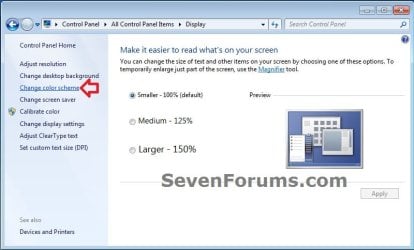
A) Open the Control Panel (icons view), and click on the Display icon.

B) In the left blue pane, click on the Change color scheme link. (see screenshot below)
Starter_Basic-1.jpg
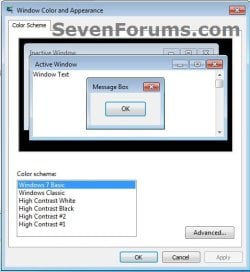
C) Click on the Advanced button. (see screenshot below)
Starter_Basic-2.jpg
D) Go to step 3.
2. If you have Windows 7 Home Premium, Professional, Ultimate, or Enterprise
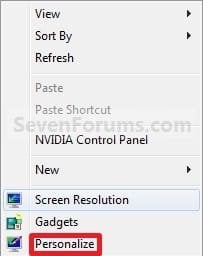
A) Right click on a empty space on the desktop and click on Personalize. (see screenshot below)
Right_Click.jpg
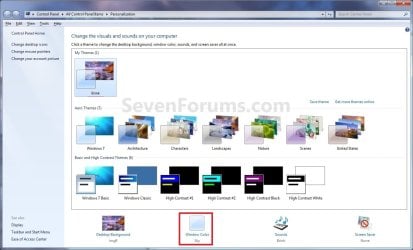
B) Click on the Window Color link at the bottom of the window. (See screenshot below)
Personalize.jpg
C) Click on the Advanced appearance settings link. (See screenshot below)


   Warning

  • If you have selected a Basic and High Contrast Themes, then you will not see the screenshot. Instead, you will see the screenshot below step 4.
  • If you have selected a Aero Themes, then you will see the screenshot. Continue to step 4.
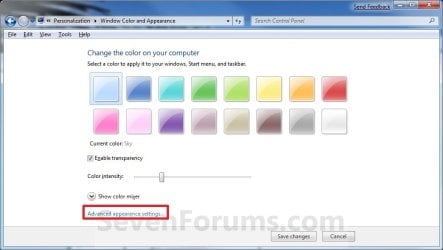
Color_and_Appearance-1.jpg
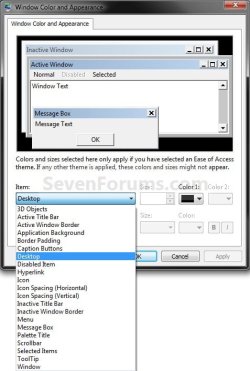
3. Select a Item that you want to change the font for. (see screenshots below)
NOTE: Not all of these items will have a font for them.
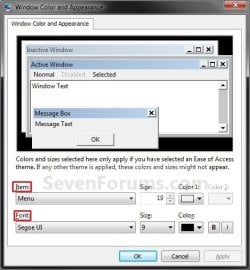
Classic_Color_and_Appearance-2.jpg

Classic_Color_and_Appearance-1.jpg

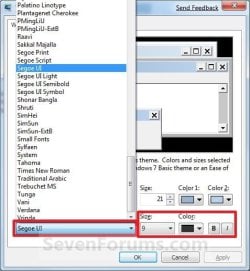
4. To Change the Item Font
A) Click on the Font drop down menu and select a font. (see screenshot below)
Select_Font.jpg
5. To Change the Item Font Size
A) Click on the Size drop down menu and select a number for the size. The higher the number, the larger the size. (see screenshot above)
6. To Change the Item Font Color
A) Click on the Color drop down menu and select a color. (see screenshot below step 4)
7. To Have the Item Font in Bold
A) Click the B button to highlight it. If it is not highlighted, then the font will not be in bold. (see screenshot below step 4)
8. To Have the Item Font in Italic
A) Click on the I button to highlight it. If it is not highlighted, then the font will not be in italic. (see screenshot below step 4)
9. Repeat steps 3 to 8 until you have changed all of the fonts for the select items that you wanted.

10. When done, click on OK. (see screenshots below step 3)

11. Close the Window Color and Appearance window. (see screenshot below step 2B)
NOTE: You will not have this to do if you have a Basic and High Contrast Themes selected.


OPTION TWO

To Change or Restore Default Dialog Box Text and Buttons Fonts


NOTE: This will let you change the default fonts for most of the Windows 7 dialog box text and button text through the registry.
1. To Change the Dialog Box Text and Buttons Fonts
A) Open the Start Menu, type regedit in the search box, and press Enter.

B) If prompted by UAC, then click on Yes.

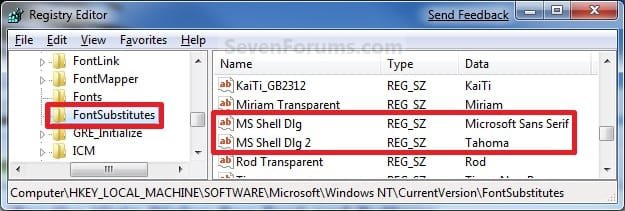
C) In regedit, navigate to the location below (See screenshots below)
NOTE: The default fonts are the ones displayed below.

Code:
HKEY_LOCAL_MACHINE\SOFTWARE\Microsoft\Windows NT\CurrentVersion\FontSubstitutes
Reg.jpg
D) In the right pane, right click on MS Shell Dlg and click on Modify. (See screenshot above)

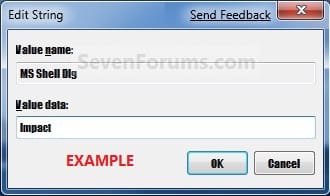
E) Type in the name of the font you want to use and click on OK. (See left screenshot below)
NOTE: You can get the name of the font from the Font Folder Location C:\Windows\Fonts. Right click on the single font and click on Properties to see the file name. For a font group, you will need to open it first to see the single fonts in it. Be sure that you use the exact same font name that is listed. Do not include the Regular part or file extension in the font name. For example, I would type Impact instead of Impact Regular or Impact.ttf.
Modify1.jpg

Modify1B.jpg

F) In the right pane, right click on MS Shell Dlg 2 and click on Modify. (See screenshot below step 1C)

G) Type in the name of the font you want to use and click on OK. (See left screenshot below)
NOTE: You can get the name of the font from the Font Folder Location C:\Windows\Fonts. Be sure that you use the exact same font name that is listed. Do not include the Regular part in the font name. For example, I would type Impact instead of Impact Regular.
Modify2.jpg

Modify2B.jpg

H) Close regedit.

I) Go to step 3.
2. To Restore Default Dialog Box Text and Buttons Fonts
A) Click on the Download button below, and download the file below.
Restore_Default_Dialog_Box_Fonts.reg


Download


B) Save the .reg file to the desktop.

C) Right click the downloaded .reg file, and click on Merge.

D) Click on Run, Yes (UAC), Yes, and OK when prompted.

E) Continue on to step 3.
3. Log off and log on, or restart the computer to apply the font changes.


OPTION THREE

To Change All Default Fonts


NOTE: This will let you change the default fonts used by Windows 7 using the registry.
1. To Change Default Fonts Using a REG File Download
NOTE: This changes the default fonts in Windows 7 to the Tahoma font. You could use this REG file download to make doing step 2 below easier by editing the REG file for the font you want to use instead of Tahoma.
A) Click on the Download button below, and download the file below.
Set_Tahoma_Default_Font.reg


Download


B) Save the .reg file to your desktop.

C) Double click on the downloaded .reg file to merge it.

D) Click on Run, Yes (UAC), Yes, and OK when prompted to approve the merge.

E) Log off and log on, or restart the computer to apply changes.

F) When done, you can delete the downloaded .reg file if you like.
2. To Manually Change Default Fonts by Creating a REG File
NOTE: The REG file in step 1 is the same as in step 2B below. You can use it and just edit the font that you would like to use instead of Tahoma in step below.
A) Open Notepad.

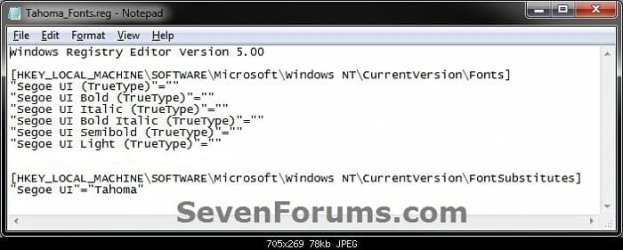
B) Copy and Paste the code below into Notepad.

Code:
Windows Registry Editor Version 5.00
 
[HKEY_LOCAL_MACHINE\SOFTWARE\Microsoft\Windows NT\CurrentVersion\Fonts]
"Segoe UI (TrueType)"=""
"Segoe UI Bold (TrueType)"=""
"Segoe UI Italic (TrueType)"=""
"Segoe UI Bold Italic (TrueType)"=""
"Segoe UI Semibold (TrueType)"=""
"Segoe UI Light (TrueType)"=""
 
[HKEY_LOCAL_MACHINE\SOFTWARE\Microsoft\Windows NT\CurrentVersion\FontSubstitutes]
"Segoe UI"="[B][COLOR=red]Tahoma[/COLOR][/B]"
All-1.jpg
C) In Notepad, edit Tahoma in quotes with the name of the font that you would like to use in instead with it still in quotes. (see screenshot below)
NOTE: You can get the name of the font from the Font Folder Location C:\Windows\Fonts. Be sure that you use the exact same font name that is listed. Do not include the Regular part in the font name. For example, I would type Impact instead of Impact Regular.
All-2.jpg

All-3.jpg

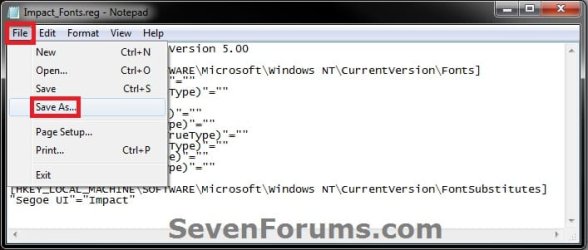
D) In Notepad, click on File (Menu bar) and Save As. (see screenshot below)
All-4.jpg
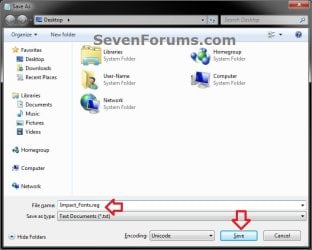
E) Type in a name you would like with a .reg file extension (ex: Impact-Fonts.reg), then click on the Save button. (see screenshot below)
All-5.jpg
D) Double click on the downloaded .reg file to merge it.

E) Click on Run, Yes (UAC), Yes, and OK when prompted to approve the merge.

F) Log off and log on, or restart the computer to apply changes.
3. To Restore the Default Fonts
NOTE: This will ONLY undo all changes that you made using either step 1 or step 2 in OPTION THREE above, and restore the original default fonts used by Windows 7.
A) Click on the Download button below, and download the file below.
Default_Fonts.reg


Download


B) Save the .reg file to your desktop.

C) Double click on the downloaded .reg file to merge it.

D) Click on Run, Yes (UAC), Yes, and OK when prompted to approve the merge.

E) Log off and log on, or restart the computer to apply changes.

F) When done, you can delete the downloaded .reg file if you like.
That's it,
Shawn


Attachments

Last edited:
Ugly fuzzy fonts

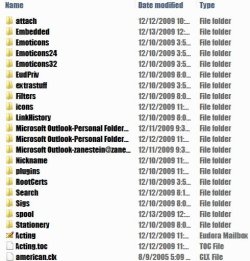
I just can't find a way to change the fonts on certain things.....like file lists, or the addressbar path when I go to a particular file. The same font seems to be used by Eudora to list the names of the mail folders, so it is probably a windows system font.
I've downloaded the latest NVIDIA drivers for Windows 7, and tweaked all the font settings I could find.

I've just uploaded some screenshots to show what I'm talking about.

Can someone please assist?
 

Attachments

  • EudoraFont.jpg
    EudoraFont.jpg
    11.8 KB · Views: 3,147
  • hardtoread.jpg
    hardtoread.jpg
    45.5 KB · Views: 1,098
  • addressbar.jpg
    addressbar.jpg
    8.5 KB · Views: 283

My Computer

Computer Manufacturer/Model Number
Gateway GT5404
OS
Windows 7 Home Premium 64 bit
CPU
Intel Pentium 2.80 GHz 2 Core
Memory
2 Gig
Graphics Card(s)
NVIDIA GeForce 8500 GT
Monitor(s) Displays
Samsung SyncMaster 6Ne
Hard Drives
Master: 250 Gig, 85 Gig free. WDC WD2500 JS-22NCB1
Slave 1: 1 Terrabye, 412 Gig free. WDC WD10EACS-00D6B0
Slave 2: 100 Gig, 95 Gig free. Maxtor 6 L100P0 USB Device
Hello Zanestein, and welcome to Seven Forums.

Other than using some 3rd party skinning program like "Windows Blinds", the only options are the ones in the tutorial on the first page that I know of. :(
 

My Computer

Computer type
PC/Desktop
Computer Manufacturer/Model Number
Self built custom
OS
64-bit Windows 11 Pro for Workstations
CPU
Intel i7-8700K OC'd to 5 GHz
Motherboard
ASUS ROG Maximus XI Formula Z390
Memory
64 GB (4x16GB) G.SKILL TridentZ RGB DDR4 3600 MHz
Graphics Card(s)
ASUS ROG-STRIX-GTX1080TI-O11G-GAMING
Sound Card
Integrated
Monitor(s) Displays
2 x Samsung Odyssey G7 27"
Screen Resolution
2560x1440
Hard Drives
1TB Samsung 990 PRO M.2,
4TB Samsung 990 PRO PRO M.2,
TerraMaster F8 SSD Plus NAS
PSU
Seasonic Prime Titanium 850W
Case
Thermaltake Core P3
Cooling
Corsair Hydro H115i
Keyboard
Logitech wireless K800
Mouse
Logitech MX Master 4
Internet Speed
2 Gb/s Download and 100 Mb/s Upload
Antivirus
Malwarebyte Anti-Malware Premium
Browser
Google Chrome
Other Info
Logitech Z625 speaker system,
Logitech BRIO 4K Pro webcam,
HP Color LaserJet Pro MFP M477fdn,
APC SMART-UPS RT 1000 XL - SURT1000XLI,
Galaxy S23 Plus phone
Hello Zanestein, and welcome to Seven Forums.

Other than using some 3rd party skinning program like "Windows Blinds", the only options are the ones in the tutorial on the first page that I know of. :(

If I knew exactly which font was being called, I could try to find where it was set and change it. Probably another registry entry.
 

My Computer

Computer Manufacturer/Model Number
Gateway GT5404
OS
Windows 7 Home Premium 64 bit
CPU
Intel Pentium 2.80 GHz 2 Core
Memory
2 Gig
Graphics Card(s)
NVIDIA GeForce 8500 GT
Monitor(s) Displays
Samsung SyncMaster 6Ne
Hard Drives
Master: 250 Gig, 85 Gig free. WDC WD2500 JS-22NCB1
Slave 1: 1 Terrabye, 412 Gig free. WDC WD10EACS-00D6B0
Slave 2: 100 Gig, 95 Gig free. Maxtor 6 L100P0 USB Device
stubborn fonts

following option 2 i changed both to arial. and set default to arial too.
still some buttons and fields showed font called mingliu:
-on startup when asking to log in
-programs like notebook, ff ...

so in regedit-fonts i changed the data of that font to arial. and now arial pretends to be mingliu.
It worked, i have arial everywhere now. but I think it might slow things down when i have it set up like that.
i would like to know why the system is using mingliu and where to change it.

thanks
 
Last edited:

My Computer

OS
w 7
Hello Sodance, and welcome to Seven Forums.

Yeah, unfortunately not all of the fonts can be changed without using a 3rd party skinning program (ex: WindowsBlind). A program will usually always use it's own set of fonts instead. :(
 

My Computer

Computer type
PC/Desktop
Computer Manufacturer/Model Number
Self built custom
OS
64-bit Windows 11 Pro for Workstations
CPU
Intel i7-8700K OC'd to 5 GHz
Motherboard
ASUS ROG Maximus XI Formula Z390
Memory
64 GB (4x16GB) G.SKILL TridentZ RGB DDR4 3600 MHz
Graphics Card(s)
ASUS ROG-STRIX-GTX1080TI-O11G-GAMING
Sound Card
Integrated
Monitor(s) Displays
2 x Samsung Odyssey G7 27"
Screen Resolution
2560x1440
Hard Drives
1TB Samsung 990 PRO M.2,
4TB Samsung 990 PRO PRO M.2,
TerraMaster F8 SSD Plus NAS
PSU
Seasonic Prime Titanium 850W
Case
Thermaltake Core P3
Cooling
Corsair Hydro H115i
Keyboard
Logitech wireless K800
Mouse
Logitech MX Master 4
Internet Speed
2 Gb/s Download and 100 Mb/s Upload
Antivirus
Malwarebyte Anti-Malware Premium
Browser
Google Chrome
Other Info
Logitech Z625 speaker system,
Logitech BRIO 4K Pro webcam,
HP Color LaserJet Pro MFP M477fdn,
APC SMART-UPS RT 1000 XL - SURT1000XLI,
Galaxy S23 Plus phone
Hello Shawn, is it also possible to change the User Logon Fonts ?
 
Last edited:

My Computer

OS
Windows 7 Home Premium SP1 64-bit
CPU
Intel™ Core™ i7 920 2.66 ghz
Motherboard
Asus P6T Deluxe V2
Memory
OCZ 6gb (triple 2gb) ddr3-1333 (Gold Edition)
Graphics Card(s)
Nvidia 9800 GT 1GB - x2 SLI
Sound Card
On board
Monitor(s) Displays
19" LCD Wide Screen / Built-in TV Tuner
Screen Resolution
1440x900
Hard Drives
250 GB Maxtor
+
1 TB Seagate
PSU
Corsair GX 800 (800watts)
Case
Thermaltake Level 10 GT
Cooling
Antec Kuhler 920
Mouse
CM Storm Sentinel Advanced
Internet Speed
1MBps

My Computer

Computer type
PC/Desktop
Computer Manufacturer/Model Number
Self built custom
OS
64-bit Windows 11 Pro for Workstations
CPU
Intel i7-8700K OC'd to 5 GHz
Motherboard
ASUS ROG Maximus XI Formula Z390
Memory
64 GB (4x16GB) G.SKILL TridentZ RGB DDR4 3600 MHz
Graphics Card(s)
ASUS ROG-STRIX-GTX1080TI-O11G-GAMING
Sound Card
Integrated
Monitor(s) Displays
2 x Samsung Odyssey G7 27"
Screen Resolution
2560x1440
Hard Drives
1TB Samsung 990 PRO M.2,
4TB Samsung 990 PRO PRO M.2,
TerraMaster F8 SSD Plus NAS
PSU
Seasonic Prime Titanium 850W
Case
Thermaltake Core P3
Cooling
Corsair Hydro H115i
Keyboard
Logitech wireless K800
Mouse
Logitech MX Master 4
Internet Speed
2 Gb/s Download and 100 Mb/s Upload
Antivirus
Malwarebyte Anti-Malware Premium
Browser
Google Chrome
Other Info
Logitech Z625 speaker system,
Logitech BRIO 4K Pro webcam,
HP Color LaserJet Pro MFP M477fdn,
APC SMART-UPS RT 1000 XL - SURT1000XLI,
Galaxy S23 Plus phone
I managed to find a registry hack that will change all the fonts everywhere in Windows 7, including the logon screen, system information etc etc. Essentially it redirects Windows to the font file you specify when it's looking for MS Sans Serif, or Segoe UI for example. Thanks to Chris Pirillo of chris.pirillo.com.
In the folowing example I used Constantia but you can choose any font you want.
Important: in the [HKEY_LOCAL_MACHINE\SOFTWARE\Microsoft\Windows NT\CurrentVersion\Fonts] part, make sure you have the actual filename of the font. You can find it by opening the font folder, double clicking the font you want, and then right click on the font and selecting "Properties". Bold, Italics etc all have slightly different names so make sure you get them right. I would recommend creating a restore point before doing this, just in case.
Copy and paste the following into notebook, change the Constantia, constan.ttf, constanb.ttf etc etc to whatever you want, save as a .reg file and voila!
Code:
Windows Registry Editor Version 5.00

[HKEY_LOCAL_MACHINE\SOFTWARE\Microsoft\Windows NT\CurrentVersion\FontSubstitutes]
"MS Shell Dlg 2"="Constantia"
"MS Shell Dlg"="Constantia"
"MS Sans Serif 8,10,12,14,18,24"="Constantia"
"MS Serif 8,10,12,14,18,24"="Constantia"
"MS Sans Serif"="Constantia"
"System"="Constantia"
"Microsoft Sans Serif"="Constantia"
"Tahoma"="Constantia"
"MS Serif"="Constantia"
"Arial"="Constantia"
"Segoe UI"="Constantia"
"Times New Roman"="Constantia"
"Times"="Constantia"
"Small Fonts"="Constantia"
"Tms Rmn"="Constantia"


[HKEY_LOCAL_MACHINE\SOFTWARE\Microsoft\Windows NT\CurrentVersion\Fonts]
"Arial (TrueType)"="constan.ttf"
"Arial Italic (TrueType)"="constani.ttf"
"Arial Bold (TrueType)"="constanb.ttf"
"Arial Bold Italic (TrueType)"="constanz.ttf"
"Times New Roman (TrueType)"="constan.ttf"
"Times New Roman Italic (TrueType)"="constani.ttf"
"Times New Roman Bold (TrueType)"="constanb.ttf"
"Times New Roman Bold Italic (TrueType)"="constanz.ttf"
"Tahoma (TrueType)"="constan.ttf"
"Tahoma Bold (TrueType)"="constanb.ttf"
"Segoe UI (TrueType)"="constan.ttf"
"Segoe UI Bold (TrueType)"="constanb.ttf"
"Segoe UI Italic (TrueType)"="constani.ttf"
"Segoe UI Bold Italic (TrueType)"="constanz.ttf"

[HKEY_CLASSES_ROOT\Local Settings\Software\Microsoft\Windows\Shell\MuiCache]
"@themeui.dll,-2037"="{Constantia, 8 pt}"
"@themeui.dll,-2038"="{Constantia, 8 pt}"
"@themeui.dll,-2039"="{Constantia, 8 pt}"
"@themeui.dll,-2040"="{Constantia, 8 pt}"
"@themeui.dll,-2041"="{Constantia, 8 pt}"
"@themeui.dll,-2042"="{Constantia, 8 pt}"

[HKEY_LOCAL_MACHINE\SOFTWARE\Microsoft\Windows NT\CurrentVersion\FontMapper\FamilyDefaults]
"Swiss"="Constantia"
"Roman"="Constantia"
Cheers!

EDIT:I should point out that this will also change the fonts in some, but not all, programs.
 
Last edited:

My Computer

OS
windows 7 ultimate
Hello
How to free download Arial font in Windows 7
 

My Computer

OS
Windows 7

Attachments

My Computer

Computer type
PC/Desktop
Computer Manufacturer/Model Number
Self built custom
OS
64-bit Windows 11 Pro for Workstations
CPU
Intel i7-8700K OC'd to 5 GHz
Motherboard
ASUS ROG Maximus XI Formula Z390
Memory
64 GB (4x16GB) G.SKILL TridentZ RGB DDR4 3600 MHz
Graphics Card(s)
ASUS ROG-STRIX-GTX1080TI-O11G-GAMING
Sound Card
Integrated
Monitor(s) Displays
2 x Samsung Odyssey G7 27"
Screen Resolution
2560x1440
Hard Drives
1TB Samsung 990 PRO M.2,
4TB Samsung 990 PRO PRO M.2,
TerraMaster F8 SSD Plus NAS
PSU
Seasonic Prime Titanium 850W
Case
Thermaltake Core P3
Cooling
Corsair Hydro H115i
Keyboard
Logitech wireless K800
Mouse
Logitech MX Master 4
Internet Speed
2 Gb/s Download and 100 Mb/s Upload
Antivirus
Malwarebyte Anti-Malware Premium
Browser
Google Chrome
Other Info
Logitech Z625 speaker system,
Logitech BRIO 4K Pro webcam,
HP Color LaserJet Pro MFP M477fdn,
APC SMART-UPS RT 1000 XL - SURT1000XLI,
Galaxy S23 Plus phone
This tip worked great to change my font to Verdana, but I am only able to change some font sizes (through Window Color and Appearance). I was able to get mostly every thing I want to be font size 7, but some things still stick at the default.

The taskbar clock (even though I have it set to use small icons) and some menus and dialogs are showing up in a larger font.

Here are some screen shots:

The fonts in green are perfect, Verdana size 7. The fonts in yellow are also Verdana, but a much larger font.
Font1.png


Here is the clock showing the date, which it shouldn't in "Use Small Icons" mode.
Font2.png


I had Win7 Ultimate 32bit before this (installed 64bit to make use of more RAM and Photoshop CS5 enhancements) and I had no issues with these strange font size problems.

Any ideas?
 

My Computer

OS
Windows 7 Ultimate 64bit
Hello LiquidKernal, and welcome to Seven Forums.

Unfortunately, the size you set for the taskbar icons have no affect on the font size on the taskbar. You'll need to go back through the changes you made in font sizes through Window Color and Appearance to adjust the one for the taskbar back. You can look under step 8 at this link below for the default Advanced Appearance settings to help determine what you have changed.

Window Color and Appearance - Change

Hope this helps,
Shawn
 

My Computer

Computer type
PC/Desktop
Computer Manufacturer/Model Number
Self built custom
OS
64-bit Windows 11 Pro for Workstations
CPU
Intel i7-8700K OC'd to 5 GHz
Motherboard
ASUS ROG Maximus XI Formula Z390
Memory
64 GB (4x16GB) G.SKILL TridentZ RGB DDR4 3600 MHz
Graphics Card(s)
ASUS ROG-STRIX-GTX1080TI-O11G-GAMING
Sound Card
Integrated
Monitor(s) Displays
2 x Samsung Odyssey G7 27"
Screen Resolution
2560x1440
Hard Drives
1TB Samsung 990 PRO M.2,
4TB Samsung 990 PRO PRO M.2,
TerraMaster F8 SSD Plus NAS
PSU
Seasonic Prime Titanium 850W
Case
Thermaltake Core P3
Cooling
Corsair Hydro H115i
Keyboard
Logitech wireless K800
Mouse
Logitech MX Master 4
Internet Speed
2 Gb/s Download and 100 Mb/s Upload
Antivirus
Malwarebyte Anti-Malware Premium
Browser
Google Chrome
Other Info
Logitech Z625 speaker system,
Logitech BRIO 4K Pro webcam,
HP Color LaserJet Pro MFP M477fdn,
APC SMART-UPS RT 1000 XL - SURT1000XLI,
Galaxy S23 Plus phone
Shawn,

Thanks for the reply and the welcome. Unfortunately I have already tried setting every option under Window Color and Appearance to font size 7 and there is no option of changing the font size for items on the task bar.

I've read that the only way you can change font sizes on the taskbar is to edit the .msstyles theme. Hoping that's not the only solution :)
 

My Computer

OS
Windows 7 Ultimate 64bit
Other than trying a different font that is smaller by default, I do not know of any other way either. :(
 

My Computer

Computer type
PC/Desktop
Computer Manufacturer/Model Number
Self built custom
OS
64-bit Windows 11 Pro for Workstations
CPU
Intel i7-8700K OC'd to 5 GHz
Motherboard
ASUS ROG Maximus XI Formula Z390
Memory
64 GB (4x16GB) G.SKILL TridentZ RGB DDR4 3600 MHz
Graphics Card(s)
ASUS ROG-STRIX-GTX1080TI-O11G-GAMING
Sound Card
Integrated
Monitor(s) Displays
2 x Samsung Odyssey G7 27"
Screen Resolution
2560x1440
Hard Drives
1TB Samsung 990 PRO M.2,
4TB Samsung 990 PRO PRO M.2,
TerraMaster F8 SSD Plus NAS
PSU
Seasonic Prime Titanium 850W
Case
Thermaltake Core P3
Cooling
Corsair Hydro H115i
Keyboard
Logitech wireless K800
Mouse
Logitech MX Master 4
Internet Speed
2 Gb/s Download and 100 Mb/s Upload
Antivirus
Malwarebyte Anti-Malware Premium
Browser
Google Chrome
Other Info
Logitech Z625 speaker system,
Logitech BRIO 4K Pro webcam,
HP Color LaserJet Pro MFP M477fdn,
APC SMART-UPS RT 1000 XL - SURT1000XLI,
Galaxy S23 Plus phone
Got it working by undoing the registry changes and just setting the font type and size from Window Color and Appearance.
 

My Computer

OS
Windows 7 Ultimate 64bit
I'm happy to hear that you got it sorted LiquidKernal. :)
 

My Computer

Computer type
PC/Desktop
Computer Manufacturer/Model Number
Self built custom
OS
64-bit Windows 11 Pro for Workstations
CPU
Intel i7-8700K OC'd to 5 GHz
Motherboard
ASUS ROG Maximus XI Formula Z390
Memory
64 GB (4x16GB) G.SKILL TridentZ RGB DDR4 3600 MHz
Graphics Card(s)
ASUS ROG-STRIX-GTX1080TI-O11G-GAMING
Sound Card
Integrated
Monitor(s) Displays
2 x Samsung Odyssey G7 27"
Screen Resolution
2560x1440
Hard Drives
1TB Samsung 990 PRO M.2,
4TB Samsung 990 PRO PRO M.2,
TerraMaster F8 SSD Plus NAS
PSU
Seasonic Prime Titanium 850W
Case
Thermaltake Core P3
Cooling
Corsair Hydro H115i
Keyboard
Logitech wireless K800
Mouse
Logitech MX Master 4
Internet Speed
2 Gb/s Download and 100 Mb/s Upload
Antivirus
Malwarebyte Anti-Malware Premium
Browser
Google Chrome
Other Info
Logitech Z625 speaker system,
Logitech BRIO 4K Pro webcam,
HP Color LaserJet Pro MFP M477fdn,
APC SMART-UPS RT 1000 XL - SURT1000XLI,
Galaxy S23 Plus phone
By using this method in notepad:

Code:
Windows Registry Editor Version 5.00
 
[HKEY_LOCAL_MACHINE\SOFTWARE\Microsoft\Windows NT\CurrentVersion\Fonts]
"Segoe UI (TrueType)"=""
"Segoe UI Bold (TrueType)"=""
"Segoe UI Italic (TrueType)"=""
"Segoe UI Bold Italic (TrueType)"=""
"Segoe UI Semibold (TrueType)"=""
"Segoe UI Light (TrueType)"=""
"Segoe UI Symbol (TrueType)"=""
 
[HKEY_LOCAL_MACHINE\SOFTWARE\Microsoft\Windows NT\CurrentVersion\FontSubstitutes]
"Segoe UI"="Tahoma"

How do I choose for example Tahoma bold?
And is there a way to change all the font sizes to make it more readable if I choose a font that is small by default? (i.e. terminal).
 

My Computer

Computer Manufacturer/Model Number
Dell XPS M1530
OS
Windows 7 Ultimate x64
CPU
Intel Core Duo T7500 @ 2.20 GHz
Memory
4 GB
Graphics Card(s)
GeForce 8400m GS
Hello Edmon,

You would use this for the Tahoma Bold font. :)


Code:
Windows Registry Editor Version 5.00
 
[HKEY_LOCAL_MACHINE\SOFTWARE\Microsoft\Windows NT\CurrentVersion\Fonts]
"Segoe UI (TrueType)"=""
"Segoe UI Bold (TrueType)"=""
"Segoe UI Italic (TrueType)"=""
"Segoe UI Bold Italic (TrueType)"=""
"Segoe UI Semibold (TrueType)"=""
"Segoe UI Light (TrueType)"=""
"Segoe UI Symbol (TrueType)"=""
 
[HKEY_LOCAL_MACHINE\SOFTWARE\Microsoft\Windows NT\CurrentVersion\FontSubstitutes]
"Segoe UI"="tahomabd"
 

My Computer

Computer type
PC/Desktop
Computer Manufacturer/Model Number
Self built custom
OS
64-bit Windows 11 Pro for Workstations
CPU
Intel i7-8700K OC'd to 5 GHz
Motherboard
ASUS ROG Maximus XI Formula Z390
Memory
64 GB (4x16GB) G.SKILL TridentZ RGB DDR4 3600 MHz
Graphics Card(s)
ASUS ROG-STRIX-GTX1080TI-O11G-GAMING
Sound Card
Integrated
Monitor(s) Displays
2 x Samsung Odyssey G7 27"
Screen Resolution
2560x1440
Hard Drives
1TB Samsung 990 PRO M.2,
4TB Samsung 990 PRO PRO M.2,
TerraMaster F8 SSD Plus NAS
PSU
Seasonic Prime Titanium 850W
Case
Thermaltake Core P3
Cooling
Corsair Hydro H115i
Keyboard
Logitech wireless K800
Mouse
Logitech MX Master 4
Internet Speed
2 Gb/s Download and 100 Mb/s Upload
Antivirus
Malwarebyte Anti-Malware Premium
Browser
Google Chrome
Other Info
Logitech Z625 speaker system,
Logitech BRIO 4K Pro webcam,
HP Color LaserJet Pro MFP M477fdn,
APC SMART-UPS RT 1000 XL - SURT1000XLI,
Galaxy S23 Plus phone
Hello Edmon,

You would use this for the Tahoma Bold font. :)


Code:
Windows Registry Editor Version 5.00
 
[HKEY_LOCAL_MACHINE\SOFTWARE\Microsoft\Windows NT\CurrentVersion\Fonts]
"Segoe UI (TrueType)"=""
"Segoe UI Bold (TrueType)"=""
"Segoe UI Italic (TrueType)"=""
"Segoe UI Bold Italic (TrueType)"=""
"Segoe UI Semibold (TrueType)"=""
"Segoe UI Light (TrueType)"=""
"Segoe UI Symbol (TrueType)"=""
 
[HKEY_LOCAL_MACHINE\SOFTWARE\Microsoft\Windows NT\CurrentVersion\FontSubstitutes]
"Segoe UI"="tahomabd"

Lol.. OK.. Since you wouldn't put "Regular" just wondering if you would put bold or some other value.

Is there a way to change all font sizes within this reg file? Orr is the only way to do it one by one through the Appearance settings?
 

My Computer

Computer Manufacturer/Model Number
Dell XPS M1530
OS
Windows 7 Ultimate x64
CPU
Intel Core Duo T7500 @ 2.20 GHz
Memory
4 GB
Graphics Card(s)
GeForce 8400m GS
Back
Top