MoveIt 1.2.5.5
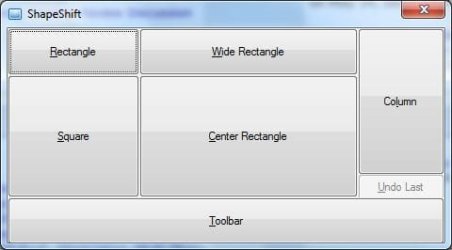
MoveIt 1.0.4.0 is yet another window mover/sizer Hotkey. I wrote this after Shape Shift. It's more for power users. It shares many hotkeys. Use of both apps at the same time is not a good idea.

What makes MoveIt more fun is the ability to size and position a window yourself, then assign that to one of the position keys. In other words, it comes with a set of default positions for each hotkey letter, but you can size and move any sizeable window and use the 'z' key to save the numbers to the .ini file. The custom sizing does not compensate for screen resolutions. It just writes and reads the raw numbers and sizes the window accordingly. It's best for people who always use the same screen resolution and work area.
Why use it? Ok, here's a scenario. I don't like to run editors maximized. But I do like them to be sized as a large rectangle near center screen, but not exactly. I like the bottom to be a bit closer to the Taskbar than vertical center would put it. So once I size and position my window how I like for editors, I hit the hotkey, then press the 'z' key. An input pops up asking me what position letter to custom save to. I pick 'c' for Center.
Now, once I have that, I can hotkey on any open editor(or other sizeable window,) press 'c' and it will snap to that size and position. It's very simple. But it lets you assign your own wndow positions and sizes just by using a window, such as Notepad or a browser window. Once you have it perfect, hotkey-z it and save it. No complicated grids, window drag monitors etc.. (although they are fine they are different in approach) just something extremely simple and easy to use.
It's free for you to use at your own risk. Single monitor support only though.
Navigate to this page and search on MoveIt:
Hotkeys
edit: Updated to v
1.0.6.0 Added h and v keys to center active window horizontally or vertically without sizing. Changed Custom Size feature to use percentages of the work area. If values read from .ini file are integers, meaning they were saved by 1.0.5.0 or earlier, they will be processed the same. Otherwise if the values are floating point, they'll be multiplied by the work area dimension to get the placement/size info. The idea is the window should snap close to the same relative position and size with different screen resolutions, provided the work areas are proportionate. (If you are letting the system set the work area then you shouldn't have to do anything special. Just change screen res. If you adjust the work area manually then remember to make an adjustment after changing the screen res.)
edit: Upadated to v
1.1.1.0 Added feature to hold down Alt while releasing mouse from an Explorer Window drag, to snap the window to the quadrant. See About Box and Readme.txt for details.
edit: Updated to v
1.1.6.0 Added a feature to Stagger open Explorer Windows. The currently open Explorer windows will be placed and sized according to the number open. For example if you have 4 open you get one in each screen quadrant. If 5, they are staggered from top left diagonally right and down.. more than 10, cascaded in 2 columns etc..
edit: Updated to v
1.1.8.6 Added Control Shift e hotkey to position open Explorer windows to various patterns depending on the number of windows open. The Explorer windows are sorted according to path/title first.
edit: Updated to
1.2.1.0 New features include Snap to Quadrant. Position without sizing to one of 9 positions. Arrow hotkey changed to Win-Alt-Arrow move in one dimension. Contol-Win-Arrow to move by a smaller increment. (Hotkeys changed to avoid conflict with common hotkeys.)
edit: Latest release
1.2.5.5 Some bug fixes. Added hotkey to close all Explorer Windows.
Latest AHK_L source included in zip file.
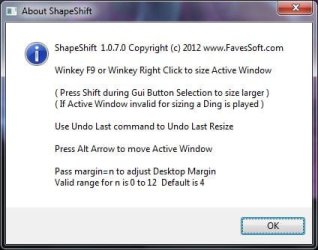
See About Box for list of hotkeys.







 , Check My Specs is an excellent little tool to get complete system specs.