
Hide or Unhide Games in Games Explorer Folder in Vista, Windows 7, and Windows 8
Information
This tutorial will show you how to unhide all games or hide specific games from being displayed in the Games explorer folder in Vista, Windows 7, and Windows 8.
Note
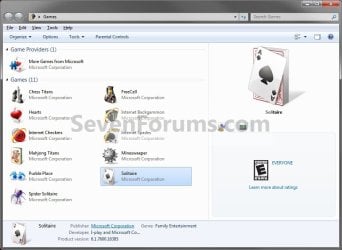
The Games folder is central repository for games on your computer that also offers game updates, statistics, news feeds, WEI requirements, and more.
For more information about the Games Explorer folder, see: Explore the features: Games Explorer
For more information about the Games Explorer folder, see: Explore the features: Games Explorer
Tip
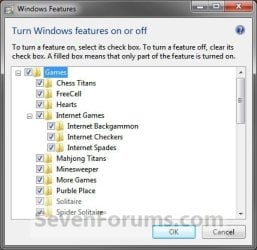
You will need to have the default game checked in Windows Features before it will be displayed in the Games folder. By default they are checked. This does not apply to installed 3rd party games.
EXAMPLE: Games explorer folder
Here's How:
1. Open the hidden Games folder at the location below, and do step 2 or 3 below.
C:\ProgramData\Microsoft\Windows\Start Menu\Programs\Games
2. To Hide a Game in Games Explorer
A) Right click on a game (ex: FreeCell), and click on Hide This Game. (See screenshot below)

B) The game will now no longer be displayed in the Game Folder. (See screenshot below)

C) Repeat this step for any other game you want to hide. When done, go to step 4.
3. To Unhide All Hidden Games in Games Explorer
NOTE: Sorry, but there is not an option to unhide just a specific game. You will have to rehide the ones that you still want hidden afterwards.
A) Click on the Options toolbar button, and click/tap on the Unhide All Items button and on OK. (See screenshot below)

B) All hidden games (ex: FreeCell) will now be displayed in the Games folder again. (See screenshot below)

4. When done, close the Games folder.
That's it,
Shawn
Related Tutorials
- How to Delete a Game in Games Explorer Folder in Vista, Windows 7, and Windows 8
- How to Add Games to Games Explorer Folder in Vista, Windows 7, and Windows 8
- How to Create a "Games Explorer" Shortcut in Vista, Windows 7, and Windows 8
- How to Restore the Default Games in Games Explorer Folder in Windows 7
- How to Customize the Windows 7 Games Explorer Context Menu
- Games Explorer - Edit with Game Explorer Builder
- Enable or Disable Game Updates in "Games Explorer" in Vista, Windows 7, and Windows 8
- Enable or Disable Last Play Time of Games in "Games Explorer" in Vista, Windows 7, and Windows 8
- Enable or Disable Game Updates in Windows 7 and Vista "Games Explorer" in Vista, Windows 7, and Windows 8
Last edited:
