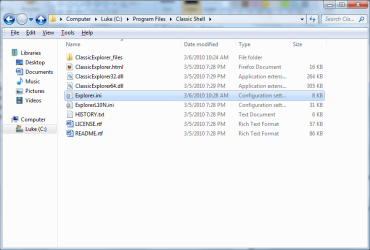
; This file contains the extra customization options that don't fit in the Settings box. Before changing any of them read the
; description carefully.
; Lines in this file that start with ; (semicolon) are ignored. Initially all settings have ; in front of them, which disables them.
; Remove the semicolon before setting the value.
;
; Note: After modifying this file you have to open a new Explorer window to use the new settings.
; Another Note: Unlike the regular settings, which are per user, the settings in this file affect all users.
;
; =============================================================================


; EnableSettings - set to 0 to remove access to the Classic Explorer settings. Default is 1
;EnableSettings=1

; SmallIconSize - the size of the toolbar icons in pixels. By default it is 16 for DPI<120 and 24 for DPI>=120
;SmallIconSize=16

; LargeIconSize - Same as above, but for "Big Buttons". By default it is 24 for DPI<120 and 32 for DPI>=120
;LargeIconSize=24

; ForceRefreshWin7 - This is a workaround for a bug in Explorer for Windows 7. Sometimes when a new Explorer window is opened the status bar
; is blank. Setting this parameter to 1 will force the Explorer window to refresh itself after it is open for fix the status text.
; Set to 0 to disable if you notice a slowdown when opening a new Explorer. Default is 1
;ForceRefreshWin7=1

; FixFolderScroll - This is a workaround for a bug in Explorer for Windows 7. If you select a folder in the navigation pane and then expand it,
; the navigation pane will scroll up instead of down.
; Set to 0 to disable this fix if you notice problems with the scrolling of the navigation pane. Default is 1
;FixFolderScroll=1

; FixSearchResize - This is a workaround for a bug in Explorer for Windows 7. When the Up button in the title bar is enabled, it breaks the
; resizing of the Search box of Explorer. This is because the Search becomes the 4th item instead of the 3rd.
; Set to 0 to disable this fix if it gives you trouble. Default is 1 for Windows 7 and 0 for Vista
;FixSearchResize=1

; Search - Set this to "none" to hide the search box in Explorer. Default is blank, which leaves the search box alone
;Search=none

; ToolbarSameSize - When set to 1 all toolbar buttons are the same size, determined by the widest button. Set to 0 to make each button calculate its
; own size depending on its text. This setting is only used when ToolbarListMode=0. Default is 0
;ToolbarSameSize=0

; ToolbarListMode - When set to 1 the toolbar is in list mode. The button text shows next to the icon instead of under the icon. Default is 0
;ToolbarListMode=0

; UpIconNormal, UpIconHot, UpIconPressed, UpIconDisabled - use these to provide custom icons for the Up button in the title bar
; There is one icon for each state - normal, hot (when the mouse is over the button), pressed, and disabled
;UpIconNormal=shell32.dll,46
;UpIconHot=
;UpIconPressed=
;UpIconDisabled=

; UpIconSize - the size of the Up button in the title bar. By default it is 30 for DPI<120 and 36 for DPI>=120
;UpIconSize=30

; =============================================================================
; The rest of this file is used to customize the layout of the Explorer toolbar
;
; Use the ToolbarItems property to describe what buttons you want to have in the toolbar. The format is: item1, item2, item3, ...
; By default ToolbarItems is disabled by the semicolon in front of it. Remove the semicolon before customizing your toolbar.

; Every item must be described later in this file. For every item you must set the command (what it does), the tooltip, the name, and the icon.
; Use SEPARATOR to insert separators between items
;
; The possible commands are:
;   up - go up one folder
;   cut, copy, paste, delete - guess what they do
;   properties - shows the properties of the selection
;   email - emails the selected files
;   settings - shows the Classic Explorer settings
;   moveto, copyto - move or copy the selection to another folder
;   undo - reverts the last file operation
;   redo - repeats the undone operation
;   selectall - selects all items in the current folder
;   invertselection - reverses which items are selected and which are not
;   back, forward - go to the previous or next visited folder
;   refresh - refreshes the Explorer window
; It is also possible to provide a custom executable string. The string can contain environment variables like %windir%. %1 is replaced by the path to
; the current folder. %2 is replaced by the path to the currently selected file (only when a single file is selected). Examples:
;   %windir%\notepad.exe %2
;   http://www.google.com
;   cmd /k pushd %1
;
; The tip can be either a full string (like "Copy To Folder"), or a localized item from ExplorerL10N.ini prefixed with $ (like "$Toolbar.Cut")
;
; The name is optional. When a name text is given, it will appear under the icon of the button. The name can be a full string or a localized item,
; just like the tip text.
;
; The icon can be specified in 2 ways:
;   "resource file,icon ID". For example "%windir%\notepad.exe,2". Do not include the quotes and do not leave space between the file name and the comma.
;   "icon file". For example "C:\Program Files\Mozilla Thunderbird\Email.ico"
; Both formats support environment variables for the file name.
; Use .Icon to set the normal icon and .IconDisabled to set the disabled icon (for buttons like Up, Back and Forward). When the disabled icon is not set
; the normal icon is converted to grayscale.
; Set .Icon=NONE to get no icon on the button (useful for text-only buttons)
;
; NOTE TO DEVELOPERS:
; Buttons for custom commands can be checked or disabled. The toolbar checks the registry key HKCU\Software\IvoSoft\ClassicExplorer for a DWORD value
; with the name of the button (the name used in ToolbarItems). 0 means normal, 1 is disabled and 2 is checked. The toolbar reads the registry keys
; on startup. To force the buttons to update their state after that you need to find all Explorer windows, locate the child window with class
; "ClassicShell.CBandWindow", and send it (or post) a message WM_CLEAR. This is useful if you are developing a custom exe to be used by the toolbar.

;ToolbarItems=UpItem, CutItem, CopyItem, PasteItem, DeleteItem, PropertiesItem, EmailItem, SEPARATOR, SettingsItem

; All toolbar items described here will be ignored until the ToolbarItems property is enabled
UpItem.Command=up
UpItem.Tip=$Toolbar.GoUp
UpItem.Name=Up
UpItem.Icon=shell32.dll,46

CutItem.Command=cut
CutItem.Tip=$Toolbar.Cut
CutItem.Name=Cut
CutItem.Icon=shell32.dll,16762

CopyItem.Command=copy
CopyItem.Tip=$Toolbar.Copy
CopyItem.Name=Copy
CopyItem.Icon=shell32.dll,243

PasteItem.Command=paste
PasteItem.Tip=$Toolbar.Paste
PasteItem.Name=Paste
PasteItem.Icon=shell32.dll,16763

DeleteItem.Command=delete
DeleteItem.Tip=$Toolbar.Delete
DeleteItem.Name=Delete
DeleteItem.Icon=shell32.dll,240

PropertiesItem.Command=properties
PropertiesItem.Tip=$Toolbar.Properties
PropertiesItem.Name=Properties
PropertiesItem.Icon=shell32.dll,253

EmailItem.Command=email
EmailItem.Tip=$Toolbar.Email
EmailItem.Name=E-mail
EmailItem.Icon=shell32.dll,265

SettingsItem.Command=settings
SettingsItem.Tip=$Toolbar.Settings
SettingsItem.Name=Settings
; when the resource file is missing, the ClassicExplorer.dll is used instead. The Classic Shell logo icon has ID=1
SettingsItem.Icon=,1



 . Please let me know when the new release is ready.