Getting your Nikon Coolscan to work on W7 x64

Hello Forum,

First of all Thank you all for your valuable contributions to this thread. I have a Nikon Super CoolScan 4000ED and followed Sygnus' steps to the tee - I could make my Win 7 64 bit [newly upgraded my Lenovo T400 from Win XP 32 bit to this setup] recognise the scanner and even show me a preview of the negatives. However the moment I attempted to scan, Nikon Scan reported a hardware error and since then it is refusing to recognise that any scanner is connected to the machine. Any ideas on what could be amiss here?

Some more info -

a. The regular thumbnail view was not coming up - only frame numbers were visible but it was possible to get a preview by selecting the desired frame number and clicking "Preview" button.

b. The Tools palette window refused to come up

Thanks in advance.

Regards,
Deb
 

My Computer My Computer

At a glance

Windows 7 64 bit
OS
Windows 7 64 bit

My Computer My Computer

At a glance

Windows 10 ProIntel Core i7-4770K (3.5Ghz)32 gig Corsair Dominator Platinum (4x8Gig)Sapphire Tri-X R9 Fury
Computer type
PC/Desktop
Computer Manufacturer/Model Number
Custom built by me.
OS
Windows 10 Pro
CPU
Intel Core i7-4770K (3.5Ghz)
Motherboard
Gigabyte G1 Sniper 5 (F10 Bios)
Memory
32 gig Corsair Dominator Platinum (4x8Gig)
Graphics Card(s)
Sapphire Tri-X R9 Fury
Sound Card
Soundblaster ZXR
Monitor(s) Displays
NEC PA242W 24" LCD Monitor
Screen Resolution
1920 x 1200
Hard Drives
Primary - Samsung 850 Pro (512gig), Samsung 840 Pro (256gig), 2TB WD Caviar Black.
PSU
EVGA Supernova 1000 G2
Case
Cooler Master HAF X
Cooling
Corsair H100i with Corsair Air Series SP120 Quiet Fans
Keyboard
Logitech Wireless Wave
Mouse
Logitech Performance MX
Internet Speed
High Speed Cable
Antivirus
Norton Security
Browser
IE11
Other Info
Memory Timings - 1866MHz @ 9-9-9-27-1T @ 1.5 volts
Thanks Sygnus for the links.. I did follow those instructions and as I stated the installation till getting the preview was a breeze. The scanner + the cable is just fine and the 1394 card is the one which is built into the motherboard. Also this unit has the latest firmware 1.1.

I was using this same hardware till last week with XP. But had to upgrade the OS to Win 7 for some unforeseen circumstances. My other laptop still has XP and the scanner works with it perfectly. I can use that laptop as a scanning station but my workflow would be simplified if I work from the same machine.

Any thoughts / pointers?

Regards,
Deb
 

My Computer My Computer

At a glance

Windows 7 64 bit
OS
Windows 7 64 bit
I'm not sure what's going on. I have a 4000ED as well and it works fine. Can you post a screen shot of your device manager? Here's mine..... notice the red dots.


Also you aren't trying to use the twain drivers are you? You have to do your scans directly through the Nikon Scan software, not Windows, not Photoshop.

And when I say there are no WIA support I mean for our Nikon Scanners. Windows 7 does use WIA it just doesn't support our scanners. Blame Nikon for that since they refuse to provide drivers for Windows 7 - thus the hack drivers provided here.

See this post - http://www.sevenforums.com/drivers/44994-getting-your-nikon-coolscan-work-w7-x64-27.html#post1254562
 

My Computer My Computer

At a glance

Windows 10 ProIntel Core i7-4770K (3.5Ghz)32 gig Corsair Dominator Platinum (4x8Gig)Sapphire Tri-X R9 Fury
Computer type
PC/Desktop
Computer Manufacturer/Model Number
Custom built by me.
OS
Windows 10 Pro
CPU
Intel Core i7-4770K (3.5Ghz)
Motherboard
Gigabyte G1 Sniper 5 (F10 Bios)
Memory
32 gig Corsair Dominator Platinum (4x8Gig)
Graphics Card(s)
Sapphire Tri-X R9 Fury
Sound Card
Soundblaster ZXR
Monitor(s) Displays
NEC PA242W 24" LCD Monitor
Screen Resolution
1920 x 1200
Hard Drives
Primary - Samsung 850 Pro (512gig), Samsung 840 Pro (256gig), 2TB WD Caviar Black.
PSU
EVGA Supernova 1000 G2
Case
Cooler Master HAF X
Cooling
Corsair H100i with Corsair Air Series SP120 Quiet Fans
Keyboard
Logitech Wireless Wave
Mouse
Logitech Performance MX
Internet Speed
High Speed Cable
Antivirus
Norton Security
Browser
IE11
Other Info
Memory Timings - 1866MHz @ 9-9-9-27-1T @ 1.5 volts
Thanks Sygnus for sharing the screenshot. Mine is same - instead of the Texas Instruments, I have a Ricoh OHCI compliant 1394 controller. The scanner shows up in an identical manner under Imaging Devices. And am not trying out any TWAIN driver as the other link was attemtping.

Attempting a fresh install - time to reboot. Will update.
 

My Computer My Computer

At a glance

Windows 7 64 bit
OS
Windows 7 64 bit
Update: No success. I even manually cross checked that no registry entries citing the nikon scanner / nikon scan software is present after uninstallation. The fresh installation and detection of the scanner goes fine but after the first time Nikon scan keeps on giving the same error as I mentioned earlier. However, this time the tools palette did come up but errors started cropping up the moment I attempted a preview.

Any ideas anyone?? It's an LS 4000 with the latest firmware 1.1
 

My Computer My Computer

At a glance

Windows 7 64 bit
OS
Windows 7 64 bit
Any ideas anyone?? It's an LS 4000 with the latest firmware 1.1

I don't know what else to say other than look over the instructions again to see if you missed something, however from the sounds of things I don't think you did, but....

BTW as I've said before, I have a Nikon LS4000 (Super Coolscan 4000 ED) and it too has the latest firmware - Scan/Print

Also I asked if you can post a screenshot of your Device Manager? I ask this again.
 

My Computer My Computer

At a glance

Windows 10 ProIntel Core i7-4770K (3.5Ghz)32 gig Corsair Dominator Platinum (4x8Gig)Sapphire Tri-X R9 Fury
Computer type
PC/Desktop
Computer Manufacturer/Model Number
Custom built by me.
OS
Windows 10 Pro
CPU
Intel Core i7-4770K (3.5Ghz)
Motherboard
Gigabyte G1 Sniper 5 (F10 Bios)
Memory
32 gig Corsair Dominator Platinum (4x8Gig)
Graphics Card(s)
Sapphire Tri-X R9 Fury
Sound Card
Soundblaster ZXR
Monitor(s) Displays
NEC PA242W 24" LCD Monitor
Screen Resolution
1920 x 1200
Hard Drives
Primary - Samsung 850 Pro (512gig), Samsung 840 Pro (256gig), 2TB WD Caviar Black.
PSU
EVGA Supernova 1000 G2
Case
Cooler Master HAF X
Cooling
Corsair H100i with Corsair Air Series SP120 Quiet Fans
Keyboard
Logitech Wireless Wave
Mouse
Logitech Performance MX
Internet Speed
High Speed Cable
Antivirus
Norton Security
Browser
IE11
Other Info
Memory Timings - 1866MHz @ 9-9-9-27-1T @ 1.5 volts
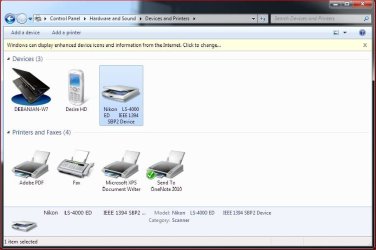
No luck yet.. After installation and selection of the driver, the device is displayed properly. Ref. 1st attachment.

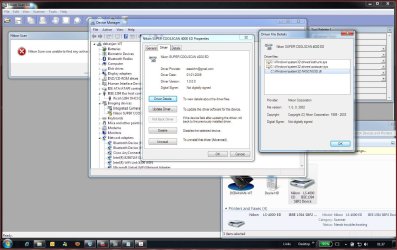
After I start Nikon Scan, it complaints that no active device is present and Device Manager too shows an error. See second attachment.

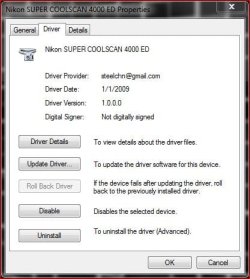
Now if I close Nikon Scan and shut down the scanner and then restart both, the scanner doesn't even show up as an unknown device. 3rd attachment.

What's happening here??
 

Attachments

My Computer My Computer

At a glance

Windows 7 64 bit
OS
Windows 7 64 bit
Again, there's no need to go into Devices and Printers since you can use the scanner from there! You need to access it by using the Nikon Scan software itself.

Nikon LS4000.JPG

And according to your device manager you have a problem - as indicated by the yellow triangle next to the scanner. Why I don't know.

Nikon Info.JPG

Are you sure you looked through all the links here - http://www.sevenforums.com/drivers/44994-getting-your-nikon-coolscan-work-w7-x64-28.html#post1364193

Also did you get the ini file from me? or Somewhere else?

BTW this shows you how to post images here - http://www.sevenforums.com/general-discussion/8-forum-rules-info-please-read.html#post852738 sorry but it's kind of a pain to have to download a file then open it to view the image.
 

My Computer My Computer

At a glance

Windows 10 ProIntel Core i7-4770K (3.5Ghz)32 gig Corsair Dominator Platinum (4x8Gig)Sapphire Tri-X R9 Fury
Computer type
PC/Desktop
Computer Manufacturer/Model Number
Custom built by me.
OS
Windows 10 Pro
CPU
Intel Core i7-4770K (3.5Ghz)
Motherboard
Gigabyte G1 Sniper 5 (F10 Bios)
Memory
32 gig Corsair Dominator Platinum (4x8Gig)
Graphics Card(s)
Sapphire Tri-X R9 Fury
Sound Card
Soundblaster ZXR
Monitor(s) Displays
NEC PA242W 24" LCD Monitor
Screen Resolution
1920 x 1200
Hard Drives
Primary - Samsung 850 Pro (512gig), Samsung 840 Pro (256gig), 2TB WD Caviar Black.
PSU
EVGA Supernova 1000 G2
Case
Cooler Master HAF X
Cooling
Corsair H100i with Corsair Air Series SP120 Quiet Fans
Keyboard
Logitech Wireless Wave
Mouse
Logitech Performance MX
Internet Speed
High Speed Cable
Antivirus
Norton Security
Browser
IE11
Other Info
Memory Timings - 1866MHz @ 9-9-9-27-1T @ 1.5 volts
Sygnus - thanks for pointing me towards the guidelines.. was unaware of those..

Good news : I could finally make the scanner work and do scans using the inf file mentioned @ Nikon Coolscan, Nikon Scan, Driver: 64-Bit Windows Vista / Windows 7

One difference is that this site suggests maintaining the name of the modified inf file the same as the one supplied by Nikon as part of NikonScan 4.0.3. Maybe a quirk somewhere in the dependency on sti.inf and other Windows systems file in Win7.

Thanks again to all of you and hope this piece of information helps others as well..
 

My Computer My Computer

At a glance

Windows 7 64 bit
OS
Windows 7 64 bit
Sygnus - thanks for pointing me towards the guidelines.. was unaware of those..

Good news : I could finally make the scanner work and do scans using the inf file mentioned @ Nikon Coolscan, Nikon Scan, Driver: 64-Bit Windows Vista / Windows 7

One difference is that this site suggests maintaining the name of the modified inf file the same as the one supplied by Nikon as part of NikonScan 4.0.3. Maybe a quirk somewhere in the dependency on sti.inf and other Windows systems file in Win7.

Thanks again to all of you and hope this piece of information helps others as well..
err.... I'm not sure what you did but that is the same file I used, which is the same file here - this post - all I did was eliminate the step your link mentions....
Open "Nks1394.inf" or respectively "NksUSB.inf" in a text editor of your choice to replace its contents. To do so click into the text box below and press Ctrl+A followed by Ctrl+C to copy the code. Next enter your text editor and press Ctrl+A followed by Ctrl+V to paste the code into the *.inf file.

by providing an already built file which you are told to download from my site.....

2- Then go my website and download this zip file - scanners.zip (includes 5000 fix)

Anyway that's why I specifically asked where you got the file from. I can't, and won't, vouce for anyone elses files but the ones I provide/link to.

BTW.....
If not, check this post for help or tips for older scanners. And credit Steel Chn for the inf file. I'm just providing an already built modified file that includes the Nikon 5000. Now...

http://www.sevenforums.com/drivers/44994-getting-your-nikon-coolscan-work-w7-x64.html#post427985

Anyway you got it working so that's good news.

Peace :cool:
 

My Computer My Computer

At a glance

Windows 10 ProIntel Core i7-4770K (3.5Ghz)32 gig Corsair Dominator Platinum (4x8Gig)Sapphire Tri-X R9 Fury
Computer type
PC/Desktop
Computer Manufacturer/Model Number
Custom built by me.
OS
Windows 10 Pro
CPU
Intel Core i7-4770K (3.5Ghz)
Motherboard
Gigabyte G1 Sniper 5 (F10 Bios)
Memory
32 gig Corsair Dominator Platinum (4x8Gig)
Graphics Card(s)
Sapphire Tri-X R9 Fury
Sound Card
Soundblaster ZXR
Monitor(s) Displays
NEC PA242W 24" LCD Monitor
Screen Resolution
1920 x 1200
Hard Drives
Primary - Samsung 850 Pro (512gig), Samsung 840 Pro (256gig), 2TB WD Caviar Black.
PSU
EVGA Supernova 1000 G2
Case
Cooler Master HAF X
Cooling
Corsair H100i with Corsair Air Series SP120 Quiet Fans
Keyboard
Logitech Wireless Wave
Mouse
Logitech Performance MX
Internet Speed
High Speed Cable
Antivirus
Norton Security
Browser
IE11
Other Info
Memory Timings - 1866MHz @ 9-9-9-27-1T @ 1.5 volts
Sygnus.. I ran a formal file diff programme to understand the differences between the file that is there in your website and the one from which I downloaded [and with which my scanner sprang to life] .. The difference lies only in the fact that the latter has the following entries in the "Models" section as well as in the "Models.ntamd64" section whereas your file has these only in the "Models.ntamd64" section ->

**********

; Firewire scanners
"Firewire Scanner" = SBP2Scanner,SBP2\GenScanner
"Nikon SUPER COOLSCAN 4000 ED" = SBP2Scanner_NIKON,SBP2\NIKON___&LS-4000_ED______&CMDSETID104D8
"Nikon SUPER COOLSCAN 8000 ED" = SBP2Scanner_NIKON,SBP2\NIKON___&LS-8000_ED______&CMDSETID104D8
"Nikon SUPER COOLSCAN 9000 ED" = SBP2Scanner_NIKON,SBP2\NIKON___&LS-9000_ED______&CMDSETID104D8

***************

My guess is there could be some dependency since we are essentially run a 32 bit programme here.. but that's just a hunch.. thoughts??
 

My Computer My Computer

At a glance

Windows 7 64 bit
OS
Windows 7 64 bit
All I know is I used that file to get my scanner (the same one you have) working under Window 7 x64-bit using information here. I also configured the ini file so that users didn't have to create it themselves, plus I added the line for the LS 5000ED.

And again, that file you show is the same file I used, which was created by Steel Chn and will be relfected in the driver provider.....

Driver provider.JPG

to whom I give credit to in the second paragraph of my instructions.

Anyway to sum it up I don't know why you couldn't get my file to work as you're the first one that hasn't had success, and it is the same file, and we have the same scanner :confused:

Sorry
 

My Computer My Computer

At a glance

Windows 10 ProIntel Core i7-4770K (3.5Ghz)32 gig Corsair Dominator Platinum (4x8Gig)Sapphire Tri-X R9 Fury
Computer type
PC/Desktop
Computer Manufacturer/Model Number
Custom built by me.
OS
Windows 10 Pro
CPU
Intel Core i7-4770K (3.5Ghz)
Motherboard
Gigabyte G1 Sniper 5 (F10 Bios)
Memory
32 gig Corsair Dominator Platinum (4x8Gig)
Graphics Card(s)
Sapphire Tri-X R9 Fury
Sound Card
Soundblaster ZXR
Monitor(s) Displays
NEC PA242W 24" LCD Monitor
Screen Resolution
1920 x 1200
Hard Drives
Primary - Samsung 850 Pro (512gig), Samsung 840 Pro (256gig), 2TB WD Caviar Black.
PSU
EVGA Supernova 1000 G2
Case
Cooler Master HAF X
Cooling
Corsair H100i with Corsair Air Series SP120 Quiet Fans
Keyboard
Logitech Wireless Wave
Mouse
Logitech Performance MX
Internet Speed
High Speed Cable
Antivirus
Norton Security
Browser
IE11
Other Info
Memory Timings - 1866MHz @ 9-9-9-27-1T @ 1.5 volts
Thanks sygnus21 for the help! Followed instructions, used your inf file and it worked first time.

Windows 7 Pro 64 bit
Nikon Super Cool Scan 5000 ED
USB connection

The only challenge was getting it to allow me to browse for the driver file location.
 

My Computer My Computer

At a glance

Windows 7 Professional
OS
Windows 7 Professional
I'm glad I was able to help. BTW what was the challenge?


Thanks.

The only challenge was getting it to allow me to browse for the driver file location.
 

My Computer My Computer

At a glance

Windows 10 ProIntel Core i7-4770K (3.5Ghz)32 gig Corsair Dominator Platinum (4x8Gig)Sapphire Tri-X R9 Fury
Computer type
PC/Desktop
Computer Manufacturer/Model Number
Custom built by me.
OS
Windows 10 Pro
CPU
Intel Core i7-4770K (3.5Ghz)
Motherboard
Gigabyte G1 Sniper 5 (F10 Bios)
Memory
32 gig Corsair Dominator Platinum (4x8Gig)
Graphics Card(s)
Sapphire Tri-X R9 Fury
Sound Card
Soundblaster ZXR
Monitor(s) Displays
NEC PA242W 24" LCD Monitor
Screen Resolution
1920 x 1200
Hard Drives
Primary - Samsung 850 Pro (512gig), Samsung 840 Pro (256gig), 2TB WD Caviar Black.
PSU
EVGA Supernova 1000 G2
Case
Cooler Master HAF X
Cooling
Corsair H100i with Corsair Air Series SP120 Quiet Fans
Keyboard
Logitech Wireless Wave
Mouse
Logitech Performance MX
Internet Speed
High Speed Cable
Antivirus
Norton Security
Browser
IE11
Other Info
Memory Timings - 1866MHz @ 9-9-9-27-1T @ 1.5 volts
Sygnus, I have the same problem as Whitunc I think - a 5000 ED via USB, worked well for years on XP and Vista. I upgraded to W7 x64, and rebuilt my hardware just last week and ran into this Nikon Scan problem.

Everything else works well. My specs are in my profile.

I had no trouble following your very clear instructions from this thread but when I tried to run the new Nikon Scan I was told there is no connected device. There is nothing under "Imaging Devices" in the device Manager, also no yellow triangles any more.

Should I also have the fix to the .INF file that you mention? If so, how do I get it?

Incidentally I note that my Win 7 originally made a /twain folder named "/Twain32", but when I ran the fix there was a new one named "/twain_32" and the new Nikon .ds file was in there. I thought that was the problem at first but even when I copied the lot into both folders I got the same negative result. There is only one other .ds file - wiatwain.ds and it is also now in both folders.

If you can please help this poor old plodder he wil be very grateful.
 

My Computer My Computer

At a glance

Win 7 Home Prem x64i7 2600, LGA 1155 3.40 GHz8GB DDR3NVidia GeForce8600GT 512+3583 MB Vid Mem
Computer Manufacturer/Model Number
Upgraded HP Desktop
OS
Win 7 Home Prem x64
CPU
i7 2600, LGA 1155 3.40 GHz
Motherboard
ASUS P8H67-M LE
Memory
8GB DDR3
Graphics Card(s)
NVidia GeForce8600GT 512+3583 MB Vid Mem
Sound Card
ALC887 8-CH
Monitor(s) Displays
2 X ASUS 22" LCD
Hard Drives
2 X WD 320 GB SATA
PSU
350W ATX
Case
HP
Cooling
1 x CPU fan, 1 x Case fan
Should I also have the fix to the .INF file that you mention? If so, how do I get it?

All you need(ed) to do is download the file from my website,
2- Then go my website and download this zip file - scanners.zip (includes 5000 fix)

3- Extract and save the scanners.inf file to a location or folder of your choosing...

and extract it, that's it, nothing else! If you've got the file from someone/someplace else I can't guarantee it'll work. I can only vouch for the file on my site.

Incidentally I note that my Win 7 originally made a /twain folder named "/Twain32", but when I ran the fix there was a new one named "/twain_32" and the new Nikon .ds file was in there. I thought that was the problem at first but even when I copied the lot into both folders I got the same negative result. There is only one other .ds file - wiatwain.ds and it is also now in both folders.

2 - Twain does not work with these scanners under Windows 7, even with my file. If you're trying to use twain its not going to work! If you want to use the scanner you must use the Nikon Scan Software.

With that said please double check these steps, especially the NOTE

4- Now install the Nikon Scan software you downloaded and after the installation, go to....

C:\Program Files (x86)\Common Files\Nikon\Driver\Scan1394 (see note) and copy this file NKScnUSD.dll to the same folder (Example: Nikon Files) that the scanners.inf file is in.

Thus the Nikon Files folder should now contain these two files... NKScnUSD.dll and scanners.inf

NOTE: If your scanner is USB than the folder will be ScanUSB instead of Scan1394.

See this post for clearification - Getting your Nikon Coolscan to work on W7 x64

You can also see this post if you need further help - http://www.sevenforums.com/drivers/44994-getting-your-nikon-coolscan-work-w7-x64-15.html#post981468
 

My Computer My Computer

At a glance

Windows 10 ProIntel Core i7-4770K (3.5Ghz)32 gig Corsair Dominator Platinum (4x8Gig)Sapphire Tri-X R9 Fury
Computer type
PC/Desktop
Computer Manufacturer/Model Number
Custom built by me.
OS
Windows 10 Pro
CPU
Intel Core i7-4770K (3.5Ghz)
Motherboard
Gigabyte G1 Sniper 5 (F10 Bios)
Memory
32 gig Corsair Dominator Platinum (4x8Gig)
Graphics Card(s)
Sapphire Tri-X R9 Fury
Sound Card
Soundblaster ZXR
Monitor(s) Displays
NEC PA242W 24" LCD Monitor
Screen Resolution
1920 x 1200
Hard Drives
Primary - Samsung 850 Pro (512gig), Samsung 840 Pro (256gig), 2TB WD Caviar Black.
PSU
EVGA Supernova 1000 G2
Case
Cooler Master HAF X
Cooling
Corsair H100i with Corsair Air Series SP120 Quiet Fans
Keyboard
Logitech Wireless Wave
Mouse
Logitech Performance MX
Internet Speed
High Speed Cable
Antivirus
Norton Security
Browser
IE11
Other Info
Memory Timings - 1866MHz @ 9-9-9-27-1T @ 1.5 volts
All OK now, thanks Cygnus for all the work you put in on this forum. My 5000ED now works better than it's ever worked before.

For the record, in the hope it might help someone else, my problem boiled down to something quite simple. I had the correct .zip file from your website OK, and the instructions are clear and accurate, but when I pointed the device manager at the driver (step 9 on your website) I pointed at the .inf file itself, instead of the Nikon Files folder.

I see that dddriver made this mistake too, back in April 2010.

Having started from scratch again and getting everything right it worked first up.

You and Steel Chn deserve medals!
 

My Computer My Computer

At a glance

Win 7 Home Prem x64i7 2600, LGA 1155 3.40 GHz8GB DDR3NVidia GeForce8600GT 512+3583 MB Vid Mem
Computer Manufacturer/Model Number
Upgraded HP Desktop
OS
Win 7 Home Prem x64
CPU
i7 2600, LGA 1155 3.40 GHz
Motherboard
ASUS P8H67-M LE
Memory
8GB DDR3
Graphics Card(s)
NVidia GeForce8600GT 512+3583 MB Vid Mem
Sound Card
ALC887 8-CH
Monitor(s) Displays
2 X ASUS 22" LCD
Hard Drives
2 X WD 320 GB SATA
PSU
350W ATX
Case
HP
Cooling
1 x CPU fan, 1 x Case fan
For the record, in the hope it might help someone else, my problem boiled down to something quite simple. I had the correct .zip file from your website OK, and the instructions are clear and accurate, but when I pointed the device manager at the driver (step 9 on your website) I pointed at the .inf file itself, instead of the Nikon Files folder.
Yeah you need to point to the folder that you put the inf file in.

And BTW the instructions on both sites are the same, including step 9.

9- Click "Browse" and find the location or folder where you put the scanners.inf file. Example: C:\Program Files (x86)\Nikon\NkScan4\Nikon Files and click "Next" This will/should install the driver (scanners.inf) you extracted from the zip file for your scanner.

Anyway glad to see you go it sorted. Happy scanning :)

And Thanks :cool:
 

My Computer My Computer

At a glance

Windows 10 ProIntel Core i7-4770K (3.5Ghz)32 gig Corsair Dominator Platinum (4x8Gig)Sapphire Tri-X R9 Fury
Computer type
PC/Desktop
Computer Manufacturer/Model Number
Custom built by me.
OS
Windows 10 Pro
CPU
Intel Core i7-4770K (3.5Ghz)
Motherboard
Gigabyte G1 Sniper 5 (F10 Bios)
Memory
32 gig Corsair Dominator Platinum (4x8Gig)
Graphics Card(s)
Sapphire Tri-X R9 Fury
Sound Card
Soundblaster ZXR
Monitor(s) Displays
NEC PA242W 24" LCD Monitor
Screen Resolution
1920 x 1200
Hard Drives
Primary - Samsung 850 Pro (512gig), Samsung 840 Pro (256gig), 2TB WD Caviar Black.
PSU
EVGA Supernova 1000 G2
Case
Cooler Master HAF X
Cooling
Corsair H100i with Corsair Air Series SP120 Quiet Fans
Keyboard
Logitech Wireless Wave
Mouse
Logitech Performance MX
Internet Speed
High Speed Cable
Antivirus
Norton Security
Browser
IE11
Other Info
Memory Timings - 1866MHz @ 9-9-9-27-1T @ 1.5 volts
Thanks

I have just installed my 5000ED on Windows 7 64 bit.
Perfect !
(and I am all thumbs in such matters ... !)

Thanks a lot
 

My Computer My Computer

At a glance

windows 7 home premuim 64 bitXeon E54204Gb ecc
Computer Manufacturer/Model Number
Dell Precision
OS
windows 7 home premuim 64 bit
CPU
Xeon E5420
Memory
4Gb ecc
Monitor(s) Displays
Dell 30"
Hard Drives
RevoDrive x2 100 gb
2 x Hitachi 1 TB
Back
Top