Hi guys, sorry for the delay, I'm not getting my notifications in a timely manner. Anyway...
msundaram
Sygnus21 seems to have done a bang up job of maintaining this howto in spite of not having a working system.
- I followed the instructions on a vanilla Windows 10, and have successfully installed Nikon Scan 4.
- When I tried to update the firmware, it said it couldn't find Nikon Scan 3.
- I ploughed ahead and tried to run the Scan 4 software. It hung when trying to do a preview or scan with the dialog "Acquiring scan." Canceling doesn't work, and the process needs to be killed. Is this because of the firmware not being updated, I wonder.
It seems that the only thing I can do is to update the firmware. Does anyone have experience with this situation? Any way of getting Scan 3 to work on Windows 10?
In the worst case, I suppose I could revert to my XP setup (on a failing computer) and try to update the firmware there. My worry is that the XP system (which is having some power issues) might die in the middle of the update, potentially bricking the scanner.
Any words of wisdom accepted

.
I did my firmware update on my scanner while I was still running XP so I can't speak on updating it through Windows 7 and beyond. That said, at one point Nikon had a note stating only the XP OS could be used to update the firmware on their scanners, but that note has now been removed. Additionally a member posted sometime ago they were able to update the firmware under Windows 7 so...

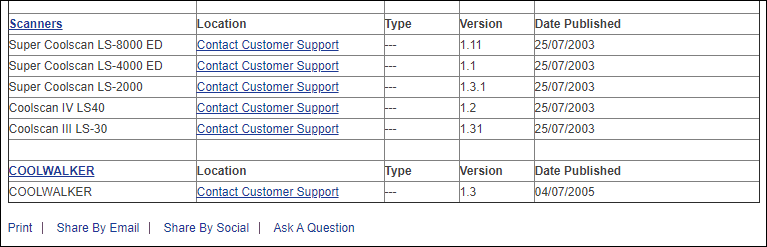
That said, it would help to know what scanner you're talking about as not all have updates available.
A quick update on the hang. It eventually times out and indicates that the scanner is not turned on (but that's not true--device manager shows the imaging device as expected).
[snip]...
You issue is a bit confusing and all over the place. With that I need to know what scanner you have??? Additionally, if you're trying to get the scanner to work under Windows 10 you MUST follow the warning for step 7 (warning above step 7).
DaveR1954
Hi
At my first attempt at this procedure, when I installed the Nikon Scan software, I installed all the drivers when prompted. You hadn't written any specific instructions about this step in the Nikon Scan installation process, so I just installed them all. Was this a mistake? Did this have any effect on Step 9 for this and later attempts? I know that when I went to Device Manager, there was no Unknown Device, but the LS-50 ED was listed.
As I noted before, these procedures work best for the scanners listed. The LS 50 is an older scanner and may or may not work with these procedures. I've never owned or used an LS 50 so I can't say why what's happening. That said,
a member did post they got their Coolscan V working, and I did add that info the to inf file you're downloading so...
Also, as Windows 10 evolves things change (especially for older hardware/software) and what once worked, may no longer work as new updates/upgrades are added to Windows 10.
That said, the instructions as written were based on getting my LS 4000 working under Windows 7, and ten eventually under Windows 10. They are step by step as taken to get the scanner working.
Also note the LS 4000 requires a FireWire card, where other models don't. You need to follow the procedures based on whether your scanner uses FireWire or USB and, and thus why it's important to pay attention to the warning under step 4.
Also, if running Windows 10, you MUST
disable the driver signature enforcement as noted in the warning prior to step 7.
Again, these instructions were written based on the LS4000, but will also support the other models listed. Additionally, many have also had success get other models not listed working so I'm not sure what else there is to say.
For both you guys, please note the "
Extra Info" links at the bottom of the tutorial as they may help solve any issues you may have. Lastly, you might go through this thread as there are lots of troubleshooting info here. Yes, the thread is long, and unfortunately as such, I don't even remember what's there so...
Let me know.