Hard Drive Partitioning

Opi8

New member
Local time
5:06 PM
Messages
56
Hey, first off, I would like to apologize if this is not in the right part of the forum.

Anyhow, I was on the forum a while back and noticed a picture a person posted which showed they had a specific hard drive for "Music", "Movies", etc. I asked the person about this and they told me that they had "partitioned" their hard drive to achieve this. So, I currently want to do the same, make a specific hard drive for music and movies, but would like to know if there is actually any point? What are some advantages / are there any disadvantages? I want to do it for easy access, but as it is I only have to click "User" to gain access to them, and with the drives partitioned I would just have to click "Computer", so it's not much difference, I sorta just like the idea. So, are there any advantages, such as maybe it making it easier to back up files / making computer run smoother or anything like that, because I really like the idea of specific drives for those specific things, but it's not worth the effort unless maybe there are other benefits.

Let me know, any help is greatly appreciated.
 

My Computer

Computer Manufacturer/Model Number
MSI/MS-7309
OS
Windows 7 Ultimate x64
Graphics Card(s)
Radeon HD 4830
Other Info
Don't know enough about computers to fill in the rest, if any important info is missing, feel free to message me on where or how to find the details.
partitioning is very quick and simple, either using windows' built-in tools, or using third-party software.

it's a good idea to keep your operating system and data files on separate partitions.

if your windows goes bad, gets infected by virus or is otherwise generally broken, you can safely reformat your c: drive and reinstall 7 without worrying about losing any photos, music etc.
 

My Computer

Computer Manufacturer/Model Number
mickey megabyte 1234
OS
ultimate 64 sp1
CPU
i5 2500K [email protected]
Motherboard
MSI P67A-GD53
Memory
8 gigs GSkill Ripjaws 1600
Graphics Card(s)
amd hd6950
Sound Card
creative x-fi gamer
Monitor(s) Displays
samsung 24"
Screen Resolution
1920x1080
Hard Drives
ocz vertex 2e 60 gig, samsung f3 1tb, buffalo 2tb ext
PSU
antec 550
Case
antec three hundred
Cooling
i'm a cooling fan
Keyboard
saitek eclipse ii
Mouse
logitech g3
Internet Speed
about 4 Mbps
Other Info
i love win7
partitioning is very quick and simple, either using windows' built-in tools, or using third-party software.
thank you for the link, very helpful

if your windows goes bad, gets infected by virus or is otherwise generally broken, you can safely reformat your c: drive and reinstall 7 without worrying about losing any photos, music etc.

how does this work, when you reformat a hard drive doesn't it erase everything on it? I have tried to learn a bit about partitioning and it's benefits and all, but find it difficult to understand any things I've found as they have all been a bit complex for me and make constant use of terms I don't understand. In any case, I think I will partition, especially with that link you just gave me, but could you let me know if it means that the things placed into those "partitions?" are safe from damage and such for whatever reason? I mainly just want it to be really really easy to back up my music / not lose it.

edit: also, I am currently trying to do it and am stuck on something. Is it possible to partition the C:Drive, because that is the only one I have
 

My Computer

Computer Manufacturer/Model Number
MSI/MS-7309
OS
Windows 7 Ultimate x64
Graphics Card(s)
Radeon HD 4830
Other Info
Don't know enough about computers to fill in the rest, if any important info is missing, feel free to message me on where or how to find the details.
Opi8 Have you thought of investing in an external drive on a USB line? You can decant your music, movies & OS image backups if required. You can pick up a decent 1/2 Tb external for around 50 quid or approx $80.00. A very worthwhile investment indeed!
 

My Computer

OS
Win 7 HP 32bit - sp1
Opi8 Have you thought of investing in an external drive on a USB line? You can decant your music, movies & OS image backups if required. You can pick up a decent 1/2 Tb external for around 50 quid or approx $80.00. A very worthwhile investment indeed!

Yes, a nearby store has a Tb External hard drive for about $100-$110, I am going to buy it, but need to get a job first because I don't want my parents to have to pay for it, or I might wait until christmas. Should I just wait until I get this / No point in doing it now if I'm gonna get a new hard drive to do it on?
 

My Computer

Computer Manufacturer/Model Number
MSI/MS-7309
OS
Windows 7 Ultimate x64
Graphics Card(s)
Radeon HD 4830
Other Info
Don't know enough about computers to fill in the rest, if any important info is missing, feel free to message me on where or how to find the details.
Yeah, play it canny & wait till Christmas!
 

My Computer

OS
Win 7 HP 32bit - sp1

My Computer

Computer Manufacturer/Model Number
HP, Dell, Gateway, Toshiba - 4 laptops and 2 desktops
OS
Vista, Windows7, Mint Mate, Zorin, Windows 8
CPU
from 1.6GHz Duo to i7
Monitor(s) Displays
2x HP w2207
Hard Drives
5x HDD, 7x SSD, 12x Externals
Keyboard
with trackball - no mices
Mouse
Trackball mice
Internet Speed
DSL 6000
...

how does this work, when you reformat a hard drive doesn't it erase everything on it? I have tried to learn a bit about partitioning and it's benefits and all, but find it difficult to understand any things I've found as they have all been a bit complex for me and make constant use of terms I don't understand. ...

in simple terms, when you partition a drive, your computer 'thinks' you have two (or more) different drives - c:, d: e:...etc

the idea is that you install windows and your programs on c:, then save all your documents on d:.

in the future you can format (wipe) c: if you need to, but d: (and all your files) will remain untouched.

note that this isn't a backup, it's only the one copy. you really need to backup to a different drive to be really safe.

hope this explains it. :)
 

My Computer

Computer Manufacturer/Model Number
mickey megabyte 1234
OS
ultimate 64 sp1
CPU
i5 2500K [email protected]
Motherboard
MSI P67A-GD53
Memory
8 gigs GSkill Ripjaws 1600
Graphics Card(s)
amd hd6950
Sound Card
creative x-fi gamer
Monitor(s) Displays
samsung 24"
Screen Resolution
1920x1080
Hard Drives
ocz vertex 2e 60 gig, samsung f3 1tb, buffalo 2tb ext
PSU
antec 550
Case
antec three hundred
Cooling
i'm a cooling fan
Keyboard
saitek eclipse ii
Mouse
logitech g3
Internet Speed
about 4 Mbps
Other Info
i love win7
You can link your User files to data partition(s) anywhere on your computer. Then your data is protected safely apart from the OS/Programs partition, which makes that more compact to image. In case of irreparable Win7, you can reimage to the OS/Programs partition and your data is current and waiting in its "vault."

Wolfgang's Data Partition video tutorial linked earlier explains how. Here is the written version: http://www.sevenforums.com/tutorials/18629-user-folders-change-default-location.html
 
Thank you all, each of you have been very helpful. I am likely going to wait until I get my external hard drive, and "partition" it so it looks like my "User" folder, basically so it has a drive specific for pictures, music, movies, and documents. Does that seem like a better idea than partitioning my C:, which is only about 180gb (and will fill up very quickly, I have only just reformatted and I'm already down to 50gb free space)? If so, (and I should probably watch that linked video before asking this...), will it be possible to have my user folder on my external hard drive? I want to find a really good way to organize my drives / folders once I get my external drive, any tips?
 

My Computer

Computer Manufacturer/Model Number
MSI/MS-7309
OS
Windows 7 Ultimate x64
Graphics Card(s)
Radeon HD 4830
Other Info
Don't know enough about computers to fill in the rest, if any important info is missing, feel free to message me on where or how to find the details.
For an external drive, I would create independent folders on the external and then "include" them into the respective library (just right click on the folder > Include in library). That is the least hassle. Then you can move whatever data you please to these folders. You will still have the original folders on C that you can use or not. That will work whether you partition the external drive or not.
 
Last edited:

My Computer

Computer Manufacturer/Model Number
HP, Dell, Gateway, Toshiba - 4 laptops and 2 desktops
OS
Vista, Windows7, Mint Mate, Zorin, Windows 8
CPU
from 1.6GHz Duo to i7
Monitor(s) Displays
2x HP w2207
Hard Drives
5x HDD, 7x SSD, 12x Externals
Keyboard
with trackball - no mices
Mouse
Trackball mice
Internet Speed
DSL 6000
Contrary to popular belief, formatting does not remove any data at all, it just checks for sector errors and marks the space to be over-written as needed, all the data is still there including all the code from previous/failed installation attempts.


I still get amazed when I see people saying that a format removes data, it does not. :shock:
 

My Computer

Computer Manufacturer/Model Number
* BFK Customs *
OS
W 7 64-bit Ultimate
CPU
Intel Q9550 Yorkfield
Motherboard
ASUS P5Q Pro
Memory
8GB Dominator 8500C5D
Graphics Card(s)
ATI : XFX 5870
Sound Card
Realtek HD Audio 7-1
Monitor(s) Displays
1x 47" LCD HDMI & 3x 26" LCD HDMI
Screen Resolution
1920x1080P & 1920x1200
Hard Drives
1x 80GB Intel X25-M G2 SSD : 1x 500GB & 1x 640GB WD Caviar Black(s)
PSU
Corsair 620HX
Case
Cooler Master RC-690
Cooling
Tuniq Tower 120, 2x 140mm and 3x 120mm case fans
Keyboard
Microsoft 500
Mouse
Razer Diamondback 3G
Internet Speed
14 Mb/s
Other Info
1x Koutech 3Gb/s SATA HDD Hot Swap Rack
True: Formatting only overwrites the partition table so it has a fresh slate, but data still exists on the HD.

However overwriting zeroes to some is not much different than having 1's and 0's written there. This line of reasoning is that zeroing is only really necessary to cover up data one doesn't want retrieved. In that case it's best to use the DOD standard: 3 sets of zeroes.

I once was reinstalling for a doctor who questioned me closely about whether zeroing would make his data absolutely unretrievable at any time in the future. I told him that I could not guarantee that, that he probably needed to destroy the disk in that case. He took the drive and dumped it in the ocean on a sail to Catalina.
 
He took the drive and dumped it in the ocean on a sail to Catalina.
I wonder what he was hiding.
 

My Computer

Computer Manufacturer/Model Number
HP, Dell, Gateway, Toshiba - 4 laptops and 2 desktops
OS
Vista, Windows7, Mint Mate, Zorin, Windows 8
CPU
from 1.6GHz Duo to i7
Monitor(s) Displays
2x HP w2207
Hard Drives
5x HDD, 7x SSD, 12x Externals
Keyboard
with trackball - no mices
Mouse
Trackball mice
Internet Speed
DSL 6000
don't forget to use the right tools...

104487d1287011515-funny-geeky-cool-pics-partition.jpg
 

My Computer

Computer Manufacturer/Model Number
mickey megabyte 1234
OS
ultimate 64 sp1
CPU
i5 2500K [email protected]
Motherboard
MSI P67A-GD53
Memory
8 gigs GSkill Ripjaws 1600
Graphics Card(s)
amd hd6950
Sound Card
creative x-fi gamer
Monitor(s) Displays
samsung 24"
Screen Resolution
1920x1080
Hard Drives
ocz vertex 2e 60 gig, samsung f3 1tb, buffalo 2tb ext
PSU
antec 550
Case
antec three hundred
Cooling
i'm a cooling fan
Keyboard
saitek eclipse ii
Mouse
logitech g3
Internet Speed
about 4 Mbps
Other Info
i love win7
Hey guys, I got my external hard drive...now I am trying to partition it so it is like mentioned before, with a seperate drive for music, videos, etc...but I just realized it's completely unnecessary as I can just make folders like whs mentioned, and it would probably be a lot easier to manage them. However, I had begun to follow the tutorial and at one point, got stuck and randomly decided to "mark partition as active". Now that I'm not actually gonna be partitioning it and such, does it matter that I did that? Is there any way to put it back to innactive / do I need to?

edit: oh, and if I were to just drag my game installations from "All Programs" to the external drive, that wouldn't really work properly would it? Like, would it ruin certain files and mess up the games? (my guess is yes, but would be great if I could avoid reinstalling each game onto my external)
 

My Computer

Computer Manufacturer/Model Number
MSI/MS-7309
OS
Windows 7 Ultimate x64
Graphics Card(s)
Radeon HD 4830
Other Info
Don't know enough about computers to fill in the rest, if any important info is missing, feel free to message me on where or how to find the details.
Hello again.


You do need to mark that partition as " Inactive " so it doesn't cause issues later; have a look at Option Two #2 in this tutorial at the link below for an out-line of the process.

Startup Repair - Run 3 Separate Times
 

My Computer

Computer Manufacturer/Model Number
* BFK Customs *
OS
W 7 64-bit Ultimate
CPU
Intel Q9550 Yorkfield
Motherboard
ASUS P5Q Pro
Memory
8GB Dominator 8500C5D
Graphics Card(s)
ATI : XFX 5870
Sound Card
Realtek HD Audio 7-1
Monitor(s) Displays
1x 47" LCD HDMI & 3x 26" LCD HDMI
Screen Resolution
1920x1080P & 1920x1200
Hard Drives
1x 80GB Intel X25-M G2 SSD : 1x 500GB & 1x 640GB WD Caviar Black(s)
PSU
Corsair 620HX
Case
Cooler Master RC-690
Cooling
Tuniq Tower 120, 2x 140mm and 3x 120mm case fans
Keyboard
Microsoft 500
Mouse
Razer Diamondback 3G
Internet Speed
14 Mb/s
Other Info
1x Koutech 3Gb/s SATA HDD Hot Swap Rack
Hello again.


You do need to mark that partition as " Inactive " so it doesn't cause issues later; have a look at Option Two #2 in this tutorial at the link below for an out-line of the process.

Startup Repair - Run 3 Separate Times

I looked at Option 2 and am now very confused. I do not have the DVD it is talking about, and it doesn't actually say HOW to do it using a command prompt. Could you let me know soon as I don't want to encounter issues later on at all :(
 

My Computer

Computer Manufacturer/Model Number
MSI/MS-7309
OS
Windows 7 Ultimate x64
Graphics Card(s)
Radeon HD 4830
Other Info
Don't know enough about computers to fill in the rest, if any important info is missing, feel free to message me on where or how to find the details.
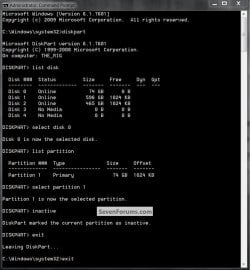
OK, here's how.


Click THIS LINK and in the command window type the commands listed in the snip below and hit <enter> after each command; using your disk/partition information for the partition that you need to mark inactive, when viewed using disk management.

click to enlarge
Inactive2.jpg
 

My Computer

Computer Manufacturer/Model Number
* BFK Customs *
OS
W 7 64-bit Ultimate
CPU
Intel Q9550 Yorkfield
Motherboard
ASUS P5Q Pro
Memory
8GB Dominator 8500C5D
Graphics Card(s)
ATI : XFX 5870
Sound Card
Realtek HD Audio 7-1
Monitor(s) Displays
1x 47" LCD HDMI & 3x 26" LCD HDMI
Screen Resolution
1920x1080P & 1920x1200
Hard Drives
1x 80GB Intel X25-M G2 SSD : 1x 500GB & 1x 640GB WD Caviar Black(s)
PSU
Corsair 620HX
Case
Cooler Master RC-690
Cooling
Tuniq Tower 120, 2x 140mm and 3x 120mm case fans
Keyboard
Microsoft 500
Mouse
Razer Diamondback 3G
Internet Speed
14 Mb/s
Other Info
1x Koutech 3Gb/s SATA HDD Hot Swap Rack
Back
Top