HDD does not show up in My Computer

ComputerBiff

New member
Local time
9:04 PM
Messages
21
PLEASE HELP.

I have searched forum after forum only to see the same responses.

First of all i have a 2tb Western Digital Elements external hard drive. With all my family pictures and video footage that i really DO NOT want to lose - I know my bad in not backing them up! School boy error i know.

HDD does not show up in My Computer
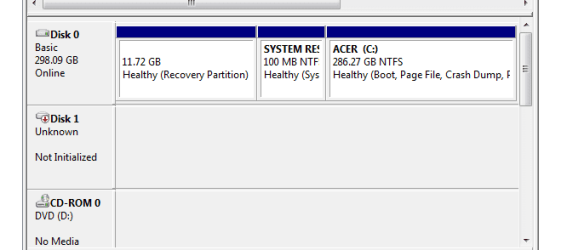
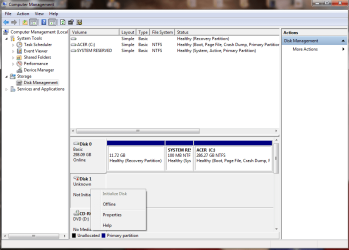
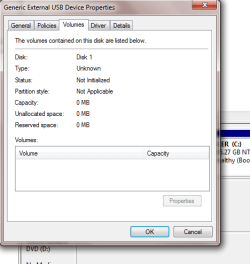
HDD Shows up in DM as "Disk 1" - "Unknown" - "Not initialised", i can not right click and make "Online" and whenever i try to initialise it comes up with the error "Virtual Disk Error - Incorrect Function"

It also doesnt allow me to change the filepath, as in the letter before the drive.

Basically i have had this HDD for about a year now and it was working fine, then one day NOTHING. I have tried on differnt computers, different USB cables and different power cables, and power locations (ie not using surge protector).

As you can imagine i am a complete biff with computers, but if you tell me to do something (and i can follow in a logical order) then i will do it - I just want my pictures retrieved.

Gentlemen, your help in this matter is very much appreciated.
 
Last edited by a moderator:

My Computer My Computer

OS
Windows 7 64bit
Hi -- Welcome to SevenForums. I need to see your Disk Management. Click on your round Start button in left lower corner of screen. Above the buttom type "Disk Management", without the quotes, and hit enter. This will bring it up. I need you to expand the columns so all of the print is readable. Next I need you to use your Snipping Tool and post a picture of it on here. This explains how to use the Snipping Tool and how to post a picture. http://www.sevenforums.com/tutorials/9733-screenshots-files-upload-post-seven-forums.html Get back when you have done that. Thanks,
 

My Computer My Computer

Computer type
PC/Desktop
Computer Manufacturer/Model Number
Custom Build
OS
Windows 7 Home Premium 32-Bit - Build 7600 SP1
CPU
Intel Core i3-2120 3.30Ghz
Motherboard
Asus P8Z68-V LX Intel Z68 Socket H2 ATX
Memory
Kingston 4 GB DDR3 1333 mhz
Graphics Card(s)
AMD Radeon HD6670
Sound Card
Sound Blaster Audigy SE 24-Bit
Monitor(s) Displays
Asus VE228
Screen Resolution
1440 X 900
Hard Drives
OCZ Vertex 3 120 GB Sata 3 SSD ==
Kingston SH103/S3 120 G Hyper X 120 GB SSD ==
Western Digital 500 GB Caviar Green 7200 RPM ==
PSU
Corsair CX600M == 600 Watt
Case
NZXT Apollo - Silver with Clear Side Panel
Cooling
Three 120 mm Fans
Keyboard
Microsoft Natural 4000
Mouse
Microsoft Custom Optical 3000
Internet Speed
AT&T Fiber Optic Wireless Network
Antivirus
Microsoft Security Essentials
Browser
Chrome
Other Info
120 mm Blue LED Fan -- Three Blue LED Lazer Light Sticks
BigMcK,

Thanks for the reply - i'm a little short of desperate now! Thanks, any help is much appreciated.
 

Attachments

  • Computer Management.PNG
    Computer Management.PNG
    6.1 KB · Views: 23

My Computer My Computer

OS
Windows 7 64bit
BigMcK,

Thanks for the reply - i'm a little short of desperate now! Thanks, any help is much appreciated.

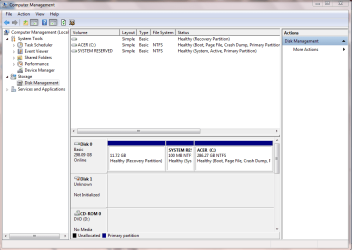
I need to see the whole thing. There is more on the top. Remember to expand the columns so everything can be read,
 

My Computer My Computer

Computer type
PC/Desktop
Computer Manufacturer/Model Number
Custom Build
OS
Windows 7 Home Premium 32-Bit - Build 7600 SP1
CPU
Intel Core i3-2120 3.30Ghz
Motherboard
Asus P8Z68-V LX Intel Z68 Socket H2 ATX
Memory
Kingston 4 GB DDR3 1333 mhz
Graphics Card(s)
AMD Radeon HD6670
Sound Card
Sound Blaster Audigy SE 24-Bit
Monitor(s) Displays
Asus VE228
Screen Resolution
1440 X 900
Hard Drives
OCZ Vertex 3 120 GB Sata 3 SSD ==
Kingston SH103/S3 120 G Hyper X 120 GB SSD ==
Western Digital 500 GB Caviar Green 7200 RPM ==
PSU
Corsair CX600M == 600 Watt
Case
NZXT Apollo - Silver with Clear Side Panel
Cooling
Three 120 mm Fans
Keyboard
Microsoft Natural 4000
Mouse
Microsoft Custom Optical 3000
Internet Speed
AT&T Fiber Optic Wireless Network
Antivirus
Microsoft Security Essentials
Browser
Chrome
Other Info
120 mm Blue LED Fan -- Three Blue LED Lazer Light Sticks
Thanks
 

Attachments

  • Computer Management.PNG
    Computer Management.PNG
    29.4 KB · Views: 23

My Computer My Computer

OS
Windows 7 64bit
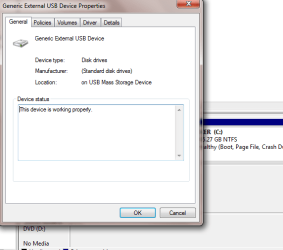
Other helpful pics
 

Attachments

  • Capture.PNG
    Capture.PNG
    13.3 KB · Views: 14
  • When i right click.PNG
    When i right click.PNG
    32.6 KB · Views: 21
  • Capture1.PNG
    Capture1.PNG
    13.3 KB · Views: 13

My Computer My Computer

OS
Windows 7 64bit
I don't see anything that could be causing it. Let me get someone else in here that might could help. Don't give up. == While you are waiting, put your System Specs in. Look at the lower left hand corner of one of your messages. Click it and a place to enter your specs will show. This helps a lot. Thanks,
 

My Computer My Computer

Computer type
PC/Desktop
Computer Manufacturer/Model Number
Custom Build
OS
Windows 7 Home Premium 32-Bit - Build 7600 SP1
CPU
Intel Core i3-2120 3.30Ghz
Motherboard
Asus P8Z68-V LX Intel Z68 Socket H2 ATX
Memory
Kingston 4 GB DDR3 1333 mhz
Graphics Card(s)
AMD Radeon HD6670
Sound Card
Sound Blaster Audigy SE 24-Bit
Monitor(s) Displays
Asus VE228
Screen Resolution
1440 X 900
Hard Drives
OCZ Vertex 3 120 GB Sata 3 SSD ==
Kingston SH103/S3 120 G Hyper X 120 GB SSD ==
Western Digital 500 GB Caviar Green 7200 RPM ==
PSU
Corsair CX600M == 600 Watt
Case
NZXT Apollo - Silver with Clear Side Panel
Cooling
Three 120 mm Fans
Keyboard
Microsoft Natural 4000
Mouse
Microsoft Custom Optical 3000
Internet Speed
AT&T Fiber Optic Wireless Network
Antivirus
Microsoft Security Essentials
Browser
Chrome
Other Info
120 mm Blue LED Fan -- Three Blue LED Lazer Light Sticks
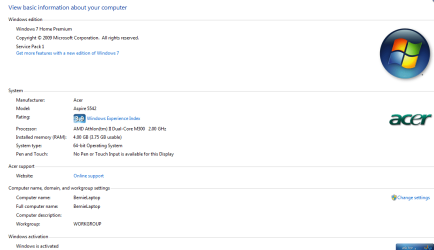
I'm on my way to work but i'll put all the information in later, for now please see the picture.
 

Attachments

  • System.PNG
    System.PNG
    23 KB · Views: 19

My Computer My Computer

OS
Windows 7 64bit
This is a long shot - but if all else fails - remove the HD from the enclosure and connect it directly to your motherboard.

Years ago I had an external drive that had similar problems, and that method worked for me. Apparently something failed in the small circuit board between the USB and SATA (or IDE connector) of the HD in the enclosure.
 

My Computer My Computer

Computer type
PC/Desktop
Computer Manufacturer/Model Number
Custom Build
OS
Windows 7 Professional 64 Bit SP1
CPU
Intel i7-3770K. Mild Overclock to 4.2 Ghz
Motherboard
ASUS Sabertooth Z77
Memory
Crucial Ballistix Sport 32GB DDR3-1600 (PC3-12800)
Graphics Card(s)
Intel 4000 - On CPU
Sound Card
On Board
Monitor(s) Displays
HP w2408h
Screen Resolution
1920 x 1200
Hard Drives
Samsung 840 Pro 256Gb SSD, --
Two - WDC WD1001FALS-00J7B0 SATA
PSU
Antec EarthWatts Green Series 650 Watt ATX
Case
Fractal Design Core 3000 ATX
Cooling
Corsair H80i Water Cooled
Keyboard
Logitech Illuminated
Mouse
Logitech Wireless Trackball M570 + Touchpad T650
Internet Speed
9.5 Mbps down - 25.4 Mbps upload
Antivirus
MSE
Browser
IE 10, Chrome
Tboyd, thanks. That was something else i forgot to mention, i have removed the hard drive from it's enclosure and have placed it into a known working docking station, i suppose i could put it in the home computer to see what it does from there. Thanks, i'll let you know!
 

My Computer My Computer

OS
Windows 7 64bit
Don't suppose anyone has any new info regarding my last posts?
 

My Computer My Computer

OS
Windows 7 64bit
Hi

Many Western Digital external drives have built in encryption in chips in the enclosure. While the Western Digital Elements series does not always have the built in automatic encryption, you are still probably better off putting it back in the original enclosure just in case it does.

After putting it into the enclosure, you can check it with TestDisk (free open source tool) to see if it can find your data and possibly repair it.

Make sure that your external drive is back in the original enclosure, connected and powered on.

Download TestDisk from
http://www.cgsecurity.org/testdisk-6.13.win.zip
and extract it to your desktop.
Open the folder testdisk-6.13
Double click testdisk_win.exe to run it.

TestDisk is a console application so you have to use your keyboard to interact with it instead of your mouse.

Choose Create and hit enter (this makes the file testdisk.log that is automatically created in the folder testdisk-6.13)
You should now see a list of drives. Your external drive is probably Disk /dev/sdb/ and says 2000GB or External
If you have any difficulty identifying which one it is, let us know what you see and we'll help you figure it out.
Select the external drive and choose Proceed and hit enter
Select Intel/PC partition and hit enter
Select Analyse and hit enter
Select Quick Search and hit enter
Say 'Y' if it asks if the disk was made in Vista/Win7 (even if it was made in XP say 'yes')

When it is done (if you are at a screen that has only the option CONTINUE at the bottom of it, hit enter to see the screen we need to see), let me know what it says and if the text is green or red or white (copy and paste it in your reply or a picture from your cel phone or camera would be fine).

If you see what looks like normal partition(s), highlight the one you think has your data and press
p
and see if you can see your files and folders that you are looking for there. Press
q
a bunch of times to back out of TestDisk

If anything looks different than I describe (possible depending on what is causing the problem) or you have any questions, stop and ask :)

What I need to know...
1. Results of Quick Search in TestDisk (picture is fine).

2. Did you see your files and folders in TestDisk?

3. I'd like to see the contents of the file testdisk.log that is automatically created in the folder testdisk-6.13 it may just be called testdisk instead of testdisk.log if your Windows is set to hide known extensions and it will have a text file icon.

James
 

My Computer My Computer

OS
OS
James,

Many thanks.

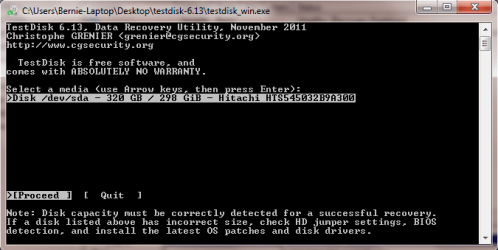
I have put the hard drive back into it's original casing and it doesn't show up on Disk managment. And when i run testdisk (see pic) it doesn't give me a choice for the hard drive, only the internal one. And the same goes for when i put the hard drive into a docking casing.

Really appreciate this help.
 

Attachments

  • disk.PNG
    disk.PNG
    15 KB · Views: 13

My Computer My Computer

OS
Windows 7 64bit
If you unplug the USB connector for the drive and plug it back in, does it detect it? Make sure the AC power cable is plugged in.

If not, you may have no choice but to remove it from the enclosure again and try to plug it directly into the motherboard of the computer and see if the BIOS sees it. You'll need an empty SATA port on the motherboard and a SATA cable to do that as well as an available SATA power plug from the power supply. If you want directions, let me know. After getting it detected that way, you may need to boot from a Linux LiveCD (I use PartedMagic) to access the data on the drive. I can give you directions for that too if it seems to be the path to take.

James
 

My Computer My Computer

OS
OS
When the HD is in the WD enclosure - NO it doesn't detect it. When i put it in the docking station it does detect.
AC power lead is in and the light comes on.

I have now removed it and connected it to my home computer (SATA), when i go into setup (on start up) i can see the hard drive as the second drive. Then when i go into my computer - Nothing, and in disk management - Nothing.

What next, you mentioned Linux liveCD, this you will have to talk me through.

James you're an absolute star for putting up with me!
 

My Computer My Computer

OS
Windows 7 64bit
Ok, so i have AQUIRED a copy of Parted Magic and burnt it to a disc. Awaiting further instructions.
 

My Computer My Computer

OS
Windows 7 64bit
Hi
First we need to check the health of the drive with the PartedMagic CD.

When you boot the computer that has the bad drive connected to it with the PartedMagic CD that you made a menu will pop up, please select
1. Default Settings (Runs from RAM)

When it finishes booting you will notice that it looks kind of like a Windows desktop.

Check SMART status of drive
After PartedMagic loads, double-click the Disk Health icon on the desktop and then double-click the icon for your hard drive. Click on the PERFORM TESTS tab.
Make sure that the Test Type is set to Short Self-Test and click the EXECUTE button
I will need to know if it passed or not.
Next click the ERROR LOG tab and let me know if there are any entries and if there are let me know what the rows say.
Next select the ATTRIBUTES tab and let me know what the raw values are for the ID's 1, 5 and 197 listed there.

Check partitions with fdisk
At the bottom of the screen near the START button you will see a picture of a computer monitor. Click it to open a terminal window. In the terminal window type
fdisk -l
(that is fdisk SPACE DASH l as in Linux) and press ENTER
I want to see the information that it prints out. You can take a picture of the screen or use Firefox in PartedMagic to login here and copy and paste the results into your reply. As long as the text is legible, a picture will be fine.

In your reply I need to see...


  • Did it pass the Short Self-Test?
  • Any entries in the Error Log
  • The Attributes list (at least the RAW VALUES for ID's 1, 5 and 197 if you have to type them by hand in your reply)
  • The output of fdisk


There are more detailed instructions with pictures here

If you have any questions/problems, let me know.

The next tool we use will depend on the disk health results.
James
 

My Computer My Computer

OS
OS
Hi James, i have just got in from work. Just trying your last message now, wait out!
 

My Computer My Computer

OS
Windows 7 64bit
I have done what you have said and here is how far i got:
Double click heath Check, (Drive is visible) selected it but then it states that SMART is disabled which doesn't allow me to run any tests???
 

My Computer My Computer

OS
Windows 7 64bit
When i try to enable it, MANDATORY SMART COMMAND FAILED. I can then see an output if that helps
 

My Computer My Computer

OS
Windows 7 64bit
Back
Top