HDD does not show up in My Computer

Okay, skip the SMART tests. Does the bad disk show when you do the fdisk -l command?

James
 

My Computer My Computer

At a glance

OS
OS
OS
I'm currently carrying out a testdisk, which is taking forever!!!
 

My Computer My Computer

At a glance

Windows 7 64bit
OS
Windows 7 64bit
Hi

I do this on several forums and with data recovery it is real hard to maintain situational awareness without taking things in small steps. Ask a question, get an answer, decide on the next step, get a result, etc... It's very easy for me to make a mistake if I don't have a clear picture of what is going on.

I would have tried to get more info on the health of that drive before jumping into TestDisk but if you have a plan of your own, that's cool I really don't mind. I just can't help you as effectively.

James
 

My Computer My Computer

At a glance

OS
OS
OS
James,
I fully understand but everything i was trying i was hitting a brickwall, i don't even know what testdisk is. I only done it because its the only thing that worked at the time.

Unfortunately due to time differences i'm only managing to complete one or two steps a day.

Tell me what to do now.

Like i said i really appreciate the help you are giving me.
 

My Computer My Computer

At a glance

Windows 7 64bit
OS
Windows 7 64bit
Apologies, it's 1240am now and i have work at 5am. Will continue tomorrow. Thanks again
 

My Computer My Computer

At a glance

Windows 7 64bit
OS
Windows 7 64bit
No problem, I just wanted to make that clear. It can be very stressful and difficult to do the things that I ask so clarity is of the utmost importance.

Let's me talk about your drive some so you understand what we are doing.
It appears to be an unstable connection issue of some sort. It likes to do a few things and then it's gone. There are a dozen different things that could be causing this but right now we should focus on recovering important data from it as quickly and effectively as possible.
When this happens, I often find that we can get more done with the drive before it disconnects by working in Linux(PartedMagic in our case) than in Windows (which has a lot more going on in the background with the drive).
I'd like to see the partition structure of that drive and then go straight for grabbing the important data off of it.

Questions I need answered
Did you run TestDisk in PartedMagic or in Windows?
What was the result of TestDisk, if any?

If you are done with TestDisk and ready to move on, please try this.
Completely shutdown the computer
Turn it on and boot into PartedMagic
Follow my steps from above for running fdisk -l
Let me know the results. Hopefully, it will give us some data this time.

I'm working on several client's machines here tonight so I'll be around monitoring this forum for quite awhile still :)

James
 

My Computer My Computer

At a glance

OS
OS
OS
Hi James,

Testdisk was 4% completed after 15 hours so i cancelled it and closed down the computer for a reboot, as requested.

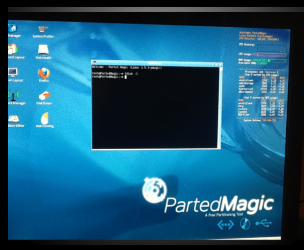
I then carried out the next step you mentioned - (Computer screen near START Icon).
Not sure if you can see from the picture but i typed in fdisk -l as described only to have the same message line. I Can't seem to get the information you requested, AM I DOING SOMETHING WRONG?
 

Attachments

  • parted.PNG
    parted.PNG
    120.4 KB · Views: 6

My Computer My Computer

At a glance

Windows 7 64bit
OS
Windows 7 64bit
Hi

Nope, you're not doing it wrong. I haven't seen that happen in a couple of years, it could be related to the damaged drive, the type of formatting on your drives or the type of hardware controller your drives are using.

Try this instead, type
parted -l
That's parted[SPACE][dash]l as in Linux
It may be hard to get a picture of the results on one screen so do your best and I'll let you know if I need more.

Also, I need to know about the TestDisk run that got to 4% complete. Did you run TestDisk in PartedMagic or in Windows?

Once I see the partition structure of the drive we can start trying a few things to access the data. (For anyone wondering, I need to see some of the numbers, that's why I want to see the results of the text based tools and not the graphical ones)

James

EDIT: I forgot to ask... Do you have enough free space on another drive to copy the data you want?
 
Last edited:

My Computer My Computer

At a glance

OS
OS
OS
(Parted -l) info is in the picture.

I ran Testdisk in Parted magic and when i cancelled it, nothing happened, i didn't even get a log.

I have another Hard drive in place that i can transfer all the data to. To be quite honest, i'm only trying to save about 60gb, will i be required to save the whole drive or can i select. Assuming this works and it isn't completely DEAD.

Many thanks again.
 

Attachments

  • a.PNG
    a.PNG
    134.8 KB · Views: 1

My Computer My Computer

At a glance

Windows 7 64bit
OS
Windows 7 64bit
If you are able to see the drive, here are the first two techniques to try in order to recover your pictures folder. If you don't see the drive, completely shutdown the computer and turn it off then boot into PartedMagic again to see if it shows up.

boot the computer into PartedMagic like you did before.

Click the MOUNT DEVICES button which is down by the START button. Here's a picture...
http://litten.com/images/mount1.jpg

You want to click the green MOUNT buttons next to the bad drive and the drive that you want to copy to. If you aren't sure which drive is which then post a picture and we'll try to tell you.

Your original internal drive that I assume you are copying to has 3 partitions that can be mounted, you want to mount the largest which is probably called ACER. Be patient as it can take a few moments to mount sometimes.

Once you have mounted both the bad drive and the drive that we are copying to, you will notice that the File Manager window opened also when you clicked the MOUNT DEVICES button. In it you will see folders representing your drives. The File Manager window should be displaying the contents of the /media folder and your drives will be folders called sda1 and sdb1 (though yours may have different names that you get by looking next to the MOUNT button).

Double click the folder for your bad drive and if you see your files and folders then simply select what you want to copy to the new drive and right-click and choose COPY. Then navigate to the folder that represents the new drive and right-click and choose PASTE just like if you were in Windows Explorer.

Let us know if this works, you have any questions or if it does not work for you or you can't see the files on the bad drive.
If you have any problems or questions, take a picture and post it like you've been doing.

I'll type up directions for the next thing to try and post them shortly.

James
 

My Computer My Computer

At a glance

OS
OS
OS
I have to meet a client so here is the next thing to try if the above post did not work...

Since that bad drive seems to like a fresh start before it works, reboot it into PartedMagic before trying this.

First, mount only the drive you are copying to(probably the ACER one) using the MOUNT DEVICES button like I described in the previous post. Leave the mount devices and the file manager windows open, we'll be back to that.

Next open the Terminal window (the picture of the monitor down by that mount devices button in the lower left of the desktop).

In the terminal type
Type testdisk and press enter.
Choose No Log and hit enter
Make sure that your bad disk is highlighted
Choose Proceed and hit enter
Select Intel and hit enter
Select Advanced and hit enter
Make sure that the partition is highlighted and
Select List and hit enter

IF IT SAYS NO PARTITION AVAILABLE TRY THIS
Hit Q a bunch of times until you are out of TestDisk and go into it again but this time at the step
Select Intel and hit enter
Choose EFI GPT instead of Intel and hit enter and see if that allows you to see the partition.


If you see your files and folders we can copy them from here.
There are directions at the bottom of the screen in TestDisk. I like to do a test first and try to copy just one file or folder to see if it works.

Select a file or folder that you'd like to try copying by highlighting it.
Press the semicolon key to select it
:
and then press upper case C to copy all selected files
SHIFT-C
Now it wants to know where to copy the file to.
Highlight the second line which is .. (two dots) and press the right arrow key and it will take you up a level.
Highlight the media folder and press the right arrow key.
You should see the disk that you mounted in there. It's probably called something like sda1 (look at what it was called when you mounted it like /media/sda1)
Highlight the sda1 folder (or whatever your disk is called) and press the right arrow key.
Press
C
and it should copy the file there.
Leave everything open and look in the file manager window to verify that the file was copied. In the file manager window, look inside the folder for your mounted drive (sda1 in our example but yours may be something else) and see if you see the file that you copied there. If it is there, go back to the TestDisk window and select more files and folders that you want to copy and when you choose to copy them it will put them on the drive you already chose.

Again, let us know if this works, you have any questions or if it does not work for you or you can't see the files on the bad drive.
If you have any problems or questions, take a picture and post it like you've been doing.

James
 

My Computer My Computer

At a glance

OS
OS
OS
For some reason the drive is not showing up, so i can't mount it. I have a few work things to do tonight so i'm inbetween, i think i may leave it till tomorrow so it has my full attention. I will try to reboot first then try again, if that fails i'll try tomorrow. What time zone are you on?
 

My Computer My Computer

At a glance

Windows 7 64bit
OS
Windows 7 64bit
I am in UTC-4 and I usually do not look at forums until I take care of my paying customers in the morning which is usually abou 17:00 UTC.

If you can't get the disk to appear using the two techniques I've outlined in the previous posts then you can try putting it back in the enclosure and see if that allows you to use those techniques. Try plugging it in before booting and plugging it in after booting.

If that does not work then it is too far gone for me to help you in the forum and you'll have to contact a data recovery professional.

Your errors indicate physical damage and not logical damage. If it were logical damage, we would see the drive consistently in PartedMagic. When I've seen this type of behavior before it has usually (but not always) been caused by being bumped while plugged in and doing a write operation. It can also be what is called 'weak heads' where it cannot detect the data. These are both problems that need to be addressed in a clean room environment. The precision involved in these parts is incredible and microscopic.

I have had some success using the techniques that I've mentioned but in those cases the hard drive was visible at least sporadically.

I'll be monitoring this thread so keep me posted as to how things progress :)

James
 

My Computer My Computer

At a glance

OS
OS
OS
James,

Apologies, i haven't yet abandoned all hope. I have been very busy with work and i won't be able to resume until thursday/friday. Thanks again for helping me.
Will give you an update once i have done the previous threads.
 

My Computer My Computer

At a glance

Windows 7 64bit
OS
Windows 7 64bit
I know how it is :)

No problem, I'm still getting notifications for this thread.

James
 

My Computer My Computer

At a glance

OS
OS
OS
What happened

Man, I was waiting on pins and needles for the next epesode of this saga as it was the most riveting I have read in a while and it screeched to a hault ending in a thud...clunk.....clank :cry:. What a letdown. This should teach me to get my hopes up.
 

My Computer My Computer

At a glance

Windows 7 Ultimate x64AMD Phenom B55 3200MHz4GBOn Board
Computer type
PC/Desktop
Computer Manufacturer/Model Number
CUSTOM BUILD
OS
Windows 7 Ultimate x64
CPU
AMD Phenom B55 3200MHz
Motherboard
Gigabyte MA785GM-US2H
Memory
4GB
Graphics Card(s)
On Board
Sound Card
On Board 8.1 HD
Monitor(s) Displays
(1) Samsung 713N, (2) IBM Thinkvision
Screen Resolution
1280x1024
Hard Drives
Hitachi, Seagate, Maxtor
PSU
CoolerMaster
Case
CoolerMaster
Cooling
CoolerMaster Hyper 212+
Keyboard
Dell QuietKey
Mouse
Logitech
Internet Speed
20-40Mb/s
Antivirus
Kapersky
Browser
Waterfox, Chrome, Opera
Back
Top