Solved Highlight Color

czarmurphy

New member
Local time
9:10 PM
Messages
14
Hey guys,

I am trying to change my highlight color in Outlook 2007. I have been able to change the color in standard windows through the Personalize->Window Color and Appearance->Advanced setting, but the changes do not take effect in other Microsoft applications (e.g. Office).

Is there another way to change the highlight text, maybe through Outlook?

Thanks for your help!
 

My Computer

OS
Windows 7 Pro 64bit
CPU
i5 750
Motherboard
Asus P7P55D-E Pro
Memory
4 GB Ripjaw
Graphics Card(s)
Palit GTX 460
Monitor(s) Displays
Asus VH236
Hard Drives
Samsung Spinpoint 1TB 7200RPM
PSU
XFX 750W BE
Case
Antec 900
Cooling
Cooler Master Hyper 212+
If you are asking about the highlight (yellow) used in Search.
Then select Tools | Options | Preferences | Search
Then change the highlight.
 

My Computer

Computer type
PC/Desktop
Computer Manufacturer/Model Number
Custom Built
OS
Windows 10 Pro x64, Windows 8.1 Pro x64, Windows 7 Ultimate x64 SP1,
CPU
INTEL i9-7920X LGA 2066
Motherboard
Gigabyte X299-WU8 F3
Memory
64 GB (4 X 16 GB) G-Skill V Series DDR4 3200 Quad Channel
Graphics Card(s)
EVGA GTX 1060 SC 3 GB
Sound Card
Realtek Onboard ALC1220
Monitor(s) Displays
2 x Samsung S27E310
Screen Resolution
1920x1080
Hard Drives
Samsung 2 x 970 EVO Plus 500 GB NVMe
1 x 6TB WD 6003FZBX SATA
1 x 6TB WD 60EFRX SATA
12 x 3TB WD 30EFRX SATA
PSU
Seasonic X-1050
Case
Thermaltake Armor+
Cooling
Corsair H80i V2 Liquid AOI Cooler
Keyboard
Logitech G510s
Mouse
Logitech MX Master 2S
Internet Speed
200 Mb/s
Antivirus
ESET NOD32 13.1
Browser
EDGE (Dev, Canary, Beta), Chrome
Other Info
ASUS RT-AC68U router
Malwarebytes 4.0.4
Thanks for the response. Actually, I am referring to selecting a range of text in general, in order to copy and paste, for example. The default highlight color seems to be light blue. Is there any way to edit this color? I have tried editing the highlight color in Windows (through the Personalize menus), but the changes do not seem to take effect in Outlook.
 

My Computer

OS
Windows 7 Pro 64bit
CPU
i5 750
Motherboard
Asus P7P55D-E Pro
Memory
4 GB Ripjaw
Graphics Card(s)
Palit GTX 460
Monitor(s) Displays
Asus VH236
Hard Drives
Samsung Spinpoint 1TB 7200RPM
PSU
XFX 750W BE
Case
Antec 900
Cooling
Cooler Master Hyper 212+
Maybe this is what you need:
Highlight important text | MSOutlook.info

Outlook 2007 and Outlook 2010
You can find the option on the on the Message tab in the “Basic Text” section marked with the letters “ab” and is yellow (by default).
Previous versions of Outlook
In previous versions of Outlook, the option is only available when you have Word set as the email editor and when you enable the Formatting toolbar (not shown by default);

  1. To set Word as the email editor;
    Tools-> Options…-> tab Mail Format
  2. Enable the Formatting toolbar
    View-> Toolbars-> Formatting
    The icon holds the letters “ab” and is yellow (by default). You might need to expand the Formatting toolbar in order to see it.
highlighttext-option.png

The text highlight icon looks similar in previous versions of Outlook.
Using the text highlighter
To use it, simply click the icon and your cursor will change into a marker pen. Select the text that you want to highlight just like you would do normally on paper.
Click the little drop down button next to the text highlight icon to change the highlighting color; there are 15 colors to choose from and a “None” or “No color” option to remove the highlighting again (I wish I could do that on paper sometimes…).
Click the option again or press the Esc button on your keyboard to turn your cursor back to normal again or just continue typing to turn it off.
highlighttext-cursor.png

The text highlight cursor in action.
 

My Computer

Computer type
PC/Desktop
Computer Manufacturer/Model Number
Packard Bell
OS
Windows 7 Home Premium 64bit
CPU
Intel(R) Core(TM) i3-2120 CPU @ 3.30GHz
Motherboard
Packard Bell IPISB-AG
Memory
3.00 GB
Graphics Card(s)
(1) Intel(R) HD Graphics (2) VNC Mirror Driver
Sound Card
Realtek High Definition Audio
Monitor(s) Displays
AIO LCD
Screen Resolution
1920 x 1080
Hard Drives
WDC WD10EADX-22TDHB0 ATA Device
Fixed hard disk media
4 partitions
931.51 GB
Keyboard
Wireless
Mouse
Wireless
Antivirus
Microsoft Security Essentials
Browser
IE; Firefox
Other Info
Also:
Samsung N220 Plus Netbook - Windows 7 Home
HP laptop
iPad 5
Okay, I see how my use of the word "highlight" has been throwing you guys off. This is not exactly what I was talking about, but honestly, this will be a sufficient substitute. I was actually referring to the simple act of selecting a range of text, but the highlighter seems to accomplish my goal with a few more button clicks. That may have to do.
 

My Computer

OS
Windows 7 Pro 64bit
CPU
i5 750
Motherboard
Asus P7P55D-E Pro
Memory
4 GB Ripjaw
Graphics Card(s)
Palit GTX 460
Monitor(s) Displays
Asus VH236
Hard Drives
Samsung Spinpoint 1TB 7200RPM
PSU
XFX 750W BE
Case
Antec 900
Cooling
Cooler Master Hyper 212+
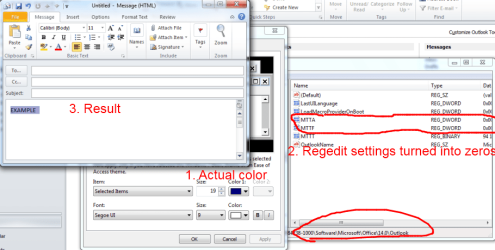
czarmurphy, I have managed to alter (to some extend) that color you was talking about.
I think it is called Color of Selected Items.

First step: Close all Office applications.

Change standard color of Selected Items through
Personalize->Window Color and Appearance->Advanced settings
Second step:
Open Regedit - Navigate to your user settings
HKEY_USERS\S-1-5-21-LONG_STRING_OF_NUMBER_HERE-1000\Software\Microsoft\Office\14.0\Outlook
And change value of MTTA and MTTF to zeros.
Same thing could be done for Word and others.

When Outlook will open next time it will copy Selected items color to those parameters in RGB format.

However, this color will be used with some form of transparency. And looks like that transparency is hard-coded somewhere and cannot be easily changed.

So, color will be the same as Selected Items, but always with some sort of transparency.
 

Attachments

  • selected_items.png
    selected_items.png
    52.5 KB · Views: 139

My Computer

Computer type
PC/Desktop
OS
Windows 8.1 ; Windows 7 x86 (Dec2008-Jan2013)
Other Info
"The scale icon at the top right of a post or tutorial is how you can give rep to the member."
Wow, that was it. Although the transparency issue is significantly stunting the effect, that is what I was looking for. Thank you very much!
 

My Computer

OS
Windows 7 Pro 64bit
CPU
i5 750
Motherboard
Asus P7P55D-E Pro
Memory
4 GB Ripjaw
Graphics Card(s)
Palit GTX 460
Monitor(s) Displays
Asus VH236
Hard Drives
Samsung Spinpoint 1TB 7200RPM
PSU
XFX 750W BE
Case
Antec 900
Cooling
Cooler Master Hyper 212+
Right click desktop> Click on personalize> Windows color/custom at bottom

Advanced appearance settings> Item dropdown list> Selected Item> Color 1: dropdown, pick your color> Apply> OK
 

My Computer

Computer Manufacturer/Model Number
Joy Systems, Inc.
OS
Window 7 Home Premium 32 bit
CPU
E6550 @ 2.33 GHz
Memory
2.00 GB
Back
Top