Host a Website - IIS7.5

Host your own website using IIS7.5

   Information
Windows 7 comes with a very handy application/tool set called Internet Information Services 7.5 which allows you to use any PC (Home or on a Network) as a server for your newly created website

   Note
You will need to register a DNS Host from here for free, purchasing a Domain is Optional

Update:
You can host a website without the need to register a Dynamic DNS host name. If you visit YouGetSignal it will give an External Address which can be used instead of the host name. For example, typing "http://x.xxx.xx.xxx" into your browser address bar will gain you access to the site you're hosting.
   Note
You can only host 1 website by using this method unless you add "/[new folder]/" to the end of the address


You will also need your IPv4 address, run command prompt (type cmd into the Start Menu) and type ipconfig, scroll up slightly & take note of your IPv4 address. This will be used to configure your router.

Special thanks goes to z3r010 for the majority of this information


Here's How:

Part 1: Acquiring the DNS Host

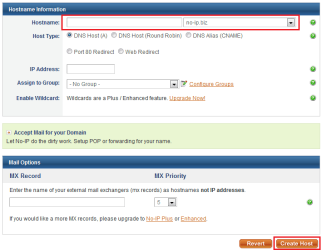
Go to www.no-ip.com and register for free. Click the 'Add Host' button and you will be give the option to name your host.

Add Host.PNGEnter Details.PNG


Just enter the name of your website and choose a prefix then click 'Create Host' (highlighted in image)
   Note
That is all the info you need to enter to create your DNS Host. It is also recommended that you download their NO-IP software too, as this will manage/sync your host.
Part 2: Installing & Using IIS7.5

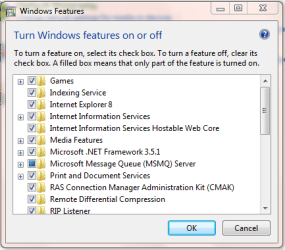
1, Access 'Control Panel, and click 'Programs' followed by 'Turn Windows features on or off'.


Control Panel.PNG


2, Click the checkbox for each of the Internet Information Service toolsets then click 'OK'

Note: A system restart may be required
Windows Features.PNG


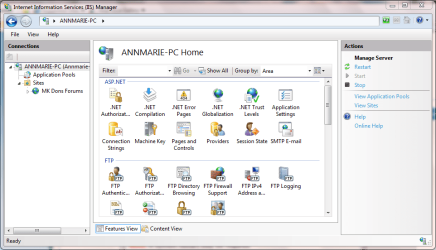
3, Run the IIS Manager - in the Start Menu type "IIS"
IIS Opened.PNG


4, Right-Click on 'Sites' and click 'Add Web Site'

Note: You may need to 'Expand' the explorer branch to allow you to see 'Sites'
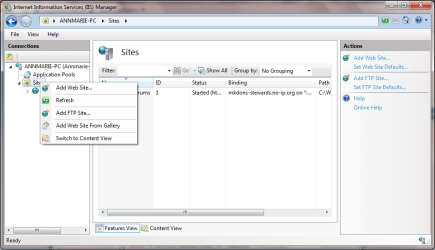
IIS New Site 1.PNG


5, Enter a 'Site Name', this can be anything (E.g. My New Site), 'Phisical Path' (E.g. C:\MY_SITE) and 'HOST Address', this is the address of the HOST you created in step 1 (e.g. my-new-site.no-ip.org) and click OK
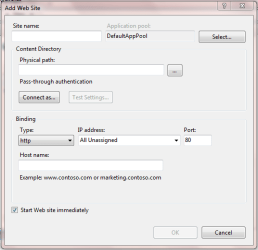
IIS New Site 2.PNG


Step 3: Router/Windows Firewall exception

1, In the Start Menu, type "firewall" and click 'Windows Firewall with Advanced Settings'
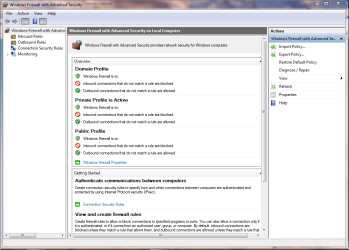

windows firewall.PNG


2, Click 'Inbound Rules' then 'New Rule' to start the 'New Rule Wizard. Click 'Port' then 'Next'

Inbound Rule 1.PNG


Click 'TCP' and enter port '80' then click 'Next'
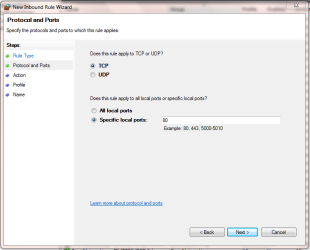
Inbound Rule 2.PNG


Click 'Allow the connection' then click 'Next'
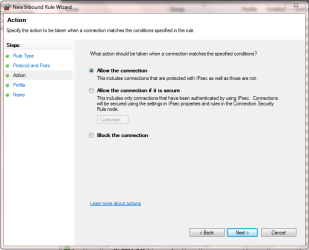
inbound rule 3.PNG


Click the rules that apply, then 'Next'
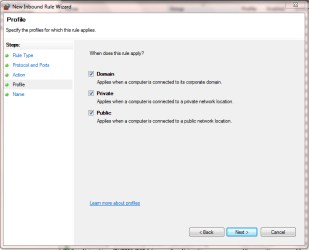
inbound rule 4.PNG


Lastly, name the new fule & click 'Finish'
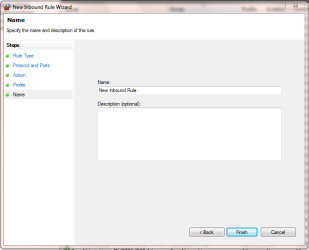
inbound rule 5.PNG


You will see that the new rule has now been created and you can close Windows firewall

see new rule.PNG


   Note
You will need to consult your router documentation for details on how to allow firewall exceptions


The 2 exceptions you will need to configure are
  • 'Outbound service' - Always allow HTTP(TCP:80)
  • 'Inbound Service' - Always allow HTTP(TCP:80) and 'Send to lan server' within that (enter your IPv4 address)
Now when you type the HOST address, e.g. no-ip.org, you, and others, will be able to access your site.
 
Last edited:
hi guys ran though the tutorial and became stuck at the router part think i got it in the end but i too just get my router admin page.

i have edited the host file to 127.0.0.1 sgb101.no-ip.org. which is the hostname i set up. but im at a loss.

does anyone have any experience with deimax routers? my model is ar7265wna. i really struggled finding the right places to input the data provided in the tutorial.

any help will be appreciated
 

My Computer

Computer Manufacturer/Model Number
selfbuild
OS
windows 7 pro 64bit
CPU
i7 920
Motherboard
Asus P6T SE
Memory
G.Skill Rip Saw
Graphics Card(s)
HD 5850
Hard Drives
2x 1Tb F3
PSU
Ocz 600w stealth
Case
Asus TA M11
Cooling
Titan Fenrir
brother ...
i m not able to make it...
is there any other setting ?
which i hv to change...
plzz help :(
 

My Computer

OS
Windows 7 Ultimate x64
good stuff,

I have a question. i can get to my site on my laptop, but other computers on my network can not get to my site. how can i get this to work so other computers on my network can see the site on my laptop. this is for internal use only.
 

My Computer

OS
windows 7
I am getting an error... It says that the host name i have entered is incorrect...
34856428.png
 

My Computer

OS
Windows 7 Ultimate 64 bit
New update added to first post regarding hosting without the need to have a host name.
 

My Computer

Computer Manufacturer/Model Number
Compaq Desktop
OS
Windows 7 Ultimate x64
CPU
AMD Sempron Dual Core
Memory
3GB
Graphics Card(s)
NVIDIA GeForce 6150SE nForce 430
Screen Resolution
1024x768
Hard Drives
150GB Sata
hi

everything is up and running except the part about router firewall config. my router is huawei echolife hg520c. when i try to access the web page i created it takes me to my login of my router.

pls help. thanks
 

My Computer

OS
7 fire x64 by RT
Hiya tibrosky, have you tried accessing it from another machine that is outside your firewall? It's not unusual for that to happen from inside the firewall, because the router gets confused :)
 

My Computer

Computer type
PC/Desktop
Computer Manufacturer/Model Number
Medion Erazer (note to self: insert model number) - with custom additions
OS
Windows 10 Pro x64
CPU
Intel Core i5 7400 @ 3.00GHz
Motherboard
OEM supllied with PC
Memory
8GB 2133Mhz DDR4 (OEM supplied)
Graphics Card(s)
Gygabyte Windforce GTX 1050Ti (Factory Overclocked)
Sound Card
Realtek
Monitor(s) Displays
Acer Al1980 + HKC
Screen Resolution
1360*768(HKC) / 1280*1024(Acer)
Hard Drives
1TB Toshiba
1TB WD Caviar Green
120GB Samsung Evo 840
PSU
OEM supplied (no power rating on case)
Case
OEM Supplied
Cooling
Stock
Keyboard
Logitech Wireless
Mouse
Logitect Wireless
Internet Speed
40Mb/s Down 10Mb/s Up
Antivirus
Defender
Browser
Firefox
Not working from this end, seems to be a DNS error if that helps. I'll let someone else help you though... I don't know enough about this stuff.
 

My Computer

Computer type
PC/Desktop
Computer Manufacturer/Model Number
Medion Erazer (note to self: insert model number) - with custom additions
OS
Windows 10 Pro x64
CPU
Intel Core i5 7400 @ 3.00GHz
Motherboard
OEM supllied with PC
Memory
8GB 2133Mhz DDR4 (OEM supplied)
Graphics Card(s)
Gygabyte Windforce GTX 1050Ti (Factory Overclocked)
Sound Card
Realtek
Monitor(s) Displays
Acer Al1980 + HKC
Screen Resolution
1360*768(HKC) / 1280*1024(Acer)
Hard Drives
1TB Toshiba
1TB WD Caviar Green
120GB Samsung Evo 840
PSU
OEM supplied (no power rating on case)
Case
OEM Supplied
Cooling
Stock
Keyboard
Logitech Wireless
Mouse
Logitect Wireless
Internet Speed
40Mb/s Down 10Mb/s Up
Antivirus
Defender
Browser
Firefox
Hi,

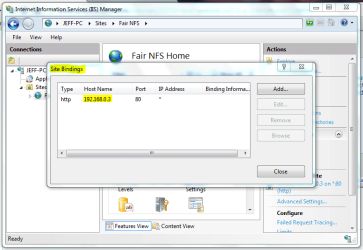
When you change your router settings try reserving a particular IP address for your machine then when/if something (like a reboot/power cut) changes your IP address then the settings you've set for the "Send to LAN server" parameter. And, make sure that IIS is properly configured to your IPv4 address like the image below...

IIS.PNG

The 2 exceptions you will need to configure are

'Outbound service' - Always allow HTTP(TCP:80)
'Inbound Service' - Always allow HTTP(TCP:80) and 'Send to lan server' within that (enter your IPv4 address)

Hope it helps
 

My Computer

Computer Manufacturer/Model Number
Compaq Desktop
OS
Windows 7 Ultimate x64
CPU
AMD Sempron Dual Core
Memory
3GB
Graphics Card(s)
NVIDIA GeForce 6150SE nForce 430
Screen Resolution
1024x768
Hard Drives
150GB Sata
How to get pass-through authentication?
 

My Computer

Computer Manufacturer/Model Number
Custom Made
OS
Windows 7 Ultimate
CPU
AMD Athlon 2.6Ghz 4000+
Motherboard
MSI K9A-CF 790X
Memory
OCZ Gold Edition 2GB
Graphics Card(s)
ATI HD5670 1GB
Monitor(s) Displays
Samsung 18"
The 2 exceptions you will need to configure are
  • 'Outbound service' - Always allow HTTP(TCP:80)
  • 'Inbound Service' - Always allow HTTP(TCP:80) and 'Send to lan server' within that (enter your IPv4 address)

step 2 is where you set these settings
 

My Computer

Computer Manufacturer/Model Number
dell
OS
win 7 32 bit
CPU
q6600
step 2 is where you set these settings, this
The 2 exceptions you will need to configure are
  • 'Outbound service' - Always allow HTTP(TCP:80)
  • 'Inbound Service' - Always allow HTTP(TCP:80) and 'Send to lan server' within that (enter your IPv4 address)
has nothing to do with router, its internal to windows to allow request that get past your router to be accepted by you rwindows box
 

My Computer

Computer Manufacturer/Model Number
dell
OS
win 7 32 bit
CPU
q6600
I am trying to follow these steps and I have a couple of domains registered with GoDaddy, what would I have to do differently to be able to redirect them to my house? Just put then no-ip address in the Go Daddy redirect and then it should bounce to my computer?

Update #1: As of now it seems to work but I get a 403 error. Any ideas? I have placed a filed named index.html into the physical directory c:\mywebsite\ that I created...no luck being able to see it though.

http://sientz.redirectme.net

or

http://sientz.redirectme.net/index.html

Update #2: Figured it out! Stupid and simple, I had Windows 7 set up to hide known file extensions in the Folder Options so even though I named it index.html it was really index.html.txt =P My Bad!

Thanks for the tutorial!
 
Last edited:

My Computer

OS
Windows 7 Professional 64
CPU
Intel(R) Core(TM) i7 CPU 950 @ 3.07 GHz 3.06 GHz
Memory
12.0 GB
Graphics Card(s)
NVIDIA GeForce GTX460
Monitor(s) Displays
Acer H233H
If you want to add php support etc then the quickest way is to use the Web platform installer:-

Download the Microsoft Web Platform

Maybe you could go a little further into this? I downloaded the Web Platform Installer and its asking me what I want to add but there are quite a few options.
 

My Computer

OS
Windows 7 Professional 64
CPU
Intel(R) Core(TM) i7 CPU 950 @ 3.07 GHz 3.06 GHz
Memory
12.0 GB
Graphics Card(s)
NVIDIA GeForce GTX460
Monitor(s) Displays
Acer H233H
If you want to add php support etc then the quickest way is to use the Web platform installer:-

Download the Microsoft Web Platform

Maybe you could go a little further into this? I downloaded the Web Platform Installer and its asking me what I want to add but there are quite a few options.

I've just had a look and it seems they have removed php from the installer, you can however go to the following page and click the install php 5.3. link at the top of the page and it will do the install the the webplatform.

Microsoft Web Platform - PHP on Windows

Also you may want to check out the gallery for lots of stuff that can be installed via the WPI - http://www.microsoft.com/web/gallery/categories.aspx
 

My Computer

Computer type
PC/Desktop
OS
Windows 11 Workstation
If you want to add php support etc then the quickest way is to use the Web platform installer:-

Download the Microsoft Web Platform

Maybe you could go a little further into this? I downloaded the Web Platform Installer and its asking me what I want to add but there are quite a few options.

I've just had a look and it seems they have removed php from the installer, you can however go to the following page and click the install php 5.3. link at the top of the page and it will do the install the the webplatform.

Microsoft Web Platform - PHP on Windows

Also you may want to check out the gallery for lots of stuff that can be installed via the WPI - Windows Web App Gallery - Browse Apps

I typed PHP in the small search bar on the upper right hand side of the Web Installer and it gave me a list of things to install. I selected PHP and then 'Add' and Install. I have no idea if it worked. I was looking at running a PHP Nuke Site but it says on their site you need Apache web server so I am guessing it is not going to work with IIS? Might have to look for an alternative...
 

My Computer

OS
Windows 7 Professional 64
CPU
Intel(R) Core(TM) i7 CPU 950 @ 3.07 GHz 3.06 GHz
Memory
12.0 GB
Graphics Card(s)
NVIDIA GeForce GTX460
Monitor(s) Displays
Acer H233H
I'm having trouble seeing my web site. I've confirmed the port is open; however when I or anyone eles trys to see the site we get an error 404. It's like it can find the page or default page of my web server. Anyone have a clue at how to resolve the issue of the web server not displaying the site?
 

My Computer

OS
Windows 7 64bit
Back
Top