How do I change dialog backgrounds?

aaron1a12

New member
Local time
9:43 PM
Messages
10
Hi, does anybody know how to change the background color of standard alert boxes? I'm using a heavily customized version Satukoro's Luna port to Windows 7 and I get completely white backgrounds on most typical dialogs. The most I know about it is that it uses the "window" system color. Since Vista, dialog boxes have been split now with a white background for the text and grey for the buttons. I get everything white now, but I would like to use the standard buttonface color as in Windows XP.

pic.gif


Is there some sort of UIFILE I can edit in Resource Hacker? Or can this be easily done in Windows 7 Style Builder?
 

My Computer

OS
Windows 7 Ultimate x64
Welcome to the Seven Forums

Are you talking about the background color or the button text color you've got me confused?

Is that your dialog box in the screenshot? If not post a screenshot of your dialog box if possible use arrows to point to the problem.

Jerry
 

My Computer

Computer type
Laptop
Computer Manufacturer/Model Number
Sager NP9170
OS
Win 7 Pro x64 / Win 10 Pro
CPU
Intel(R) Core(TM) i7-3630QM CPU @ 2.40GHz
Motherboard
CLEVO P170EM
Memory
12 GB
Graphics Card(s)
(1) Intel(R) HD Graphics 4000 (2) NVIDIA GeForce GTX 675M
Sound Card
(1) Realtek High Definition Audio (2) Intel(R) Display Aud
Monitor(s) Displays
17.3
Screen Resolution
1920x1080
Hard Drives
(1) Samsung 860 EVO 500GB(OS) (1) Samsung 860 EVO 500GB(Data)
Keyboard
Backlite
Antivirus
MSE, Malwarebytes Pro
Browser
Firefox
Other Info
DESKTOP: Custom-built.
OS: Win 10 Pro x64.
CASE: Rosewill R5.
CPU: Intel I5 4670K CPU @ 3.40GHz.
CPU COOLER: Cool Master Hyper 212 EVO.
MOTHERBOARD: Asus Z87-A.
MEMORY: Kingston HyperX 2x4 GB.
GPU: Nvidia Geforce 650 TI.
PSU: Corsair TX750.
DRIVES: (1) Samsung 840 120 GB SSD (2) Western Digital blue 500 GB 7200 RPM.
Thanks, nice place you got here.

I was talking about the background color of the window. The first dialog in the screenshot on the left is how my dialog boxes are, the second picture on the right is how I would like them to be. Sorry if I was confusing.

I am trying to make my Windows 7 PC as similar to Windows XP as possible (for nostalgic purposes.) So far, this is how my desktop looks.

desktop.jpg
 

My Computer

OS
Windows 7 Ultimate x64
OK I understand what you're talking about now there is a slight change in the RGB's of that background.

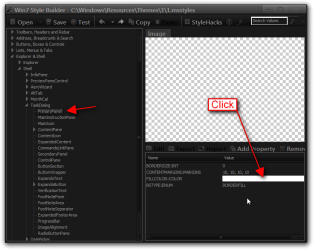
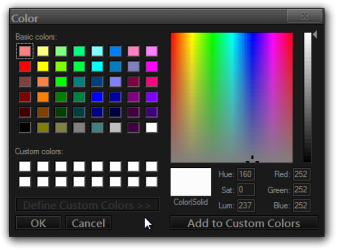
If you have Windows Style Builder you can change that background color at Explorer & Shell > Shell > TaskDialog > PrimaryPanel > FILLCOLOR:COLOR click on the color and a color dialog box will open.
Win7 Style Builder.pngColor.png

Windows Style Builder is the only way I know how to change that color.

Jerry
 

My Computer

Computer type
Laptop
Computer Manufacturer/Model Number
Sager NP9170
OS
Win 7 Pro x64 / Win 10 Pro
CPU
Intel(R) Core(TM) i7-3630QM CPU @ 2.40GHz
Motherboard
CLEVO P170EM
Memory
12 GB
Graphics Card(s)
(1) Intel(R) HD Graphics 4000 (2) NVIDIA GeForce GTX 675M
Sound Card
(1) Realtek High Definition Audio (2) Intel(R) Display Aud
Monitor(s) Displays
17.3
Screen Resolution
1920x1080
Hard Drives
(1) Samsung 860 EVO 500GB(OS) (1) Samsung 860 EVO 500GB(Data)
Keyboard
Backlite
Antivirus
MSE, Malwarebytes Pro
Browser
Firefox
Other Info
DESKTOP: Custom-built.
OS: Win 10 Pro x64.
CASE: Rosewill R5.
CPU: Intel I5 4670K CPU @ 3.40GHz.
CPU COOLER: Cool Master Hyper 212 EVO.
MOTHERBOARD: Asus Z87-A.
MEMORY: Kingston HyperX 2x4 GB.
GPU: Nvidia Geforce 650 TI.
PSU: Corsair TX750.
DRIVES: (1) Samsung 840 120 GB SSD (2) Western Digital blue 500 GB 7200 RPM.
Thanks, but that seems to only change the dialogs in Explorer. Notepad's Save Changes? dialog is still white, as well as other dialogs.

Run now looks hideous...

run.jpg
 

My Computer

OS
Windows 7 Ultimate x64
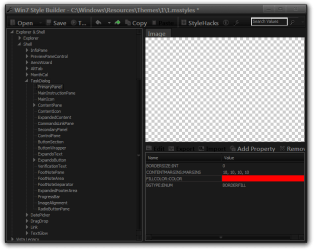
That location I give you works for me look at screenshots for notepad.
Win7 Style Builder - CWindowsResourcesThemes11.msstyles.pngNotepad.png


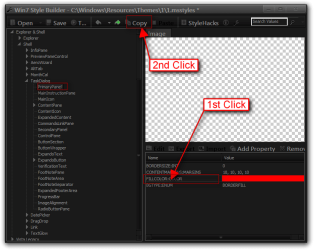
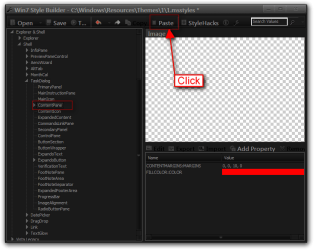
For the Run dialog box you need to add Fill Color Property at Explorer & Shell > Shell > TaskDialog > ContentPane
The easiest way to do that would be to go to Explorer & Shell > Shell > TaskDialog > PrimaryPanel 1st click on the fill color then click on the copy button then go to Explorer & Shell > Shell > TaskDialog > ContentPane and click on the paste button, now you will have the fill color property there look at the screenshots below.
1.png2.png

Jerry
 

My Computer

Computer type
Laptop
Computer Manufacturer/Model Number
Sager NP9170
OS
Win 7 Pro x64 / Win 10 Pro
CPU
Intel(R) Core(TM) i7-3630QM CPU @ 2.40GHz
Motherboard
CLEVO P170EM
Memory
12 GB
Graphics Card(s)
(1) Intel(R) HD Graphics 4000 (2) NVIDIA GeForce GTX 675M
Sound Card
(1) Realtek High Definition Audio (2) Intel(R) Display Aud
Monitor(s) Displays
17.3
Screen Resolution
1920x1080
Hard Drives
(1) Samsung 860 EVO 500GB(OS) (1) Samsung 860 EVO 500GB(Data)
Keyboard
Backlite
Antivirus
MSE, Malwarebytes Pro
Browser
Firefox
Other Info
DESKTOP: Custom-built.
OS: Win 10 Pro x64.
CASE: Rosewill R5.
CPU: Intel I5 4670K CPU @ 3.40GHz.
CPU COOLER: Cool Master Hyper 212 EVO.
MOTHERBOARD: Asus Z87-A.
MEMORY: Kingston HyperX 2x4 GB.
GPU: Nvidia Geforce 650 TI.
PSU: Corsair TX750.
DRIVES: (1) Samsung 840 120 GB SSD (2) Western Digital blue 500 GB 7200 RPM.
D'oh! My fault. I forgot I had replaced my notepad with the original XP notepad!

Nevertheless, the standard alert box is still white. Like the alert boxes in internet explorer:

ie.jpg


But it changes when I change the "window" color on the desktop; Personalize > Window Color

It must be a UIFILE in whatever DLL dialog templates are defined, shell32.dll? user32.dll?
 

My Computer

OS
Windows 7 Ultimate x64
I'm sorry I would not know which .dll that is in. How do you get that alert window and I will try to reproduce it and see if I can't figure it out.
Jerry
 

My Computer

Computer type
Laptop
Computer Manufacturer/Model Number
Sager NP9170
OS
Win 7 Pro x64 / Win 10 Pro
CPU
Intel(R) Core(TM) i7-3630QM CPU @ 2.40GHz
Motherboard
CLEVO P170EM
Memory
12 GB
Graphics Card(s)
(1) Intel(R) HD Graphics 4000 (2) NVIDIA GeForce GTX 675M
Sound Card
(1) Realtek High Definition Audio (2) Intel(R) Display Aud
Monitor(s) Displays
17.3
Screen Resolution
1920x1080
Hard Drives
(1) Samsung 860 EVO 500GB(OS) (1) Samsung 860 EVO 500GB(Data)
Keyboard
Backlite
Antivirus
MSE, Malwarebytes Pro
Browser
Firefox
Other Info
DESKTOP: Custom-built.
OS: Win 10 Pro x64.
CASE: Rosewill R5.
CPU: Intel I5 4670K CPU @ 3.40GHz.
CPU COOLER: Cool Master Hyper 212 EVO.
MOTHERBOARD: Asus Z87-A.
MEMORY: Kingston HyperX 2x4 GB.
GPU: Nvidia Geforce 650 TI.
PSU: Corsair TX750.
DRIVES: (1) Samsung 840 120 GB SSD (2) Western Digital blue 500 GB 7200 RPM.
Well, you can simply open notepad and enter the following HTML code:
HTML:
<html>
<head>
<title>Alert Box</title>
</head>
<body onload="alert('Hello World!');">
<p>Hit Refresh to see the dialog box again.</p>
</body>
</html>
Then save it as "test.html" on your desktop and open it in Internet Explorer. You should see the standard dialog box.
 

My Computer

OS
Windows 7 Ultimate x64
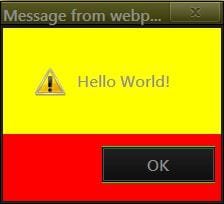
Got it
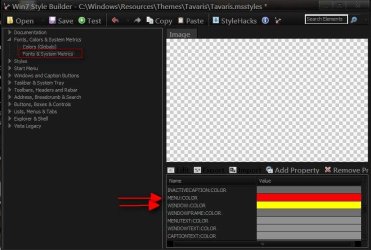
Fonts, Colors & System Metrics > Fonts & System Metrics
Red- Menu:Color
Yellow- Window:Color
d.JPG
wsb.JPG

Jerry
 

My Computer

Computer type
Laptop
Computer Manufacturer/Model Number
Sager NP9170
OS
Win 7 Pro x64 / Win 10 Pro
CPU
Intel(R) Core(TM) i7-3630QM CPU @ 2.40GHz
Motherboard
CLEVO P170EM
Memory
12 GB
Graphics Card(s)
(1) Intel(R) HD Graphics 4000 (2) NVIDIA GeForce GTX 675M
Sound Card
(1) Realtek High Definition Audio (2) Intel(R) Display Aud
Monitor(s) Displays
17.3
Screen Resolution
1920x1080
Hard Drives
(1) Samsung 860 EVO 500GB(OS) (1) Samsung 860 EVO 500GB(Data)
Keyboard
Backlite
Antivirus
MSE, Malwarebytes Pro
Browser
Firefox
Other Info
DESKTOP: Custom-built.
OS: Win 10 Pro x64.
CASE: Rosewill R5.
CPU: Intel I5 4670K CPU @ 3.40GHz.
CPU COOLER: Cool Master Hyper 212 EVO.
MOTHERBOARD: Asus Z87-A.
MEMORY: Kingston HyperX 2x4 GB.
GPU: Nvidia Geforce 650 TI.
PSU: Corsair TX750.
DRIVES: (1) Samsung 840 120 GB SSD (2) Western Digital blue 500 GB 7200 RPM.
Right, but I already said I knew it changes when you alter the color of "window." If you change window:color, it doesn't just change the background in dialog boxes, it also changes the text area in notepad, the process list in Task Manager, text boxes, and even the address bar in firefox.

I think this is impossible :(
 

My Computer

OS
Windows 7 Ultimate x64
You're right many elements are tied together which makes it pretty difficult to get exactly what you want.
Jerry
 

My Computer

Computer type
Laptop
Computer Manufacturer/Model Number
Sager NP9170
OS
Win 7 Pro x64 / Win 10 Pro
CPU
Intel(R) Core(TM) i7-3630QM CPU @ 2.40GHz
Motherboard
CLEVO P170EM
Memory
12 GB
Graphics Card(s)
(1) Intel(R) HD Graphics 4000 (2) NVIDIA GeForce GTX 675M
Sound Card
(1) Realtek High Definition Audio (2) Intel(R) Display Aud
Monitor(s) Displays
17.3
Screen Resolution
1920x1080
Hard Drives
(1) Samsung 860 EVO 500GB(OS) (1) Samsung 860 EVO 500GB(Data)
Keyboard
Backlite
Antivirus
MSE, Malwarebytes Pro
Browser
Firefox
Other Info
DESKTOP: Custom-built.
OS: Win 10 Pro x64.
CASE: Rosewill R5.
CPU: Intel I5 4670K CPU @ 3.40GHz.
CPU COOLER: Cool Master Hyper 212 EVO.
MOTHERBOARD: Asus Z87-A.
MEMORY: Kingston HyperX 2x4 GB.
GPU: Nvidia Geforce 650 TI.
PSU: Corsair TX750.
DRIVES: (1) Samsung 840 120 GB SSD (2) Western Digital blue 500 GB 7200 RPM.
Back
Top