Solved How do I gain access to C:\Windows\Temp ?

sowad

New member
Local time
8:12 AM
Messages
2
I did something wrong in Camtasia and now it saved a huge file in the Temp folder, I know it cos' I saw that the temporary folder wasn't changed. My C:/ Drive is almost full. Please help
;)

Edit:
Also, I previously had Windows 7 Ultimate x64, I had access to C:\Windows\Temp. I used to enter it through "Run" > "temp". But now after I did it, it says access denied.
 

My Computer My Computer

Computer type
PC/Desktop
Computer Manufacturer/Model Number
unknown
OS
Windows 7 Home Premium x64
CPU
unknown
Motherboard
unknown
Memory
unknown
Graphics Card(s)
unknown
Hard Drives
unknown
Antivirus
Avast
Browser
Chrome
Take it easy.:)

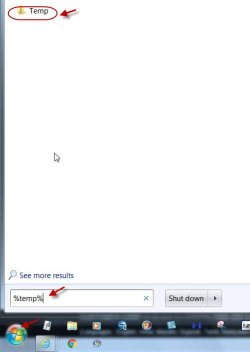
Start > In the search field type %temp%

It will show you the Temp folder

Click on it and it will open the temp folder where you will see all your temp files.

22-12-2015 17-18-18.jpg

Select all the files and press Shift+Delete to send them all to oblivion.

You may get a dialog box stating some files which are currently open cannot be deleted.

Check "Do this for all current items ( 10 found ) " and click on "Skip". All except the current files will be deleted.

( It is imperative that you close Camtasia and reboot your PC before doing this so that that temp file is not current :))
 

My Computer My Computer

OS
Windows 7 Home Premium 32 bit
Take it easy.:)

Start > In the search field type %temp%

It will show you the Temp folder

Click on it and it will open the temp folder where you will see all your temp files.

View attachment 378380

Select all the files and press Shift+Delete to send them all to oblivion.

You may get a dialog box stating some files which are currently open cannot be deleted.

Check "Do this for all current items ( 10 found ) " and click on "Skip". All except the current files will be deleted.

( It is imperative that you close Camtasia and reboot your PC before doing this so that that temp file is not current :))
Not really what I was looking for, but thanks. I accessed to C:\Windows\Temp using the hidden Administrator account.

Regards
 

My Computer My Computer

Computer type
PC/Desktop
Computer Manufacturer/Model Number
unknown
OS
Windows 7 Home Premium x64
CPU
unknown
Motherboard
unknown
Memory
unknown
Graphics Card(s)
unknown
Hard Drives
unknown
Antivirus
Avast
Browser
Chrome
... I accessed to C:\Windows\Temp using the hidden Administrator account...
Using any admin account, you should have been offered this:


temp.PNG

Clicking on Continue should have granted you access.
 

My Computer My Computer

Computer type
Laptop
Computer Manufacturer/Model Number
Employer provided Dell Latitude
OS
W7 Pro SP1 64bit
CPU
i7
Memory
8GB
Graphics Card(s)
Intel HD Graphics
Hard Drives
crappy SSD
Antivirus
Employer mandated Symantec Endpoint Protection
Browser
Pale Moon 64bit, IE11 64bit & Chrome 64bit
.......Not really what I was looking for, but thanks. I accessed to C:\Windows\Temp using the hidden Administrator account.......

Yep, On second reading I did notice that you meant C:\ Windows\Temp but usually most programs write the temporary folders/files into C:\Users\username\AppData\Local\Temp. So I blindly went ahead suggesting cleaning it :D. In my case cleaning of C:\Windows\Temp is automatically taken care of by CCleaner and so far I had never bothered to look into it.

I do not know why Camtasia is writing the temp folder/file into C:\Windows\Temp. Have you specified it to be so in the program settings??

By default CCleaner will also clean C:\Users\username\AppData\Local\Temp but only after 24 hours after its creation but if something in it proves inconvenient before that 24 hours by grabbing too much real estate, then what I had mentioned will be the way to go to get rid of the grabber.

You may find this of interest to you http://www.sevenforums.com/performa...ws-7-temporary-files-recover-real-estate.html

I have defended myself - whether convincing or unconvincing :).

Now go ahead with the query posed by UsernameIssues.
 

My Computer My Computer

OS
Windows 7 Home Premium 32 bit

My Computer My Computer

Computer type
Laptop
Computer Manufacturer/Model Number
Employer provided Dell Latitude
OS
W7 Pro SP1 64bit
CPU
i7
Memory
8GB
Graphics Card(s)
Intel HD Graphics
Hard Drives
crappy SSD
Antivirus
Employer mandated Symantec Endpoint Protection
Browser
Pale Moon 64bit, IE11 64bit & Chrome 64bit
Take it easy.:)

Start > In the search field type %temp%

It will show you the Temp folder

Click on it and it will open the temp folder where you will see all your temp files.

Select all the files and press Shift+Delete to send them all to oblivion.

You may get a dialog box stating some files which are currently open cannot be deleted.

Check "Do this for all current items ( 10 found ) " and click on "Skip". All except the current files will be deleted.

( It is imperative that you close Camtasia and reboot your PC before doing this so that that temp file is not current :))
After using %temp% I see that I have have 3,759 files. For the last few months I have had persistent "access denied" etc. problems. My computer tech. fixed that and said that all could be safely deleted but I haven't had the courage to do so. Here is a representative sample (attached Word file).

Some are actually .exe files, which seems odd for a temp filetype. The earliest date is 24/03/2015 when the comp. was built, and the latest today, hundreds being dated this month.

Would it really be safe to delete all of these, as you mention? I would close all applications and text etc. files (EDIT: and reboot the computer) and would create a Restore Point before doing so, (but that might not help because if a .temp file were crucial to an application I suppose a Restore Point would not preserve it).

If there is any doubt at all I would prefer to keep them. I really don't want to screw up my comp.

Thanks for help. Merry Christmas, and to all who provide so much help on this forum.
 

Attachments

My Computer My Computer

Computer type
PC/Desktop
Computer Manufacturer/Model Number
Gigabyte ATX case with 500 W power supply GZ-M1
OS
Windows 7 Home Premium 64bit
CPU
Intel Pentium Edition G3220 3.0 GHz
Motherboard
Gigabyte Socket 1150 MicroATX Mot Ultra Durable, GA-H81M-S2H
Memory
8 GB DDR3 1600 MHz DIMM
Graphics Card(s)
Not Known
Sound Card
Not known
Monitor(s) Displays
Samsung LS24D590 23.6"
Screen Resolution
1920 x 1080
Hard Drives
256 GB Solid State Drive (C: on which Windows 7 is installed)-
1 TB internal conventional HD (X:)-
Two WD "Elements" " 2TB USB drives as backups
PSU
500 W
Case
Gigabyte ATX case
Cooling
Several fans!
Keyboard
Accuratus 301 USB Compact, white.
Mouse
Microsoft Basic Optical Mouse v2.0, two-button, tethered
Internet Speed
10 to 12 Mb per second
Antivirus
Kaspersky Internet Security 2016, Malwarebytes (paid)
Browser
Firefox (ocassionally Safari)
Other Info
The 256 GB SSD (C:) also has Adobe Photoshop CS6 and InDesign CS6, MS Office, Adobe Lightroom, and other small programs.
Do the above mentioned cleanup after a reboot.. That way, any pending "RunOnce" jobs inserted by software installers will have a chance to run and use any files that may have been stored there.( The exe files you mentioned may be the installer files of the programs that you installed.They install from the temp folder.)

In my experience, the only files in a temp folder that you shouldn't delete are going to be locked by the program that is using them.

If you are still worried do this:

You have some 3759 temp files builtup since you put the PC into operation.Find out how much space these occupy. ( Just select all, right click >Properties and you can find out.)

Now instead of Shift + Delete to permanently delete them, just do a Delete which will put all those files into the Recycle Bin. ( Just make sure that your Recycle Bin has enough space to take all)(You would also become aware that Windows will prompt you to keep the current folders/files in use, that which you skip.)

Now use your PC for about a month or for as long as you may want.. Do you encounter any problem when using the programs? Once you are convinced that that the absence of those temp files do not have any impact, you can empty the recycle bin. Seeing is believing if you do not want to believe jumanji or anyone else on this :). (Ya, I also do not believe whatever someone else tells. I experiment to convince myself - wherever it is possible to do so..)

( If you search google or even this forum on how safe it is deleting the temp files in C:\Users\username\AppData\Local\Temp you will perhaps pick up courage. :). Too many to list them here.)
 

My Computer My Computer

OS
Windows 7 Home Premium 32 bit
Thanks jumanji. I will do the second more cautious approach.
 

My Computer My Computer

Computer type
PC/Desktop
Computer Manufacturer/Model Number
Gigabyte ATX case with 500 W power supply GZ-M1
OS
Windows 7 Home Premium 64bit
CPU
Intel Pentium Edition G3220 3.0 GHz
Motherboard
Gigabyte Socket 1150 MicroATX Mot Ultra Durable, GA-H81M-S2H
Memory
8 GB DDR3 1600 MHz DIMM
Graphics Card(s)
Not Known
Sound Card
Not known
Monitor(s) Displays
Samsung LS24D590 23.6"
Screen Resolution
1920 x 1080
Hard Drives
256 GB Solid State Drive (C: on which Windows 7 is installed)-
1 TB internal conventional HD (X:)-
Two WD "Elements" " 2TB USB drives as backups
PSU
500 W
Case
Gigabyte ATX case
Cooling
Several fans!
Keyboard
Accuratus 301 USB Compact, white.
Mouse
Microsoft Basic Optical Mouse v2.0, two-button, tethered
Internet Speed
10 to 12 Mb per second
Antivirus
Kaspersky Internet Security 2016, Malwarebytes (paid)
Browser
Firefox (ocassionally Safari)
Other Info
The 256 GB SSD (C:) also has Adobe Photoshop CS6 and InDesign CS6, MS Office, Adobe Lightroom, and other small programs.
Back
Top