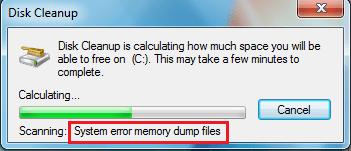
Solved How do i skip "scanning: system error memory dump files"?

bens888

New member
Local time
11:53 PM
Messages
10
bsd

I want to know how to permanently skip "scanning: system error memory dump files" in the disk cleanup scan. What i am looking for, is a way to remove it from the scan entirely.

WinXP has a similar "feature", "compress old files", and the solution i have found is deleting some registry keys.
xp example:
https://msmvps.com/blogs/kwsupport/archive/2005/01/09/31149.aspx
this is what i am looking for.

thanks!
 
Last edited:

My Computer

OS
win 7 Home Prm x64
(plucked from microsoft answers)​

1. Open a Command Window in Administrator mode:
* click Start
* click All Programs, then Accessories
* right click on the Command Prompt option,
* on the drop down menu which appears, click on the Run as Administrator option.
* If you haven’t disabled User Account Control (and you shouldn’t!) you will be asked for authorisation. Click the Continue button if you are the administrator or insert the administrator password.
2. Start the System File Checker
* In the Command Prompt window, type: sfc /scannow,
* press Enter.
* You’ll see “the system scan will begin”.
The scan may take some time and windows will repair/replace any corrupt or missing files. You will be asked to insert your Vista DVD if it’s needed.
Close the Command Prompt Window when the job is finished.
One caveat: you need a Windows DVD to enable SFC to make more than minor repairs.

Good Luck
 

My Computer

Computer type
Laptop
Computer Manufacturer/Model Number
HP Probook 4710s
OS
Windows 7 Home Premium 32 bit
Hard Drives
Fujitsu
Mouse
Touchpad
bsd

Thanks for the answer, but maybe i wasn't clear enough:
please check the link, i want to do exactly the same, but in Win7 and with the "system error memory dump files" stage of the scan, instead of the "compress old files" in winXP.
here's a pic of the subject
diag only.png

in short: i am looking for a very specific registry tweak, not a "carpet bomb" fix!
thx!
 
Last edited:

My Computer

OS
win 7 Home Prm x64
Well I tried the hack in the link but went to

"HKey Local Machine > Software > Microsoft > Windows > Current Version > Explorer > Volume Caches > System error memory dump files"

I then deleted the default values data and it worked for me.

One thing is I don't if this will have any effect on writing System error memory dump files or if it'll cause any other problems, just make sure you backup the key by exporting it.

Another thing is most people I know use CCleaner to do there disk cleanup.
 

My Computer

Computer Manufacturer/Model Number
Self built
OS
Windows 7 Ultimate x64
CPU
Intel Pentium Dual Core E5200 2.5GHz (3.77GHz OC)
Motherboard
Asus P5Q-E
Memory
Corsair 4GB DDR2 (4x1GB CM2X1024-6400C4)
Graphics Card(s)
Palit GeForce GTS 250 (1024MB)
Sound Card
On Board (ADI AD2000B 8ch HD)
Monitor(s) Displays
Samsung 32in LCD TV
Screen Resolution
1360x768
Hard Drives
2 x 1TB Samsung 103SJ (Raid0)
2 x External 500GB Samsung 502IJ (NexStar 3 HD Enclosures)
PSU
550W Antec Neo HE 550
Case
Antec P180
Cooling
Xigmatex Red Scorpion CPU Cooler. 3x120mm Fans
Keyboard
Logitech MX5000 Laser (Combo)
Mouse
Logitech MX5000 Laser (Combo)
Internet Speed
ADSL2+ (avg 10 Mbps Down, 0.80 Mbps up)
Other Info
Gigabyte GN-WP01GS 54g Wireless Lan Card
bsd

@Duzzy
Spot on! It takes all of 1 second now!
I removed Memory Dump Files and System error minidump files as well.

I agree CC does a much better job, but i use Win Disk cleaner to remove old restore points, which over time tend to eat up huge amounts of diskspace. AFAIK, CC doesn't do it.

Here's the reg file of the tweak:
View attachment Disable-scanning memory dump- in disk cleanup.reg
Warning: use at your own risk
 

My Computer

OS
win 7 Home Prm x64
I agree CC does a much better job, but i use Win Disk cleaner to remove old restore points, which over time tend to eat up huge amounts of diskspace. AFAIK, CC doesn't do it.

By default I think restore points take 10% of your partition but you can lower that.
You can do this by Right clicking Computer > Properties to open the System Properties then click System Protection on the left. Then select the partition in the list and click Configure. Although reducing the space for them means less restore points.

You can also delete them from here but it'll delete all of them including the last one but you can then create a new one straight after.
 

My Computer

Computer Manufacturer/Model Number
Self built
OS
Windows 7 Ultimate x64
CPU
Intel Pentium Dual Core E5200 2.5GHz (3.77GHz OC)
Motherboard
Asus P5Q-E
Memory
Corsair 4GB DDR2 (4x1GB CM2X1024-6400C4)
Graphics Card(s)
Palit GeForce GTS 250 (1024MB)
Sound Card
On Board (ADI AD2000B 8ch HD)
Monitor(s) Displays
Samsung 32in LCD TV
Screen Resolution
1360x768
Hard Drives
2 x 1TB Samsung 103SJ (Raid0)
2 x External 500GB Samsung 502IJ (NexStar 3 HD Enclosures)
PSU
550W Antec Neo HE 550
Case
Antec P180
Cooling
Xigmatex Red Scorpion CPU Cooler. 3x120mm Fans
Keyboard
Logitech MX5000 Laser (Combo)
Mouse
Logitech MX5000 Laser (Combo)
Internet Speed
ADSL2+ (avg 10 Mbps Down, 0.80 Mbps up)
Other Info
Gigabyte GN-WP01GS 54g Wireless Lan Card
Back
Top