How do I UNprotect system folders?

toasty

New member
Member
Local time
9:19 PM
Messages
33
I noticed that Windows 7 likes to hold the user's hand in just about anything more complex than everyday operations; maybe not as much as Vista, but definitely more than XP. Is there any standard way to remove this added layer of "protection"? For instance:

I occasionally make use of 'wiping' programs, but if I try to wipe something in the Program or System folder, I'm unable to. This appears to be due to some overlaying and unremovable "read only" attribute. "unchecking" read only (and propagate to child folders/files) doesn't seem to do the trick.

I did search through the forum and didn't find anything, so I figured I'd ask here for some possible help. Thanks in advance for any help or if anyone has any resources/sites in mind that might explain this better.

Cheers!
 

My Computer

OS
Windows 7 Ultimate x64
CPU
Athlon Phenom II X6
Memory
8gb
Keyboard
None... wait. Yes!
Hi toasty,

When I run my cleaning programs as admin (by right clicking and selecting 'Run as an administrator') I have no problems in the locations that you mentioned - With the exception of deleting some drivers from System32 (which makes sense to me anyway).

Another solution may be to change the read only attributes on the folder to be deleted prior to running your cleaning software. I can post a script for this if you wish.
 

My Computer

Computer Manufacturer/Model Number
Custom Hack job
OS
Windows 7 Ultimate 64 bit
CPU
Intel(R) Core(TM)2 Quad CPU Q8200 @ 2.33GHz
Motherboard
GigaByte EP45-UD3
Memory
8 GB Kingston
Graphics Card(s)
Nvidia GeForce 9600GT
Sound Card
Soundblaster Audigy
Monitor(s) Displays
AOC x2 22"
Hard Drives
2 x Samsung 500GB (RAID)
2 x Samsung 2TB
1 x WD Green 2TB
1 x Seagate 1TB
1 x Samsung 500GB
PSU
Thermaltake QFan 750W
Case
CM Scout Gaming
Cooling
Coolermaster V10
Keyboard
Microsoft Wireless Keyboard 1000
Mouse
Microsoft Wireless Optical 2000
Internet Speed
320
Other Info
Winfast PVR2000CP
LG DVD-RAM DVD/RW/DL Super Multi
Linksys WMP300Nx2 Wireless Adapter
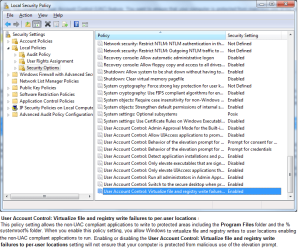
I had another thought overnight about this. There is another method, however it comes with it's own risks of lowering your security. Therefore I am not recommending it, just posting it up as a possible solution for allowing your cleaning program access to those file areas that you mentioned.

The text explanation on the picture comes from the MCTS 70-620 Vista exam; but equally applies to Win7.

To screen print is of the 'Security policy', you can enter it by typing secpol.msc into the run or search dialogues.
 

Attachments

  • Virtualise file and registry write failure.png
    Virtualise file and registry write failure.png
    37.3 KB · Views: 616

My Computer

Computer Manufacturer/Model Number
Custom Hack job
OS
Windows 7 Ultimate 64 bit
CPU
Intel(R) Core(TM)2 Quad CPU Q8200 @ 2.33GHz
Motherboard
GigaByte EP45-UD3
Memory
8 GB Kingston
Graphics Card(s)
Nvidia GeForce 9600GT
Sound Card
Soundblaster Audigy
Monitor(s) Displays
AOC x2 22"
Hard Drives
2 x Samsung 500GB (RAID)
2 x Samsung 2TB
1 x WD Green 2TB
1 x Seagate 1TB
1 x Samsung 500GB
PSU
Thermaltake QFan 750W
Case
CM Scout Gaming
Cooling
Coolermaster V10
Keyboard
Microsoft Wireless Keyboard 1000
Mouse
Microsoft Wireless Optical 2000
Internet Speed
320
Other Info
Winfast PVR2000CP
LG DVD-RAM DVD/RW/DL Super Multi
Linksys WMP300Nx2 Wireless Adapter
Thanks for the tips guys. I'm not sure if I'm ready to try modifying the SecPol for W7... although I might end up there eventually. I've done SysAdmin for nearly a decade (couple years retired) so I'm not nervous about doing it, though I am cautious about unintentionally FUBARing my entire system, as Windows is prone to :)

I tried the other route of modifying the folder properties, both through right-clicking the folder (in this case "c:\Windows") and also through an administrative command prompt [attrib -R "C:\Windows" /S] (remove read-only attribute on folder and all subfolders).

Neither worked. The former spat out a message "An error occurred applying attributes to the file: c:\windows\bfsvc.exe; Access is denied". If I ignore it it goes onto the same message for tons of other files.

The latter command prompt spat out "File not found - C:\Windows".

Also, to address your earlier statement TimStitt, the point that I run into the problem isn't from running a cleaning program itself. But when I use the cleaning program (Heidi's Eraser) to right-click a file in the Windows/Program Files folder and attempt to use the program's context menu to erase the file(s).

I'll keep looking for a solution, there's bound to be something. But if anyone has any other ideas I'd love to know. Personally, I like how Windows XP would let me totally screw up my system if I wanted to ;)
 

My Computer

OS
Windows 7 Ultimate x64
CPU
Athlon Phenom II X6
Memory
8gb
Keyboard
None... wait. Yes!
Hi Toasty,

I understand exactly now.

I downloaded a file cleaning program called ERASER and was able to replicate your issue and then solve it. The problem is caused because the context menu is trying to run under different authority than the program itself, which is effectively to run the program as an elevated user as well as a standard user. Win 7 doesn't like this, so you need to keep them all on the same level.

Here's how I fixed it for ERASER.
1. Uninstall the program and Reboot
2. On the set-up file, right click and open properties.
3. On the compatibility tab, make it compatible for XP (SP3) and alter the privilege level for all users to Run as an administrator (then close properties).
4. Double click on the program to run it (you will automatically be prompted to Run as an elevated admin, this is what we want)
5. Install it
6. Once it's installed, don't change the shortcut, just RUN it. You should be prompted automatically to run as admin.
7. Now that you have run the program as an elevated admin, you should be able to right click and ERASE your files (this will follow the set-up defaults and the already open program and run as admin also. Moving forward you don't have to open the main program first, just right click, select the menu and it works.

Well that's what worked for me with one little exception. I am unable to delete shortcuts by right clicking and erasing (unless they are in a folder that I am erasing). Weird but I'm not complaining.

Hope this helps you too.

Tim

PS: I am moving my entire house to Singapore as of tomorrow, so I may not be online for a few months (at least, I won't have my Win7 box for a few months). So I'm not being intentionally ride if I don;t get back to you. :)
 

My Computer

Computer Manufacturer/Model Number
Custom Hack job
OS
Windows 7 Ultimate 64 bit
CPU
Intel(R) Core(TM)2 Quad CPU Q8200 @ 2.33GHz
Motherboard
GigaByte EP45-UD3
Memory
8 GB Kingston
Graphics Card(s)
Nvidia GeForce 9600GT
Sound Card
Soundblaster Audigy
Monitor(s) Displays
AOC x2 22"
Hard Drives
2 x Samsung 500GB (RAID)
2 x Samsung 2TB
1 x WD Green 2TB
1 x Seagate 1TB
1 x Samsung 500GB
PSU
Thermaltake QFan 750W
Case
CM Scout Gaming
Cooling
Coolermaster V10
Keyboard
Microsoft Wireless Keyboard 1000
Mouse
Microsoft Wireless Optical 2000
Internet Speed
320
Other Info
Winfast PVR2000CP
LG DVD-RAM DVD/RW/DL Super Multi
Linksys WMP300Nx2 Wireless Adapter
Back
Top