
How to modify "Take Ownership" registry hack created by brink ?

DELIJA

New member
Local time
8:44 AM
Messages
3
How to modify "Take Ownership" registry hack created by brink ?

Hi guys :)

I need little help from you to modify "Take Ownership" registry hack created by brink => Take Ownership - Add to Context Menu in Windows 8

I'll try to explain what i need exactly:

When i try to open some "system protected" file or folder like this one:

bfqpyy4.png


..i want to use "Take Ownership" registry hack on that protected folder to get a full access, BUT i Do Not Want to take ownership of every single files and folders inside of that protected folder!

For example:
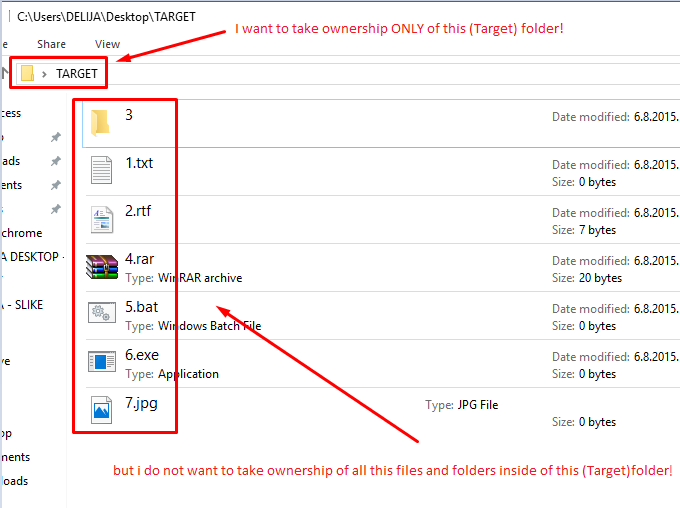
b81Alkx.png


Can someone pls help me with this, and modify brink-s registry hack to work as i explained above?

Thanks in Advance!
 
Last edited:

My Computer My Computer

At a glance

Windows 10 Pro x64
Computer type
PC/Desktop
OS
Windows 10 Pro x64
you will find more help for your OS in the Windows 8 forums, just find the link at the top and register like you did here.
 

My Computer My Computer

At a glance

Windows 7 Enterprise x64Intel i5 Dual Core
Computer type
Laptop
Computer Manufacturer/Model Number
Dell
OS
Windows 7 Enterprise x64
CPU
Intel i5 Dual Core
Screen Resolution
1366x768
Keyboard
built in Keyboard
Antivirus
System Centre Endpoint Protection
Browser
Google Chrome, Firefox and Internet Explorer
Hi Delija,

Simply load that 'Take Ownership' reg file into your favourite text editor and replace all instances of "/r " and "/t " with nothing. These are the switches that tell the Takeown and Icacls commands to transverse into subdirectories.
 

My Computer My Computer

At a glance

Windows 10, Windows 8.1 Pro, Windows 7 Profes...
Computer type
PC/Desktop
OS
Windows 10, Windows 8.1 Pro, Windows 7 Professional, OS X El Capitan
Hi Delija,

Simply load that 'Take Ownership' reg file into your favourite text editor and replace all instances of "/r " and "/t " with nothing. These are the switches that tell the Takeown and Icacls commands to transverse into subdirectories.

Hi Pyprohly,

Thank you for trying to help me i really appreciate it. :)

I followed carefully your tutorial and i've done everything as you explained, but now i got this error when i click on 'Take Ownership' in context menu:

mhPFxhQ.png


Modified code ( without /r and /t ) :
Code:
Windows Registry Editor Version 5.00

; Created by: Shawn Brink
; http://www.tenforums.com
; Tutorial: http://www.tenforums.com/tutorials/3841-take-ownership-add-context-menu-windows-10-a.html


[-HKEY_CLASSES_ROOT\*\shell\runas]

[HKEY_CLASSES_ROOT\*\shell\runas]
@="Take Ownership"
"HasLUAShield"=""
"NoWorkingDirectory"=""
Position="middle"

[HKEY_CLASSES_ROOT\*\shell\runas\command]
@="cmd.exe /c takeown /f \"%1\" && icacls \"%1\" /grant administrators:F /c /l & pause"
"IsolatedCommand"="cmd.exe /c takeown /f \"%1\" && icacls \"%1\" /grant administrators:F /c /l & pause"


[-HKEY_CLASSES_ROOT\Directory\shell\runas]

[HKEY_CLASSES_ROOT\Directory\shell\runas]
@="Take Ownership"
"HasLUAShield"=""
"NoWorkingDirectory"=""
Position="middle"

[HKEY_CLASSES_ROOT\Directory\shell\runas\command]
@="cmd.exe /c takeown /f \"%1\" /d y && icacls \"%1\" /grant administrators:F /c /l /q & pause"
"IsolatedCommand"="cmd.exe /c takeown /f \"%1\" /d y && icacls \"%1\" /grant administrators:F /c /l /q & pause"


[-HKEY_CLASSES_ROOT\dllfile\shell\runas]

[HKEY_CLASSES_ROOT\dllfile\shell\runas]
@="Take Ownership"
"HasLUAShield"=""
"NoWorkingDirectory"=""
Position="middle"

[HKEY_CLASSES_ROOT\dllfile\shell\runas\command]
@="cmd.exe /c takeown /f \"%1\" && icacls \"%1\" /grant administrators:F /c /l & pause"
"IsolatedCommand"="cmd.exe /c takeown /f \"%1\" && icacls \"%1\" /grant administrators:F /c /l & pause"


[-HKEY_CLASSES_ROOT\Drive\shell\runas]

[HKEY_CLASSES_ROOT\Drive\shell\runas]
@="Take Ownership"
"HasLUAShield"=""
"NoWorkingDirectory"=""
Position="middle"

[HKEY_CLASSES_ROOT\Drive\shell\runas\command]
@="cmd.exe /c takeown /f \"%1\" /d y && icacls \"%1\" /grant administrators:F /c /l /q & pause"
"IsolatedCommand"="cmd.exe /c takeown /f \"%1\" /d y && icacls \"%1\" /grant administrators:F /c /l /q & pause"


[-HKEY_CLASSES_ROOT\exefile\shell\runas]

[HKEY_CLASSES_ROOT\exefile\shell\runas]
"HasLUAShield"=""

[HKEY_CLASSES_ROOT\exefile\shell\runas\command]
@="\"%1\" %*"
"IsolatedCommand"="\"%1\" %*"

Original brink-s code:
Code:
Windows Registry Editor Version 5.00

; Created by: Shawn Brink
; http://www.tenforums.com
; Tutorial: http://www.tenforums.com/tutorials/3841-take-ownership-add-context-menu-windows-10-a.html


[-HKEY_CLASSES_ROOT\*\shell\runas]

[HKEY_CLASSES_ROOT\*\shell\runas]
@="Take Ownership"
"HasLUAShield"=""
"NoWorkingDirectory"=""
Position="middle"

[HKEY_CLASSES_ROOT\*\shell\runas\command]
@="cmd.exe /c takeown /f \"%1\" && icacls \"%1\" /grant administrators:F /c /l & pause"
"IsolatedCommand"="cmd.exe /c takeown /f \"%1\" && icacls \"%1\" /grant administrators:F /c /l & pause"


[-HKEY_CLASSES_ROOT\Directory\shell\runas]

[HKEY_CLASSES_ROOT\Directory\shell\runas]
@="Take Ownership"
"HasLUAShield"=""
"NoWorkingDirectory"=""
Position="middle"

[HKEY_CLASSES_ROOT\Directory\shell\runas\command]
@="cmd.exe /c takeown /f \"%1\" /r /d y && icacls \"%1\" /grant administrators:F /t /c /l /q & pause"
"IsolatedCommand"="cmd.exe /c takeown /f \"%1\" /r /d y && icacls \"%1\" /grant administrators:F /t /c /l /q & pause"


[-HKEY_CLASSES_ROOT\dllfile\shell\runas]

[HKEY_CLASSES_ROOT\dllfile\shell\runas]
@="Take Ownership"
"HasLUAShield"=""
"NoWorkingDirectory"=""
Position="middle"

[HKEY_CLASSES_ROOT\dllfile\shell\runas\command]
@="cmd.exe /c takeown /f \"%1\" && icacls \"%1\" /grant administrators:F /c /l & pause"
"IsolatedCommand"="cmd.exe /c takeown /f \"%1\" && icacls \"%1\" /grant administrators:F /c /l & pause"


[-HKEY_CLASSES_ROOT\Drive\shell\runas]

[HKEY_CLASSES_ROOT\Drive\shell\runas]
@="Take Ownership"
"HasLUAShield"=""
"NoWorkingDirectory"=""
Position="middle"

[HKEY_CLASSES_ROOT\Drive\shell\runas\command]
@="cmd.exe /c takeown /f \"%1\" /r /d y && icacls \"%1\" /grant administrators:F /t /c /l /q & pause"
"IsolatedCommand"="cmd.exe /c takeown /f \"%1\" /r /d y && icacls \"%1\" /grant administrators:F /t /c /l /q & pause"


[-HKEY_CLASSES_ROOT\exefile\shell\runas]

[HKEY_CLASSES_ROOT\exefile\shell\runas]
"HasLUAShield"=""

[HKEY_CLASSES_ROOT\exefile\shell\runas\command]
@="\"%1\" %*"
"IsolatedCommand"="\"%1\" %*"


Can you pls tell me what i'm doing wrong?

Thanks!
 

My Computer My Computer

At a glance

Windows 10 Pro x64
Computer type
PC/Desktop
OS
Windows 10 Pro x64
Until you get an answer, try GiveMePower Download
Try opening explorer in C:\Windows if it doesn't help by its own browser.
May or may not help with what you want to do
 

My Computer My Computer

At a glance

Windows 7 Ultimate x64 SP1AMD Phenom 2 1090T2x8GB Kingston HyperX Fury Black 1600Mhz Unga...MSI GTX 970 Gaming 4G
Computer type
PC/Desktop
Computer Manufacturer/Model Number
Custom Build
OS
Windows 7 Ultimate x64 SP1
CPU
AMD Phenom 2 1090T
Motherboard
Gigabyte GA-890FXA-UD5
Memory
2x8GB Kingston HyperX Fury Black 1600Mhz Unganged
Graphics Card(s)
MSI GTX 970 Gaming 4G
Sound Card
Realtek On-Board HD 7.1 Audio / Logitech G35
Monitor(s) Displays
3xAcer GD245HQ
Screen Resolution
1920x1080
Hard Drives
Samsung 850 Pro 512GB SSD - OS /
WD Caviar Black SATA 3 - 1 TBx2 - Dynamic RAID 0 /
WD Caviar Green SATA 2 - 640GBx2 - Dynamic RAID 0 /
WD Caviar Green SATA 2 - 640GB - Internal Backup /
Seagate Barracude SATA 3 - 3TB - External Backup/ Sync
PSU
HighPower 1000W
Case
Cooler Master HAF 932
Cooling
Noctua NH-D14
Keyboard
Logitech G19
Mouse
Logitech G500
Internet Speed
100/4 Mbit Cable (100GB quota)
Antivirus
ZoneAlarm Extreme Security / MBAM Pro / MBAE Free / SAS Free
Browser
IE 11 - Firefox - Chrome
Other Info
Logitech F710/ G27/ G940/ Z5500 // TrackIR 5 // Nvidia 3D Surround Vision
Hi Delija,

Simply load that 'Take Ownership' reg file into your favourite text editor and replace all instances of "/r " and "/t " with nothing. These are the switches that tell the Takeown and Icacls commands to transverse into subdirectories.

Hi Pyprohly,

Thank you for trying to help me i really appreciate it. :)

I followed carefully your tutorial and i've done everything as you explained, but now i got this error when i click on 'Take Ownership' in context menu:

mhPFxhQ.png
Oops. Sorry I didn't test it out.

We need to address exactly what the error message says: the D switch cannot be used with the R switch. So remove all instances of the D switch too... also it's value. The D switch belongs to the Takeown command and it takes a value, which in this case it's "y", so remove all instances of "/d y ".
 

My Computer My Computer

At a glance

Windows 10, Windows 8.1 Pro, Windows 7 Profes...
Computer type
PC/Desktop
OS
Windows 10, Windows 8.1 Pro, Windows 7 Professional, OS X El Capitan
Hi Delija,

Simply load that 'Take Ownership' reg file into your favourite text editor and replace all instances of "/r " and "/t " with nothing. These are the switches that tell the Takeown and Icacls commands to transverse into subdirectories.

Hi Pyprohly,

Thank you for trying to help me i really appreciate it. :)

I followed carefully your tutorial and i've done everything as you explained, but now i got this error when i click on 'Take Ownership' in context menu:

mhPFxhQ.png
Oops. Sorry I didn't test it out.

We need to address exactly what the error message says: the D switch cannot be used with the R switch. So remove all instances of the D switch too... also it's value. The D switch belongs to the Takeown command and it takes a value, which in this case it's "y", so remove all instances of "/d y ".


Now Works Like a Charm! :D

PJthjWx.png


Thank you so much for help Pyprohly, take ownership now works as i wanted. This is exactly what i need!

Thanks a lot my friend, Big + rep for your effort :)


Until you get an answer, try GiveMePower Download
Try opening explorer in C:\Windows if it doesn't help by its own browser.
May or may not help with what you want to do

Hi GokAy,

Thanks for suggestion, this is really useful tool and i'll definitely try it when i get a free time.

Ps: I also found two very similar tools like this one, which may be useful in removing admin rights from folders and files:

1) Remove File Access Denied or Access is Denied error

2) How to run Explorer as administrator on Windows 8.1, Windows 8 and Windows 7
 

My Computer My Computer

At a glance

Windows 10 Pro x64
Computer type
PC/Desktop
OS
Windows 10 Pro x64
Back
Top
