How to properly remove Win7, in a dual boot config

Niccador

New member
Local time
11:27 AM
Messages
4
Good afternoon.
First off, I've been scouring Google for an answer to this (naturally including a couple tuts on this site), but most of those seem to involve a situation where 7 & 8 are installed on the same physical drive.

My situation is this:
Windows 7 was installed first.
The System partition and Win 7 partition co-exist on Drive A.
Windows 8 was later installed to Drive B, as a dual-boot option. No System partition appears to be present on Drive B.

My intent, having fully migrated to Win8, is to permanently delete Win7. (For space, more likely for an alternate clean install of 8.1 for various purposes, or maybe to try out 10.)

Do I:
A) Need to move the System partition to Drive B, before deleting Win7?
or
B) Simply delete the Win7 partition -- leaving the System partition on Drive A untouched -- and proceed as normal?
or
C) Something entirely different?

Thanks for your time.
 

My Computer My Computer

At a glance

Win7 Ultimate x64, Win 8.1 Pro x64
Computer type
PC/Desktop
OS
Win7 Ultimate x64, Win 8.1 Pro x64

My Computer My Computer

At a glance

Windows 10 Pro x64 ; Xubuntu x64Intel i7 860 @ 2.80 GHz O/C'ed to 4.0GHz16GB Corsair Vengance DDR3 @ 661 MHz Dual Cha...EVGA NVidia GTX 560 1024MB
Computer type
PC/Desktop
Computer Manufacturer/Model Number
Golden Mk. I.4
OS
Windows 10 Pro x64 ; Xubuntu x64
CPU
Intel i7 860 @ 2.80 GHz O/C'ed to 4.0GHz
Motherboard
Gigabyte P55A-UD3R Rev.1. Award BIOS F13
Memory
16GB Corsair Vengance DDR3 @ 661 MHz Dual Channel (9-9-9-24)
Graphics Card(s)
EVGA NVidia GTX 560 1024MB
Sound Card
Realtek Integrated
Monitor(s) Displays
Dual Samsung SyncMaster 2494HS
Screen Resolution
1920*1080 and 1920*1080
Hard Drives
1*Samsung 840 EVO 120GB SSD;
1*OCZ Vertex 2 60GB SSD;
2*Samsung F3 SpinPoint 1TB in RAID0;
1*Samsung F1 SpinPoint 1TB;
2*Western Digital 1TB External USB 3.0
1*Western Digital 500GB External USB 3.0
1*Seagate 500GB External USB 2.0
PSU
Thermaltake ToughPower QFan 750W
Case
Thermaltake Element S VK60001W2Z
Cooling
Corsair H60 Water Cooling, 2*230mm and 2*80mm case fans
Keyboard
Logitech G110
Mouse
Logitech MX518
Thank you.
That was one of the tuts I read prior to posting.
Unlike my setup described above, that tut involved 7 & 8 co-existing on the same physical drive.

While, for the most part, it appears to be as simple as "just make sure you delete the actual Win7 partition", it is unclear if that is what I need to do in my specific case.

My System partition is on Drive A.
Win 7 partition is on Drive A.
Win 8 partition in on Drive B.

If I delete the Win 7 partition, as-is, will 8 continue to boot normally, despite the system partition being on a different physical drive?
 

My Computer My Computer

At a glance

Win7 Ultimate x64, Win 8.1 Pro x64
Computer type
PC/Desktop
OS
Win7 Ultimate x64, Win 8.1 Pro x64
Ahhh...I understand.

In Windows 7 installations, it is possible to move the boot manager from the 100MB System Reserved partition to the Windows 7 partition, and then delete the 100MB System reserved partition. I'm not sure exactly how that works in Windows 8, although I suspect it will work the same.

This is how you would do it:
http://www.sevenforums.com/tutorials/209885-bootmgr-move-c-easybcd.html

However, let me get confirmation from the tutorial author on whether this works for Windows 8 too. Stay tuned for his reply.
 

My Computer My Computer

At a glance

Windows 10 Pro x64 ; Xubuntu x64Intel i7 860 @ 2.80 GHz O/C'ed to 4.0GHz16GB Corsair Vengance DDR3 @ 661 MHz Dual Cha...EVGA NVidia GTX 560 1024MB
Computer type
PC/Desktop
Computer Manufacturer/Model Number
Golden Mk. I.4
OS
Windows 10 Pro x64 ; Xubuntu x64
CPU
Intel i7 860 @ 2.80 GHz O/C'ed to 4.0GHz
Motherboard
Gigabyte P55A-UD3R Rev.1. Award BIOS F13
Memory
16GB Corsair Vengance DDR3 @ 661 MHz Dual Channel (9-9-9-24)
Graphics Card(s)
EVGA NVidia GTX 560 1024MB
Sound Card
Realtek Integrated
Monitor(s) Displays
Dual Samsung SyncMaster 2494HS
Screen Resolution
1920*1080 and 1920*1080
Hard Drives
1*Samsung 840 EVO 120GB SSD;
1*OCZ Vertex 2 60GB SSD;
2*Samsung F3 SpinPoint 1TB in RAID0;
1*Samsung F1 SpinPoint 1TB;
2*Western Digital 1TB External USB 3.0
1*Western Digital 500GB External USB 3.0
1*Seagate 500GB External USB 2.0
PSU
Thermaltake ToughPower QFan 750W
Case
Thermaltake Element S VK60001W2Z
Cooling
Corsair H60 Water Cooling, 2*230mm and 2*80mm case fans
Keyboard
Logitech G110
Mouse
Logitech MX518
I await your response.
I'm actually not needing to move or delete the System partition (or, rather, that's what I'm asking if I *do* need to do).

I'm going to go out on a limb and say that: The important thing in any dual-boot config, is that you don't accidentally delete or unnecessarily modify the MBR/System partition. (That's my take-away from this so far.)

So....in theory...I should just be able to delete the Win7 partition and proceed normally?
 

My Computer My Computer

At a glance

Win7 Ultimate x64, Win 8.1 Pro x64
Computer type
PC/Desktop
OS
Win7 Ultimate x64, Win 8.1 Pro x64
So....in theory...I should just be able to delete the Win7 partition and proceed normally?
And leave the 100MB System Reserved partition alone? Yes, it should b OK.
 

My Computer My Computer

At a glance

Windows 10 Pro x64 ; Xubuntu x64Intel i7 860 @ 2.80 GHz O/C'ed to 4.0GHz16GB Corsair Vengance DDR3 @ 661 MHz Dual Cha...EVGA NVidia GTX 560 1024MB
Computer type
PC/Desktop
Computer Manufacturer/Model Number
Golden Mk. I.4
OS
Windows 10 Pro x64 ; Xubuntu x64
CPU
Intel i7 860 @ 2.80 GHz O/C'ed to 4.0GHz
Motherboard
Gigabyte P55A-UD3R Rev.1. Award BIOS F13
Memory
16GB Corsair Vengance DDR3 @ 661 MHz Dual Channel (9-9-9-24)
Graphics Card(s)
EVGA NVidia GTX 560 1024MB
Sound Card
Realtek Integrated
Monitor(s) Displays
Dual Samsung SyncMaster 2494HS
Screen Resolution
1920*1080 and 1920*1080
Hard Drives
1*Samsung 840 EVO 120GB SSD;
1*OCZ Vertex 2 60GB SSD;
2*Samsung F3 SpinPoint 1TB in RAID0;
1*Samsung F1 SpinPoint 1TB;
2*Western Digital 1TB External USB 3.0
1*Western Digital 500GB External USB 3.0
1*Seagate 500GB External USB 2.0
PSU
Thermaltake ToughPower QFan 750W
Case
Thermaltake Element S VK60001W2Z
Cooling
Corsair H60 Water Cooling, 2*230mm and 2*80mm case fans
Keyboard
Logitech G110
Mouse
Logitech MX518
Ahhh...I understand.

In Windows 7 installations, it is possible to move the boot manager from the 100MB System Reserved partition to the Windows 7 partition, and then delete the 100MB System reserved partition. I'm not sure exactly how that works in Windows 8, although I suspect it will work the same.

This is how you would do it:
http://www.sevenforums.com/tutorials/209885-bootmgr-move-c-easybcd.html

However, let me get confirmation from the tutorial author on whether this works for Windows 8 too. Stay tuned for his reply.

I have never tested that but my guess would be that it does not work. Win7 has an MBR system partition and Win8 has an UEFI Efi partition. Let me review the situation a bit more. A picture of the complete Disk Management would help. Make sure that the "Status" field on the top is completely opened so that one can read all the text in that field.
 

My Computer My Computer

At a glance

Vista, Windows7, Mint Mate, Zorin, Windows 8from 1.6GHz Duo to i7
Computer Manufacturer/Model Number
HP, Dell, Gateway, Toshiba - 4 laptops and 2 desktops
OS
Vista, Windows7, Mint Mate, Zorin, Windows 8
CPU
from 1.6GHz Duo to i7
Monitor(s) Displays
2x HP w2207
Hard Drives
5x HDD, 7x SSD, 12x Externals
Keyboard
with trackball - no mices
Mouse
Trackball mice
Internet Speed
DSL 6000
Just a few interim answers to your questions:


Do I:
A) Need to move the System partition to Drive B, before deleting Win7?
or
B) Simply delete the Win7 partition -- leaving the System partition on Drive A untouched -- and proceed as normal?
or
C) Something entirely different?

as A) No need to move that partition. If you do, you have to update MBRs, switch boot sequence in the BIOS - it's messy.

ad B) That's what I would do. You may have trouble deleting that Win7 C partition with Disk Management. In that case use the bootable CD of Partition Wizard.

Bootable Partition Manger | MiniTool Partition Wizard Bootable Edition

ad C) NO - there are other possibilities, but they are complex and a lot of work.
 

My Computer My Computer

At a glance

Vista, Windows7, Mint Mate, Zorin, Windows 8from 1.6GHz Duo to i7
Computer Manufacturer/Model Number
HP, Dell, Gateway, Toshiba - 4 laptops and 2 desktops
OS
Vista, Windows7, Mint Mate, Zorin, Windows 8
CPU
from 1.6GHz Duo to i7
Monitor(s) Displays
2x HP w2207
Hard Drives
5x HDD, 7x SSD, 12x Externals
Keyboard
with trackball - no mices
Mouse
Trackball mice
Internet Speed
DSL 6000
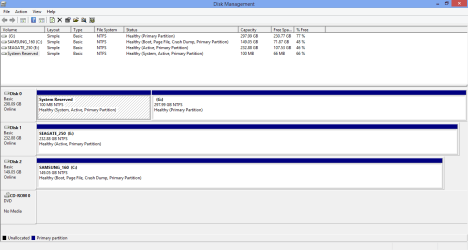
I think you've already answered the question successfully, but here is the DiskMan shot you requested for confirmation.

Disk 0 is my Win7 drive.
Disk 2 is my Win8 drive (currently running).
 

Attachments

  • disk1.png
    disk1.png
    17.9 KB · Views: 3

My Computer My Computer

At a glance

Win7 Ultimate x64, Win 8.1 Pro x64
Computer type
PC/Desktop
OS
Win7 Ultimate x64, Win 8.1 Pro x64
Both OS's are being booted by System Reserved, as signified by it holding the System flag. If 8 was booting itself it would show a System flag since you are booted into it now - which we know by the Boot flag and the title border.

To leave the Windows 7 System Reserved partition on another hard drive booting Windows 8 is not optimal.

I would install EasyBCD to Windows 8 to move Bootmgr - Move to C:\ with EasyBCD - Windows 7 Forums, reboot to confirm Windows 8 drive is now System flagged, unplug the other hard drives to verify bootability.

If EasyBCD doesn't work then Mark C Partition Active, unplug all other drives to run Run Windows 8 Automatic Repair .

I see Mahmoud who wrote EasyBCD is here now so maybe we can get him to comment! :geek:
 
Greg is right. It is not optimal because you get a small performance hit for the boot time. We are probably talking 5 seconds or so. What Greg suggests will work if there are no Gremlins on the way.
 

My Computer My Computer

At a glance

Vista, Windows7, Mint Mate, Zorin, Windows 8from 1.6GHz Duo to i7
Computer Manufacturer/Model Number
HP, Dell, Gateway, Toshiba - 4 laptops and 2 desktops
OS
Vista, Windows7, Mint Mate, Zorin, Windows 8
CPU
from 1.6GHz Duo to i7
Monitor(s) Displays
2x HP w2207
Hard Drives
5x HDD, 7x SSD, 12x Externals
Keyboard
with trackball - no mices
Mouse
Trackball mice
Internet Speed
DSL 6000
I was thinking more about drive failure or a even a BIOS setting change that removed the System Reserved drive from booting first. Windows 8 would stop booting for a reason that could have been prevented.

It could never really be proper (the title of OP's thread) to have it booted from another hard drive that only has the System partition on it.
 
If I could chime in with my two cents here, pretty much all the approaches in this thread are correct and will wind up with a setup wherein the Windows 7 partition can be deleted and the Windows 8 partition will boot.

However, for the sake of perfection and without doing more steps than you need to, here's what you would need to do to have a configuration where the entire *disk* that contains Windows 7 now will no longer be used, and the PC will boot from the physical disk that has Windows 8 installed:

  1. Run EasyBCD from either Windows 7 or Windows 8, and use the Change Boot Drive feature, as explained in WHS' excellent and to-the-point tutorial, selecting the Windows 8 partition as the new boot drive.
  2. Once that's done, go in the BIOS and change the order of boot drives from the disk containing Windows 7 to the disk containing Windows 8.
  3. OPTIONAL: Once you're back in Windows 8, run EasyBCD to remove the now-defunct Windows 7 entry.

That's it. Now you're free to remove the Windows 7 disk or do whatever you see fit with it. Neither the Windows 7 partition nor the boot partition on that drive will be in use. If it doesn't boot after changing the drive in the BIOS, follow the earlier advice and run startup repair.

Some random info:
  • Windows 8 does not necessarily mean UEFI. Windows 7 (64-bit edition) and Windows 8 both support UEFI, but they'll only use UEFI if the PC supports UEFI and the disk you've selected to install Windows 8 to is formatted in GPT, not MBR.
  • Normally, all OSes on the same PC will boot the same way (either MBR-only or GPT/EFI-only). The exception to this is where you have multiple hard disks, you have the option of setting them up to boot one in legacy mode and one in UEFI mode if the BIOS is configured to allow both - but that never happens by default so we can ignore that case.
  • On BIOS/MBR installations, you do not need a separate boot partition at all. The Windows partition can be the boot partition and the system partition. In the above "solution" configuration, that's what we end up with.
  • EFI, on the other hand, requires a minimum of 3 partitions: the MSR (a reserved partition without a filesystem that contains absolutely nothing, but Microsoft requires it anyway), the FAT EFI boot partition (which will contain BOOTMGR and the EFI BCD), and the Windows system partition (which will likely be NTFS). You can get away with only two partitions if Windows is installed to the EFI boot partition, meaning Windows will be installed to a FAT32 partition - basically, never.
  • With SATA, there's really no more concept of disk 0, disk 1, etc. which is really an IDE/ATA thing. The boot device the BIOS picks isn't the first disk, it's just a disk. So don't feel that a particular disk must be the boot disk, just pick whatever works.
  • Having a partition from a different disk be the boot partition won't actually slow anything up (besides maximum ~250 milliseconds of seek time, if that), but it's rather inconvenient as your PC is now reliant on two disks to be working correctly (and unchanged) in order to boot. Minimize complexity and keep it one is the way to go.

Now as for EasyBCD, when you use the "change boot drive" feature, all the following is taken care of (as documented here):
  • Install the BOOTMGR bootloader to the selected partition
  • Make the selected partition active
  • Install the bootloader to both the bootsector and the MBR of the selected partition
  • Copy all entries from the old boot partition to the newly-selected one
  • Update partition references to work with the new boot partition

It doesn't actually *move* anything, but it does copy everything. If the new boot destination is on the same disk, the partition that used to be active will no longer be active, as there can only be one active partition at a time; thus the PC will automatically boot from the new boot partition.

However, on a PC with multiple disks, each disk can (and does) have its own active partition. Setting the active partition on one disk won't affect the other, and the BIOS will continue to attempt to boot from the same disk it did before - which will still contain an active partition, and cause the PC to load from there.

So you need to go into the BIOS and tell it the new boot disk is the one that has the newly-minted boot partition.

I hope that clears things up! We literally just published an article that we've dubbed "everything you wanted to know about how your PC boots up, part one" that I personally feel is a must-read as it covers everything from the BIOS to the disks and partitions to the bootloader to the OS. Part two is under works, and will cover the same thing only for UEFI and GPT.

 

My Computer My Computer

At a glance

Windows/Linux/Mac
Computer type
PC/Desktop
OS
Windows/Linux/Mac
Back
Top