How to re-install Windows 7 on a hard drive with a logical failure

motasim

New member
Local time
1:03 AM
Messages
8
I have a Toshiba Satellite notebook computer running Windows 7.

The computer I suspect has a virus and it is not booting (black screen with a cursor) issue that many have experienced.

I have tried all the following and have been unsuccessful:

- F2 while booting gives me two options:

1) Windows Setup [EMS Enabled]
2) Tools: Windows Memory Diagnostic

When I choose Windows Setup, Windows tries to boot and gets back into the black screen with a cursor.

When I choose the Windows Memory Diagnostic option, I get a message saying Windows failed to start - a recent HW/SW change might be the cause. It asks me to insert a Windows installation disc and restart my computer. The following information is also provided on this screen:

File: \boot\memtest.exe
Status: 0x000000f
Info: The selected entry could not be loaded because the application is missing or corrupt

- Hold the 0 key while rebooting to reset the computer to the factory settings: the Toshiba logo shows up but this also goes to the black screen with cursor.

- F8 while booting: tried every option provided on this screen to boot but all end up in the black screen with cursor issue, even in safe mode

- reboot from a Windows 7 boot CD via the CD/DVD drive - does not work as I cannot change the boot order

- Hold the F10 and F12 keys while rebooting - both end in a black screen

I have exhausted all the options I know and seeking advice on a cost effective way to revive the laptop. I have already recovered the data from the hard drive.

Any help will be appreciated.
Motasim
 

My Computer My Computer

At a glance

Windows 7 Home Edition
OS
Windows 7 Home Edition
Download, burn to CD or write to flash stick, boot and run a full scan with Microsoft Standalone System Sweeper

If Win7 won't start after cleaning up infection, boot into DVD/Repair CD System Recovery Options
to run Startup Repair repeatedly. If this fails, open a Command Line to run SFC -SCANNOW Run in Command Prompt at Boot to try to repair damaged System Files - you may need to run this 3 times.

Is there an installation showing when you boot into DVD Repair console or Repair CD? If not access the Command Line again to run bootrec /fixboot and bootrec /fixmbr to try to jumpstart Repair.

Make sure Win7 or its 100mb System Reserved partition (preferred) are still marked Active: Partition - Mark as Active (Method Two).

You can also do this using free Partition Wizard bootable CD to rightclick 100mb or Win7 partition>Set to Active, OK. Then click on HD to highlight it, from Disk tab select Rebuild MBR, Apply all steps. This may preclude the need to run Repairs after marking Win7 Active.

If these all fail, you can copy out your files using this method: Copy & Paste - in Windows Recovery Console

Then try running Factory Recovery again, or boot the Recovery disks you've made or order from Tech Support. Or find a Win7 installation DVD to clean reinstall Win7 following these steps to get a Perfect Reinstall.
 
Unfortunately, I am not able to force the computer to boot from the CD-ROM drive or a USB drive by changing the boot order since hitting F2 during the boot sequence is not displaying the option to change the boot order.

I was wondering if there are ways that I can remove the internal hard drive and clean it up by attaching it to another computer and re-install Windows 7 and place the hard drive back into the laptop.

Thanks.
Motasim
 

My Computer My Computer

At a glance

Windows 7 Home Edition
OS
Windows 7 Home Edition
Yes, but you can also boot free Partition Wizard bootable CD which will autostart, try the suggested repairs I posted above from PW CD, then if Win7 won't start from PW Disk tab Wipe the HD. This will force the DVD to autostart to reinstall.

The OD should boot. It is a concern that it doesn't since the BIOS could be infected. But if it is the HD blocking BIOS from booting correctly you can determine this by unplugging the HD or swapping in another. However the known fix for this is to wipe the HD to clear the boot sector of code anyway.
 
I downloaded PW bootable CD which came as a bunch of files in a Zip archive. I could not find instructions on how to burn this folder of files into a bootable CD. Can you please help?
 

My Computer My Computer

At a glance

Windows 7 Home Edition
OS
Windows 7 Home Edition
Scroll down to Bootable CD and download the ISO file, double click on it to burn to CD with Windows Image Burner.
 
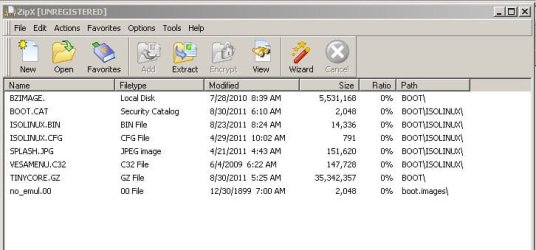
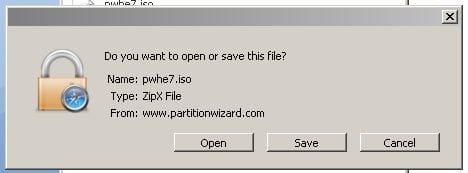
I did - it gets downloaded as a ZipX archive and when I double click on it it shows a list of files in the archive. See attached images.

THanks.
 

Attachments

  • Capture 1.JPG
    Capture 1.JPG
    29.4 KB · Views: 16
  • Capture 2.JPG
    Capture 2.JPG
    45.7 KB · Views: 18

My Computer My Computer

At a glance

Windows 7 Home Edition
OS
Windows 7 Home Edition
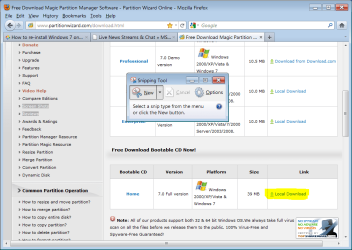
You downloaded the Home Edition not the CD which is the last download in the list - scroll down.
 

Attachments

  • Capture.PNG
    Capture.PNG
    45.3 KB · Views: 18
I downloaded exactly what you highlighted in your reply - this is the one that downloads as a ZipX file. Please see attached.

Motasim
 

Attachments

  • Capture.JPG
    Capture.JPG
    16.3 KB · Views: 8

My Computer My Computer

At a glance

Windows 7 Home Edition
OS
Windows 7 Home Edition
Rightclick on the Download and Open it with Windows Image Burner.

By choosing ZipX to open it, it is extracting the files.
 
That was it - I did as you suggested and was successful in creating a PW Bootable CD.

I tried to boot the notebook with the PD CD and I get the following message:

Windows Error Recovery

Windows failed to start. A recent hardware or software change might be the cause.
If Windows files have been damaged or configured incorrectly, Startup Repair can help diagnose and fix the problem. If power was interrupted during startup, choose Start windows Normally.

Launch Startup Repair (recommended)
Start Windows Normally


When I choose Launch Startup Repair, I get a message WIndows is loading files and then a blank black screen sometimes with a cursor and other times without .

When I choose Start Windows Normally the laptop tries to boot, reaches the Starting Windows screen with the Windows logo and then displays the Windows Error Recovery screen again.

I get the exact same results when I try to boot with the MSFT Standalone System Sweeper.

It seems like something is preventing the Windows to boot whether it is from the hard drive or from bootable CDs and I do not know how to get around this problem.

Motasim
 

My Computer My Computer

At a glance

Windows 7 Home Edition
OS
Windows 7 Home Edition
You are not booting the PW CD, instead it is attempting to boot into the HD.

Set the CD drive first to boot in BIOS setup as shown in this illustrated tutorial: How to Boot your Computer from a Bootable CD or DVD - Boot to CD. Set HD second device to boot.

Another method is to use the F12 key Toshiba one-time BIOS Boot menu key given on first boot screen to trigger the CD drive. Tap the key vigorious every second once BIOS boot screen appears, then choose CD drive to boot.

Follow the steps I gave you earlier to use PW CD, then if necessary boot the Win7 DVD REpair console or Repair CD to do the Startup Repairs - not allow it to boot into HD to use the Startup Repair which autostarts as it depends on possibly corrupt System Files.
 
You are right - it was not booting from the CD drive. The boot order sequence was actually right. I did some poking around and noticed that in the Advanced Tab, the boot speed was set to fast which was overriding the boot sequence setting and going straight to the hard drive. Once I set the boot speed to normal, it now first tries to the boot from the CD. Progress, thanks for pointing to the boot problem.

I started with the suggestions in your first response and tried to boot from a Windows 7 System Recovery Disk. This time it did try to boot from the CD (I got the hit any key to boot from the CD message) and after loading files, it ended up in the black screen with a cursor state.

I then tried to boot with the MSFT Standalone System Sweeper CD with exactly the same results as above.

I then tried to boot with the Partition Wizard bootable CD and this time the application loaded. However, I am not sure what to do in Partition Wizard to clean up the hard drive and re-install Windows 7.

Motasim
 

My Computer My Computer

At a glance

Windows 7 Home Edition
OS
Windows 7 Home Edition
Problem solved!

I rebooted the system holding down the 0 key (Toshiba restore option) as before it ended up in a black screen with a cursor. After a few minutes, the Toshiba recover screen appeared and then it was a simple matter of following the wizard to restore to factory settings.

Thanks a ton for your help - I learnt a lot.
Motasim
 

My Computer My Computer

At a glance

Windows 7 Home Edition
OS
Windows 7 Home Edition
I then tried to boot with the Partition Wizard bootable CD and this time the application loaded. However, I am not sure what to do in Partition Wizard to clean up the hard drive and re-install Windows 7.

The steps to use PW CD were given in my first post:

Make sure Win7 or its 100mb System Reserved partition (preferred) are still marked Active: Partition - Mark as Active (Method Two).

You can also do this using free Partition Wizard bootable CD to rightclick 100mb or Win7 partition>Set to Active, OK. Then click on HD to highlight it, from Disk tab select Rebuild MBR, Apply all steps. This may preclude the need to run Repairs after marking Win7 Active.

Glad Toshiba factory recovery worked for you. Let us know how performance pans out.

Here are tips to clean up the preinstalled Factory Bloatware and useless Factory utilities which have better versions built into Win7: Clean up factory bloatware
 
Back
Top