Solved How to replace crashed hard disk & re-install windows 7 using USB

rbisawa

New member
Member
Local time
11:11 AM
Messages
44
Hi All,

I am facing a serious problem with my laptop.

System Details
=============
Dell Inspiron N4010
OS: Windows 7 Home Basic (64-bit)

What has happened to the system:
============================
1. Laptop was working fine until the hard-disk crashed & now I am unable to boot the system.
2. Got to replace the hard-disk but I Do not have windows 7 installation disk/usb to install in on the fresh hard-disk. Also my CD-drive is not working so got to work using USB drives only.
3. Currently able to access the data on hard-disk using ubuntu bootable usb.
4. Planning to buy an external USB hard-drive to back up data before replacing the hard-disk.

Please help
 

My Computer

OS
Windows 7 Home Basic

My Computer

Computer type
Laptop
Computer Manufacturer/Model Number
HP ENVY 17-1150eg
OS
Windows 10 Pro x64 EN-GB
CPU
1.6 GHz Intel Core i7-720QM Processor
Memory
6 GB
Graphics Card(s)
ATI Mobility Radeon HD 5850 Graphics
Sound Card
Beats sound system with integrated subwoofer
Monitor(s) Displays
17" laptop display, 22" LED and 32" Full HD TV through HDMI
Screen Resolution
1600*900 (1), 1920*1080 (2&3)
Hard Drives
Internal: 2 x 500 GB SATA Hard Disk Drive 7200 rpm
External: 2TB for backups, 3TB USB3 network drive for media
Cooling
As Envy runs a bit warm, I have it on a Cooler Master pad
Keyboard
Logitech diNovo Media Desktop Laser (bluetooth)
Mouse
Logitech Performance Mouse MX
Internet Speed
50/10 Mbps VDSL
Antivirus
Windows Defender 4.3.9431.0
Browser
Maxthon 3.5.2., IE11
Can I use the same windows 7 key to register windows so that I can get the same windows 7 which I was using earlier on my laptop?

Also where do I find the windows 7 keys, I didn't note it down earlier.
 

My Computer

OS
Windows 7 Home Basic
You need a valid Windows 7 product key for the edition you have (Starter, Home Basic, Home Premium, Professional or Ultimate). If your laptop came with a pre-installed Windows 7, you'll find the product key on a so called COA sticker on bottom of your laptop.

If your Windows 7 was bought separately instead of being pre-installed, you'll find your product key on the retail box or if you bought a downloadable version, on your receipt or the confirmation email.

See this tutorial if the laptop had a pre-installed Windows 7: http://www.sevenforums.com/tutorials/219487-clean-reinstall-factory-oem-windows-7-a.html

Kari
 

My Computer

Computer type
Laptop
Computer Manufacturer/Model Number
HP ENVY 17-1150eg
OS
Windows 10 Pro x64 EN-GB
CPU
1.6 GHz Intel Core i7-720QM Processor
Memory
6 GB
Graphics Card(s)
ATI Mobility Radeon HD 5850 Graphics
Sound Card
Beats sound system with integrated subwoofer
Monitor(s) Displays
17" laptop display, 22" LED and 32" Full HD TV through HDMI
Screen Resolution
1600*900 (1), 1920*1080 (2&3)
Hard Drives
Internal: 2 x 500 GB SATA Hard Disk Drive 7200 rpm
External: 2TB for backups, 3TB USB3 network drive for media
Cooling
As Envy runs a bit warm, I have it on a Cooler Master pad
Keyboard
Logitech diNovo Media Desktop Laser (bluetooth)
Mouse
Logitech Performance Mouse MX
Internet Speed
50/10 Mbps VDSL
Antivirus
Windows Defender 4.3.9431.0
Browser
Maxthon 3.5.2., IE11
Hi All,

I am facing a serious problem with my laptop.

System Details
=============
Dell Inspiron N4010
OS: Windows 7 Home Basic (64-bit)

What has happened to the system:
============================
1. Laptop was working fine until the hard-disk crashed & now I am unable to boot the system.
2. Got to replace the hard-disk but I Do not have windows 7 installation disk/usb to install in on the fresh hard-disk. Also my CD-drive is not working so got to work using USB drives only.
3. Currently able to access the data on hard-disk using ubuntu bootable usb.
4. Planning to buy an external USB hard-drive to back up data before replacing the hard-disk.

Please help

Hi rbisawa,

You can install the retail version of windows on the system and can use the product key on the label on the system it should work absolutely fine.

Check this link for preparing USB key for your system:

USB Install

Also, visit this link for requesting discs for your system:

Request Backup Disks

Kindly update your system specs here by following this. Keep us posted with the results so we can advise you further.
 

My Computer

Computer type
PC/Desktop
OS
Winndows 7 32 bit
Hi All,

Thanks for your quick replies. Just one query, the website "heidoc.net" does not contain the link to Windows 7 Home Basic which was the pre-installed OS on my laptop. Should I download Home Premium, if yes then will the product key work for Home Premium.

Thanks.
 

My Computer

OS
Windows 7 Home Basic
Hi All,

Thanks for your quick replies. Just one query, the website "heidoc.net" does not contain the link to Windows 7 Home Basic which was the pre-installed OS on my laptop. Should I download Home Premium, if yes then will the product key work for Home Premium.

Thanks.

Hi rbisawa,

It might not work as product key on the label on the system would work with the Windows 7 Home Basic only.

Have you tried to request the disc using the link suggested by me. Also, you have 32 bit or a 64 bit version of windows installed on the system.

Keep us posted with the results so we can advise you further.
 

My Computer

Computer type
PC/Desktop
OS
Winndows 7 32 bit
My laptop is not under warranty, so I think I wont be able to request for a recovery disk.

My system had win7-64 bit.

Is there no way of downloading a legal iso of win7 home basic which I can register using the product key which came along with the laptop?

Thanks
 

My Computer

OS
Windows 7 Home Basic

My Computer

Computer type
Laptop
Computer Manufacturer/Model Number
HP ENVY 17-1150eg
OS
Windows 10 Pro x64 EN-GB
CPU
1.6 GHz Intel Core i7-720QM Processor
Memory
6 GB
Graphics Card(s)
ATI Mobility Radeon HD 5850 Graphics
Sound Card
Beats sound system with integrated subwoofer
Monitor(s) Displays
17" laptop display, 22" LED and 32" Full HD TV through HDMI
Screen Resolution
1600*900 (1), 1920*1080 (2&3)
Hard Drives
Internal: 2 x 500 GB SATA Hard Disk Drive 7200 rpm
External: 2TB for backups, 3TB USB3 network drive for media
Cooling
As Envy runs a bit warm, I have it on a Cooler Master pad
Keyboard
Logitech diNovo Media Desktop Laser (bluetooth)
Mouse
Logitech Performance Mouse MX
Internet Speed
50/10 Mbps VDSL
Antivirus
Windows Defender 4.3.9431.0
Browser
Maxthon 3.5.2., IE11
My laptop is not under warranty, so I think I wont be able to request for a recovery disk.

My system had win7-64 bit.

Is there no way of downloading a legal iso of win7 home basic which I can register using the product key which came along with the laptop?

Thanks

Hi rbisawa,

You should be able to request the disks from the link. However, if you face any issues then kindly send me the service tag for your system on a private message. I would check and let you know if I can arrange the disks to be sent out for you.

Keep us posted with the results so we can advise you further.
 

My Computer

Computer type
PC/Desktop
OS
Winndows 7 32 bit
  • Like
Reactions: whs
Thnks a lot Kari & Sandeep,

Planning to replace the hard-disk this weekend and also do the ground work for creating the installation USB.

Will keep you updated on the progress.

Problem is, its very difficult to replace the hard-disk of dell N4010 as you might be aware, so wish me luck since I'll be trying it on my own.
 

My Computer

OS
Windows 7 Home Basic
Hi All,

A big thanks to all the experts for extending quick and useful help for resolving my problem.

Firstly, I forgot to inform at the start of this thread that my laptop battery has worn out and its not charging 100%. I guess that's how the problem started, since there were quite a few times when I forgot to power the laptop through the main power supply and the battery would quickly go down, in the process damaging the hard-drive. I am not sure if poor battery damages the hard-drive, so would like the experts to comment on this as it would help others who are reading this post with similar problem.

Also I forgot to mention that my laptop was a dual-boot system i.e. Win 7 Home Basic + Ubuntu, which means the bootloader was of Ubuntu. Really sorry for missing out on that info.

Steps taken to solve my problem:

1. The first thing you worry about when any electronic device crashes is your data :cry:. So using the
Ubuntu live USB, I was able to access my hard-drive and quickly backed-up all my personal data.

2. Then I used the Ubuntu disk utility to check if my hard-drive had indeed failed. It showed that there
were 4 bad sectors but there was no way of correcting those.

3. Next I tried to use the Dell Factory Restore option to format windows but it did not work.

4. Before taking the drastic step of replacing the hard-drive I tried doing a clean install of windows, thus I
used the Win 7 installable USB to do a clean install of Windows on the same hard-drive as suggested by Kari & Sandeep in the earlier posts which were really helpful.

5. During installation, when I reached the step of creating partitions, I deleted all the partitions and just
wanted to create 2 partitions, one for windows & other for data, but somehow I could not delete one
partition which might have those bad sectors I guess (though I'm not sure about it). Thus out of the original 500GB hard-drive, now I could use only 240GB & the remaining 260GB got wasted. I guess another reason could be that, Linux uses the "ext" file system while Windows uses the "FAT" or "NTFS" file system, and Linux has the capability to read windows file system but windows cannot understand Linux's file
system. So I think the windows installation USB could not delete the partition in which Linux was
residing. But then I had only assigned around 10GB for Ubuntu when I had installed it originally. Then how come my 260GB of hard-drive space got wasted!? Really confused & illiterate about this behavior, would like the experts to comment on this & clarify.

6. Anyway, I was happy to get the remaining 240GB space, where I created 2 partitions of 60 & 180GB
and installed windows 7 Home Basic successfully :D

7. Now my system is single boot with only windows. Next thing I did was, get my windows registered
using the product key which is mentioned on a sticker on the bottom of the laptop. Would advise
people who are reading this to make a note of the product key since the sticker worns out over time.
Don't know why they don't provide the key in a better way. Maybe coz of piracy issues.

8. Installed all the recommended drivers for my laptop.

9. Installed all the windows updates available.

10. Installed Microsoft Security Essentials which I think is a good enough defence against any malicious

attacks, as per the posts which I have read on sevenforums. Again would like experts to comment on

this.

11. Installed all the applications using the backed-up data.

And now I am typing this post from my laptop which came back to life yesterday :thumbsup:
Experts, please answer my queries above if you have time.

Would again like to thank all the experts who are helping so many people around the world to solve their problems.

Keep up the good work guys!!

Cheers!!

 

My Computer

OS
Windows 7 Home Basic
Hi All,

A big thanks to all the experts for extending quick and useful help for resolving my problem.

Firstly, I forgot to inform at the start of this thread that my laptop battery has worn out and its not charging 100%. I guess that's how the problem started, since there were quite a few times when I forgot to power the laptop through the main power supply and the battery would quickly go down, in the process damaging the hard-drive. I am not sure if poor battery damages the hard-drive, so would like the experts to comment on this as it would help others who are reading this post with similar problem.

Also I forgot to mention that my laptop was a dual-boot system i.e. Win 7 Home Basic + Ubuntu, which means the bootloader was of Ubuntu. Really sorry for missing out on that info.

Steps taken to solve my problem:

1. The first thing you worry about when any electronic device crashes is your data :cry:. So using the
Ubuntu live USB, I was able to access my hard-drive and quickly backed-up all my personal data.

2. Then I used the Ubuntu disk utility to check if my hard-drive had indeed failed. It showed that there
were 4 bad sectors but there was no way of correcting those.

3. Next I tried to use the Dell Factory Restore option to format windows but it did not work.

4. Before taking the drastic step of replacing the hard-drive I tried doing a clean install of windows, thus I
used the Win 7 installable USB to do a clean install of Windows on the same hard-drive as suggested by Kari & Sandeep in the earlier posts which were really helpful.

5. During installation, when I reached the step of creating partitions, I deleted all the partitions and just
wanted to create 2 partitions, one for windows & other for data, but somehow I could not delete one
partition which might have those bad sectors I guess (though I'm not sure about it). Thus out of the original 500GB hard-drive, now I could use only 240GB & the remaining 260GB got wasted. I guess another reason could be that, Linux uses the "ext" file system while Windows uses the "FAT" or "NTFS" file system, and Linux has the capability to read windows file system but windows cannot understand Linux's file
system. So I think the windows installation USB could not delete the partition in which Linux was
residing. But then I had only assigned around 10GB for Ubuntu when I had installed it originally. Then how come my 260GB of hard-drive space got wasted!? Really confused & illiterate about this behavior, would like the experts to comment on this & clarify.

6. Anyway, I was happy to get the remaining 240GB space, where I created 2 partitions of 60 & 180GB
and installed windows 7 Home Basic successfully :D

7. Now my system is single boot with only windows. Next thing I did was, get my windows registered
using the product key which is mentioned on a sticker on the bottom of the laptop. Would advise
people who are reading this to make a note of the product key since the sticker worns out over time.
Don't know why they don't provide the key in a better way. Maybe coz of piracy issues.

8. Installed all the recommended drivers for my laptop.

9. Installed all the windows updates available.

10. Installed Microsoft Security Essentials which I think is a good enough defence against any malicious

attacks, as per the posts which I have read on sevenforums. Again would like experts to comment on

this.

11. Installed all the applications using the backed-up data.

And now I am typing this post from my laptop which came back to life yesterday :thumbsup:
Experts, please answer my queries above if you have time.

Would again like to thank all the experts who are helping so many people around the world to solve their problems.

Keep up the good work guys!!

Cheers!!

Hi rbisawa,

Its great to hear that you were able to install windows and it is working fine right now. You can keep using this harddrive until it fails completely.

So I would suggest to make sure you have the backup of the data of the system. Lastly for partition issue kindly post a screenshot of the disk management for your system:

http://www.sevenforums.com/tutorials/9733-screenshots-files-upload-post-seven-forums.html

Also, let us know what happens when you try to delete that 260 GB volume from the disk management. Keep us posted with the results so we can advise you further.
 

My Computer

Computer type
PC/Desktop
OS
Winndows 7 32 bit
Hi there

I wouldn't trust a computer with a dodgy HDD in it -- it's BOUND to fail just at the most inconvenient time.

Replacing an HDD is usually (although not always) fairly OK. However some laptops don't always have the standard SATA connector for the HDD's but have some type of internal cable which then connects to the standard laptop SATA connector. These cables can sometimes be broken easily or can become disconnected so if you have this type of connector take CARE when removing the old HDD and notice the cable layout (simply take a pic with a phone camera before removing).

All you need to do is take an image of the old system and copy it to a new HDD before re-installing. You can backup other USER DATA with windows explorer to any other external device. Simply connect the new HDD via a USB port for performing re-partitioning / Disk imaging.

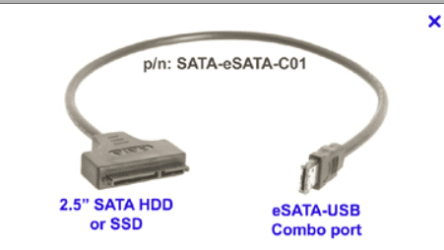
Use USB==>Sata connector -- cheap and screenshot enc.

Keep your system (OS) and applications in their OWN partition.

For re-partitioning use something like GPARTED and for imaging you can use FREE MACRIUM.

Cheers
jimbo
 

Attachments

  • satausb.png
    satausb.png
    13.9 KB · Views: 28

My Computer

Computer type
PC/Desktop
Computer Manufacturer/Model Number
Custom built, several laptops HP/ASUS
OS
Linux CENTOS 7 / various Windows OS'es and servers
CPU
Intel i7 Intel i5
Memory
8GB, 16GB
Graphics Card(s)
On Motherboard
Sound Card
Realtek HD audio
Monitor(s) Displays
Apple Cinema display, Samsung LCD
Screen Resolution
1920 X 1080
Hard Drives
4 X 1TB SATA
Mouse
Toshiba wireless laser
Internet Speed
> 20MB up
For the future, I recommend you protect yourself with images. Then you can get back into business in 20 minutes - provided you have a working new disk.

Now that you have a running system, make an image asap. Then I recommend to make another image weekly. Thus you are always up-to-date with your last image.

The best imaging program I know is this one: http://www.sevenforums.com/tutorials/73828-imaging-free-macrium.html?ltr=I
 

My Computer

Computer Manufacturer/Model Number
HP, Dell, Gateway, Toshiba - 4 laptops and 2 desktops
OS
Vista, Windows7, Mint Mate, Zorin, Windows 8
CPU
from 1.6GHz Duo to i7
Monitor(s) Displays
2x HP w2207
Hard Drives
5x HDD, 7x SSD, 12x Externals
Keyboard
with trackball - no mices
Mouse
Trackball mice
Internet Speed
DSL 6000
Hi All,

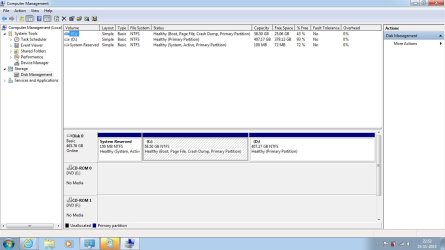
Please find attached the screenshot of my disk management tool.

The 260GB hard-drive space was shown as "Free Space" which I deleted and then extended my D drive
to use that unallocated space.

So now, I got back my original hard-drive space too!! :thumbsup:
Thankyou Kari, SandeepP, jimbo45, whs & all other experts who helped me bring my laptop back to life.

My next step would be to create a complete image of my system using the tool suggested in the previous posts.

Thankyou all & keep up the good work.

Cheers!!
 

Attachments

  • Disk Management Screenshot.jpg
    Disk Management Screenshot.jpg
    84.9 KB · Views: 5

My Computer

OS
Windows 7 Home Basic
Making a new image is a good idea. Then the image(es) will fir your new layout.
 

My Computer

Computer Manufacturer/Model Number
HP, Dell, Gateway, Toshiba - 4 laptops and 2 desktops
OS
Vista, Windows7, Mint Mate, Zorin, Windows 8
CPU
from 1.6GHz Duo to i7
Monitor(s) Displays
2x HP w2207
Hard Drives
5x HDD, 7x SSD, 12x Externals
Keyboard
with trackball - no mices
Mouse
Trackball mice
Internet Speed
DSL 6000
Hi All,

Please find attached the screenshot of my disk management tool.

The 260GB hard-drive space was shown as "Free Space" which I deleted and then extended my D drive
to use that unallocated space.

So now, I got back my original hard-drive space too!! :thumbsup:
Thankyou Kari, SandeepP, jimbo45, whs & all other experts who helped me bring my laptop back to life.

My next step would be to create a complete image of my system using the tool suggested in the previous posts.

Thankyou all & keep up the good work.

Cheers!!

Hi rbisawa,

Its great to hear that you were able to delete the volume and get the complete 500 GB to your usage.

If you have any queries in future feel free to reach out to us.
 

My Computer

Computer type
PC/Desktop
OS
Winndows 7 32 bit
Hi Sandeep,

I am out of warranty with Dell but would like to get my installation disks. I am having similar issues to those on this thread.

Is this possible?

Thanks
 

My Computer

Computer type
Laptop
Computer Manufacturer/Model Number
Dell XPS 15 L502X
OS
Windows 7 Home Premium x64
Hard Drives
SAMSUNG EVO SSD 240GB

My Computer

Computer Manufacturer/Model Number
HP, Dell, Gateway, Toshiba - 4 laptops and 2 desktops
OS
Vista, Windows7, Mint Mate, Zorin, Windows 8
CPU
from 1.6GHz Duo to i7
Monitor(s) Displays
2x HP w2207
Hard Drives
5x HDD, 7x SSD, 12x Externals
Keyboard
with trackball - no mices
Mouse
Trackball mice
Internet Speed
DSL 6000
Back
Top