I Do Not Understand (or like) Windows 7 Folder View Behavior

iron7,

A library is not the same as a folder and will use the same folder view for all included folders in the library no matter which folder the view was set in.

If you want individual folder views, then you would need to open the folder from the source location (ex: "C:\Users\UserName\Documents") instead of from say the Documents library.
 

My Computer My Computer

Computer type
PC/Desktop
Computer Manufacturer/Model Number
Self built custom
OS
64-bit Windows 11 Pro for Workstations
CPU
Intel i7-8700K OC'd to 5 GHz
Motherboard
ASUS ROG Maximus XI Formula Z390
Memory
64 GB (4x16GB) G.SKILL TridentZ RGB DDR4 3600 MHz
Graphics Card(s)
ASUS ROG-STRIX-GTX1080TI-O11G-GAMING
Sound Card
Integrated
Monitor(s) Displays
2 x Samsung Odyssey G7 27"
Screen Resolution
2560x1440
Hard Drives
1TB Samsung 990 PRO M.2,
4TB Samsung 990 PRO PRO M.2,
TerraMaster F8 SSD Plus NAS
PSU
Seasonic Prime Titanium 850W
Case
Thermaltake Core P3
Cooling
Corsair Hydro H115i
Keyboard
Logitech wireless K800
Mouse
Logitech MX Master 4
Internet Speed
2 Gb/s Download and 100 Mb/s Upload
Antivirus
Malwarebyte Anti-Malware Premium
Browser
Google Chrome
Other Info
Logitech Z625 speaker system,
Logitech BRIO 4K Pro webcam,
HP Color LaserJet Pro MFP M477fdn,
APC SMART-UPS RT 1000 XL - SURT1000XLI,
Galaxy S23 Plus phone
iron7,

A library is not the same as a folder and will use the same folder view for all included folders in the library no matter which folder the view was set in.

If you want individual folder views, then you would need to open the folder from the source location (ex: "C:\Users\UserName\Documents") instead of from say the Documents library.

Thanks. Still unexplained however is why the top libraries folder (the one containing icons for document, music, and video libraries) keeps changing view.

Also, as previously mentioned the issue with changing views is also happening with my user folder. So I am still wanting to find out an answer to my question:

So if one does not select the option to apply view settings to all similar folders (i.e. general items, pics, etc) will view behavior be more like XP, where any folder view could be set individually and it would not go changing itself around according to certain rule sets?
 

My Computer My Computer

OS
7 64

My Computer My Computer

Computer type
Laptop
Computer Manufacturer/Model Number
Employer provided Dell Latitude
OS
W7 Pro SP1 64bit
CPU
i7
Memory
8GB
Graphics Card(s)
Intel HD Graphics
Hard Drives
crappy SSD
Antivirus
Employer mandated Symantec Endpoint Protection
Browser
Pale Moon 64bit, IE11 64bit & Chrome 64bit
Thanks. I'm still unclear how 7 operates regarding folder views though.

I guess we could say XP operated with individual folder views, which I prefer.

Is there any way to get 7 to behave like XP?

I see the option in 7 to apply a folder view to all folders optimized for certain types of files (general, pics, music, etc). However, I'm still wondering if this template type of behavior is somehow automatically implemented in 7, or if it will only be implemented when the user selects the option for a folder view to be applied to all folders of that type (again: general items, pics, etc).
 

My Computer My Computer

OS
7 64
Making 7 look and act more like XP:


Taskbar:

Right click the taskbar on a blank area. Choose properties. Under taskbar, choose use small icons. Under taskbar buttons, choose never combine. Click ok.

Bring quick launch back to windows 7:

http://support.microsoft.com/kb/975784


There are other ways to customize your pc. See here: Personalizing your computer - Microsoft Windows Help


Also read up on the help and support option in the start menu. It is actually quite good now and is great to get more information on windows 7 and all the new features. You can also read up on UAC and how it protects your pc.


You may also be interested in this:

(This option will cause a slight drop in performance-results may vary)

http://www.sevenforums.com/tutorials/77626-convert-windows-xp-style.html
 

My Computer My Computer

Computer type
PC/Desktop
Computer Manufacturer/Model Number
Custom Built
OS
Windows 10 Pro
CPU
AMD Ryzen 5 2400G Processor with Radeon RX Vega 11 Graphics
Motherboard
ASRock X470 Master SLI/AC AM4 AMD Promontory X470 SATA 6Gb/s
Memory
G.SKILL Ripjaws V Series 16GB (2 x 8GB) 288-Pin DDR4 SDRAM D
Graphics Card(s)
2047MB NVIDIA GeForce GTX 1060 6GB (EVGA)
Sound Card
Motherboard Built in
Monitor(s) Displays
Acer R240HY bidx 23.8-Inch IPS HDMI DVI VGA (1920 x 1080) Wi
Screen Resolution
1920 x 1080
Hard Drives
1TB Sandisk SSD PLUS (Main drive)
500 GB Seagate 7200 RPM (Games)
500 GB Western Digital 7200 RPM (Virtual Machines)
PSU
CORSAIR TX Series TX650M 650W 80+ Gold Modular Power Supply
Case
CORSAIR CARBIDE SPEC-02 Mid-Tower Gaming Case, Red LED Fan
Cooling
220mm, two 120mm, and four 60mm fans
Keyboard
Wired Dell keyboard
Mouse
Wireless Logitech mouse
Internet Speed
250mb down, 30mb up
Antivirus
Panda Cloud Antivirus
Browser
Chrome-ish x64
Other Info
Your awesome for reading this.
Folder Template Discovery

As far as I can work out if you set the view type to General template for all folders then disable Folder Template Auto Discovery you'll get similar results to XP.

Set all folders to General Items - Step 2 here:

http://www.sevenforums.com/tutorials/15699-folder-template-default.html

Then download and merge this reg file:

View attachment Folder Tempate Discovery Disable.reg

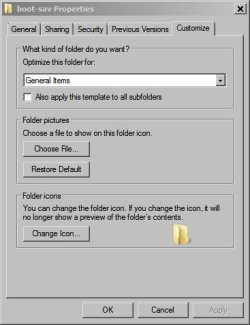
Then if you open any folder via Windows Explorer by navigating to the folder avoiding libraries you will always see folder properties as shown below:

Folder Properties.jpg

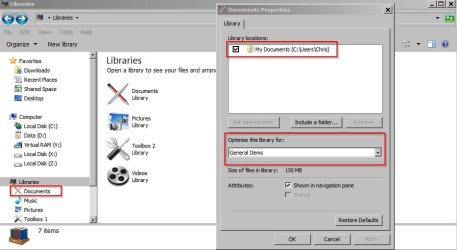
However if you navigate to folders via libraries then you will see a different view unless you customise your individual library views in the same way - in other words set the view template to General Items as shown below:

Right click the library in the left hand pane and choose view settings. Do the same for any other libraries. Suggest General Items.

Libraries.jpg

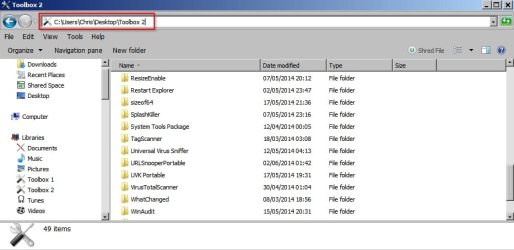
Then you should always see the following view for any type of folder:

Folder view when navigated to in explorer:

Folder View.jpg

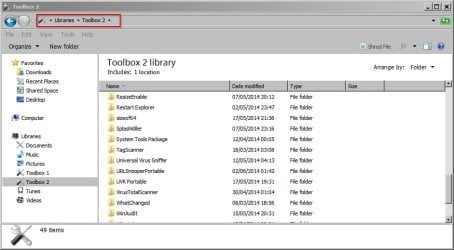
Folder view when navigated to in Libraries:

Notice the similarity!

Libraries View.jpg
 
Last edited:

My Computer My Computer

Computer type
Laptop
Computer Manufacturer/Model Number
ASUS
OS
Microsoft Windows 7 Home Premium 64-bit 7601 Multiprocessor Free Service Pack 1
CPU
AMD C-60 APU with Radeon(tm) HD Graphics
Motherboard
ASUSTeK COMPUTER INC. X501U
Memory
4.00 GB
Graphics Card(s)
AMD Radeon HD 6290 Graphics
Sound Card
(1) AMD High Definition Audio Device (2) Realtek High Defi
Screen Resolution
1366 x 768 x 32 bits (4294967296 colors) @ 60 Hz
Hard Drives
Hitachi HTS545050A7E380 SATA Disk Device
Antivirus
Comodo CIS & FW, SecureAplus App Whitelisting, Threatfire
Browser
Cyberfox 64bit, Opera 64bit, Airfox
Other Info
Spy-The-Spy, HitmanPro.Alert, Norton Connect Safe, MJRegWatcher, BitDefender TrafficLight, Voodoo Shield, Zemana AntiMalware
Forgot to mention

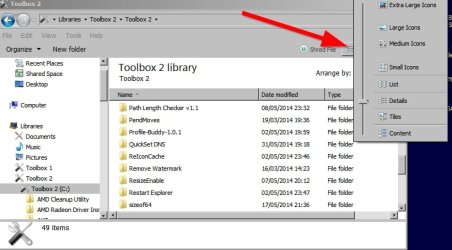
Of course what you actually see is also governed by how you've set the details view in the top level directory as shown here:

So if you set the slider to "Small Icons" all folders in the directory will be affected.
 

Attachments

  • Icons View.jpg
    Icons View.jpg
    47.2 KB · Views: 0

My Computer My Computer

Computer type
Laptop
Computer Manufacturer/Model Number
ASUS
OS
Microsoft Windows 7 Home Premium 64-bit 7601 Multiprocessor Free Service Pack 1
CPU
AMD C-60 APU with Radeon(tm) HD Graphics
Motherboard
ASUSTeK COMPUTER INC. X501U
Memory
4.00 GB
Graphics Card(s)
AMD Radeon HD 6290 Graphics
Sound Card
(1) AMD High Definition Audio Device (2) Realtek High Defi
Screen Resolution
1366 x 768 x 32 bits (4294967296 colors) @ 60 Hz
Hard Drives
Hitachi HTS545050A7E380 SATA Disk Device
Antivirus
Comodo CIS & FW, SecureAplus App Whitelisting, Threatfire
Browser
Cyberfox 64bit, Opera 64bit, Airfox
Other Info
Spy-The-Spy, HitmanPro.Alert, Norton Connect Safe, MJRegWatcher, BitDefender TrafficLight, Voodoo Shield, Zemana AntiMalware
Back
Top