Icon Size - Change in Windows Explorer Window

How to Change the Icon Size in a Windows 7 Explorer Window


   Information
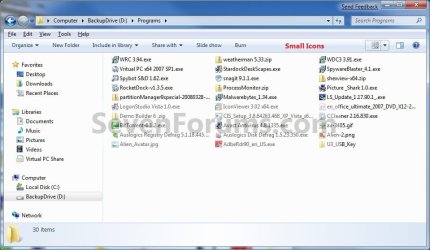
When you open a folder or library in Windows 7, you can change how the files look in the window. This will show you how to change the file and folder icon size in that window to be either Extra Large Icons, Large Icons, Medium Icons, Small Icons, or custom icons sizes of your choice.

   Note
All folders in a library share the same folder view. Any change made below in a library will automatically be applied to all folders in the library.


EXAMPLE: Extra Large Icons, Large Icons, Medium Icons, or Small Icons
NOTE: What you see in your window will also depend on what you have the folder template set as.
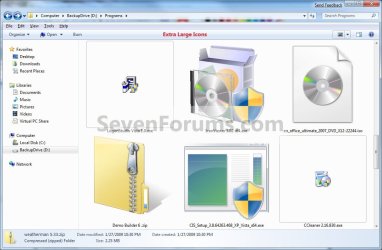
Extra_Large_Icons.jpg

Large_Icons.jpg

Medium_Icons.jpg

Small_Icons.jpg

Here's How: 1. Open the Windows Explorer folder or library window that you wish to change the view of the icon sizes in.

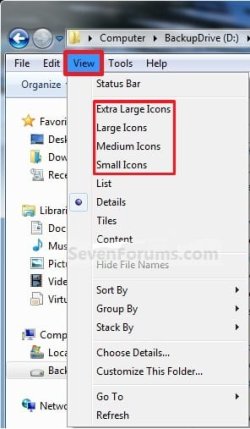
2. Click on the View menu bar item and select either the Extra Large Icons, Large Icons, Medium Icons, or Small Icons option. (see screenshot below) View_Icons.jpg
OR

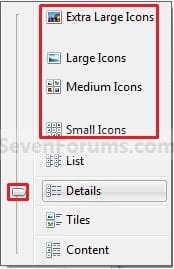
3. Click on the View toolbar button drop down arrow to select either the Extra Large Icons, Large Icons, Medium Icons, or Small Icons option. (see screenshots below) Button.jpg

Toolbar_Button.jpg
OR

4. Click on the View toolbar button to the left of the arrow to cycle through the different icon sizes until you have the icon size you want. (see top screenshot above)

OR

5. Click on the View toolbar button drop down arrow, then move the slider at the left up (larger icons) and down (smaller icons) until you have the custom icon size you want. (see screenshots below step 3)

OR

6. Click on a empty area in the Windows Explorer window or on the Desktop. Now press and hold the Ctrl (Control) key and roll your mouse wheel up (larger icons) and down (smaller icons) until you have the custom icon size you want, then release the Ctrl key.

OR

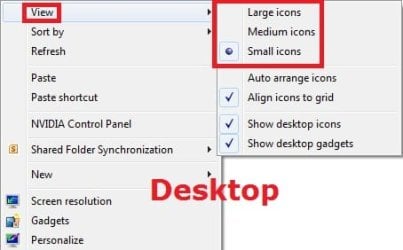
7. Right click on the Desktop or in the Windows Explorer window, then select View and click on the icon size your want selected for the folder view. (see screenshots below) Desktop.jpg
Windows_Explorer.jpg

That's it,
Shawn


Last edited:
How to make such changes for all folders? I want to set all folders "Medium Icons" view. Any help?
 

My Computer

Computer Manufacturer/Model Number
MSI GX623
OS
Windows 7 x86 or x64?
CPU
Intel Core 2 Duo P7350 2.0-2.4Ghz
Memory
4GB DDR2-800
Graphics Card(s)
ATI Mobility Radeon HD 4670
Screen Resolution
1680 x 1050
Hard Drives
320 GB 5400RPM SATA
Hello Symbianas, and welcome to Seven Forums.

You can do this below do so. :)

1. Set all folders to have the same folder template of your choice.
http://www.sevenforums.com/tutorials/15699-folder-template-default.html

2. Now, change the folder view to have "Medium Icons", and apply these changes to all folders with the same folder template. Since you changed all folder to have the same template in step 1 above, all folders (except libraries) will have this folder view now when applied.
http://www.sevenforums.com/tutorials/11356-folder-view-apply-all-folders.html

Hope this helps,
Shawn
 

My Computer

Computer type
PC/Desktop
Computer Manufacturer/Model Number
Self built custom
OS
64-bit Windows 11 Pro for Workstations
CPU
Intel i7-8700K OC'd to 5 GHz
Motherboard
ASUS ROG Maximus XI Formula Z390
Memory
64 GB (4x16GB) G.SKILL TridentZ RGB DDR4 3600 MHz
Graphics Card(s)
ASUS ROG-STRIX-GTX1080TI-O11G-GAMING
Sound Card
Integrated
Monitor(s) Displays
2 x Samsung Odyssey G7 27"
Screen Resolution
2560x1440
Hard Drives
1TB Samsung 990 PRO M.2,
4TB Samsung 990 PRO PRO M.2,
TerraMaster F8 SSD Plus NAS
PSU
Seasonic Prime Titanium 850W
Case
Thermaltake Core P3
Cooling
Corsair Hydro H115i
Keyboard
Logitech wireless K800
Mouse
Logitech MX Master 4
Internet Speed
2 Gb/s Download and 100 Mb/s Upload
Antivirus
Malwarebyte Anti-Malware Premium
Browser
Google Chrome
Other Info
Logitech Z625 speaker system,
Logitech BRIO 4K Pro webcam,
HP Color LaserJet Pro MFP M477fdn,
APC SMART-UPS RT 1000 XL - SURT1000XLI,
Galaxy S23 Plus phone
Extra Large Folder, tiny icon

Now let take this one step farther. How would I get the icon to fill the folder when the folder view is set to extra large? I have been racking my brain to figure this out. It looks awefull when you have a extra large folder and a tiny little icon in the middle of it.
Ron
 

My Computer

Computer type
PC/Desktop
OS
windows 7 32 bit
Brink, as you know Windows inside out, do you know any way to make Windows Explorer permanently show the Small, List and Detailed icon size not at 16 pixels but at 24?
 
Last edited:

My Computer

Computer type
PC/Desktop
Computer Manufacturer/Model Number
Custom Build Desktop; ASUS Laptop
OS
Windows 7 Ultimate 64bit
Brink, as you know Windows inside out, do you know any way to make Windows Explorer permanently show the Small, List and Detailed icon size not at 16 pixels but at 24?

Hello LightWins, :-)

I'm afraid I haven't seen a way to change the icon layout default sizes like that.
 

My Computer

Computer type
PC/Desktop
Computer Manufacturer/Model Number
Self built custom
OS
64-bit Windows 11 Pro for Workstations
CPU
Intel i7-8700K OC'd to 5 GHz
Motherboard
ASUS ROG Maximus XI Formula Z390
Memory
64 GB (4x16GB) G.SKILL TridentZ RGB DDR4 3600 MHz
Graphics Card(s)
ASUS ROG-STRIX-GTX1080TI-O11G-GAMING
Sound Card
Integrated
Monitor(s) Displays
2 x Samsung Odyssey G7 27"
Screen Resolution
2560x1440
Hard Drives
1TB Samsung 990 PRO M.2,
4TB Samsung 990 PRO PRO M.2,
TerraMaster F8 SSD Plus NAS
PSU
Seasonic Prime Titanium 850W
Case
Thermaltake Core P3
Cooling
Corsair Hydro H115i
Keyboard
Logitech wireless K800
Mouse
Logitech MX Master 4
Internet Speed
2 Gb/s Download and 100 Mb/s Upload
Antivirus
Malwarebyte Anti-Malware Premium
Browser
Google Chrome
Other Info
Logitech Z625 speaker system,
Logitech BRIO 4K Pro webcam,
HP Color LaserJet Pro MFP M477fdn,
APC SMART-UPS RT 1000 XL - SURT1000XLI,
Galaxy S23 Plus phone
Back
Top