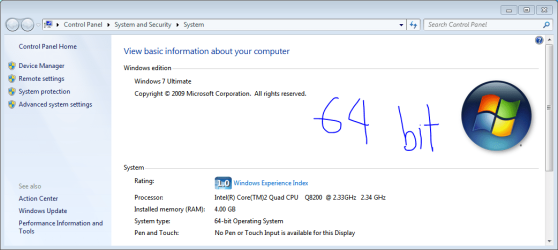
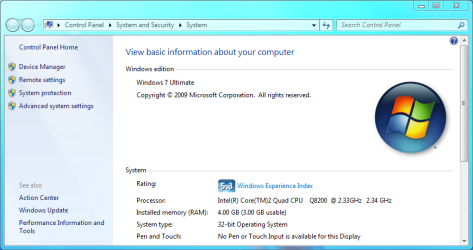
I'm just ready to give up

Not fair

Well.... I did a quick check. It could be a moot point. Dell lists the maximum memory for your MOBO at 4GB (2x2GB) am I correct?

IF that is correct your benefits in running 64 Bit may be limited. Specifically, you will not be able to gain the benefit of addressable memory > 4GB.

I would imagine it zips along pretty well with W7, 64 bit or not 64 bit, doesn't it?


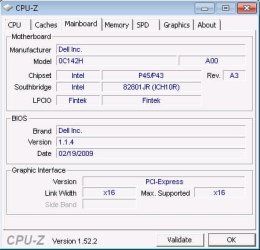
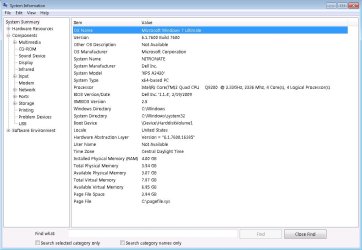
Thanks to every1 but get 32 and attached the compations.

thanks again for the help and suport
 

Attachments

  • Memory64.PNG
    Memory64.PNG
    14.7 KB · Views: 93
  • Memory32.PNG
    Memory32.PNG
    17.2 KB · Views: 63
  • Info64.PNG
    Info64.PNG
    35.8 KB · Views: 87
  • info32.PNG
    info32.PNG
    39.7 KB · Views: 82

My Computer My Computer

At a glance

windows 7Intel® Core™2 Quad4 GBNIVIDIA® GeForce® 9600MT
Computer Manufacturer/Model Number
XPS one A2420
OS
windows 7
CPU
Intel® Core™2 Quad
Motherboard
Dell 0C1438
Memory
4 GB
Graphics Card(s)
NIVIDIA® GeForce® 9600MT
Hi

I also have the Dell One A2420, and I'm trying to get the nVidia driver working with Windows 7 (64-bit).

I've run the Everest Ultimate and the GPU tools mentioned in this thread, and they both come back saying that it's the nVidia GeForce 9600M GT card.

I've tried downloading the latest driver from nVidia:
GeForce Release 186

When I run the above, I get an error saying "The NVIDIA Setup program could not locate any drivers that are compatible with your current hardware. Setup will now exit."

I've also tried a bunch of other versions of the nVidia drivers, with no positive results.

Please let me know if any of you have had success with getting the video driver to work with Windows 7 (64-bit).

Thanks.
 

My Computer My Computer

At a glance

Windows 7
OS
Windows 7
Considering all Dell supports for your system is 32 bit, this seems to be your only option. Still don't know why that is... :sarc:
Because that's all that they ship it with...and that is what they support.
 

My Computer My Computer

At a glance

Windows 7 Ultimate x64Intel Q9550 2.83Ghz OC'd to 3.40Ghz8GB G.Skill PI DDR2-800, 4-4-4-12 timingsEVGA 1280MB Nvidia GeForce GTX570
Computer Manufacturer/Model Number
Self-Built in July 2009
OS
Windows 7 Ultimate x64
CPU
Intel Q9550 2.83Ghz OC'd to 3.40Ghz
Motherboard
Gigabyte GA-EP45-UD3R rev. 1.1, F12 BIOS
Memory
8GB G.Skill PI DDR2-800, 4-4-4-12 timings
Graphics Card(s)
EVGA 1280MB Nvidia GeForce GTX570
Sound Card
Realtek ALC899A 8 channel onboard audio
Monitor(s) Displays
23" Acer x233H
Screen Resolution
1920x1080
Hard Drives
Intel X25-M 80GB Gen 2 SSD
Western Digital 1TB Caviar Black, 32MB cache. WD1001FALS
PSU
Corsair 620HX modular
Case
Antec P182
Cooling
stock
Keyboard
ABS M1 Mechanical
Mouse
Logitech G9 Laser Mouse
Internet Speed
15/2 cable modem
Other Info
Windows and Linux enthusiast. Logitech G35 Headset.
i had the EXACT same problem and i think i have the EXACT same machine that i just got from Dell 2 days ago. i did a full wipe and install of Windows 7 Ultimate x64 (build 7600) to replace the crappy Vista x86 Premium that came pre-installed. below is a link to the solution that i posted in another thread, i just did it today and so far it's working fine. i've even tested remoting into it from another machine and that works fine too.

http://www.sevenforums.com/drivers/...ng-drivers-geforce-9600m-gt-4.html#post284371

system profile images:

XPS One CPU Profile.jpg XPS One Mainboard Profile.jpg

XPS One Memory Profile.jpg XPS One System Info.jpg

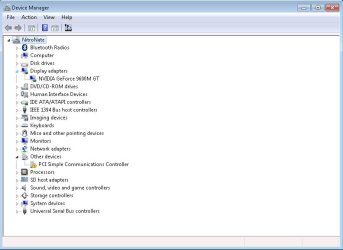
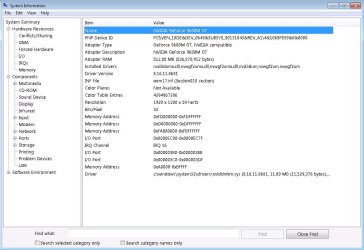
images of the results after installing the modified NVIDIA driver (note the device ID DEV_0649&SUBSYS_90131043):

XPS One Device Manager.jpg XPS One Display Info.jpg

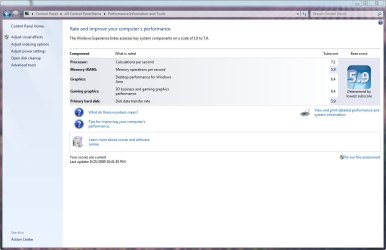
XPS Computer Performance.jpg
 
Last edited:

My Computer My Computer

At a glance

Windows 7 RTM Ultimate x64Intel Core 2 Quad Q8200 @ 2.33 GHz4 GB Dual Channel DDR2 SDRAM @ 800MHz512MB NVIDIA GeForce 9600M GT
Computer Manufacturer/Model Number
Dell XPS One 24 (A2420)
OS
Windows 7 RTM Ultimate x64
CPU
Intel Core 2 Quad Q8200 @ 2.33 GHz
Motherboard
Intel P45 Express Chipset
Memory
4 GB Dual Channel DDR2 SDRAM @ 800MHz
Graphics Card(s)
512MB NVIDIA GeForce 9600M GT
Sound Card
Realtek ALC262 Integrated HD Audio
Solved: get nVidia drivers working with Dell One

NitroNate: YOU ROCK!

Thank you.
I've now got my Win7 64-bit system working correctly with the nVidia drivers.

I had a little bit of trouble with your steps, so let me re-hash the steps I took.

- download your drivers from the Dell site (even though they won't work on Win7 64-bit)

- run the executable, so the drivers unpack into a folder on your hard disk (mine went into C:\dell\Drivers\R193854)

- look for the inf file within the above folder
(mine is called NVDD.inf)

- within that inf file, search for the text: SUBSYS

- you'll find some text like this:
[NVIDIA.Mfg.NTx86.6.0]
%NVIDIA_G96.DEV_0649.1% = nv_G9x, PCI\VEN_10DE&DEV_0649&SUBSYS_90131043

- take note of your device ID (DEV_0649) and the subsystem ID (SUBSYS_90131043). You'll need this for later.

- download the nVidia drivers for Win 7 64-bit
(http://us.download.nvidia.com/Windows/186.81/186.81_notebook_win7_winvista_64bit_international_whql.exe)

- run the nVidia exe file, so that the drivers unpack into your hard disk
(mine went into C:\NVIDIA\DisplayDriver\186.81\International)

- go into the nVidia Display subfolder
(C:\NVIDIA\DisplayDriver\186.81\International\Display)

- make a copy of the following files: ListDevices.txt and NVDM.inf

- open ListDevices.txt for editing

- within the ListDevices.txt file, first search for the text: NVDM.INF

- then search for your device ID within that same section (mine is: DEV_0649)
My line says:
DEV_0649&SUBSYS_02501028 "NVIDIA GeForce 9600M GT"
Notice that although the device ID is correct, the subsys ID doesn't match our subsys ID we found within our Dell driver inf file

- We therefore now change the subsys ID to the one from our Dell inf file.
So I would change the line above to the following
DEV_0649&SUBSYS_90131043 "NVIDIA GeForce 9600M GT"

- Save the file

- Now open the file NVDM.INF for editing

- you will now search for: DEV_0649&SUBSYS_02501028
and replace it with: DEV_0649&SUBSYS_90131043
This should result in 2 changes within the NVDM.INF file

- save the file

- Ok. Now that you've made the changes to the files, you now need to update your display driver within Win 7

- Right-click "Computer" on your desktop and select "Manage"
- Click on "Device Manger"
- Open the "Display Adapters" section
- Select your display adapter (will likely say: Standard VGA Adapter)
- right-click your display adapter and select "update driver software"
- select "browse my computer for driver software"
- select "let me pick from a list of device drivers on my computer"
- click "Have disk"
- enter the path to the nVidia drivers you've been tinkering with
(eg C:\NVIDIA\DisplayDriver\186.81\International\Display)
- it should now find "NVIDIA GeForce 9600M GT"
- select it, and then allow it to install the unsigned driver
- once complete reboot your computer

- Once your computer comes back up, then you'll need to update your system settings
- right-click "Computer" on the desktop and select "properties"
- under the system rating section, click on the link to refresh your settings

- My system now comes up with a subscore of 6.4 for both graphics and gaming graphics

Big thanks once again to NitroNate, in finding out how to get around this issue, and sharing the info on this forum.
I hope the more detailed steps above help you guys out as well.

 

My Computer My Computer

At a glance

Windows 7
OS
Windows 7
NitroNate: YOU ROCK!

Thank you.
I've now got my Win7 64-bit system working correctly with the nVidia drivers.

I had a little bit of trouble with your steps, so let me re-hash the steps I took.

- download your drivers from the Dell site (even though they won't work on Win7 64-bit)

- run the executable, so the drivers unpack into a folder on your hard disk (mine went into C:\dell\Drivers\R193854)

- look for the inf file within the above folder
(mine is called NVDD.inf)

- within that inf file, search for the text: SUBSYS

- you'll find some text like this:
[NVIDIA.Mfg.NTx86.6.0]
%NVIDIA_G96.DEV_0649.1% = nv_G9x, PCI\VEN_10DE&DEV_0649&SUBSYS_90131043

- take note of your device ID (DEV_0649) and the subsystem ID (SUBSYS_90131043). You'll need this for later.

- download the nVidia drivers for Win 7 64-bit
(http://us.download.nvidia.com/Windows/186.81/186.81_notebook_win7_winvista_64bit_international_whql.exe)

- run the nVidia exe file, so that the drivers unpack into your hard disk
(mine went into C:\NVIDIA\DisplayDriver\186.81\International)

- go into the nVidia Display subfolder
(C:\NVIDIA\DisplayDriver\186.81\International\Display)

- make a copy of the following files: ListDevices.txt and NVDM.inf

- open ListDevices.txt for editing

- within the ListDevices.txt file, first search for the text: NVDM.INF

- then search for your device ID within that same section (mine is: DEV_0649)
My line says:
DEV_0649&SUBSYS_02501028 "NVIDIA GeForce 9600M GT"
Notice that although the device ID is correct, the subsys ID doesn't match our subsys ID we found within our Dell driver inf file

- We therefore now change the subsys ID to the one from our Dell inf file.
So I would change the line above to the following
DEV_0649&SUBSYS_90131043 "NVIDIA GeForce 9600M GT"

- Save the file

- Now open the file NVDM.INF for editing

- you will now search for: DEV_0649&SUBSYS_02501028
and replace it with: DEV_0649&SUBSYS_90131043
This should result in 2 changes within the NVDM.INF file

- save the file

- Ok. Now that you've made the changes to the files, you now need to update your display driver within Win 7

- Right-click "Computer" on your desktop and select "Manage"
- Click on "Device Manger"
- Open the "Display Adapters" section
- Select your display adapter (will likely say: Standard VGA Adapter)
- right-click your display adapter and select "update driver software"
- select "browse my computer for driver software"
- select "let me pick from a list of device drivers on my computer"
- click "Have disk"
- enter the path to the nVidia drivers you've been tinkering with
(eg C:\NVIDIA\DisplayDriver\186.81\International\Display)
- it should now find "NVIDIA GeForce 9600M GT"
- select it, and then allow it to install the unsigned driver
- once complete reboot your computer

- Once your computer comes back up, then you'll need to update your system settings
- right-click "Computer" on the desktop and select "properties"
- under the system rating section, click on the link to refresh your settings

- My system now comes up with a subscore of 6.4 for both graphics and gaming graphics

Big thanks once again to NitroNate, in finding out how to get around this issue, and sharing the info on this forum.
I hope the more detailed steps above help you guys out as well.

i should have just given you the NVDM.INF file that i created, but yeah, you explained the steps much better than i did. i kinda winged it and then tried to retrace the steps of everything i did, but thanks for providing a much more detailed set of instructions.
 

My Computer My Computer

At a glance

Windows 7 RTM Ultimate x64Intel Core 2 Quad Q8200 @ 2.33 GHz4 GB Dual Channel DDR2 SDRAM @ 800MHz512MB NVIDIA GeForce 9600M GT
Computer Manufacturer/Model Number
Dell XPS One 24 (A2420)
OS
Windows 7 RTM Ultimate x64
CPU
Intel Core 2 Quad Q8200 @ 2.33 GHz
Motherboard
Intel P45 Express Chipset
Memory
4 GB Dual Channel DDR2 SDRAM @ 800MHz
Graphics Card(s)
512MB NVIDIA GeForce 9600M GT
Sound Card
Realtek ALC262 Integrated HD Audio
update:

after a day or so using the drivers loaded from NVDM.INF, i started getting periodic LiveKernelEvent errors in the event log accompanied by the screen going black and then coming back after a few seconds. this only seemed to happen with Aero themes, if i chose a basic theme this didn't happen.

in any case, i did further research and came to the conclusion that the correct file to use is the NVAM.INF file. this is for asus computers, but if you look at the last 4 digits of the subsystem ID (1043) that comes from the official dell drivers, you will find online that this corresponds to the vendor ID which is asus. who knows why dell's subsystem vendor id is asus, but it is. the NVAM.INF file is for asus. i just replaced the string DEV_0649&SUBSYS_19F21043 in the NVAM.INF file with the one from dell which is DEV_0649&SUBSYS_90131043 and went through the same process of manually loading the drivers.

so far i haven't had the video problem with aero turned on.
 

My Computer My Computer

At a glance

Windows 7 RTM Ultimate x64Intel Core 2 Quad Q8200 @ 2.33 GHz4 GB Dual Channel DDR2 SDRAM @ 800MHz512MB NVIDIA GeForce 9600M GT
Computer Manufacturer/Model Number
Dell XPS One 24 (A2420)
OS
Windows 7 RTM Ultimate x64
CPU
Intel Core 2 Quad Q8200 @ 2.33 GHz
Motherboard
Intel P45 Express Chipset
Memory
4 GB Dual Channel DDR2 SDRAM @ 800MHz
Graphics Card(s)
512MB NVIDIA GeForce 9600M GT
Sound Card
Realtek ALC262 Integrated HD Audio
Back
Top