NitroNate: YOU ROCK!
Thank you.
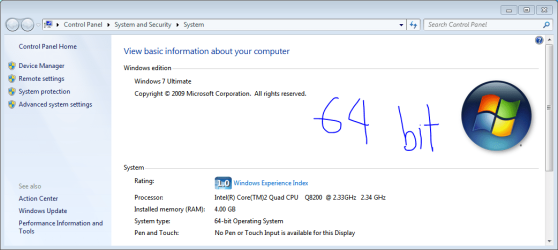
I've now got my Win7 64-bit system working correctly with the nVidia drivers.
I had a little bit of trouble with your steps, so let me re-hash the steps I took.
- download your drivers from the Dell site (even though they won't work on Win7 64-bit)
- run the executable, so the drivers unpack into a folder on your hard disk (mine went into C:\dell\Drivers\R193854)
- look for the inf file within the above folder
(mine is called NVDD.inf)
- within that inf file, search for the text: SUBSYS
- you'll find some text like this:
[NVIDIA.Mfg.NTx86.6.0]
%NVIDIA_G96.DEV_0649.1% = nv_G9x, PCI\VEN_10DE&DEV_0649&SUBSYS_90131043
- take note of your device ID (DEV_0649) and the subsystem ID (SUBSYS_90131043). You'll need this for later.
- download the nVidia drivers for Win 7 64-bit
(http://us.download.nvidia.com/Windows/186.81/186.81_notebook_win7_winvista_64bit_international_whql.exe)
- run the nVidia exe file, so that the drivers unpack into your hard disk
(mine went into C:\NVIDIA\DisplayDriver\186.81\International)
- go into the nVidia Display subfolder
(C:\NVIDIA\DisplayDriver\186.81\International\Display)
- make a copy of the following files: ListDevices.txt and NVDM.inf
- open ListDevices.txt for editing
- within the ListDevices.txt file, first search for the text: NVDM.INF
- then search for your device ID within that same section (mine is: DEV_0649)
My line says:
DEV_0649&SUBSYS_02501028 "NVIDIA GeForce 9600M GT"
Notice that although the device ID is correct, the subsys ID doesn't match our subsys ID we found within our Dell driver inf file
- We therefore now change the subsys ID to the one from our Dell inf file.
So I would change the line above to the following
DEV_0649&SUBSYS_90131043 "NVIDIA GeForce 9600M GT"
- Save the file
- Now open the file NVDM.INF for editing
- you will now search for: DEV_0649&SUBSYS_02501028
and replace it with: DEV_0649&SUBSYS_90131043
This should result in 2 changes within the NVDM.INF file
- save the file
- Ok. Now that you've made the changes to the files, you now need to update your display driver within Win 7
- Right-click "Computer" on your desktop and select "Manage"
- Click on "Device Manger"
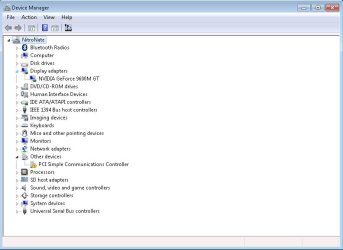
- Open the "Display Adapters" section
- Select your display adapter (will likely say: Standard VGA Adapter)
- right-click your display adapter and select "update driver software"
- select "browse my computer for driver software"
- select "let me pick from a list of device drivers on my computer"
- click "Have disk"
- enter the path to the nVidia drivers you've been tinkering with
(eg C:\NVIDIA\DisplayDriver\186.81\International\Display)
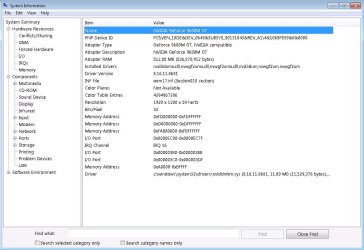
- it should now find "NVIDIA GeForce 9600M GT"
- select it, and then allow it to install the unsigned driver
- once complete reboot your computer
- Once your computer comes back up, then you'll need to update your system settings
- right-click "Computer" on the desktop and select "properties"
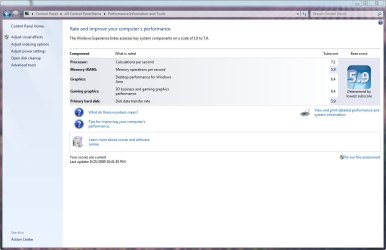
- under the system rating section, click on the link to refresh your settings
- My system now comes up with a subscore of 6.4 for both graphics and gaming graphics
Big thanks once again to NitroNate, in finding out how to get around this issue, and sharing the info on this forum.
I hope the more detailed steps above help you guys out as well.