Imaging with free Macrium

   Information

This tutorial shows imaging with free Macrium Version 5.0. If you are still using Macrium Version 4.2, go to this Vimeo site where the tutorial of that version is stored.

The Video does not show the recovery part because I have no setup to screen capture it. But Keith (Kado) made this excellent recovery tutorial with text (but no sound) that he captured from a virtual partition.


   Warning


Note that the external disk to which you image must be formatted in NTFS. A disk that is formatted in Fat32 will accept an image, but the recovery programs cannot restore that image. You can, however, mount (open) a Fat32 image as VHD.


   Note
The production of the WinPE recovery CD (which is highly recommended) may take up to 3 hours because Macrium needs to download the 1.7GB WAIK (Windows Application Installation Kit). For your convenience I have uploaded a ready made .iso of the WinPE recovery disc. That can be downloaded in appr. 8 minutes which clearly beats the WAIK download. Once you downloaded and unzipped the folder, you can burn it directly to a CD with e.g. ImgBurn.

Here is the link to my Skydrive site.

Here is an alternate link from FileSwap (courtesy of Gary - Britton30)

I draw your attention to the fact that this WinPE CD can also be used to make images. That may be convenient in case you do not want to install Macrium on your PC.


This video tutorial explains the full cycle of the imaging process which is:

· Initial setups
· Image definition
· Image scheduling
· Image production

The imaging program that was used for this tutorial is free Macrium. But the basic principles are the same for other imaging programs although the user interface will be different.

This video runs for appr. 7 minutes.
There is a related thread on the Vista forum which gives a brief introduction to Macrium followed by a discussion.
You can download the free Macrium edition from here.

Note: If you have a problem with the loudness of the sound output of the video, check the "Loudness Equalization" box in your Playback device. It is under the 'Enhancements' tab.


Last edited by a moderator:
1. If you want to get rid of the 100MB partition, you have to create/transfer the MBR to C and mark C as active. You can try this with Partition Wizard. But there is an advantage to leaving the MBR on the little partition. Then it cannot get detroyed if C goes on the blink. Just follow my instructions in the warning of the tutorial (do not mark C as active and do not ask for MBR restore)
2. You cannot do a selective file/folder backup. It is always the whole partition. But you can define a backup XML definition file to backup both partitions at the same time. You can also set a schedule - just right click on the XML and go to schedule. I have set mine to when I boot the system which is once a day.
3. I don't think Win7 will recognize it. I am sure there is a way to turn this bugger off, but I have not yet investigated it.
4. Tip: if you want to delete an XML file definition, in lieu of doing it in Macrium, go to My Documents. There you find a folder "Reflect" - delete the definition file there. The advantage is that you can reuse the name of the deleted file.

Edit: just saw that derekimo answered one of our questions. Thanks derekimo. I had not yet gotten that far.
 

My Computer

Computer Manufacturer/Model Number
HP, Dell, Gateway, Toshiba - 4 laptops and 2 desktops
OS
Vista, Windows7, Mint Mate, Zorin, Windows 8
CPU
from 1.6GHz Duo to i7
Monitor(s) Displays
2x HP w2207
Hard Drives
5x HDD, 7x SSD, 12x Externals
Keyboard
with trackball - no mices
Mouse
Trackball mice
Internet Speed
DSL 6000

My Computers

System One System Two

  • Computer type
    PC/Desktop
    Computer Manufacturer/Model Number
    PowerSpec G164
    OS
    WIN10
    CPU
    AMD Ryzen 5 3600 6-Core Processor 3.59 GHz
    Memory
    16.0 GB
    Internet Speed
    VERY FAST>>>!!!
  • Antivirus
    ESET Security Premium
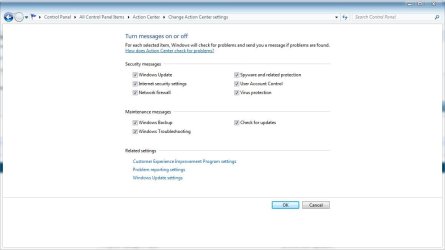
This will tell you how to turn that message off,

http://www.sevenforums.com/tutorials/364-action-center-change-message-settings.html?ltr=A

whs can explain the rest.

thanks i knew how to remove the messages, i basically was asking if using this program, it somehows tells windows 7 that i am backing up my computer.

It might just do that, because I haven't gotten one of those at all since I installed macrium right after this last install of 7, and I don't have that box unchecked.
 

Attachments

  • action center.JPG
    action center.JPG
    69.7 KB · Views: 755

My Computer

Computer type
PC/Desktop
Computer Manufacturer/Model Number
Self Built
OS
Win 10 Pro x64
CPU
Intel I5-2500K @3.3GHz
Motherboard
Asrock P67 Extreme4
Memory
16GB G.Skill Ripjaws X (4x4GB)
Graphics Card(s)
EVGA GeForce 750 Ti SC 2GB
Sound Card
ASUS Xonar DG 5.1 Channels 24-bit 96KHz PCI Interface Sound
Monitor(s) Displays
auria eq2367
Screen Resolution
1920 x 1080
Hard Drives
250GB Samsung 850 EVO SSD
1TB WD Blue
1TB Hitachi
PSU
SeaSonic X 650W 80 Plus Gold
Case
Corsair Obsidian 750D
Cooling
Corsair H60, Three 140mm case fans
Keyboard
Logitech Wireless Keyboard K520
Mouse
Logitech Wireless Mouse M310
Internet Speed
Wave Broadband ~ 100 dn 5 up
Antivirus
Windows Defender, Malwarebytes Premium
Browser
Edge, IE11, Chrome
Other Info
Laptop specs: HP g7-1365dx /
CPU: AMD A6-3420M APU with Radeon(tm) HD Graphics /
RAM: Crucial 8Gb (2x4Gb) /
SSD: Crucial M4-CT128M4SSD2 ATA Device/ FW 000F /
GFX: AMD Radeon HD 6520G /
OS: Windows 10 Pro x64
Well, let's say we are not sure. But I also never get a problem from the action center. So maybe derekimo is right.
 

My Computer

Computer Manufacturer/Model Number
HP, Dell, Gateway, Toshiba - 4 laptops and 2 desktops
OS
Vista, Windows7, Mint Mate, Zorin, Windows 8
CPU
from 1.6GHz Duo to i7
Monitor(s) Displays
2x HP w2207
Hard Drives
5x HDD, 7x SSD, 12x Externals
Keyboard
with trackball - no mices
Mouse
Trackball mice
Internet Speed
DSL 6000
1. If you want to get rid of the 100MB partition, you have to create/transfer the MBR to C and mark C as active. You can try this with Partition Wizard. But there is an advantage to leaving the MBR on the little partition. Then it cannot get detroyed if C goes on the blink. Just follow my instructions in the warning of the tutorial (do not mark C as active and do not ask for MBR restore)
2. You cannot do a selective file/folder backup. It is always the whole partition. But you can define a backup XML definition file to backup both partitions at the same time. You can also set a schedule - just right click on the XML and go to schedule. I have set mine to when I boot the system which is once a day.
3. I don't think Win7 will recognize it. I am sure there is a way to turn this bugger off, but I have not yet investigated it.
4. Tip: if you want to delete an XML file definition, in lieu of doing it in Macrium, go to My Documents. There you find a folder "Reflect" - delete the definition file there. The advantage is that you can reuse the name of the deleted file.

Edit: just saw that derekimo answered one of our questions. Thanks derekimo. I had not yet gotten that far.

good stuff.... when you say do not mark as active and do not replace master boot record. is that because thats whats in my system reserved partition.

i am backing up my C drive which i thought contains all my OS stuff. maybe it doesnt? cause i really dont know what that system reserved does or contains?
 

My Computers

System One System Two

  • Computer type
    PC/Desktop
    Computer Manufacturer/Model Number
    PowerSpec G164
    OS
    WIN10
    CPU
    AMD Ryzen 5 3600 6-Core Processor 3.59 GHz
    Memory
    16.0 GB
    Internet Speed
    VERY FAST>>>!!!
  • Antivirus
    ESET Security Premium
good stuff.... when you say do not mark as active and do not replace master boot record. is that because thats whats in my system reserved partition. Exactly

i am backing up my C drive which i thought contains all my OS stuff. maybe it doesnt? cause i really dont know what that system reserved does or contains? It contains the MBR and it is used for Bitlocker (in Ultimate only). Your C contains all the rest of the OS.
 

My Computer

Computer Manufacturer/Model Number
HP, Dell, Gateway, Toshiba - 4 laptops and 2 desktops
OS
Vista, Windows7, Mint Mate, Zorin, Windows 8
CPU
from 1.6GHz Duo to i7
Monitor(s) Displays
2x HP w2207
Hard Drives
5x HDD, 7x SSD, 12x Externals
Keyboard
with trackball - no mices
Mouse
Trackball mice
Internet Speed
DSL 6000
awesome, THANK you for everything :)

and this program doesnt communicate with windows 7 "action center" .it still shows i need to backup, and yes i know you can disable the messages. thanks guys again~

it took just under 4 minutes to make a back up image of my C drive that only has 20GB worth of information.
 

My Computers

System One System Two

  • Computer type
    PC/Desktop
    Computer Manufacturer/Model Number
    PowerSpec G164
    OS
    WIN10
    CPU
    AMD Ryzen 5 3600 6-Core Processor 3.59 GHz
    Memory
    16.0 GB
    Internet Speed
    VERY FAST>>>!!!
  • Antivirus
    ESET Security Premium
Looks like you are all set to go - happy imaging.
 

My Computer

Computer Manufacturer/Model Number
HP, Dell, Gateway, Toshiba - 4 laptops and 2 desktops
OS
Vista, Windows7, Mint Mate, Zorin, Windows 8
CPU
from 1.6GHz Duo to i7
Monitor(s) Displays
2x HP w2207
Hard Drives
5x HDD, 7x SSD, 12x Externals
Keyboard
with trackball - no mices
Mouse
Trackball mice
Internet Speed
DSL 6000
Looks like you are all set to go - happy imaging.


howdy whs,

i had one more question for you, if my drive completely dies and i wanted to replace with a new drive, would i be able to put in the recovery CD and repair everything with a backup image create on a secondary hard drive.

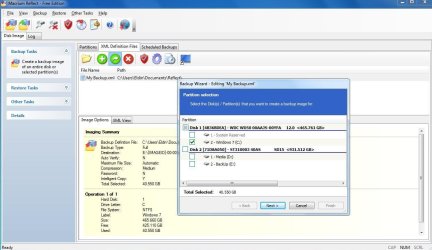
also when i was doing my backup i unchecked the "system reserved" so if this drive does go died, i dont know if i would be able to restore everything. i under a screen shot to see how my backup images are created.
 

Attachments

  • attachment.jpg
    attachment.jpg
    155.7 KB · Views: 738
Last edited:

My Computers

System One System Two

  • Computer type
    PC/Desktop
    Computer Manufacturer/Model Number
    PowerSpec G164
    OS
    WIN10
    CPU
    AMD Ryzen 5 3600 6-Core Processor 3.59 GHz
    Memory
    16.0 GB
    Internet Speed
    VERY FAST>>>!!!
  • Antivirus
    ESET Security Premium
Make a backup image of the system reserved partition now.

If you need to recover , restore the system reserved first ( make sure it marked active during restore ), then the main windows partition (do not mark this active during restore)
 

My Computers

System One System Two

  • Computer type
    PC/Desktop
    OS
    7 X64
    CPU
    i5 8400
    Motherboard
    gigabyte b365m ds3h
    Memory
    2x8gb 3200mhz
    Hard Drives
    various
    PSU
    pure power 11 400w cm
    Case
    Coolermaster
    Cooling
    cryorig m9i
  • Computer type
    PC/Desktop
    OS
    7x64
    CPU
    g5400
    Motherboard
    ga b365m ds3h
    Memory
    8gb ddr4 2400
    PSU
    xfx pro 450w
this is where it gets a little messy and confusing for me.

should i make a separate backup image of just the system reserve? (mark as active) or do a backup image of both system reserved (active) and the C drive (primary)

then what do i do if theres a complete hard drive failure and i need to replace the whole drive, insert the Recovery CD and choose parition to "overwrite with the image data".

so i would have to first create some partitions in the new drive? sorry for asking these stupid questions, but the video is more for backup files and such or serves as a restoration to earlier points, my questions are more theme to replacement of my operating system with system image backups.
 

My Computers

System One System Two

  • Computer type
    PC/Desktop
    Computer Manufacturer/Model Number
    PowerSpec G164
    OS
    WIN10
    CPU
    AMD Ryzen 5 3600 6-Core Processor 3.59 GHz
    Memory
    16.0 GB
    Internet Speed
    VERY FAST>>>!!!
  • Antivirus
    ESET Security Premium
should i make a separate backup image of just the system reserve? (mark as active) or do a backup image of both system reserved (active) and the C drive (primary)
I typically just do a backup of both of them in the same backup. Since the system reserved partition is only 100MB...it doesn't take much space at all.

When you have a complete and total meltdown, you don't need to create the partitions ahead of time. Just restore the 100MB reserved partition first as the Active partition and then restore the C drive next as a primary parition and you should be back in business. It will allow you to create these hard drive partitions in the unallocated space on the hard drive.

This is the beauty of having a spare machine or two lying around. You can test and try all this stuff out so that you know how it works.
 

My Computer

Computer Manufacturer/Model Number
Self-Built in July 2009
OS
Windows 7 Ultimate x64
CPU
Intel Q9550 2.83Ghz OC'd to 3.40Ghz
Motherboard
Gigabyte GA-EP45-UD3R rev. 1.1, F12 BIOS
Memory
8GB G.Skill PI DDR2-800, 4-4-4-12 timings
Graphics Card(s)
EVGA 1280MB Nvidia GeForce GTX570
Sound Card
Realtek ALC899A 8 channel onboard audio
Monitor(s) Displays
23" Acer x233H
Screen Resolution
1920x1080
Hard Drives
Intel X25-M 80GB Gen 2 SSD
Western Digital 1TB Caviar Black, 32MB cache. WD1001FALS
PSU
Corsair 620HX modular
Case
Antec P182
Cooling
stock
Keyboard
ABS M1 Mechanical
Mouse
Logitech G9 Laser Mouse
Internet Speed
15/2 cable modem
Other Info
Windows and Linux enthusiast. Logitech G35 Headset.
should i make a separate backup image of just the system reserve? (mark as active) or do a backup image of both system reserved (active) and the C drive (primary)
I typically just do a backup of both of them in the same backup. Since the system reserved partition is only 100MB...it doesn't take much space at all.

When you have a complete and total meltdown, you don't need to create the partitions ahead of time. Just restore the 100MB reserved partition first as the Active partition and then restore the C drive next as a primary partition and you should be back in business. It will allow you to create these hard drive partitions in the unallocated space on the hard drive.

This is the beauty of having a spare machine or two lying around. You can test and try all this stuff out so that you know how it works.


kwel so load new hard drive in, boot to Recovery CD and then restore first active partition which is the system reserve mark as active and do the recommend replacement of master boot record from the back, since in this case there wouldn't be one since its a new drive.

once this is done, which should be quickly, then restore the C drive mark as primary and also do not replace master boot.

i think i got it, is there a pdf file of the entire manual of macrium would like to read it.
 

My Computers

System One System Two

  • Computer type
    PC/Desktop
    Computer Manufacturer/Model Number
    PowerSpec G164
    OS
    WIN10
    CPU
    AMD Ryzen 5 3600 6-Core Processor 3.59 GHz
    Memory
    16.0 GB
    Internet Speed
    VERY FAST>>>!!!
  • Antivirus
    ESET Security Premium
Eldinv, Siw2 is right. I like to add that you do not restore the MBR when you restore the C partition (because the MBR is sitting on the System Reserved).
If your disk drives really dies (which is unlikely), you can restore to a drive that has the same or a larger size - but not to a smaller drive. For that you need cloning which is not a function of free Macrium.

PS: Just saw that there were more posts on the next page that I missed. But I think you got the idea. If you click on the question mark in the Macrium window or go to "Help", you get a pretty good documentation.
Here is an approach for testing that I always recommend to my students. It is a bit lengthy, but the steps are easy:

1. Shrink 2GBs from C and define a simple volume (partition) - let's call it Y
2. Move some files (any files) into Y - I always also move the sample picture folder in (you'll see why)
3. Define a test folder on your external backup disk - call it Mtest
4. Make an image of Y to Mtest - requires that you make a new definition
5. Delete a couple of pictures from the sample picture folder on Y (I always use the 2 animals)
6. Reboot and tap (ESC, F2 or whatever it is on your system) to get into the BIOS boot sequence
7. Set your boot sequence to CD/DVD reader
8. Throw in the Macrium recovery CD and let it run, then hit Enter
9. Now you are in the recovery wizard, set it to Mtest where it says "Locate Image" and to Y where it says "Choose partition to overwrite with the image data".

Note: the partition letters may not be the same as on your system. Macrium uses its own lettering. Best is to go by the size of the partitions and open it with the little + in the front.
10. Watch out when it asks whether to replace the Master Boot Record - in this case say "do not replace" because this is only a data partition. If that were your system partition, you would replace the MBR provided you do not have a separate boot partition.
11. When you get the little window saying "Your computer will now reboot", you have to hit "Cancel" (on the bottom" to get it to reboot. That's a little strange way to end the session, but that's the way it is.
12. Check whether the 2 animals in the sample picture folder are back. That shows you that the recovery worked.

When you have done these steps, you did the whole cycle and have learned

1. That your recovery disk works
2. How to recover
3. That things work

Now you can delete the little 2GB partition and add it back to it's originating partition.

If you are not familiar with the creation and deletion of partitions, watch this tutorial: http://www.sevenforums.com/tutorials/72427-data-partition.html
 

My Computer

Computer Manufacturer/Model Number
HP, Dell, Gateway, Toshiba - 4 laptops and 2 desktops
OS
Vista, Windows7, Mint Mate, Zorin, Windows 8
CPU
from 1.6GHz Duo to i7
Monitor(s) Displays
2x HP w2207
Hard Drives
5x HDD, 7x SSD, 12x Externals
Keyboard
with trackball - no mices
Mouse
Trackball mice
Internet Speed
DSL 6000
Eldinv, Siw2 is right. I like to add that you do not restore the MBR when you restore the C partition (because the MBR is sitting on the System Reserved).
If your disk drives really dies (which is unlikely), you can restore to a drive that has the same or a larger size - but not to a smaller drive. For that you need cloning which is not a function of free Macrium.

PS: Just saw that there were more posts on the next page that I missed. But I think you got the idea. If you click on the question mark in the Macrium window or go to "Help", you get a pretty good documentation.
Here is an approach for testing that I always recommend to my students. It is a bit lengthy, but the steps are easy:

1. Shrink 2GBs from C and define a simple volume (partition) - let's call it Y
2. Move some files (any files) into Y - I always also move the sample picture folder in (you'll see why)
3. Define a test folder on your external backup disk - call it Mtest
4. Make an image of Y to Mtest - requires that you make a new definition
5. Delete a couple of pictures from the sample picture folder on Y (I always use the 2 animals)
6. Reboot and tap (ESC, F2 or whatever it is on your system) to get into the BIOS boot sequence
7. Set your boot sequence to CD/DVD reader
8. Throw in the Macrium recovery CD and let it run, then hit Enter
9. Now you are in the recovery wizard, set it to Mtest where it says "Locate Image" and to Y where it says "Choose partition to overwrite with the image data".

Note: the partition letters may not be the same as on your system. Macrium uses its own lettering. Best is to go by the size of the partitions and open it with the little + in the front.
10. Watch out when it asks whether to replace the Master Boot Record - in this case say "do not replace" because this is only a data partition. If that were your system partition, you would replace the MBR provided you do not have a separate boot partition.
11. When you get the little window saying "Your computer will now reboot", you have to hit "Cancel" (on the bottom" to get it to reboot. That's a little strange way to end the session, but that's the way it is.
12. Check whether the 2 animals in the sample picture folder are back. That shows you that the recovery worked.

When you have done these steps, you did the whole cycle and have learned

1. That your recovery disk works
2. How to recover
3. That things work

Now you can delete the little 2GB partition and add it back to it's originating partition.

If you are not familiar with the creation and deletion of partitions, watch this tutorial: http://www.sevenforums.com/tutorials/72427-data-partition.html


got it. do not restore the MBR in the C partition marked as primary, because when you first do the recovery; the system reserved you create has the masterboot record there.
 
Last edited:

My Computers

System One System Two

  • Computer type
    PC/Desktop
    Computer Manufacturer/Model Number
    PowerSpec G164
    OS
    WIN10
    CPU
    AMD Ryzen 5 3600 6-Core Processor 3.59 GHz
    Memory
    16.0 GB
    Internet Speed
    VERY FAST>>>!!!
  • Antivirus
    ESET Security Premium
Right.
 

My Computer

Computer Manufacturer/Model Number
HP, Dell, Gateway, Toshiba - 4 laptops and 2 desktops
OS
Vista, Windows7, Mint Mate, Zorin, Windows 8
CPU
from 1.6GHz Duo to i7
Monitor(s) Displays
2x HP w2207
Hard Drives
5x HDD, 7x SSD, 12x Externals
Keyboard
with trackball - no mices
Mouse
Trackball mice
Internet Speed
DSL 6000
if i install Vmware and make a new install of windows 7 can i use macrium image inside of the VM replace my current os, using the image of the vmware software.
 

My Computers

System One System Two

  • Computer type
    PC/Desktop
    Computer Manufacturer/Model Number
    PowerSpec G164
    OS
    WIN10
    CPU
    AMD Ryzen 5 3600 6-Core Processor 3.59 GHz
    Memory
    16.0 GB
    Internet Speed
    VERY FAST>>>!!!
  • Antivirus
    ESET Security Premium
if i install Vmware and make a new install of windows 7 can i use macrium image inside of the VM replace my current os, using the image of the vmware software.
Hmm, that is a very good question that I have never researched nor tried. I am not familiar with Vmware since I use Virual Box for my virtual partitioning. If Vmware works halfway the same way, you should be able to image the host partition under which it operates and be able to restore that. In vBox, the virtual partition is nothing but a couple of files and some controls that operate under the supervision of the host OS. But if "inside the VM" is not at a partition level (as in vBox), you will not be able to operate with Macrium at that level (or with any other imaging program I would think).
 

My Computer

Computer Manufacturer/Model Number
HP, Dell, Gateway, Toshiba - 4 laptops and 2 desktops
OS
Vista, Windows7, Mint Mate, Zorin, Windows 8
CPU
from 1.6GHz Duo to i7
Monitor(s) Displays
2x HP w2207
Hard Drives
5x HDD, 7x SSD, 12x Externals
Keyboard
with trackball - no mices
Mouse
Trackball mice
Internet Speed
DSL 6000
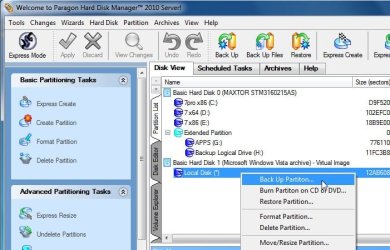
Don't know if this is the answer you are looking for, but some imaging apps. ( including Paragon ) can make an image of a virtual drive :

backupvirtualdrive-2010-05-25_221003.jpg


You can create them as well :

backupvirtualdrive-2-2010-05-25_221114.jpg
 

My Computers

System One System Two

  • Computer type
    PC/Desktop
    OS
    7 X64
    CPU
    i5 8400
    Motherboard
    gigabyte b365m ds3h
    Memory
    2x8gb 3200mhz
    Hard Drives
    various
    PSU
    pure power 11 400w cm
    Case
    Coolermaster
    Cooling
    cryorig m9i
  • Computer type
    PC/Desktop
    OS
    7x64
    CPU
    g5400
    Motherboard
    ga b365m ds3h
    Memory
    8gb ddr4 2400
    PSU
    xfx pro 450w
another question, first i want to use i absolutely love this program and i wish i knew about it years ago, when in XP i would have to reinstall like every other month.

anyhow, im thinking of buying the full version and i had a question that if yes i will buy right now. does it let you create a backup image and leave out certain files or folder, like video or music folders.
 

My Computers

System One System Two

  • Computer type
    PC/Desktop
    Computer Manufacturer/Model Number
    PowerSpec G164
    OS
    WIN10
    CPU
    AMD Ryzen 5 3600 6-Core Processor 3.59 GHz
    Memory
    16.0 GB
    Internet Speed
    VERY FAST>>>!!!
  • Antivirus
    ESET Security Premium
Back
Top