Imaging with free Macrium

   Information

This tutorial shows imaging with free Macrium Version 5.0. If you are still using Macrium Version 4.2, go to this Vimeo site where the tutorial of that version is stored.

The Video does not show the recovery part because I have no setup to screen capture it. But Keith (Kado) made this excellent recovery tutorial with text (but no sound) that he captured from a virtual partition.


   Warning


Note that the external disk to which you image must be formatted in NTFS. A disk that is formatted in Fat32 will accept an image, but the recovery programs cannot restore that image. You can, however, mount (open) a Fat32 image as VHD.


   Note
The production of the WinPE recovery CD (which is highly recommended) may take up to 3 hours because Macrium needs to download the 1.7GB WAIK (Windows Application Installation Kit). For your convenience I have uploaded a ready made .iso of the WinPE recovery disc. That can be downloaded in appr. 8 minutes which clearly beats the WAIK download. Once you downloaded and unzipped the folder, you can burn it directly to a CD with e.g. ImgBurn.

Here is the link to my Skydrive site.

Here is an alternate link from FileSwap (courtesy of Gary - Britton30)

I draw your attention to the fact that this WinPE CD can also be used to make images. That may be convenient in case you do not want to install Macrium on your PC.


This video tutorial explains the full cycle of the imaging process which is:

· Initial setups
· Image definition
· Image scheduling
· Image production

The imaging program that was used for this tutorial is free Macrium. But the basic principles are the same for other imaging programs although the user interface will be different.

This video runs for appr. 7 minutes.
There is a related thread on the Vista forum which gives a brief introduction to Macrium followed by a discussion.
You can download the free Macrium edition from here.

Note: If you have a problem with the loudness of the sound output of the video, check the "Loudness Equalization" box in your Playback device. It is under the 'Enhancements' tab.


Last edited by a moderator:
another question, first i want to use i absolutely love this program and i wish i knew about it years ago, when in XP i would have to reinstall like every other month.

anyhow, im thinking of buying the full version and i had a question that if yes i will buy right now. does it let you create a backup image and leave out certain files or folder, like video or music folders.
I don't think you can leave out certain folders because it images a whole partition. What I suggest is that you create a seperate data partition for e.g. Video and Music. Then those will not be part of the system partition. Here is how: http://www.sevenforums.com/tutorials/72427-data-partition.html
 

My Computer

Computer Manufacturer/Model Number
HP, Dell, Gateway, Toshiba - 4 laptops and 2 desktops
OS
Vista, Windows7, Mint Mate, Zorin, Windows 8
CPU
from 1.6GHz Duo to i7
Monitor(s) Displays
2x HP w2207
Hard Drives
5x HDD, 7x SSD, 12x Externals
Keyboard
with trackball - no mices
Mouse
Trackball mice
Internet Speed
DSL 6000
Macrium Partitions

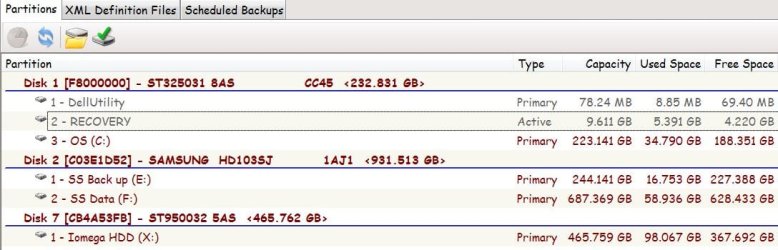
Is it a good idea to shrink your "C"-OS partition to 80-100 gb (250gb HD), so that the image is smaller and can restore to a smaller partition? (as long as my winsxs folder doesn't keep growing) I also see my "Restore" volume marked "Active", shouldn't the C drive be "Active"? I personally think Macrium is easier to use, faster, and makes smaller image files, than the W7 disk image program. I assume my MBR is on C.
 

Attachments

  • Macrium Image.jpg
    Macrium Image.jpg
    60.2 KB · Views: 232

My Computer

Computer Manufacturer/Model Number
Dell XPS 8100
OS
Windows 7 64 bit
CPU
i5-750
Memory
6gb
Graphics Card(s)
GTS 240
Monitor(s) Displays
Dell U2311
Screen Resolution
1920 x 1080
Hard Drives
Seagate ST3250318AS
Samsung HD103SJ 1T
i did what you said and it worked, i too love marcium and im going to go ahead and buy it.
 

Attachments

  • Untitled.jpg
    Untitled.jpg
    38.4 KB · Views: 209

My Computers

System One System Two

  • Computer type
    PC/Desktop
    Computer Manufacturer/Model Number
    PowerSpec G164
    OS
    WIN10
    CPU
    AMD Ryzen 5 3600 6-Core Processor 3.59 GHz
    Memory
    16.0 GB
    Internet Speed
    VERY FAST>>>!!!
  • Antivirus
    ESET Security Premium
i did what you said and it worked, i too love marcium and im going to go ahead and buy it.
I am glad it worked out for you. But is there a need to buy it - I use the free version and have really never missed anything.
 

My Computer

Computer Manufacturer/Model Number
HP, Dell, Gateway, Toshiba - 4 laptops and 2 desktops
OS
Vista, Windows7, Mint Mate, Zorin, Windows 8
CPU
from 1.6GHz Duo to i7
Monitor(s) Displays
2x HP w2207
Hard Drives
5x HDD, 7x SSD, 12x Externals
Keyboard
with trackball - no mices
Mouse
Trackball mice
Internet Speed
DSL 6000
I have 2 questions, one from a couple posts up:
1. Does it make sense to reduce "C" partition in size (80-100 gb)?
2. I noticed the .XML file ended up on my "F" drive (F/Reflect/xxx.xml). I noticed it on your "C" drive in your video. I imaged my "C", saved to my "E" (my E and F are 2 partitions on a second internal drive), so my image is on E and my .xml is on F. Does it matter where the .xml files land?
 

My Computer

Computer Manufacturer/Model Number
Dell XPS 8100
OS
Windows 7 64 bit
CPU
i5-750
Memory
6gb
Graphics Card(s)
GTS 240
Monitor(s) Displays
Dell U2311
Screen Resolution
1920 x 1080
Hard Drives
Seagate ST3250318AS
Samsung HD103SJ 1T
I have 2 questions, one from a couple posts up:
1. Does it make sense to reduce "C" partition in size (80-100 gb)?
2. I noticed the .XML file ended up on my "F" drive (F/Reflect/xxx.xml). I noticed it on your "C" drive in your video. I imaged my "C", saved to my "E" (my E and F are 2 partitions on a second internal drive), so my image is on E and my .xml is on F. Does it matter where the .xml files land?
1. Leaving the C partition at e.g. 80GBs makes sense if you move your data to a seperate data partition. That has many operational advantages - e.g. when you reinstall, your data does not get touched, when you image, you can choose to image OS and data at different times depending on frequency changes, the data partition can be shared between different operating systems if you have more than one, etc.
2. The Reflect folder ends up in "Documents" (as default). You must have moved your Documents folder to F. But that does not matter. Macrium will find it - just make a test to confirm.
 

My Computer

Computer Manufacturer/Model Number
HP, Dell, Gateway, Toshiba - 4 laptops and 2 desktops
OS
Vista, Windows7, Mint Mate, Zorin, Windows 8
CPU
from 1.6GHz Duo to i7
Monitor(s) Displays
2x HP w2207
Hard Drives
5x HDD, 7x SSD, 12x Externals
Keyboard
with trackball - no mices
Mouse
Trackball mice
Internet Speed
DSL 6000
WHS,
These tutorials are excellent, both Macrium and Partitioning Hard Drive. The gentleman who does them is fantastic!
I am a visual person and these are priceless to me.

Thank you so much for sharing them!

P.S. It's funny because I was going to reach out to you for some guidance on just this subject. Talk about perfect timing :D

Thanks Meltie
 

My Computer

Computer Manufacturer/Model Number
HP m8530f
OS
Vista Home Premium 64-bit
Graphics Card(s)
NVidia 900 series
Monitor(s) Displays
ASUS VE 205
WHS,
These tutorials are excellent, both Macrium and Partitioning Hard Drive. The gentleman who does them is fantastic!
I am a visual person and these are priceless to me.

Thank you so much for sharing them!

P.S. It's funny because I was going to reach out to you for some guidance on just this subject. Talk about perfect timing :D

Thanks Meltie
Meltie, the gentleman who did those is me - LOL. So if you have any questions, do not hesitate to ask.
 

My Computer

Computer Manufacturer/Model Number
HP, Dell, Gateway, Toshiba - 4 laptops and 2 desktops
OS
Vista, Windows7, Mint Mate, Zorin, Windows 8
CPU
from 1.6GHz Duo to i7
Monitor(s) Displays
2x HP w2207
Hard Drives
5x HDD, 7x SSD, 12x Externals
Keyboard
with trackball - no mices
Mouse
Trackball mice
Internet Speed
DSL 6000
LOL - I didn't realize that was you!! That is too funny. I do have a question.

I have a folder named Program Data. Some of the items I want to remain on "C", others I want to move to the newly created "J" partition. For example, I want to move PDF writer, Adobe Photoshop, etc.

Question: If I move Adobe to the "J" drive, do I have to move the Program Data and all other directories/files associated with that program to the "J' drive as well?

I ask this because I have moved programs before and then they didn't work any more and had to be either restore to the previous location or reinstall or both. If I do have to move all the programs, how do I ensure I get them all moved? Computer puts stuff all over the place depending on what it is. I've found associated files/directories for the same program in Program Data, User, Local, etc. I'm sure it makes sense to a programmer, but I'm not a programmer.

My goal is to get everything that is not easily restored/reinstalled over to another partition just in case I ever have to reinstall Vista.

**I'm still laughing. I wish you could have seen my face when I read your post. Well, you knew I thought you were fantastic :)

Thanks for your help.

Meltie
 

My Computer

Computer Manufacturer/Model Number
HP m8530f
OS
Vista Home Premium 64-bit
Graphics Card(s)
NVidia 900 series
Monitor(s) Displays
ASUS VE 205
There is no way to intelligently move the program data folder or parts thereof. I would not touch it. Itt would certainly give you problems.

My goal is to get everything that is not easily restored/reinstalled over to another partition just in case I ever have to reinstall Vista.
Why don't you just make an image of Vista and save that. If you ever want Vista back, you just restore the image. Wouldn't that be easier?
 

My Computer

Computer Manufacturer/Model Number
HP, Dell, Gateway, Toshiba - 4 laptops and 2 desktops
OS
Vista, Windows7, Mint Mate, Zorin, Windows 8
CPU
from 1.6GHz Duo to i7
Monitor(s) Displays
2x HP w2207
Hard Drives
5x HDD, 7x SSD, 12x Externals
Keyboard
with trackball - no mices
Mouse
Trackball mice
Internet Speed
DSL 6000
Well . . . I could do that.

I was concerned with the size of the "C" partition and the time it would take to mirror it. It's got 200GB of info on it now.

I also want to be able to back-up certain areas vs the whole computer (for data, photos, etc.)

I was thinking it would be better to break it into 2 partitions to make it more manageable, but I wasn't sure exactly how to do that effectively.

Sounds like breaking up the Program Data is NOT an option, so I'll forget that.

Just thinking out loud here . . . what are your thoughts on this:

1. mirror it exactly as it is now at the 200 GB
2. place all new items and new data to the new partition

I think this would accomplish what I want.

If you don't feel the size and imaging time would be an issue . . . and that it's better to leave everything on "C", I'll do that instead

Let me know.

Thanks

Meltie
 

My Computer

Computer Manufacturer/Model Number
HP m8530f
OS
Vista Home Premium 64-bit
Graphics Card(s)
NVidia 900 series
Monitor(s) Displays
ASUS VE 205
I think breaking the partition up into OS only in one partition and user data in another partition is a good idea. Figure 55% of the used space in the partition will be the size of the image. Time should not be an issue since you can run the imaging in the background. And for a possible recovery it would also be an advantage if you had 2 seperate images (1 for OS, 1 for Data).
I am not 100% certain that I understand your point #2
 

My Computer

Computer Manufacturer/Model Number
HP, Dell, Gateway, Toshiba - 4 laptops and 2 desktops
OS
Vista, Windows7, Mint Mate, Zorin, Windows 8
CPU
from 1.6GHz Duo to i7
Monitor(s) Displays
2x HP w2207
Hard Drives
5x HDD, 7x SSD, 12x Externals
Keyboard
with trackball - no mices
Mouse
Trackball mice
Internet Speed
DSL 6000
Please disregard Item 2. What I was thinking about doesn't really make sense to do.

Okay. The 2 partitions sounds good.

What's confusing me is what should belong to O/S and what should belong to Data. It shouldn't, but it is.

My brain seems to have shut down on me (been working on several things with the computer yesterday and today and that does it to me). I need to step away for a while and think about it. Once I'm fresh, I'll re-run the tutorials. Hopefully that will clear it up for me. If not, I'll reach back out to you.

Thank you again for taking the time to help me on this. I really appreciate it.

Meltie
 

My Computer

Computer Manufacturer/Model Number
HP m8530f
OS
Vista Home Premium 64-bit
Graphics Card(s)
NVidia 900 series
Monitor(s) Displays
ASUS VE 205

My Computer

Computer Manufacturer/Model Number
HP, Dell, Gateway, Toshiba - 4 laptops and 2 desktops
OS
Vista, Windows7, Mint Mate, Zorin, Windows 8
CPU
from 1.6GHz Duo to i7
Monitor(s) Displays
2x HP w2207
Hard Drives
5x HDD, 7x SSD, 12x Externals
Keyboard
with trackball - no mices
Mouse
Trackball mice
Internet Speed
DSL 6000
Got it. I'll go ahead and do that. Thanks.

Had a system crash since we last chatted. Graphics card fried. Not good. When I said I need to step away for a moment, that's not what I had in mind -- yikes!! Appears to be fixed now.

Have installed the Iomega external drive. Appears to be functioning properly. Very easy to use.

Soooo, now I'm off to partition and image. Wish me luck.

Thanks again for your help.

Meltie
 

My Computer

Computer Manufacturer/Model Number
HP m8530f
OS
Vista Home Premium 64-bit
Graphics Card(s)
NVidia 900 series
Monitor(s) Displays
ASUS VE 205
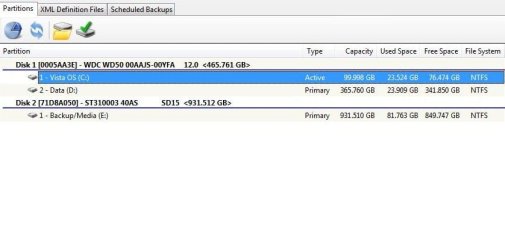
I want to share my experience with having two partitions (OS & DATA) and imaging with Macrium.

I created a small (80GB) OS partition and after installing OS, updates, apps and games, I came pretty close to filling all the space. I then started saving new applications and games to the DATA partition and thought it would be fine.

I really wasn't using any of the DATA partition, some pictures and mp3's here and there, mainly just installing newer applications.

Probably a few weeks ago, I had to do a recovery to a Macrium image. I mistakenly forget to realized that if I replace a image to an earlier time any applications that were not saved in that image would not worked even though they were installed on the DATA partition which wasn't replace or touch during the recovery process.

I've since left that whole idea alone. (OS & DATA partitions)

Now when I create new images, YES, some of the data is being duplicated and the images are larger, but its not too bad. Like I said, I'm not really creating that much of new data to folders such as documents, pictures and music.

Don't make the same mistake I made, lol.
 

Attachments

  • macrium.jpg
    macrium.jpg
    33 KB · Views: 175
Last edited:

My Computers

System One System Two

  • Computer type
    PC/Desktop
    Computer Manufacturer/Model Number
    PowerSpec G164
    OS
    WIN10
    CPU
    AMD Ryzen 5 3600 6-Core Processor 3.59 GHz
    Memory
    16.0 GB
    Internet Speed
    VERY FAST>>>!!!
  • Antivirus
    ESET Security Premium
Thanks Eldinv - good to know.

WHS, I went and created the partition (after reviewing the tutorial again :) ). Everything went great. Partition up and ready. Only one issue.

I didn't get the "acknowledgment" from the computer that the new drive was ready. Mine is "K" btw. Sooo, I can't get to the part where it allows me to move the files over. Is this because I'm in Vista?? I can move them using cut and paste, but then I can't see the "location" tab. Did I do something wrong?

Please help!!

Thanks

Meltie
 

My Computer

Computer Manufacturer/Model Number
HP m8530f
OS
Vista Home Premium 64-bit
Graphics Card(s)
NVidia 900 series
Monitor(s) Displays
ASUS VE 205
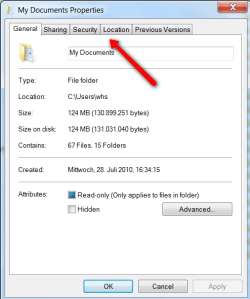
It's the same in Vista and Win7. Do NOT use cut and paste. That is not the way to do it. Go to e.g. the Pictures folder, right click on it and go to Properties. There you will see the Location tab (the same is true for all other user folders - but NOT system folders). You should only move folders via the Location tab and only those folders that have a location tab in Properties.
IMPORTANT: Before you do anything, create folders on your K - e.g. Documents for moving documents, Pictures for moving pictures. You can also use other names - A, B, C or whatever. The important thing is that you move your original folders to FOLDERS on K - not to the drive K (that would create a mess).
 

My Computer

Computer Manufacturer/Model Number
HP, Dell, Gateway, Toshiba - 4 laptops and 2 desktops
OS
Vista, Windows7, Mint Mate, Zorin, Windows 8
CPU
from 1.6GHz Duo to i7
Monitor(s) Displays
2x HP w2207
Hard Drives
5x HDD, 7x SSD, 12x Externals
Keyboard
with trackball - no mices
Mouse
Trackball mice
Internet Speed
DSL 6000
I figured cut and paste was not the thing to do.

OK - this is odd. When I go to that folder and right click, only four tabs come up. They are: General, Sharing, Security, Customize. I went to several other Folders that I know are only data - same thing.

I went to a folder that I know belongs to the system and only got three tabs: General, Sharing, Security

Hmm? Could it be something with my folder preferences settings? Or do I have to run something as "Administrator"??

Thanks

M
 

My Computer

Computer Manufacturer/Model Number
HP m8530f
OS
Vista Home Premium 64-bit
Graphics Card(s)
NVidia 900 series
Monitor(s) Displays
ASUS VE 205
Assuming you run as administrator, there is nothing special you have to do. The properties should look like the picture below. This is Win7, but Vista is the same.
I have no idea what could have happened in your case. I can only imagine that the folders were once moved the wrong way. What is their Location (in Properties > General)?
Have a look at this tutorial whether that could help: http://www.sevenforums.com/tutorials/18629-user-folders-change-default-location.html
 

Attachments

  • 2010-08-20_0059.png
    2010-08-20_0059.png
    17.3 KB · Views: 376

My Computer

Computer Manufacturer/Model Number
HP, Dell, Gateway, Toshiba - 4 laptops and 2 desktops
OS
Vista, Windows7, Mint Mate, Zorin, Windows 8
CPU
from 1.6GHz Duo to i7
Monitor(s) Displays
2x HP w2207
Hard Drives
5x HDD, 7x SSD, 12x Externals
Keyboard
with trackball - no mices
Mouse
Trackball mice
Internet Speed
DSL 6000
Back
Top