Imaging with free Macrium

   Information

This tutorial shows imaging with free Macrium Version 5.0. If you are still using Macrium Version 4.2, go to this Vimeo site where the tutorial of that version is stored.

The Video does not show the recovery part because I have no setup to screen capture it. But Keith (Kado) made this excellent recovery tutorial with text (but no sound) that he captured from a virtual partition.


   Warning


Note that the external disk to which you image must be formatted in NTFS. A disk that is formatted in Fat32 will accept an image, but the recovery programs cannot restore that image. You can, however, mount (open) a Fat32 image as VHD.


   Note
The production of the WinPE recovery CD (which is highly recommended) may take up to 3 hours because Macrium needs to download the 1.7GB WAIK (Windows Application Installation Kit). For your convenience I have uploaded a ready made .iso of the WinPE recovery disc. That can be downloaded in appr. 8 minutes which clearly beats the WAIK download. Once you downloaded and unzipped the folder, you can burn it directly to a CD with e.g. ImgBurn.

Here is the link to my Skydrive site.

Here is an alternate link from FileSwap (courtesy of Gary - Britton30)

I draw your attention to the fact that this WinPE CD can also be used to make images. That may be convenient in case you do not want to install Macrium on your PC.


This video tutorial explains the full cycle of the imaging process which is:

· Initial setups
· Image definition
· Image scheduling
· Image production

The imaging program that was used for this tutorial is free Macrium. But the basic principles are the same for other imaging programs although the user interface will be different.

This video runs for appr. 7 minutes.
There is a related thread on the Vista forum which gives a brief introduction to Macrium followed by a discussion.
You can download the free Macrium edition from here.

Note: If you have a problem with the loudness of the sound output of the video, check the "Loudness Equalization" box in your Playback device. It is under the 'Enhancements' tab.


Last edited by a moderator:
Are you the administrator on your computer. I don't think it matters, though.

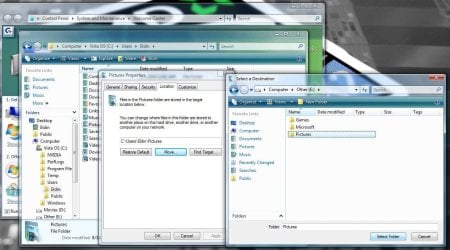
This is something really simple to do. I have Vista here is a screenie. Like WHS, create a folder in your K drive that you will be replacing from your username folder.

ex... Make a new folder and called it Pictures in your K drive.

Go back to the C drive and find that original folder. C:\Users\yourAccountname\Pictures.

Do not open the folder "pictures" rather right click and go to the location tab.

Click move and select the new destination location.

So go to K:\Pictures??

Then hit apply and it might give you a message, just click OK. Thanks pretty much it.
 

Attachments

  • Untitled.jpg
    Untitled.jpg
    199.3 KB · Views: 159

My Computers

System One System Two

  • Computer type
    PC/Desktop
    Computer Manufacturer/Model Number
    PowerSpec G164
    OS
    WIN10
    CPU
    AMD Ryzen 5 3600 6-Core Processor 3.59 GHz
    Memory
    16.0 GB
    Internet Speed
    VERY FAST>>>!!!
  • Antivirus
    ESET Security Premium
Guys,

I just don't get it. I went into Pictures, followed eldinv's instructions, tabs came up AND there WAS a LOCATION tab on this folder. Followed whs's previous instructions. It moved fine.

Went back to my DOCS folder, did everything the same, and no LOCATION tab.

This is too weird!!

To answer eldinv's question: I am the Administrator. The DOCS folder was something I created and it is definitely not a System folder.

I wonder if when I changed the way my folders look, if I changed the properties somehow which eliminated this tab. Or maybe in the security?? I have Administrator, Users, System, Authenticated Users and the access is not all the same for these. Could that be it?

I'm baffled.

Thanks again for your help.

Meltie

P.S. I will run the tutorial as well
 

My Computer

Computer Manufacturer/Model Number
HP m8530f
OS
Vista Home Premium 64-bit
Graphics Card(s)
NVidia 900 series
Monitor(s) Displays
ASUS VE 205
Follow up: I have gone through numerous folders and checked Ownership. I have found several that are owned by "Owner". Some of these have the "location" tab, others don't.

I went into Security, under Permissions. The ones that have the "location" tab have "Full Control" checked for Owner, System, and Administrators. For some of the ones that don't have the "location" tab, "User" permissions do not have "full control" and "modify" checked. For others, "User" does have "full control" and "modify".

NOTE: The folders that don't have the "location" tab also have "authenticated users" under Group names.

I went to modify the permissions on these and got an error message about conflicting permissions on some of them, on others, it took it, but . . . still no "location" tab.

Not sure if this helps or just confuses the issue?
 

My Computer

Computer Manufacturer/Model Number
HP m8530f
OS
Vista Home Premium 64-bit
Graphics Card(s)
NVidia 900 series
Monitor(s) Displays
ASUS VE 205
Wow. Something must be wrong with your setup like maybe encryption or something. I try not to mess with permissions/owners, it cause a big problem once and I lost like 200GB worth of stuff.

Remember you can only change the path for folders like pictures, documents... Which should be located in your C drive/users/username.

Looks like you need to setup up a team viewer session with someone who has some experience, it really can't be this difficult. Something has been compromised.
 

My Computers

System One System Two

  • Computer type
    PC/Desktop
    Computer Manufacturer/Model Number
    PowerSpec G164
    OS
    WIN10
    CPU
    AMD Ryzen 5 3600 6-Core Processor 3.59 GHz
    Memory
    16.0 GB
    Internet Speed
    VERY FAST>>>!!!
  • Antivirus
    ESET Security Premium
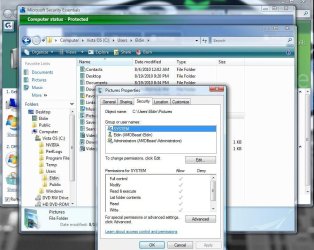
This is how my security tab looks like!

I haven't ever messed with it since I reformatted PC.
 

Attachments

  • Untitled2.jpg
    Untitled2.jpg
    169.9 KB · Views: 162

My Computers

System One System Two

  • Computer type
    PC/Desktop
    Computer Manufacturer/Model Number
    PowerSpec G164
    OS
    WIN10
    CPU
    AMD Ryzen 5 3600 6-Core Processor 3.59 GHz
    Memory
    16.0 GB
    Internet Speed
    VERY FAST>>>!!!
  • Antivirus
    ESET Security Premium
*sigh* I was thinking the same thing.

Thanks for the help

M
 

My Computer

Computer Manufacturer/Model Number
HP m8530f
OS
Vista Home Premium 64-bit
Graphics Card(s)
NVidia 900 series
Monitor(s) Displays
ASUS VE 205
Did you get everything resolved?
 

My Computers

System One System Two

  • Computer type
    PC/Desktop
    Computer Manufacturer/Model Number
    PowerSpec G164
    OS
    WIN10
    CPU
    AMD Ryzen 5 3600 6-Core Processor 3.59 GHz
    Memory
    16.0 GB
    Internet Speed
    VERY FAST>>>!!!
  • Antivirus
    ESET Security Premium
yes and no.

I did get what I wanted onto the external drive, but not in the way I should have.

Still can't figure out why the "location" tab isn't there on majority of items. Have been reading threads and manuals on permissions, security, groups, etc., but so far . . . can't figure out what is wrong.

I did find an explanation on the "may cause conflicting . . . " message though.

I remember when I first got the computer, I had an issue with a program and the customer support people told me to change the user access control. Issue may have originated there??

I'll keep looking. Thanks for checking in with me

M
 

My Computer

Computer Manufacturer/Model Number
HP m8530f
OS
Vista Home Premium 64-bit
Graphics Card(s)
NVidia 900 series
Monitor(s) Displays
ASUS VE 205
Hi,

First thanks for this making nice tutorial of this beautiful software....

I watch the video 5/6 times and read all the comments and page till my post, I'm new to recovery/restoration stuff,

My question is During recovery process when the linux environment boot up does this software allow/support External USB drive (expl:- Seagate Free Agent Go 500 GB for my case) to complete the operation ? Or one must use the Internal Drive/Partition ?

If yes, then my 2nd query will be valid,

2. I got a Sony VIAO Laptop VPCEB26G/B which came Genuine Windows 7 Pre-Installed and don't come with OS Installation DVD, or any such disc.

Here is the 500 GB HDD structure

a. 100 MB Windows 7 Reserve Space <---Hidden.
b. 13.62 GB Recovery Partition <------Hidden.
c. C: Drive 452.04 GB <------- Usable Space.

my query is here, If I backup/imaged via this software regularly or what it said in the tutorial, Can I get back system upon failure occurred by the software glitch such as Virus Attack/Malfunction etc etc ?

3.If I use Macrium Free version during 1st time backup/making image which drive I need to be choose ?

All three of them ?


According to manufacturer (VIAO),if something happens System Recovery is the only way.To recover the VIAO, either use Recovery Partition or Recovery Disc (Made 1 set of 4 Single Layer DVDs). Upon completing Recovery successfully it land me up to the Factory setting condition.

Here is the only problem, I don't want to Go back the Day 1 position, As I loose all the Windows Update, Service Pack etc etc...

If I back up everything i,e 500 GB of data, what will be the Recommended Size of Back up Drive ?
 

My Computer

Computer type
PC/Desktop
Computer Manufacturer/Model Number
Assembled by Self
OS
Windows 7 Ultimate x64/Windows 7 Home Premium x64 OEM Sony/Windows 7 Home Basic x64 OEM Sony
CPU
Intel i3 3220
Motherboard
Gigabyte GA-B75-D3H
Memory
G.Skill RipjawsX DDR3 8GB 1600 Mhz
Graphics Card(s)
XFX Geoforce 250 GTS 1GB DDR3
Sound Card
Assus Xonar-DX 7.1 Channel Sound Card
Monitor(s) Displays
Dell ST2220L 22" LCD, Samsung C550 40" LCD
Hard Drives
SATA Internal ::- Seagate Barracuda 1TB 7200.12,Western Digital 500GB Green,Seagate 250GB 7200.9

320GB FreeAgent Go USB External/500GB FreeAgent Go USB External/500GB FreeAgent GoFlex USB External/ADATA SH02 1TB USB External/Verbatim 1TB External
PSU
Crossair 550 VX
Case
Cooler Master Gladiator 600
Cooling
CoolerMaster Hyper212
Keyboard
Logitech MK 250 Wireless Keyboard
Mouse
Logitech MK 250 Wireless Mouse
Antivirus
Avira Antivirus / Comodo Free Firewall
Browser
Google Chrome
Other Info
Mobile Solution>>
Sony VIAO SVE11115ENB
AMD E2-1800 1.7 Ghz
500 GB Seagate 5400 rpm
3GB DDR3 RAM 1333Mhz
AMD Radeon™ HD 7340 Graphics


Peripherals :-
BSNL DNA-A201BEI Modem,ASUS RT-N16 Gigabit Router,Netgear WG111v3 USB Wi-Fi Adopter,HP-F370 OfficeJet,Logitech X-540 5.1 Speaker,Klipsch Promedia 2.1,Genious HF-1800a 2.0.
1. On this question I am a little lost. What exactly do you want to do with the USB drive during the recovery process? I see no function for a USB drive during that time. The recovery process merely restores the partition you chose to your hard drive.

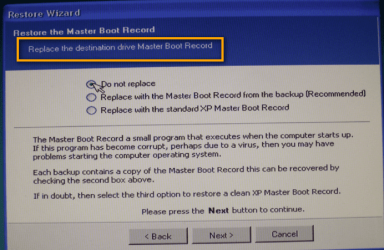
2. For your configuration, I would image a and b only once (because they never change) - or the case that your physical disk breaks. c, which is your OS, you should image often (e.g. once a week). But watch out in case you have to restore. At the step shown in the picture below, chose "Do not restore MBR" because your MBR is sitting on the little 100MB partition. When you do a restoreof the OS partition, you do get back to the state the system was in when the image was taken.

3. see my point above

4. Forget what VIAO says. They apparently have never heard of imaging.

If you have more questions, let me know - and clarify point#1 please.
 

Attachments

  • 2010-03-25_1807.png
    2010-03-25_1807.png
    627 KB · Views: 354

My Computer

Computer Manufacturer/Model Number
HP, Dell, Gateway, Toshiba - 4 laptops and 2 desktops
OS
Vista, Windows7, Mint Mate, Zorin, Windows 8
CPU
from 1.6GHz Duo to i7
Monitor(s) Displays
2x HP w2207
Hard Drives
5x HDD, 7x SSD, 12x Externals
Keyboard
with trackball - no mices
Mouse
Trackball mice
Internet Speed
DSL 6000
Thanks for the reply.....whs.

I bring the USB drive in the picture/action because I don't have any other partition to use. See My HDD have one partition (i,e 452.04 GB C: Drive) which made by the manufacturer and there is no option for me to made it either/Or Pre-cofigure Like Dell.

If I break the 452.04 GB C: into atleast two, then I can assign Macrium where to make image...as you shown your tutorial.....but it is not possible without harming the system (OS Reinstall) ....Right ?

I have no OS Disc.....
 

My Computer

Computer type
PC/Desktop
Computer Manufacturer/Model Number
Assembled by Self
OS
Windows 7 Ultimate x64/Windows 7 Home Premium x64 OEM Sony/Windows 7 Home Basic x64 OEM Sony
CPU
Intel i3 3220
Motherboard
Gigabyte GA-B75-D3H
Memory
G.Skill RipjawsX DDR3 8GB 1600 Mhz
Graphics Card(s)
XFX Geoforce 250 GTS 1GB DDR3
Sound Card
Assus Xonar-DX 7.1 Channel Sound Card
Monitor(s) Displays
Dell ST2220L 22" LCD, Samsung C550 40" LCD
Hard Drives
SATA Internal ::- Seagate Barracuda 1TB 7200.12,Western Digital 500GB Green,Seagate 250GB 7200.9

320GB FreeAgent Go USB External/500GB FreeAgent Go USB External/500GB FreeAgent GoFlex USB External/ADATA SH02 1TB USB External/Verbatim 1TB External
PSU
Crossair 550 VX
Case
Cooler Master Gladiator 600
Cooling
CoolerMaster Hyper212
Keyboard
Logitech MK 250 Wireless Keyboard
Mouse
Logitech MK 250 Wireless Mouse
Antivirus
Avira Antivirus / Comodo Free Firewall
Browser
Google Chrome
Other Info
Mobile Solution>>
Sony VIAO SVE11115ENB
AMD E2-1800 1.7 Ghz
500 GB Seagate 5400 rpm
3GB DDR3 RAM 1333Mhz
AMD Radeon™ HD 7340 Graphics


Peripherals :-
BSNL DNA-A201BEI Modem,ASUS RT-N16 Gigabit Router,Netgear WG111v3 USB Wi-Fi Adopter,HP-F370 OfficeJet,Logitech X-540 5.1 Speaker,Klipsch Promedia 2.1,Genious HF-1800a 2.0.
Well, WHS who wrote the tutorial is the most experience on this subject, since I asked most of the questions already I should be able to answer these.

If you use Macrium, which I suggest and hope you do, you will have two options for recovery, SO YOUR COVERED!

Question 1:
Yes the bootable Linux CD will located images saved to an External USB drive. I think that's what your asking?

Question 2:
Get yourself a System Repair CD if for some reason you will need one, I suspect you won't if you use Macrium successfully.
http://www.sevenforums.com/tutorials/2083-system-repair-disc-create.html
Look at option 2.

Question 3:
Once you ready to start imaging, I would backup all three:

System Reserved, contains the master boot record
C Drive- the Operating System
Recovery partition- From Sony

In the case you actually need to do a recovery, boot into Linux disc, located the image you want to replace. If its the OS, do as WHS says, Do NOT MARK AS ACTIVE and DO NOT REPLACE MBR.
 

My Computers

System One System Two

  • Computer type
    PC/Desktop
    Computer Manufacturer/Model Number
    PowerSpec G164
    OS
    WIN10
    CPU
    AMD Ryzen 5 3600 6-Core Processor 3.59 GHz
    Memory
    16.0 GB
    Internet Speed
    VERY FAST>>>!!!
  • Antivirus
    ESET Security Premium
eldinv said:
Question 1:
Yes the bootable Linux CD will located images saved to an External USB drive. I think that's what your asking?

Yes Yes....This is I'm asking for...making Image in a C: Drive completely worthless when it's gone bad...hope you agree.

Thanks a lot eldinv for clearing my question,Do you know any free Software to break the C: Drive atleast into two/three drive without touching the OS?

eldinv said:
Question 2:
Get yourself a System Repair CD if for some reason you will need one, I suspect you won't if you use Macrium successfully.
http://www.sevenforums.com/tutorials...sc-create.html
Look at option 2.

Is it not the same functionality as Macrium Linux boot up Disc ? I mean Windows 7 System Repair CD = Boot up CD ?

whs said:
2. For your configuration, I would image a and b only once (because they never change) - or the case that your physical disk breaks. c, which is your OS, you should image often (e.g. once a week). But watch out in case you have to restore. At the step shown in the picture below, chose "Do not restore MBR" because your MBR is sitting on the little 100MB partition. When you do a restoreof the OS partition, you do get back to the state the system was in when the image was taken.

Thanks, I'm looking this info desperately.
 

My Computer

Computer type
PC/Desktop
Computer Manufacturer/Model Number
Assembled by Self
OS
Windows 7 Ultimate x64/Windows 7 Home Premium x64 OEM Sony/Windows 7 Home Basic x64 OEM Sony
CPU
Intel i3 3220
Motherboard
Gigabyte GA-B75-D3H
Memory
G.Skill RipjawsX DDR3 8GB 1600 Mhz
Graphics Card(s)
XFX Geoforce 250 GTS 1GB DDR3
Sound Card
Assus Xonar-DX 7.1 Channel Sound Card
Monitor(s) Displays
Dell ST2220L 22" LCD, Samsung C550 40" LCD
Hard Drives
SATA Internal ::- Seagate Barracuda 1TB 7200.12,Western Digital 500GB Green,Seagate 250GB 7200.9

320GB FreeAgent Go USB External/500GB FreeAgent Go USB External/500GB FreeAgent GoFlex USB External/ADATA SH02 1TB USB External/Verbatim 1TB External
PSU
Crossair 550 VX
Case
Cooler Master Gladiator 600
Cooling
CoolerMaster Hyper212
Keyboard
Logitech MK 250 Wireless Keyboard
Mouse
Logitech MK 250 Wireless Mouse
Antivirus
Avira Antivirus / Comodo Free Firewall
Browser
Google Chrome
Other Info
Mobile Solution>>
Sony VIAO SVE11115ENB
AMD E2-1800 1.7 Ghz
500 GB Seagate 5400 rpm
3GB DDR3 RAM 1333Mhz
AMD Radeon™ HD 7340 Graphics


Peripherals :-
BSNL DNA-A201BEI Modem,ASUS RT-N16 Gigabit Router,Netgear WG111v3 USB Wi-Fi Adopter,HP-F370 OfficeJet,Logitech X-540 5.1 Speaker,Klipsch Promedia 2.1,Genious HF-1800a 2.0.
Thanks for the reply.....whs.

I bring the USB drive in the picture/action because I don't have any other partition to use. See My HDD have one partition (i,e 452.04 GB C: Drive) which made by the manufacturer and there is no option for me to made it either/Or Pre-cofigure Like Dell.

If I break the 452.04 GB C: into atleast two, then I can assign Macrium where to make image...as you shown your tutorial.....but it is not possible without harming the system (OS Reinstall) ....Right ?

I have no OS Disc.....
I think I now understand what you are trying to say. I only got confused because you mentioned "recovery". As Eldinv said, you use, of course, the external disk to write your image and that is well recognized during the recovery step. Writing the image to an internal partition on the same drive would not help in case the whole physical drive dies.
 

My Computer

Computer Manufacturer/Model Number
HP, Dell, Gateway, Toshiba - 4 laptops and 2 desktops
OS
Vista, Windows7, Mint Mate, Zorin, Windows 8
CPU
from 1.6GHz Duo to i7
Monitor(s) Displays
2x HP w2207
Hard Drives
5x HDD, 7x SSD, 12x Externals
Keyboard
with trackball - no mices
Mouse
Trackball mice
Internet Speed
DSL 6000
Yes creating a partition on the same drive as your OS and saving all images/recovery options to one disk is a NO, NO.

Do you know any free Software to break the C: Drive atleast into two/three drive without touching the OS?
You mean for partitions?? Windows disk management can do this for free??

Is it not the same functionality as Macrium Linux boot up Disc ? I mean Windows 7 System Repair CD = Boot up CD ?
I only mentioned to Windows 7 System Repair CD, because your version of Windows was pre-installed by SONY, and they were too cheap to send you one. :)

You have different methods of recovery, thats why I mention, your covered.

- One method is using Macrium and the Linux CD recovery program.
Follow the tutorial and ask questions if you need additional help.

- Another method without using Macrium is to recovery your OS using the Sony partition. You might not even need that Windows 7 System Repair CD, because to enter the recovery process might simply be by tapping a certain key on your keyboard or a specific action during bootup.
 

My Computers

System One System Two

  • Computer type
    PC/Desktop
    Computer Manufacturer/Model Number
    PowerSpec G164
    OS
    WIN10
    CPU
    AMD Ryzen 5 3600 6-Core Processor 3.59 GHz
    Memory
    16.0 GB
    Internet Speed
    VERY FAST>>>!!!
  • Antivirus
    ESET Security Premium
eldinv said:
You mean for partitions?? Windows disk management can do this for free??

How How.....I fully agree with whs on his previous post, I don't make backup/image in the Laptop HDD,

but for curiosity I just want to know If it possible I can make another partition without disturbing the OS ? Please let me know how can I make Drive E: without touching the OS ?

eldinv said:
I only mentioned to Windows 7 System Repair CD, because your version of Windows was pre-installed by SONY, and they were too cheap to send you one.

You have different methods of recovery, thats why I mention, your covered.

- One method is using Macrium and the Linux CD recovery program.
Follow the tutorial and ask questions if you need additional help.

- Another method without using Macrium is to recovery your OS using the Sony partition. You might not even need that Windows 7 System Repair CD, because the recovery process might simply be by tapping a certain key or action during bootup.

Yes VIAO have dedicated program like VIAO Recovery console, from which I made Recovery DVD Set (4 single layer) after 1st time boot up, I'm pretty much satisfied in that time but later I realize it is became very old recovery/factory reset/out of the box reset after spending couple of months/years in that machine, So I need to know how to preserve the latest state such as windows update/program etc etc...so I don't have to repeat everything after the recovery.

One last question what is the recommended BAck up Drive Size of 500GB HDD ?

Though I'm not going to include everything in backup image like Picture/Videos etc.
 

My Computer

Computer type
PC/Desktop
Computer Manufacturer/Model Number
Assembled by Self
OS
Windows 7 Ultimate x64/Windows 7 Home Premium x64 OEM Sony/Windows 7 Home Basic x64 OEM Sony
CPU
Intel i3 3220
Motherboard
Gigabyte GA-B75-D3H
Memory
G.Skill RipjawsX DDR3 8GB 1600 Mhz
Graphics Card(s)
XFX Geoforce 250 GTS 1GB DDR3
Sound Card
Assus Xonar-DX 7.1 Channel Sound Card
Monitor(s) Displays
Dell ST2220L 22" LCD, Samsung C550 40" LCD
Hard Drives
SATA Internal ::- Seagate Barracuda 1TB 7200.12,Western Digital 500GB Green,Seagate 250GB 7200.9

320GB FreeAgent Go USB External/500GB FreeAgent Go USB External/500GB FreeAgent GoFlex USB External/ADATA SH02 1TB USB External/Verbatim 1TB External
PSU
Crossair 550 VX
Case
Cooler Master Gladiator 600
Cooling
CoolerMaster Hyper212
Keyboard
Logitech MK 250 Wireless Keyboard
Mouse
Logitech MK 250 Wireless Mouse
Antivirus
Avira Antivirus / Comodo Free Firewall
Browser
Google Chrome
Other Info
Mobile Solution>>
Sony VIAO SVE11115ENB
AMD E2-1800 1.7 Ghz
500 GB Seagate 5400 rpm
3GB DDR3 RAM 1333Mhz
AMD Radeon™ HD 7340 Graphics


Peripherals :-
BSNL DNA-A201BEI Modem,ASUS RT-N16 Gigabit Router,Netgear WG111v3 USB Wi-Fi Adopter,HP-F370 OfficeJet,Logitech X-540 5.1 Speaker,Klipsch Promedia 2.1,Genious HF-1800a 2.0.

My Computer

Computer Manufacturer/Model Number
HP, Dell, Gateway, Toshiba - 4 laptops and 2 desktops
OS
Vista, Windows7, Mint Mate, Zorin, Windows 8
CPU
from 1.6GHz Duo to i7
Monitor(s) Displays
2x HP w2207
Hard Drives
5x HDD, 7x SSD, 12x Externals
Keyboard
with trackball - no mices
Mouse
Trackball mice
Internet Speed
DSL 6000

My Computers

System One System Two

  • Computer type
    PC/Desktop
    Computer Manufacturer/Model Number
    PowerSpec G164
    OS
    WIN10
    CPU
    AMD Ryzen 5 3600 6-Core Processor 3.59 GHz
    Memory
    16.0 GB
    Internet Speed
    VERY FAST>>>!!!
  • Antivirus
    ESET Security Premium
Thank You whs and eldinv for your help....will ask again anything goes wrong regarding Macrium.

Data Partition Tutorial was also very informative & useful....Thanks WHS for creating that too.
 

My Computer

Computer type
PC/Desktop
Computer Manufacturer/Model Number
Assembled by Self
OS
Windows 7 Ultimate x64/Windows 7 Home Premium x64 OEM Sony/Windows 7 Home Basic x64 OEM Sony
CPU
Intel i3 3220
Motherboard
Gigabyte GA-B75-D3H
Memory
G.Skill RipjawsX DDR3 8GB 1600 Mhz
Graphics Card(s)
XFX Geoforce 250 GTS 1GB DDR3
Sound Card
Assus Xonar-DX 7.1 Channel Sound Card
Monitor(s) Displays
Dell ST2220L 22" LCD, Samsung C550 40" LCD
Hard Drives
SATA Internal ::- Seagate Barracuda 1TB 7200.12,Western Digital 500GB Green,Seagate 250GB 7200.9

320GB FreeAgent Go USB External/500GB FreeAgent Go USB External/500GB FreeAgent GoFlex USB External/ADATA SH02 1TB USB External/Verbatim 1TB External
PSU
Crossair 550 VX
Case
Cooler Master Gladiator 600
Cooling
CoolerMaster Hyper212
Keyboard
Logitech MK 250 Wireless Keyboard
Mouse
Logitech MK 250 Wireless Mouse
Antivirus
Avira Antivirus / Comodo Free Firewall
Browser
Google Chrome
Other Info
Mobile Solution>>
Sony VIAO SVE11115ENB
AMD E2-1800 1.7 Ghz
500 GB Seagate 5400 rpm
3GB DDR3 RAM 1333Mhz
AMD Radeon™ HD 7340 Graphics


Peripherals :-
BSNL DNA-A201BEI Modem,ASUS RT-N16 Gigabit Router,Netgear WG111v3 USB Wi-Fi Adopter,HP-F370 OfficeJet,Logitech X-540 5.1 Speaker,Klipsch Promedia 2.1,Genious HF-1800a 2.0.
You are welcome. If you have any more Qs, don't hesitate to ask.
 

My Computer

Computer Manufacturer/Model Number
HP, Dell, Gateway, Toshiba - 4 laptops and 2 desktops
OS
Vista, Windows7, Mint Mate, Zorin, Windows 8
CPU
from 1.6GHz Duo to i7
Monitor(s) Displays
2x HP w2207
Hard Drives
5x HDD, 7x SSD, 12x Externals
Keyboard
with trackball - no mices
Mouse
Trackball mice
Internet Speed
DSL 6000
Back
Top