Install Windows 7 FAST without a DVD or USB device

How to Install Windows 7 FAST without a DVD or USB Device

   Information

So far we've seen tutorials for installing Windows 7 in quite a few different ways. All of them require boot media like a DVD or USB key. All of them use the Windows 7 installer. All of them require you to upgrade or replace your existing Windows 7 installation. All of them are relatively slow. All of them are using technology designed by Microsoft for clueless end-users.

This method uses technology designed for advanced users; OEMs like Dell, big IT departments and experts like us. It doesn't require extra bootable media and it leaves your existing Windows install intact. It's fast, it's flexible and it's all command line suitable for scripting.


Let's start with the assumption that you've got a single hard disk with one big partition, it's not full, and you're already running some build of Windows 7 or Vista. If you've got more than one partition and can't figure out how to modify the steps in this tutorial to accommodate that please post a comment and I'll add the steps. The same goes for other hard disks. The only hard requirement is that you be running Windows 7 or Vista. We need to make room for the new Windows 7 install so we start by running DISKPART. Open Start, type diskpart and press Enter.

Code:
Microsoft DiskPart version 6.1.7100
Copyright (C) 1999-2008 Microsoft Corporation.
On computer: ORION7
 
DISKPART> lis vol
 
  Volume ###  Ltr  Label        Fs     Type        Size     Status     Info
  ----------  ---  -----------  -----  ----------  -------  ---------  --------
  Volume 0     F                       DVD-ROM         0 B  No Media
  Volume 1     E                       DVD-ROM         0 B  No Media
  Volume 2     C   7            NTFS   Partition     16 GB  Healthy    System
  Volume 3     D   Data         NTFS   Partition    263 GB  Healthy
  Volume 4     G                       Removable       0 B  No Media
 
DISKPART> sel vol 3
 
Volume 3 is the selected volume.
 
DISKPART> shr minimum=10240 desired=16384
 
DiskPart successfully shrunk the volume by:   16 GB
 
DISKPART> cre par pri
 
DiskPart succeeded in creating the specified partition.
 
DISKPART> for fs=ntfs quick label="7new"
 
  100 percent completed
 
DiskPart successfully formatted the volume.
 
DISKPART> ass
 
DiskPart successfully assigned the drive letter or mount point.
 
DISKPART> act
 
DiskPart marked the current partition as active.
 
DISKPART> lis vol
 
  Volume ###  Ltr  Label        Fs     Type        Size     Status     Info
  ----------  ---  -----------  -----  ----------  -------  ---------  --------
  Volume 0     F                       DVD-ROM         0 B  No Media
  Volume 1     E                       DVD-ROM         0 B  No Media
  Volume 2     C   7            NTFS   Partition     16 GB  Healthy    System
  Volume 3     D   Data         NTFS   Partition    247 GB  Healthy
  Volume 4     G                       Removable       0 B  No Media
* Volume 5     H   7new         NTFS   Partition     15 GB  Healthy
 
DISKPART> exi

  • Select the volume to shrink from the list with "sel vol"
  • Specify the minimum and desired volume size in megabytes with "shr"
  • Specify your own label for the new volume with "for"
  • Make note of the drive letter of the starred volume after "ass"
Now crack open a Windows 7 ISO and extract the file \sources\install.wim. I just mount the file directly with CloneDrive: elby Free Software but your favorite ISO or archive program should be able to do this as well. Download View attachment imagex.zip, extract and open an elevated command prompt there.
Code:
D:\Mike\Desktop\work>imagex /apply e:\sources\install.wim 5 h:\
 
ImageX Tool for Windows
Copyright (C) Microsoft Corp. All rights reserved.
 
[ 100% ] Applying progress
 
Successfully applied image.
 
Total elapsed time: 7 min 8 sec
 
 
D:\Mike\Desktop\work>h:\windows\system32\bcdboot h:\windows
 
Boot files successfully created.

Now reboot and a few minutes (less than 5 on my box) later you'll be prompted for locale info and to create a user. Welcome to your new Windows 7 installation.

To toggle back and forth between this new installation and the original one use diskpart.
Code:
Microsoft DiskPart version 6.1.7100
Copyright (C) 1999-2008 Microsoft Corporation.
On computer: ORION7
 
DISKPART> lis vol
 
  Volume ###  Ltr  Label        Fs     Type        Size     Status     Info
  ----------  ---  -----------  -----  ----------  -------  ---------  --------
  Volume 0     F                       DVD-ROM         0 B  No Media
  Volume 1     E   GRC1CULFRER  UDF    DVD-ROM     2413 MB  Healthy
  Volume 2     C   7            NTFS   Partition     16 GB  Healthy    System
  Volume 3     D   Data         NTFS   Partition    247 GB  Healthy
  Volume 4     H                NTFS   Partition     15 GB  Healthy
  Volume 5     G                       Removable       0 B  No Media
 
DISKPART> sel vol 2
 
Volume 2 is the selected volume.
 
DISKPART> act
 
DiskPart marked the current partition as active.


DISKPART> exi
  • Select the volume containing the Windows installation you want to start from the list with "sel vol"
Please post issues, questions or other feedback here.


Last edited by a moderator:
ok i will add that but... when i boot up in the bois i get a splash screen saying "Previous version of windows" Which is my C:Windows XP
or "Windows 7" Which is my D: drive right now 64 gigs Windows 7 32 bit.


so the line would be>>>>>>>>>> D:\Users\JPE\Desktop>bcdboot g:\windows /s g:

Command line is correct. If you followed the instructions correctly you will not see that boot menu. If you want to boot back to those other OS's you'll need to mark the original partition active with diskpart and reboot.
 

My Computer My Computer

At a glance

El Capitan / Windows 10i7-4980HQ16GBIris 5200
Computer type
Laptop
Computer Manufacturer/Model Number
Apple
OS
El Capitan / Windows 10
CPU
i7-4980HQ
Memory
16GB
Graphics Card(s)
Iris 5200
Command line is correct. If you followed the instructions correctly you will not see that boot menu. If you want to boot back to those other OS's you'll need to mark the original partition active with diskpart and reboot.


D:\Users\JPE\Desktop>bcdboot g:\windows /s g:


Boot files successfully created.

I rebooted and saw "Previous version of windows" (which is my XP on C:\) and Windows 7 (which is my D:\)... so what did i do wrong i followed the steps 100% ???? i'm lost. I still want to have the option to boot up to windows XP if all this fails...
 

My Computer My Computer

At a glance

Windows 7
OS
Windows 7
D:\Users\JPE\Desktop>bcdboot g:\windows /s g:


Boot files successfully created.

I rebooted and saw "Previous version of windows" (which is my XP on C:\) and Windows 7 (which is my D:\)... so what did i do wrong i followed the steps 100% ???? i'm lost. I still want to have the option to boot up to windows XP if all this fails...

You didn't activate the g: partition. Re-read the diskpart commands in the thread. You missed issuing the "act" command against the g: partition or some other software re-activated your original partition. You can run diskpart again, select the g: partition and issue the act command again and reboot.
 

My Computer My Computer

At a glance

El Capitan / Windows 10i7-4980HQ16GBIris 5200
Computer type
Laptop
Computer Manufacturer/Model Number
Apple
OS
El Capitan / Windows 10
CPU
i7-4980HQ
Memory
16GB
Graphics Card(s)
Iris 5200
You didn't activate the g: partition. Re-read the diskpart commands in the thread. You missed issuing the "act" command against the g: partition or some other software re-activated your original partition. You can run diskpart again, select the g: partition and issue the act command again and reboot.


I just did that AGAIN, and same result.. Rebooted still have two options Windows XP and Windows7 32 bit.???


DISKPART> lis vol

Volume ### Ltr Label Fs Type Size Status Info
---------- --- ----------- ----- ---------- ------- --------- --------
Volume 0 E DVD-ROM 0 B No Media
Volume 1 F DVD-ROM 0 B No Media
Volume 2 C NTFS Partition 127 GB Healthy System
Volume 3 D NTFS Partition 137 GB Healthy Boot
Volume 4 G 7new NTFS Partition 16 GB Healthy

DISKPART>

I typed sel vol 4 and act and it said "part ion now active". then typed exi and rebooted.
 

My Computer My Computer

At a glance

Windows 7
OS
Windows 7
I just did that AGAIN, and same result.. Rebooted still have two options Windows XP and Windows7 32 bit.???


DISKPART> lis vol

Volume ### Ltr Label Fs Type Size Status Info
---------- --- ----------- ----- ---------- ------- --------- --------
Volume 0 E DVD-ROM 0 B No Media
Volume 1 F DVD-ROM 0 B No Media
Volume 2 C NTFS Partition 127 GB Healthy System
Volume 3 D NTFS Partition 137 GB Healthy Boot
Volume 4 G 7new NTFS Partition 16 GB Healthy

DISKPART>

I typed sel vol 4 and act and it said "part ion now active". then typed exi and rebooted.

Did you see in the instructions that I didn't cover multiple hard drives? Your G partition must be on another physical device. To boot it you need to set that in your BIOS or use the BIOS boot menu if available. I can't cover that so it was omitted from the tutorial.
 

My Computer My Computer

At a glance

El Capitan / Windows 10i7-4980HQ16GBIris 5200
Computer type
Laptop
Computer Manufacturer/Model Number
Apple
OS
El Capitan / Windows 10
CPU
i7-4980HQ
Memory
16GB
Graphics Card(s)
Iris 5200
Did you see in the instructions that I didn't cover multiple hard drives? Your G partition must be on another physical device. To boot it you need to set that in your BIOS or use the BIOS boot menu if available. I can't cover that so it was omitted from the tutorial.


oh um... so if i do the whole thing over and parition the C:\ instead u think it will work?
 

My Computer My Computer

At a glance

Windows 7
OS
Windows 7
oh um... so if i do the whole thing over and parition the C:\ instead u think it will work?

No. Leave it the way it is and consult your computer or motherboard documentation re: choosing the boot device. The reason I avoided getting into it is that the rest of the tutorial was step by step and there are dozens of BIOSes and a like number of ways to adjust boot sequence. All you need to to is tell the BIOS to boot off G:!
 

My Computer My Computer

At a glance

El Capitan / Windows 10i7-4980HQ16GBIris 5200
Computer type
Laptop
Computer Manufacturer/Model Number
Apple
OS
El Capitan / Windows 10
CPU
i7-4980HQ
Memory
16GB
Graphics Card(s)
Iris 5200
:( Missing BootMGR

I followed the instructions as you said...

And got the messages same as shown in ur explaination. But when i restarted... I received the following message

Missing BootMGR
Press CTRL+ALT+DELETE to restart system.

:cry:
 

My Computer My Computer

At a glance

Windows Vista
OS
Windows Vista
I followed the instructions as you said...

And got the messages same as shown in ur explaination. But when i restarted... I received the following message

Missing BootMGR
Press CTRL+ALT+DELETE to restart system.

:cry:

Most likely your BIOS is not setup to boot the drive. Rerun bcdboot adding "/s d:" or whatever the drive letter is then figure out how to get your BIOS to boot it. The tutorial specifically omits multiple drive installations because of this additional complexity that I cannot explain at the same level of step-by-step detail. There are just too many different BIOSes...
 

My Computer My Computer

At a glance

El Capitan / Windows 10i7-4980HQ16GBIris 5200
Computer type
Laptop
Computer Manufacturer/Model Number
Apple
OS
El Capitan / Windows 10
CPU
i7-4980HQ
Memory
16GB
Graphics Card(s)
Iris 5200
Issue Resolved:

after installation of windows 7 along with windows vista (two separate hard drives) , if you face BootMGR missing error.

Simply boot with the windows Vista DVD and select system recovery.
Then select startup recovery and allow the system to resolve the issue.

I got my problem fixed this way.

:geek:
 

My Computer My Computer

At a glance

Windows Vista
OS
Windows Vista
Wow - had some problems but finally I booted my old XP :)

Your advice was very good and worked but as You also predicted, XP partition was not visible in bootloader.

As I assigned the letter to my old XP partition I wanted to change it back to C:
And I did - but it cost me faliure in W7 boot and no boot for XP.
So I was a little bit crushed.
I was fighting with it for few hours but it was worth it :)
Finally I managed to add boot sequence for XP and I have learnt a lot bcdedit commands :)

But it's working :)

And my question is - can I somehow clean the bcd?
Because as I understand it it is still in the system, just not visible from XP.
Am I right?

EDIT:

Ok - I managed to clean it with easyBCD.


EDIT II:

I have a little comment to the quote below, according to my recent experience.


You can do this operation also under Windows XP. The only difference will be tah You will not do whole operation in CMD.

When You will get to this point:


You will not be able to do this step:


So what You have to do is to use EasyBCD to make Your new Windows 7 installation bootable.
Very helpful here is this thread:
How to Do a Dual Boot Installation with Windows 7 and XP
Start from point 7. of Method II and just adjust it to Windows 7 instead of XP.

Hope it will help someone to avoid the problems I had :)
And once again thanks for support.


AHHH YOU GUYS ARE GREAT
Thanks to the creator of this tutorial and thanks to luciak for having the exact same problem as me!!
I was getting so pissed off :mad: , And I stumbled on this thread.
I immediately registered!!
sevenforums.com is now my playground!!! :geek:
GREAT SITE GUYS!!
 

My Computer My Computer

At a glance

Windows XP
OS
Windows XP
Aww man
I tried using EasyBCD and it works but when it goes to boot win7 i get this error
 

Attachments

  • IMG00007-20090623-2005.jpg
    IMG00007-20090623-2005.jpg
    63.9 KB · Views: 222

My Computer My Computer

At a glance

Windows XP
OS
Windows XP
Aww man
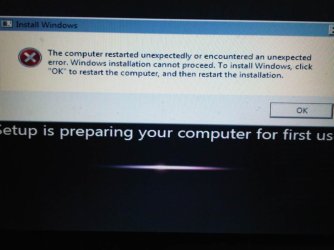
I tried using EasyBCD and it works but when it goes to boot win7 i get this error

Something caused the computer to reboot unexpectedly while setup was running. Try deleting the install partition with diskpart and re-applying the image with imagex. If the same thing happens again, you can check the setup logs using Windows 7 boot media.
 

My Computer My Computer

At a glance

El Capitan / Windows 10i7-4980HQ16GBIris 5200
Computer type
Laptop
Computer Manufacturer/Model Number
Apple
OS
El Capitan / Windows 10
CPU
i7-4980HQ
Memory
16GB
Graphics Card(s)
Iris 5200
Something caused the computer to reboot unexpectedly while setup was running. Try deleting the install partition with diskpart and re-applying the image with imagex. If the same thing happens again, you can check the setup logs using Windows 7 boot media.

I have xp installed
I created a new partition
then followed ya instructions for everything else
Then I followed Luciak's advice on Easy BCD
rebooted selected win7 and for the first time booted into win7
On the very very first time booting into win 7 it was doing its first time startup
it errored on something about not bieng able to change the boot manager or boot record
Then it rebooted
and when i went back in i get this same error from my screenshot no matter how many reboots .

Im starting from scratch but will be getting your reply on my Blackberry
Thanks again for your help
 

My Computer My Computer

At a glance

Windows XP
OS
Windows XP
Hey my Diskpart is 5.1.3565 copyright 1999-2003
So im assuming this is the diskpart from windows XP
does that matter?
 

My Computer My Computer

At a glance

Windows XP
OS
Windows XP
Sounds like the installation didn't complete, you shouldn't need to select anything from the boot screen, it should just carry on with the install on it own until you get asked to enter your user name.
 

My Computer My Computer

At a glance

Windows 7 Ultimate Vista Ultimate x64Core 2 Duo E8500 3.16Ghz @ 3.8Ghz2x2Gigs Patriot PC2-6400 LLInno3D GeForce GTX260 216 SP
Computer Manufacturer/Model Number
Home Brew
OS
Windows 7 Ultimate Vista Ultimate x64
CPU
Core 2 Duo E8500 3.16Ghz @ 3.8Ghz
Motherboard
eVGA 750i FTW
Memory
2x2Gigs Patriot PC2-6400 LL
Graphics Card(s)
Inno3D GeForce GTX260 216 SP
Monitor(s) Displays
ASUS VW222U 22" 2ms Response time
Screen Resolution
1680x1050
Hard Drives
SATA 150GB
SATA II 250GB
USB IDE 750GB Ext.
PSU
HYTEC 600W & Thermaltake 650W Toughpower Power Exp
Case
Thermaltake Armor LCS (Liquid Cooling System)
Cooling
Liquid Cooling System
Keyboard
Logitech G15 Gaming Keyboard
Mouse
Logitech G9 Gaming Mouse
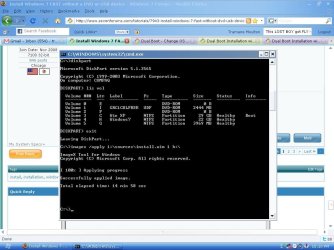
This is where I am now
If im not mistaken i now run easybcd and add the win7 to my bootup entry
 

Attachments

  • diskpart.JPG
    diskpart.JPG
    90.8 KB · Views: 251

My Computer My Computer

At a glance

Windows XP
OS
Windows XP
GENTLEMEN THANK YOU ALL
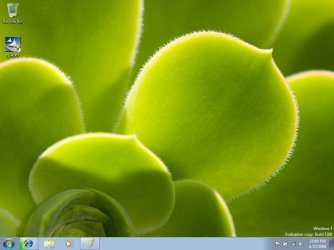
I am now enjoying Windows 7 beta build 7260
I will save the updating to RC1 for another day
Like tommorow while Im at work LOL
 

Attachments

  • win7_build260.jpg
    win7_build260.jpg
    54.2 KB · Views: 240

My Computer My Computer

At a glance

Windows XP
OS
Windows XP
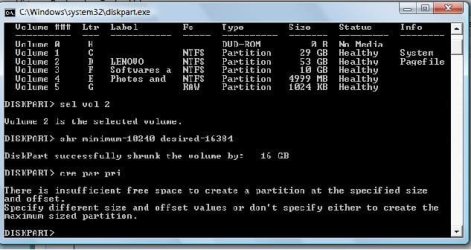
getting something like this....please help me sooooooooooon :cry::(
 

Attachments

  • Untitled.jpg
    Untitled.jpg
    38.7 KB · Views: 422

My Computer My Computer

At a glance

Windows 7 ultimate 7260 x32
OS
Windows 7 ultimate 7260 x32
note the size in the list above is it ment to be klike that?
 

My Computer My Computer

At a glance

Windows 7 Professional X64Intel Core i7 950 @ 4GHz [watercooled]12GB Corsair Dominator 1600 [Watercooled]GTX470 3 way SLI [watercooled]
Computer Manufacturer/Model Number
800D Black Hole
OS
Windows 7 Professional X64
CPU
Intel Core i7 950 @ 4GHz [watercooled]
Motherboard
EVGA X58 Classified 3 [watercooled]
Memory
12GB Corsair Dominator 1600 [Watercooled]
Graphics Card(s)
GTX470 3 way SLI [watercooled]
Monitor(s) Displays
3X Acer X233H 23"
Screen Resolution
5760X1080
Hard Drives
OCZ Vertex 2 60GB
PSU
Silverstone ST1500
Case
Corsair 800D
Cooling
2X 480 Rads|10X 120MM|3X 140mm + AE5
Keyboard
Das Ultimate
Mouse
Razer Mamba
Back
Top