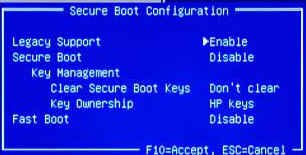
Please forgive the length of this post. I wanted to include all the relevant details. There is more information available, including links to the win xp installation process, the modified driver, and a couple of screenshots of diskmgmt.
computer description
HP p7 1235 desktop, CPU = AMD A8-5500, RAM = 8.00 GB DDR3, Motherboard = MSI 2AE0 (P0)
Hard Drive = Hitachi SATA Disk, 1 tb, GPT formatted
Optical Drive = hp CDDVDW SH-216ALN SATA CdRom
BIOS = JAS_707.ROM
HP setup utility = American Megatrends ver. 2.14.1219
This computer came with win 7 64 bit on a 1 tb SATA HDD, call it "HDD1".
I Installed win xp onto a different 1 tb SATA hdd, call it "HDD2".
The win xp installation disk was made using nlite to slipstream a custom driver which allowed win xp to
use the hardware on this computer. It works.
I unplugged HDD1 (win 7) during the win xp installation process.
After installing win xp, there was a single partition on HDD2 (win xp) of about 1 tb labelled C:\.
Fwiw, the win 7 OS would see HDD2 as a volume labelled f:\, and the win xp OS would not see HDD1 (win7)
at all.
This configuration allowed me to boot to either OS by selecting its HDD from the BIOS boot menu.
It was not necessary to use a boot manager, just get to the boot menu by tapping esc at startup, then
select the desired HDD (SATA 0 or SATA 1).
This configuration worked perfectly for several months, until now.
A couple of weeks ago I created 3 new partitions on HDD2 (win xp), and a problem started.
I used Acronis (on a different computer) to create 3 new "logical" partitions of 250, 500, and 136 gb.
The OS and the boot flag on HDD2 remained in the C:\ partition, about 50 gb in size.
This is the only change of any sort made to either HDD, so it seems to be what caused the problem.
But since the partitions were created using a different computer, and no change whatever was made to
the original HDD1 (win 7), I can't figure out how partitioning HDD2 (win xp) could have changed the
boot options in the original computer.
The problem in short:
After plugging in HDD2 (win xp), with its new partitions, the computer now will only boot into win xp.
If HDD2 is not connected, the computer will offer to perform "Startup Repair", after which it
will boot to HDD1 (win 7).
But if I reconnect HDD2 (win xp), I get a black & white screen that says "windows is loading files,
then a scroll bar across the bottom of the screen, then it boots into HDD2 (win xp).
More details
1. Booting with HDD2 (win xp) not plugged in, the computer boots normally but slower to win 7.
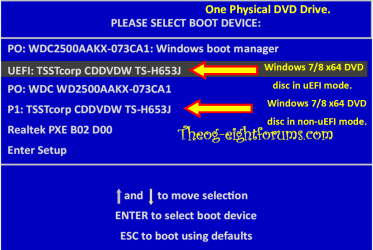
The boot menu choices with HDD2 (win xp) not plugged in are:
- UEFI: Hitachi ... which is HDD1 ... boots to win 7, but slowly
- SATA 0 ... which used to be the win 7 HDD, now gives a message
- - which includes a client mac address, a GUID number, then
- - "exiting intel PXE ROM, ERROR: no boot disk has been detected or the boot disk has failed.
2. Booting with HDD2 (win xp) plugged in, the computer gives a black screen with a message that
"windows is loading files", a scroll bar at the bottom, then boots straight to win xp.
The boot menu choices with HDD2 (win xp) plugged in are:
- UEFI: hitachi ... hitachi is HDD1 (win 7), but if selected it boots to win xp.
- Windows boot manager ... boots to win xp
- SATA 0 ... (originally was HDD1, win 7) now boots to win xp
- SATA 1 ... (originally was HDD2, win xp), now boots to win xp
3. After unplugging HDD2 (win xp) booting into the bios and navigating to "UEFI: Hitachi ..."
- if HDD2 (win xp), in unplugged, the computer offers to perform startup repair and then restarts,
booting to win 7.
- If HDD2 (win xp) is plugged in, startup repair does not work. But the computer will still boot to
win xp if you select "Start windows normally" within startup repair.
Thanks in advance for any help you can offer.
computer description
HP p7 1235 desktop, CPU = AMD A8-5500, RAM = 8.00 GB DDR3, Motherboard = MSI 2AE0 (P0)
Hard Drive = Hitachi SATA Disk, 1 tb, GPT formatted
Optical Drive = hp CDDVDW SH-216ALN SATA CdRom
BIOS = JAS_707.ROM
HP setup utility = American Megatrends ver. 2.14.1219
This computer came with win 7 64 bit on a 1 tb SATA HDD, call it "HDD1".
I Installed win xp onto a different 1 tb SATA hdd, call it "HDD2".
The win xp installation disk was made using nlite to slipstream a custom driver which allowed win xp to
use the hardware on this computer. It works.
I unplugged HDD1 (win 7) during the win xp installation process.
After installing win xp, there was a single partition on HDD2 (win xp) of about 1 tb labelled C:\.
Fwiw, the win 7 OS would see HDD2 as a volume labelled f:\, and the win xp OS would not see HDD1 (win7)
at all.
This configuration allowed me to boot to either OS by selecting its HDD from the BIOS boot menu.
It was not necessary to use a boot manager, just get to the boot menu by tapping esc at startup, then
select the desired HDD (SATA 0 or SATA 1).
This configuration worked perfectly for several months, until now.
A couple of weeks ago I created 3 new partitions on HDD2 (win xp), and a problem started.
I used Acronis (on a different computer) to create 3 new "logical" partitions of 250, 500, and 136 gb.
The OS and the boot flag on HDD2 remained in the C:\ partition, about 50 gb in size.
This is the only change of any sort made to either HDD, so it seems to be what caused the problem.
But since the partitions were created using a different computer, and no change whatever was made to
the original HDD1 (win 7), I can't figure out how partitioning HDD2 (win xp) could have changed the
boot options in the original computer.
The problem in short:
After plugging in HDD2 (win xp), with its new partitions, the computer now will only boot into win xp.
If HDD2 is not connected, the computer will offer to perform "Startup Repair", after which it
will boot to HDD1 (win 7).
But if I reconnect HDD2 (win xp), I get a black & white screen that says "windows is loading files,
then a scroll bar across the bottom of the screen, then it boots into HDD2 (win xp).
More details
1. Booting with HDD2 (win xp) not plugged in, the computer boots normally but slower to win 7.
The boot menu choices with HDD2 (win xp) not plugged in are:
- UEFI: Hitachi ... which is HDD1 ... boots to win 7, but slowly
- SATA 0 ... which used to be the win 7 HDD, now gives a message
- - which includes a client mac address, a GUID number, then
- - "exiting intel PXE ROM, ERROR: no boot disk has been detected or the boot disk has failed.
2. Booting with HDD2 (win xp) plugged in, the computer gives a black screen with a message that
"windows is loading files", a scroll bar at the bottom, then boots straight to win xp.
The boot menu choices with HDD2 (win xp) plugged in are:
- UEFI: hitachi ... hitachi is HDD1 (win 7), but if selected it boots to win xp.
- Windows boot manager ... boots to win xp
- SATA 0 ... (originally was HDD1, win 7) now boots to win xp
- SATA 1 ... (originally was HDD2, win xp), now boots to win xp
3. After unplugging HDD2 (win xp) booting into the bios and navigating to "UEFI: Hitachi ..."
- if HDD2 (win xp), in unplugged, the computer offers to perform startup repair and then restarts,
booting to win 7.
- If HDD2 (win xp) is plugged in, startup repair does not work. But the computer will still boot to
win xp if you select "Start windows normally" within startup repair.
Thanks in advance for any help you can offer.
My Computer
At a glance
Windows 7 Home Premium
- OS
- Windows 7 Home Premium