Solved Installed SSD, transferred windows to it but problem

TeamMM3

New member
Local time
4:18 PM
Messages
24
I bought my first SSD today and decided to go ahead and transfer windows over to it via EaseUS Todo Backup. Had no issues doing that. Went into disk management and made the SSD Active. Then went into the boot screen and booted from the SSD. It asked me which version of windows I wanted to boot from (basically from which hard drive I wanted to boot from because they are both the same version of windows 7) then proceeded to boot from the new SSD.

At this point it appeared everything was working fine. However, I then turned off my computer and unplugged my old HDD to see if everything was really working only to find that I was unable to boot from it alone. I read on here to try and boot from a windows CD and repair up to three times. This didn't seem to change anything as I was still unable to boot from the SSD without the HDD in my computer.

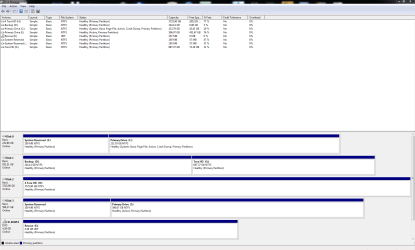
The System Reserved space (100 MB) is still located on Disk 0 which is my original HDD. I'm guessing this should be on my SSD in order to allow me to boot without the old HDD. My goal is to completely wipe that hard drive once I get windows on my SSD. I'd also like to make my SSD the C drive if possible since this is what I'm used to.

I've attached two pictures, the first is just my disk management screen. The second is the system recovery options when you boot from the windows repair CD however when I go to that screen without my HDD in I don't see any operating systems in the list. I clicked next and tried repairing 3 times but like I said, this didn't seem to do anything.

I'd appreciate any help! Thanks
 

Attachments
  • Drives.png
    Drives.png
    29.8 KB · Views: 1
  • Select-Windows-OS-to-repair-300x227.png
    Select-Windows-OS-to-repair-300x227.png
    15.2 KB · Views: 38

My Computer My Computer

Computer type
PC/Desktop
OS
Windows 10 64 bit
CPU
Intel(R) Core(TM) i7 CPU 920 @ 2.67GHz
Motherboard
Foxconn BLOODRAGE
Memory
10 gigabites
Graphics Card(s)
NVIDIA Geforce GTX 760 Ti
Hard Drives
250 Gig SSD
4 Terabite HDD
1 Terabite HDD
600 GB HDD
Antivirus
Defender, Superantispyware, Malwarebytes
Other Info
Powersupply: Corsair TX 750W
Move the Bootmgr - Move to C:\ with EasyBCD - Windows 7 Forums

Then I'd swap the cable with Disk0 so that the SSD is in that position so that nothing can derail the bootmanager again to a preceding Primary drive during repairs or reinstall. But only do that if its a suitable port for the SSD.

Make sure the SSD is set first drive to boot in BIOS setup.

Then if you still need to boot the HD, boot it using the one-time BIOS Boot menu key.
 
I followed your instructions and with both hard drives plugged in it seemed to boot fine and show correctly in the disk management screen. It showed as drive 0 but was still drive F. I unplugged the old HDD to see if it would work without it and it booted up, asked me to log in, went through a first time login setup (forget exactly what it was called), then gave me a blank blue desktop saying in the corner Windows 7 Build 7601 not genuine. The SSD was drive C however. I then booted from the repair CD, repaired, tried booting again and got the same screen. I plugged in the old HDD again but booted from the SSD and now I get the same not genuine screen but it's black instead of blue. So I attempted to repair once again with both hard drives in but again the same screen. Now I've booted up from the HDD and it seems to be working fine for now this way but now it seems I may have broken the Windows version installed on the SSD. Any idea what to do?

EDIT: Forgot to mention also that now when I boot to the repair CD I see both copys of windows whereas before with HDD unplugged I seen nothing in that screen.
 

My Computer My Computer

Computer type
PC/Desktop
OS
Windows 10 64 bit
CPU
Intel(R) Core(TM) i7 CPU 920 @ 2.67GHz
Motherboard
Foxconn BLOODRAGE
Memory
10 gigabites
Graphics Card(s)
NVIDIA Geforce GTX 760 Ti
Hard Drives
250 Gig SSD
4 Terabite HDD
1 Terabite HDD
600 GB HDD
Antivirus
Defender, Superantispyware, Malwarebytes
Other Info
Powersupply: Corsair TX 750W
As long as SSD was System Active it should boot on its own. Best to unplug all other drives to test or repair. The problem you describe sounds different.

Sometimes during imaging one can experience Drive Letter slippage causing blue non-Genuine. http://www.sevenforums.com/installa...-win7-partition-another-drive.html#post484430. But if you're sure it was booting as C then the image likely corrupted else ways.

Probably would be easiest to save a backup image with Macrium then apply it from boot disk with all default auto settings. Simply drag the image partitions to the target drive you've deleted from link below it, adjust sizes if necessary from similar link. http://www.sevenforums.com/tutorials/73828-imaging-free-macrium.html?ltr=I

Do this with only target and source drives plugged in, shut down to unplug Source then it should boot.
 
So before I do this should I wipe the SSD? It just sucks having to start all over when it seems so close. The drive boots as disk 0 and with the identifiers boot, system, active, primary partition and stuff. I just don't understand why the repair tool doesn't recognize any issues.
 

My Computer My Computer

Computer type
PC/Desktop
OS
Windows 10 64 bit
CPU
Intel(R) Core(TM) i7 CPU 920 @ 2.67GHz
Motherboard
Foxconn BLOODRAGE
Memory
10 gigabites
Graphics Card(s)
NVIDIA Geforce GTX 760 Ti
Hard Drives
250 Gig SSD
4 Terabite HDD
1 Terabite HDD
600 GB HDD
Antivirus
Defender, Superantispyware, Malwarebytes
Other Info
Powersupply: Corsair TX 750W
So before I do this should I wipe the SSD? It just sucks having to start all over when it seems so close. The drive boots as disk 0 and with the identifiers boot, system, active, primary partition and stuff. I just don't understand why the repair tool doesn't recognize any issues.

Sounds an awfully lot like drive letter slippage during imaging. What app did you use? How do you know its booting as C since repair mode can have different letters.
http://www.sevenforums.com/installa...-win7-partition-another-drive.html#post484430

Either way it is likely corrupted so I'd save another image using an app like our favorite linked which rarely fails.
 
I used EaseUS Todo Backup Free. Tried to use the Samsung program that came with my drive but that didn't work. I didn't know repair mode showed different letters. I believe that is where I seen that it was the C drive so maybe it never was.

EDIT: So when I make a backup of my C drive with Macrium do I include both the Primary Drive and System Reserve? And I'm guessing I back this up to one of my other hard drives so I can restore it later?
 

My Computer My Computer

Computer type
PC/Desktop
OS
Windows 10 64 bit
CPU
Intel(R) Core(TM) i7 CPU 920 @ 2.67GHz
Motherboard
Foxconn BLOODRAGE
Memory
10 gigabites
Graphics Card(s)
NVIDIA Geforce GTX 760 Ti
Hard Drives
250 Gig SSD
4 Terabite HDD
1 Terabite HDD
600 GB HDD
Antivirus
Defender, Superantispyware, Malwarebytes
Other Info
Powersupply: Corsair TX 750W
Yes, both. Then load image into app or from boot disk, select target SSD, delete all partitions beneath it. Then drag both partitions to SSD, adjust C size from similar links beneath.

Leave It at all defaults. Unplug source to boot. Never needed to repair but that would be confirming Active to run 3 Startup repairs.
 
Alright I appreciate your help. I guess I've got a 4 hour wait now while it creates the backup file
 

My Computer My Computer

Computer type
PC/Desktop
OS
Windows 10 64 bit
CPU
Intel(R) Core(TM) i7 CPU 920 @ 2.67GHz
Motherboard
Foxconn BLOODRAGE
Memory
10 gigabites
Graphics Card(s)
NVIDIA Geforce GTX 760 Ti
Hard Drives
250 Gig SSD
4 Terabite HDD
1 Terabite HDD
600 GB HDD
Antivirus
Defender, Superantispyware, Malwarebytes
Other Info
Powersupply: Corsair TX 750W
This is so frustrating. Absolutely regretting the purchase of this SSD now. I've been trying to solve this for three days and still have gotten no where. I do appreciate the help this is just so confusing. I created a backup that I put on a separate hard drive. I booted from the windows repair CD, attempted to load the backup image but got a message saying the specified location does not contain information about your hardware and was unable to continue. Now I am reading that I need to create a rescue media CD in Macrium however at the screen where you choose Windows PE or Linux, after clicking next I get a message saying check that your rescue media can access your drives. I have no idea what this means.
 

My Computer My Computer

Computer type
PC/Desktop
OS
Windows 10 64 bit
CPU
Intel(R) Core(TM) i7 CPU 920 @ 2.67GHz
Motherboard
Foxconn BLOODRAGE
Memory
10 gigabites
Graphics Card(s)
NVIDIA Geforce GTX 760 Ti
Hard Drives
250 Gig SSD
4 Terabite HDD
1 Terabite HDD
600 GB HDD
Antivirus
Defender, Superantispyware, Malwarebytes
Other Info
Powersupply: Corsair TX 750W
Now I am reading that I need to create a rescue media CD in Macrium however at the screen where you choose Windows PE or Linux, after clicking next I get a message saying check that your rescue media can access your drives. I have no idea what this means.

Have you found and read the Macrium tutorial on this site?

http://www.sevenforums.com/tutorials/73828-imaging-free-macrium.html

You will see the following near the beginning:

"Note

The production of the WinPE recovery CD (which is highly recommended) may take up to 3 hours because Macrium needs to download the 1.7GB WAIK (Windows Application Installation Kit). For your convenience I have uploaded a ready made .iso of the WinPE recovery disc. That can be downloaded in appr. 8 minutes which clearly beats the WAIK download. Once you downloaded and unzipped the folder, you can burn it directly to a CD with e.g. ImgBurn.

Here is the link to my Skydrive site."

I'd follow that link to Skydrive, download that file, and burn it to a disk.

That disk will allow you to make and restore a Macrium image file.

If that's what you want to do. I didn't review this thread to see if that's what you should be doing, but that's how to do it.
 

My Computer My Computer

Computer type
PC/Desktop
Computer Manufacturer/Model Number
Ignatz Special; 4 speed manual gearbox; factory air conditioning; one of one
OS
Windows 7 Home Premium SP1, 64-bit
CPU
Intel Skylake i5-6600K, not overclocked
Motherboard
AsRock Z170M Extreme 4, micro ATX
Memory
8 GB HyperX DDR4-2666 (2 x 4 GB)
Graphics Card(s)
none; graphics are integrated on CPU
Sound Card
onboard: Realtek ALC1150; external: USB Behringer UF0-202
Monitor(s) Displays
Dell S2340M 23 inch IPS
Screen Resolution
1600 x 900
Hard Drives
System: Crucial MX100 series SSD, 128 GB;
Data: Samsung Spinpoint 103SJ, 1 TB;
Backup: WD Caviar Green WD30EZRX-00D8PB0, 3 TB
PSU
Rosewill SilentNight 500 watt fanless, semi-modular
Case
Antec Solo II
Cooling
Noctua NH-U12S; Noctua F12 intake, Noctua S12A exhaust
Keyboard
Microsoft 200 6JH-00001 USB
Mouse
Dell or Microsoft optical wired; USB
Antivirus
Microsoft Security Essentials and Malwarebytes Premium
Browser
Pale Moon
Other Info
All fans PWM; speeds at idle: CPU circa 500 rpm; intake circa 600 rpm; exhaust circa 600 rpm; CPU temps 27 idle and 47 C load in a warm room (27 C/81 F) when running Intel Extreme Tuning Utility stress test.
You can also install Macrium to the hard drive to do the operation with both drives attached. I believe that also allows cloning. You can confer with the author in the Macrium tutorial which should answer most of these questions.
 
With all of your help I was able to get it all figured out and it seems to be working right now. For now I have my old HDD with windows on it unplugged and windows is running completely from my SSD. It shouldn't screw anything up if I go ahead and plug in my old HDD now? My plan is to delete windows and all of the programs from it once I make sure everything works correctly. I'd like to just use it for my music, pictures, and videos. I notice that there is a 100 MB system reserve drive in my computer now. Is it possible to hide it since I'll never be using it?

I appreciate all of your guys' help!
 

My Computer My Computer

Computer type
PC/Desktop
OS
Windows 10 64 bit
CPU
Intel(R) Core(TM) i7 CPU 920 @ 2.67GHz
Motherboard
Foxconn BLOODRAGE
Memory
10 gigabites
Graphics Card(s)
NVIDIA Geforce GTX 760 Ti
Hard Drives
250 Gig SSD
4 Terabite HDD
1 Terabite HDD
600 GB HDD
Antivirus
Defender, Superantispyware, Malwarebytes
Other Info
Powersupply: Corsair TX 750W
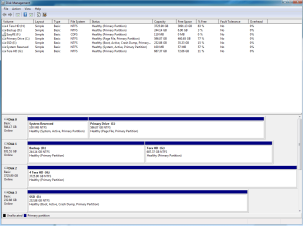
You are probably OK and can do as you wish with the old drive, BUT, as a precaution, please post a screen shot of Windows Disk Management with ALL drives connected, including the old drive.
 

My Computer My Computer

Computer type
PC/Desktop
Computer Manufacturer/Model Number
Ignatz Special; 4 speed manual gearbox; factory air conditioning; one of one
OS
Windows 7 Home Premium SP1, 64-bit
CPU
Intel Skylake i5-6600K, not overclocked
Motherboard
AsRock Z170M Extreme 4, micro ATX
Memory
8 GB HyperX DDR4-2666 (2 x 4 GB)
Graphics Card(s)
none; graphics are integrated on CPU
Sound Card
onboard: Realtek ALC1150; external: USB Behringer UF0-202
Monitor(s) Displays
Dell S2340M 23 inch IPS
Screen Resolution
1600 x 900
Hard Drives
System: Crucial MX100 series SSD, 128 GB;
Data: Samsung Spinpoint 103SJ, 1 TB;
Backup: WD Caviar Green WD30EZRX-00D8PB0, 3 TB
PSU
Rosewill SilentNight 500 watt fanless, semi-modular
Case
Antec Solo II
Cooling
Noctua NH-U12S; Noctua F12 intake, Noctua S12A exhaust
Keyboard
Microsoft 200 6JH-00001 USB
Mouse
Dell or Microsoft optical wired; USB
Antivirus
Microsoft Security Essentials and Malwarebytes Premium
Browser
Pale Moon
Other Info
All fans PWM; speeds at idle: CPU circa 500 rpm; intake circa 600 rpm; exhaust circa 600 rpm; CPU temps 27 idle and 47 C load in a warm room (27 C/81 F) when running Intel Extreme Tuning Utility stress test.
Alright heading off to work now, I'll plug in the old drive and post a picture of the Disk Management tomorrow.

Thanks
 

My Computer My Computer

Computer type
PC/Desktop
OS
Windows 10 64 bit
CPU
Intel(R) Core(TM) i7 CPU 920 @ 2.67GHz
Motherboard
Foxconn BLOODRAGE
Memory
10 gigabites
Graphics Card(s)
NVIDIA Geforce GTX 760 Ti
Hard Drives
250 Gig SSD
4 Terabite HDD
1 Terabite HDD
600 GB HDD
Antivirus
Defender, Superantispyware, Malwarebytes
Other Info
Powersupply: Corsair TX 750W
So it's been a week of having the SSD hooked up and working properly and I've had no issues so far so I decided to go ahead and plug in the old HDD with windows on it (which I plan on removing) and it seems to still be working with no issues. I've attached a picture (Untitled) of my disk management as requested to make sure everything is working as it should. Again, I appreciate all of the help!
 

Attachments

  • Untitled.png
    Untitled.png
    38 KB · Views: 2

My Computer My Computer

Computer type
PC/Desktop
OS
Windows 10 64 bit
CPU
Intel(R) Core(TM) i7 CPU 920 @ 2.67GHz
Motherboard
Foxconn BLOODRAGE
Memory
10 gigabites
Graphics Card(s)
NVIDIA Geforce GTX 760 Ti
Hard Drives
250 Gig SSD
4 Terabite HDD
1 Terabite HDD
600 GB HDD
Antivirus
Defender, Superantispyware, Malwarebytes
Other Info
Powersupply: Corsair TX 750W
Fixed it by just reformatting it. It is now empty, the two partitions are now one, and it is no longer active.
 

My Computer My Computer

Computer type
PC/Desktop
OS
Windows 10 64 bit
CPU
Intel(R) Core(TM) i7 CPU 920 @ 2.67GHz
Motherboard
Foxconn BLOODRAGE
Memory
10 gigabites
Graphics Card(s)
NVIDIA Geforce GTX 760 Ti
Hard Drives
250 Gig SSD
4 Terabite HDD
1 Terabite HDD
600 GB HDD
Antivirus
Defender, Superantispyware, Malwarebytes
Other Info
Powersupply: Corsair TX 750W
Yes it is, I marked this as solved! Thanks everyone for their help!
 

My Computer My Computer

Computer type
PC/Desktop
OS
Windows 10 64 bit
CPU
Intel(R) Core(TM) i7 CPU 920 @ 2.67GHz
Motherboard
Foxconn BLOODRAGE
Memory
10 gigabites
Graphics Card(s)
NVIDIA Geforce GTX 760 Ti
Hard Drives
250 Gig SSD
4 Terabite HDD
1 Terabite HDD
600 GB HDD
Antivirus
Defender, Superantispyware, Malwarebytes
Other Info
Powersupply: Corsair TX 750W
Back
Top