Solved Installing Windows 7 from a USB device to HDD.

Likely a bad installer. Create a new one using only Option One from UEFI Bootable USB Flash Drive - Create in Windows

Boot it as a UEFI device.

What are the other settings choices for Legacy besides Enabled? Try without Fast Boot. What settings are on Advanced tab? What Reset to Default settings are there?

Read your Manual about RAID Ready and how that applies. Is this a MSata drive with SSD caching chip. It may need to be disabled to reinstall. We have a tutorial.

You can also try legacy install deleting all partitions.
 
New PC

I have created as a UEFI twice now with Rufus and gotten the same result. I have one more USB that I left at work, created with Rufus on a different machine and different Flash Drive, that I can try again. I will also try to turn off the Legacy support and boot as UEFI only.

Lastly, I will try to boot with MBR and Legacy mode and if that doesn't work...... clean disk.

To be honest with you, if Microsoft is going to pull this crap I'm thinking about just buying an awesome NEW PC now and living with that for the next 5 or so years. Then I can reevaluate whether I want to boycott Microsoft all together. I've also heard that Ubuntu and other Linux systems have come a long way since I last used one, I might even try that.

Dell has a Desktop (yes, I'm old fashioned) that looks to fit the bill. Do you have an opinion on this PC?
XPS 8700 Performance Desktop | Dell

In other words, I'm close to throwing in the white flag. I was just trying to utilize an unused PC, but time = money.
 

My Computer My Computer

At a glance

Windows 8 64-bit
Computer type
PC/Desktop
Computer Manufacturer/Model Number
HP
OS
Windows 8 64-bit
legacy install works if UEFI doesn't but I've always been able to get UEFI to work with extreme patience.

Is there a BIOS firmware update since many OEMs are realizing the flaws to fix in UEFI crapware.

A new PC would have UEFI or even worse Windows Ate
 
Last edited:
Dell does custom installs with Windows ;)

HP does have a BIOS update, but I checked and I do have it.

I would like to learn this stuff so here is my latest finding. The results from my Diskpart were incredibly slow, but did finally come in. It does interface with the C drive. See screen shot below. Basic stuff: A single disk can have multiple partitions, what then is a volume? Is that just a property of a partition, which has a more user friendly property called label? That is where I get confused. My C:\ drive is an NFTF Partition listed as BOOT and GPT. Are all of these settings correct or should c:\ be Fat32?
 

Attachments

  • diskpart.JPG
    diskpart.JPG
    65.1 KB · Views: 11

My Computer My Computer

At a glance

Windows 8 64-bit
Computer type
PC/Desktop
Computer Manufacturer/Model Number
HP
OS
Windows 8 64-bit
What is it you want to do? If a trial Win 7 install with 8 then shrink its partition in Disk mgmt. boot into BIOS SETUP to disable Secure Boot, enable Legacy or CSM, boot Win7 disk as UEFI device to install to partition made.

If get rid of Ate then run Clean command on disk, boot DVD as UEFI device with BIOS changes above.

If these fail report back all available Bios Settings for UEFI, CSM, Legacy. Or boot as Legacy DVD to install after Cleaning Disk and running additional Convert MBR command with BIOS set Legacy.
 
what I would like to do is blow away windows 8 and have windows 7 only.

if I do a clean disk option on c drive how would I know that all of the drivers match what i have now? also, i was told that burning a dvd from a downloaded iso is not the way to go... can I do it with the USB I created?
 

My Computer My Computer

At a glance

Windows 8 64-bit
Computer type
PC/Desktop
Computer Manufacturer/Model Number
HP
OS
Windows 8 64-bit
DVD is actually easier as you dont need to use Yumi to edit the USB for a UEFI install. Use Steps 1 and 2 of Clean Reinstall tutorial below. If you stick with those same steps then you'll get and keep a perfect install for as long as you do.

This is not XP, Win7 is driver complete in the installer and via Windows Update. Read what works best in the Reinstall tutorial under picture below.
 
I was just about to ask about booting Win7 ISO from a usb stick when I saw this thread.

I used Rufus to set up my Sandisk USB and it worked perfectly the very first time, but a few days later I picked up a nasty adware/spyware/whateverware and decided to reinstall again. Now for some reason it won't boot from the USB anymore. I repeated the process all over with Rufus again and it still ignores the USB stick. I can only boot from the Win7 disk (after setting the boot priority order).

So my question is, how do I force it to boot from the USB, in case I ever have a problem with the Win7 disk? As it stands, I can only activate the Windows setup file on the USB and not have the format option for a clean install.
 

My Computer My Computer

At a glance

MS Windows 7 Professional 64-bit SP1Intel Core i7 920 @ 2.67GHz6.00 GB Triple-Channel DDR3 @ 534MHz (7-7-7-20)AMD Radeon HD 6900 Series (MSI)
Computer Manufacturer/Model Number
Homebuilt desktop
OS
MS Windows 7 Professional 64-bit SP1
CPU
Intel Core i7 920 @ 2.67GHz
Motherboard
ASUSTeK Computer INC. P6T (LGA1366)
Memory
6.00 GB Triple-Channel DDR3 @ 534MHz (7-7-7-20)
Graphics Card(s)
AMD Radeon HD 6900 Series (MSI)
Sound Card
Realtek High Definition Audio/AMD High Definition Audio Devi
Monitor(s) Displays
DELL 2408WFP
Screen Resolution
1920x1200@60Hz
Hard Drives
298GB Seagate ST3320418AS ATA Device (SATA)
PSU
Antec
Case
GIGABYTE Tower
Cooling
Fans
Keyboard
Logitech G15
Mouse
Steelseries
Internet Speed
25Mbps down, 5Mbps up
Other Info
Linksys usb wifi dongle, local access point through Connectify lite.
Press the Fn key to get to the Boot Menu and select the USB flash drive from there. Not sure what this is for a ASUS mother board but the Users Manual should tell you.
 

My Computer My Computer

At a glance

Windows 10 Pro X64Intel Quad Core i7-4770 @ 3.4Ghz16.0GB PC3-12800 DDR3 SDRAM 1600 MHzIntel Integrated HD Graphics
Computer type
PC/Desktop
Computer Manufacturer/Model Number
Lenovo IdeaCenter 450
OS
Windows 10 Pro X64
CPU
Intel Quad Core i7-4770 @ 3.4Ghz
Memory
16.0GB PC3-12800 DDR3 SDRAM 1600 MHz
Graphics Card(s)
Intel Integrated HD Graphics
Sound Card
Realtek HD Audio
Monitor(s) Displays
HP 22" LCD
Screen Resolution
1680 x 1050
Hard Drives
250GB Samsung EVO SATA-3 SSD
2TB Seagate ST2000DM001 SATA-2
1.5TB Seagate ST3150041AS SATA
Keyboard
Dell USB
Mouse
Lenovo USB
Internet Speed
Cable via Road Runner 3MB Upload, 30MB Download
Antivirus
Windows Defender, MBAM Pro, MBAE
Browser
Seamonkey
Other Info
UEFI/GPT
PLDS DVD-RW DH16AERSH
I use the Delete key to get into the BIOS and the only boot options offered are HD, DVD, or Floppy.

I'd like to know why on earth it worked the first time but not since then.
 

My Computer My Computer

At a glance

MS Windows 7 Professional 64-bit SP1Intel Core i7 920 @ 2.67GHz6.00 GB Triple-Channel DDR3 @ 534MHz (7-7-7-20)AMD Radeon HD 6900 Series (MSI)
Computer Manufacturer/Model Number
Homebuilt desktop
OS
MS Windows 7 Professional 64-bit SP1
CPU
Intel Core i7 920 @ 2.67GHz
Motherboard
ASUSTeK Computer INC. P6T (LGA1366)
Memory
6.00 GB Triple-Channel DDR3 @ 534MHz (7-7-7-20)
Graphics Card(s)
AMD Radeon HD 6900 Series (MSI)
Sound Card
Realtek High Definition Audio/AMD High Definition Audio Devi
Monitor(s) Displays
DELL 2408WFP
Screen Resolution
1920x1200@60Hz
Hard Drives
298GB Seagate ST3320418AS ATA Device (SATA)
PSU
Antec
Case
GIGABYTE Tower
Cooling
Fans
Keyboard
Logitech G15
Mouse
Steelseries
Internet Speed
25Mbps down, 5Mbps up
Other Info
Linksys usb wifi dongle, local access point through Connectify lite.
The flash drive has to be inserted for it to show in BIOS or the Boot Menu.
 

My Computer My Computer

At a glance

Windows 10 Pro X64Intel Quad Core i7-4770 @ 3.4Ghz16.0GB PC3-12800 DDR3 SDRAM 1600 MHzIntel Integrated HD Graphics
Computer type
PC/Desktop
Computer Manufacturer/Model Number
Lenovo IdeaCenter 450
OS
Windows 10 Pro X64
CPU
Intel Quad Core i7-4770 @ 3.4Ghz
Memory
16.0GB PC3-12800 DDR3 SDRAM 1600 MHz
Graphics Card(s)
Intel Integrated HD Graphics
Sound Card
Realtek HD Audio
Monitor(s) Displays
HP 22" LCD
Screen Resolution
1680 x 1050
Hard Drives
250GB Samsung EVO SATA-3 SSD
2TB Seagate ST2000DM001 SATA-2
1.5TB Seagate ST3150041AS SATA
Keyboard
Dell USB
Mouse
Lenovo USB
Internet Speed
Cable via Road Runner 3MB Upload, 30MB Download
Antivirus
Windows Defender, MBAM Pro, MBAE
Browser
Seamonkey
Other Info
UEFI/GPT
PLDS DVD-RW DH16AERSH
It hasn't been unplugged from the USB port.

It is listed in another part of the BIOS under 'Hard Drives' but not under boot priority. I tried changing the order under 'Hard Drives' to put it first, then it replaced my hard drive under 'Boot Priority.' But now my hard drive is no longer available to the computer. Just out of curiosity I tried to let it boot but only got a black screen with a flashing curser.

I originally found out about using Rufus and a USB stick through another site and followed all their instructions (which made it work the first time). I can't seem to find that site in Google anymore so maybe I'm missing a step somewhere.

Can someone walk me through setting up Rufus again? I don't quite remember all the options settings so maybe that's the problem.
 

My Computer My Computer

At a glance

MS Windows 7 Professional 64-bit SP1Intel Core i7 920 @ 2.67GHz6.00 GB Triple-Channel DDR3 @ 534MHz (7-7-7-20)AMD Radeon HD 6900 Series (MSI)
Computer Manufacturer/Model Number
Homebuilt desktop
OS
MS Windows 7 Professional 64-bit SP1
CPU
Intel Core i7 920 @ 2.67GHz
Motherboard
ASUSTeK Computer INC. P6T (LGA1366)
Memory
6.00 GB Triple-Channel DDR3 @ 534MHz (7-7-7-20)
Graphics Card(s)
AMD Radeon HD 6900 Series (MSI)
Sound Card
Realtek High Definition Audio/AMD High Definition Audio Devi
Monitor(s) Displays
DELL 2408WFP
Screen Resolution
1920x1200@60Hz
Hard Drives
298GB Seagate ST3320418AS ATA Device (SATA)
PSU
Antec
Case
GIGABYTE Tower
Cooling
Fans
Keyboard
Logitech G15
Mouse
Steelseries
Internet Speed
25Mbps down, 5Mbps up
Other Info
Linksys usb wifi dongle, local access point through Connectify lite.
If you have a BIOS that interprets the flash stick as a hard drive, try expanding the HD choice in BIOS one-time BOot menu. There may be a way to do this you're missing.

If you change the Primary HD to flash stick, this should not disable the HD, only set it as secondary requiring you to unplug the flash stick at first reboot, possibly go back in to set HD as Primary.

This is the way its always worked before in that configuration.

YOu should be following Option One in UEFI Bootable USB Flash Drive - Create in Windows
 
After 3 weeks, I finally had a successful install of Windows 7 using the GPT / UEFI method.

In the end, I think I was the USB that was port that was causing me issues. Along the way, I cause myself many more issues, but it was a learning process and I'm a little smarter now (I think).

Thank you, especially gregrocker, for the help.
 

My Computer My Computer

At a glance

Windows 8 64-bit
Computer type
PC/Desktop
Computer Manufacturer/Model Number
HP
OS
Windows 8 64-bit
Can you recall exactly what change(s)you made that caused install to succeed, to help others?
 
Good news!

Can you recall exactly what change(s) you made that caused install to succeed, to help others?
 
Can you recall exactly what change(s)you made that caused install to succeed, to help others?

I created the USB bootable device on a Sans Cruser USB Flash Drive. I could not get it to work using option 2 in the "How to Install Windows 7 Using the "Unified Extensible Firmware Interface" (UEFI)" article, which I thought was more straight forward because I could see what what going on. However, I might not have had other settings quite right.

When I used option #1 (Rufus) on the Sans Cruser USB Drive I would boot and get to the "Starting Windows" screen with the Windows Icon Logo and it would hang. I let it run for hours just to be sure it wasn't doing anything. I googled this issue and found that it is a semi-common occurrence and usually points to a USB driver issue.

So I tried a different flash drive, which I had done before, using the Rufus method, and it hung at the same "Starting Windows" screen. Per a link I found on tomshardware.com I saw that somebody had to change a setting for USB Legacy mode in their BIOS Setup. I do not have a USB Legacy mode in my BIOS setup utility, so I just enabled Legacy Mode. Then all ran successfully. I needed to get a few drivers, but now I'm flying without Windows 8.

I may try to turn Legacy Mode off now that I have drivers, but I think I'm operating a UEFI install on a factory preinstalled Windows 8 machine. That makes this gumpy old man happy.

I did it as a dual boot at this point... I will try to take Windows 8 off the machine entirely. I don't know if I might have to repeat this process or not (is their a way to remove an OS partition without causing too many headaches), but now that I know the process I am gravy.
 

My Computer My Computer

At a glance

Windows 8 64-bit
Computer type
PC/Desktop
Computer Manufacturer/Model Number
HP
OS
Windows 8 64-bit
Legacy overrides UEFI so Win 8 will not boot. We're you given UEFI Boot Option for stick when you enabled Legacy? If not there may be another UEFI, Legacy, CSM, or Reset to Legacy Default settings adjustment needed in BIOS. If you want to pursue this post back camera snaps of settings choices expanded.

If you wan to remain Legacy BIOS then post back a Disk Mgmt screenshot so we can help you remove 8. You can also re-enable UEFI to boot 8 if its still on the drive to make Recovery media if you haven't. Later you can recover Win8 using this media, or Clean reinstall Win8 in UEFI or Legacy or to Dual Boot with Win7 in Legacy.
 
I am going off of memory here because I tried 10,000 things before it finally worked.

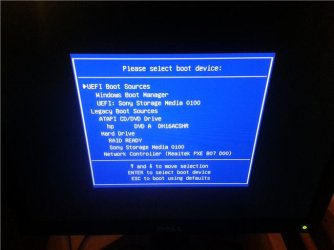
On successful install, HP's Legacy Mode was enabled and Secure Boot disabled. On the Boot Menu screen, the Sony USB device showed up under UEFI and Legacy. Attached is an example screenshot showing this, but it was from an earlier failed attempt (I think this attempt would have worked if I had selected the Sony USB under Legacy).

I thought it might be a USB UEFI driver issue trying to get Windows 7 to install as a dual boot with pre-installed Windows 8. Now that Windows 7 is installed and all network controllers, cards, and other devices have Windows 7 drivers (I used a very helpful 3rd Party app, Driver Detective, to do this), is it possible to remove the Windows 8 partition?

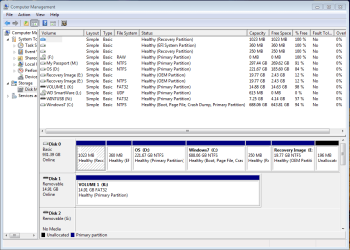
I've attached at Disk Management screenshot. Self admittedly, I don't know a lot about partitioning, reading on-line documentation usually assumes the user has basic knowledge of hardware, which sometimes I don't. IT is my second career. In the past, I've just taken it out of the box and taken what HP/Dell, etc. give me. But I love learning every day. That's a long winded way of saying I don't know why Window 8 has the D:\ drive and Windows 7 has the C:\ drive and the boot and page record in my disk management.

Is there a safe way to remove the D:\ partition?
 

Attachments

  • IMG_20140807_060008.jpg
    IMG_20140807_060008.jpg
    30.3 KB · Views: 3
  • ComputerDiskPartitions.PNG
    ComputerDiskPartitions.PNG
    28.3 KB · Views: 0

My Computer My Computer

At a glance

Windows 8 64-bit
Computer type
PC/Desktop
Computer Manufacturer/Model Number
HP
OS
Windows 8 64-bit
Back
Top