Internet Explorer has stopped responding

Status
Not open for further replies.

ddeen

New member
Local time
10:36 AM
Messages
40
I get "Internet Explorer has stopped working" only when I open hotmail from Live Messenger, but it is reproducible every time. I have experienced no crashes in any other program since installing 7, just IE.

Windows 7 RC
Windows Live Messenger 2009 (Build 14.0.8089.726)

Problem signature:
Problem Event Name: APPCRASH
Application Name: iexplore.exe
Application Version: 8.0.7100.0
Application Timestamp: 49ee9200
Fault Module Name: ntdll.dll
Fault Module Version: 6.1.7100.0
Fault Module Timestamp: 49eea66e
Exception Code: c0000005
Exception Offset: 00027d1d
OS Version: 6.1.7100.2.0.0.768.3
Locale ID: 1033
Additional Information 1: e8ad
Additional Information 2: e8adce1c2b9e7be834b4063ac3c53863
Additional Information 3: e8ad
Additional Information 4: e8adce1c2b9e7be834b4063ac3c53863
Read our privacy statement online:

If the online privacy statement is not available, please read our privacy statement offline:

D:\Windows\system32\en-US\erofflps.txt
 

My Computer

OS
Windows 7 RC 7100
CPU
E2160 Intel Dual Core
Motherboard
Abit IP35-E
Memory
4GB
Graphics Card(s)
Nvidia Geforce 250
Sound Card
Realtek HD 7.1
Monitor(s) Displays
Benq G2400W 24"
Screen Resolution
1920x1200
Hard Drives
750GB Samsung
1TB Seagate
PSU
PC Power & Cooling Silencer 750
Case
Antec
Cooling
Liquid Nitrogen
Keyboard
Microsoft ComfortCurve
Mouse
Logitech MX518
Internet Speed
10Mb up, 1Mb down
Might be a bad addon. You can try running IE in no add on mode (safe mode) to see if it still happens.

(This tutorial has the shortcut for IE no addons which you can temporarily use, or pin it to your start menu), which apparently, looks like they removed form the start menu in Windows 7 RTM. I don't have it there anymore. But the shortcut still works for Win 7.

Or try resetting IE to see if that will clear it from crashing.

Looks like Antman snuck in and posted the reset tutorial when I was writing.
 

My Computer

Computer type
PC/Desktop
Computer Manufacturer/Model Number
Airbot 2.0
OS
Windows 7 Ultimate x64 SP1
CPU
Core i7 920 (D0) @ 4Ghz, *26c idle *65c full load on air
Motherboard
Asus P6X58D Premium - Sata 6Gb/s - USB 3.0
Memory
12GB DDR3 Corsair Dominator -CMD12GX3M6A1600C8 at 1600MHz
Graphics Card(s)
Zotac Geforce GTX 770
Sound Card
ASUS Xonar D2X
Monitor(s) Displays
1 LG 24" Flatron W2453V-PF 1 Samsung 24" P2450H both 2ms RT
Screen Resolution
1920x1080@60hz
Hard Drives
1 Samsung 250GB 840 Evo SSD
1 OCZ Vertex2 180GB SSD
1 TB Samsung Spinpoint F1 7200RPM 32MB cache
2 500GB WD Caviar Blacks 7200RPM 32MB cache (WD5001AALS)

Pioneer DVD Burner DVR-S18M
PSU
Corsair HX1000W
Case
Cooler Master HAF 932
Cooling
Case Fans *3 230mm, *1 140mm/CPU - *Tuniq Tower 120 Extreme
Keyboard
Logitech Wireless MK700
Mouse
Logitech Wireless MK700
Internet Speed
DL 15 Mbps UL 0.98 Mbps
Antivirus
None
Browser
Firefox Nightly
Other Info
Processor-7.7 *RAM- 7.9 *Graphics-7.9 *Gaming Graphics- 7.9 *SSD- 7.8 W.E.I final score= 7.7
*Phone- LG Nexus 5
Thanks for the tips, I can already tell if I go to mail.live.com, rather than right clicking the live messenger icon, in either Add-on or no Add-on it is much better.
 

My Computer

OS
Windows 7 RC 7100
CPU
E2160 Intel Dual Core
Motherboard
Abit IP35-E
Memory
4GB
Graphics Card(s)
Nvidia Geforce 250
Sound Card
Realtek HD 7.1
Monitor(s) Displays
Benq G2400W 24"
Screen Resolution
1920x1200
Hard Drives
750GB Samsung
1TB Seagate
PSU
PC Power & Cooling Silencer 750
Case
Antec
Cooling
Liquid Nitrogen
Keyboard
Microsoft ComfortCurve
Mouse
Logitech MX518
Internet Speed
10Mb up, 1Mb down
There are two workaround for this issue which are listed here,
Fix MSI Installer/Windows Explorer/Windows Update has stopped Working

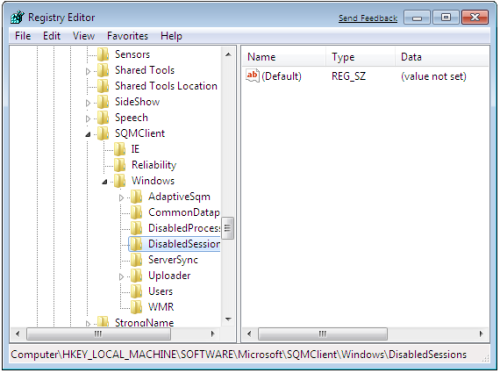
Method 1: Registry Edit

1. Click on start and Type regedit on search bar (on RUN command)
2. Navigate to following key
HKLM\Software\Microsoft\SQMClient\Windows\DisabledSessions
regedit-fix-explorer-stopped-working.png

3. Now delete all string key except default inside “DisabledSessions”

Method 2: Disabling CEIP Customer Experience Improvement Program

1. Click start and type gpedit.msc on search bar or on RUN command
2. Now navigate to
Computer Configuration -> Administrative Templates -> System -> Internet Communication Management, and then click Internet Communication settings
gpeditmsc-disable-windows-customer-experience-improvement-programe.png

3. Locate Turn off Windows Customer Experience Improvement Program, double click or right click edit.
4. Click on Enable. Apply and Ok and close gpedit window.
turn-off-windows-customer-experience-improvement-program.png

We need to wait until Microsoft fixes the issue and issues a hotfix
 
Status
Not open for further replies.
Back
Top