
How to Turn Protected Mode On or Off in Internet Explorer
Information
Protected mode in IE7, IE8, IE9, IE10, and IE11 is a feature that makes it more difficult for malicious software to be installed on your computer.
In addition to helping protect your computer from malicious software, protected mode allows you to install wanted ActiveX controls or add-ons when you are logged in as an administrator.
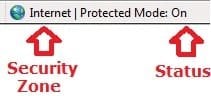
Protected mode is turned on by default in the Internet, Local intranet, and Restricted sites zones and an icon appears on the status bar (see example screenshot below) to let you know that it's running.
For more information about Protected Mode in Internet Explorer, see:
This tutorial will show you how to turn protected mode on or off in each of these security zones.
In addition to helping protect your computer from malicious software, protected mode allows you to install wanted ActiveX controls or add-ons when you are logged in as an administrator.
Protected mode is turned on by default in the Internet, Local intranet, and Restricted sites zones and an icon appears on the status bar (see example screenshot below) to let you know that it's running.
For more information about Protected Mode in Internet Explorer, see:
- Protected Mode in Vista IE7 - IEBlog - Site Home - MSDN Blogs
- Understanding and Working in Protected Mode Internet Explorer
- What does Internet Explorer protected mode do?
This tutorial will show you how to turn protected mode on or off in each of these security zones.
Note
In addition to warning you when webpages try to install software with protected mode turned on in the security zone, Internet Explorer will warn you when webpages try to run certain software programs. You are warned when a software program would run outside of Internet Explorer and outside of protected mode, because that program might have more access to your computer than you prefer. This usually happens when a website is using an add-on to run a software program on your computer. If you are viewing more than one website at a time, check all open websites to be sure you know which one is trying to run the program before granting your permission. If you trust the program and want to allow it to run on any website, select the Do not show me the warning for this program again check box.
- If you turned the warning off and want to show it again, you need to reset Internet Explorer's settings.
- If you do not want to allow webpages to use an add-on to run a specific software program on your computer and do not want to see the warning dialog as described above, you can disable the add-on that is being used.
Warning
If you turn off UAC, then this will also disable protected mode for all users on the computer no matter if you have protected mode turned on or off in Internet Explorer below.
You must have UAC set to the default level below or higher to be able to turn on Protected Mode in Internet Explorer.

You must have UAC set to the default level below or higher to be able to turn on Protected Mode in Internet Explorer.
EXAMPLE: Internet Explorer Protected Mode in Internet Explorer 8
NOTE: Only in Internet Explorer 8 you will see what security zone you are in at the bottom right in the status bar in, and whether protected mode is turned on or off for that security zone. This is not displayed in IE9, IE10, and IE11.
Here's How: 1. Open Internet Explorer.
NOTE: In Windows 8, this would only apply to the desktop Internet Explorer, and not the modern Internet Explorer.
2. Click/tap on Tools on the menu bar, and Internet Options.
3. In the Security tab, select the zone that you want to turn protected mode on or off in. (see screenshots below)
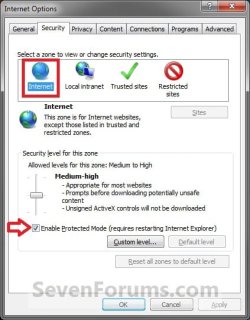

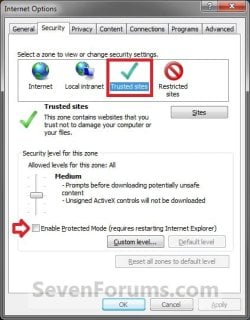

4. To Turn On Protected Mode in Internet Explorer A) Check the Enable Protected Mode box, and click/tap on Apply. (see screenshots above)
B) Go to step 6.
5. To Turn Off Protected Mode in Internet Explorer A) Uncheck the Enable Protected Mode box, and click/tap on Apply. (see screenshots above)
6. Repeats steps 3 to 5 if you want to turn protected mode on or off for any other zone.
7. When done, click/tap on OK. (see screenshots above)
8. Close and reopen Internet Explorer to apply.
That's it,
Shawn
Related Tutorials
- How to Turn On or Off Enhanced Protected Mode in IE10 and IE11
- How to Turn InPrivate Filtering On or Off in Internet Explorer 8
- How to Turn Pop-up Blocker On or Off in Internet Explorer
- How to Turn SmartScreen Filter On or Off in Internet Explorer
- How to Keep InPrivate Filtering On or Off in New Internet Explorer 8 Session
- How to Turn "ActiveX Filtering" On or Off in IE9 and IE10
- How to Allow or Block Cookies in Internet Explorer in Vista and Windows 7
- How to Allow or Block Cookies in IE10 and IE11 in Windows 8 and 8.1
- How to Enable or Disable DOM Storage "Cookies" in Internet Explorer and Firefox
- How to Allow or Prevent Websites to Request Your Location in IE9, IE10, and Firefox
- How to Turn the Cross-site Scripting (XSS) Filter On or Off in IE8 and IE9
Last edited:


