Internet Explorer Search Providers - Add and Remove

How to Add and Remove Search Providers in Internet Explorer

   Information
A search provider is used when you search for information on the internet. You can change the search provider for a specific search (Internet Explorer will use that search provider until you choose another one or until you close Internet Explorer) and you can specify which search provider you prefer to use by default. When you first install Internet Explorer, you might have only one provider (ex: Bing) installed.

This tutorial will show you how to add (install) or remove (uninstall) search providers in Internet Explorer.


Here's How:
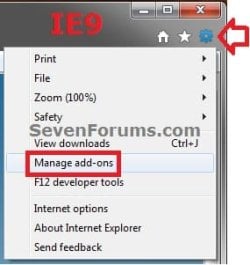
1. In Internet Explorer, click/tap on Tools (IE8) or Tools icon (IE9/IE10), then click on Manage add-ons. (see screenshot below)
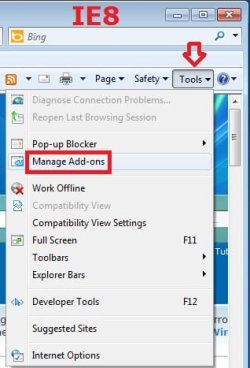
Step-2_IE8.jpgStep-1_IE9.jpg
2. In the left pane of Add-on Types, click/tap on Search Providers. (see screenshot below)
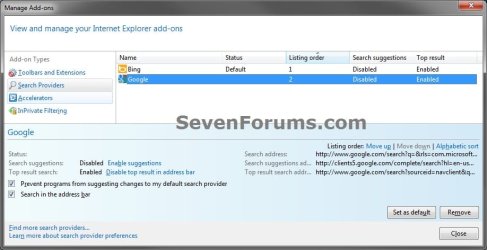
Blank_Search.jpg
3. To Remove Search Providers in Internet Explorer
A) Select a search provider (ex: Google) that your want to remove and is not set as the default search provider, then click/tap on the Remove button. (see screenshot below)
NOTE: If the search provider that you want to remove is the default search provider (ex: Bing), you will need to select another search provider (ex: Google), set it (ex: Google) as the new default instead, then you will be able to remove it (ex: Bing).
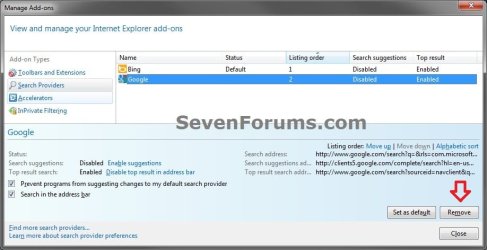
Remove-1.jpg
B) The search provider (ex: Google) is now removed. (see screenshot below)
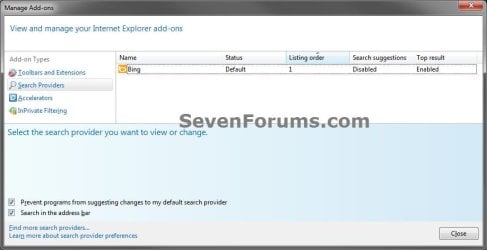
Remove-2.jpg
C) Repeat step 3 for any other search providers that you wish to remove.
4. To Add Search Providers in Internet Explorer
A) At the bottom left corner, click/tap on the Find more search providers link. (see screenshot below)
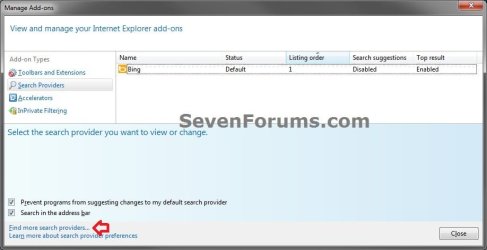
Add-1.jpg
B) At the IE Add-ons Gallery webpage, find the search provider that you want to add (ex: Google), and click/tap on it's Add to Internet Explorer button. (see screenshot below)
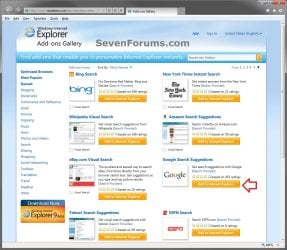
Add-2.jpg
C) Check any options that you want set for this search provider, and click/tap on the Add button. (see screenshot below)
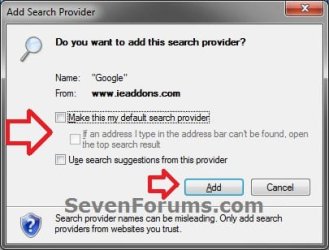
Add-3.jpg
D) Close and reopen all Internet Explorer windows, and repeat steps 1 and 2 above.

E) Your selected search provider (ex: Google) has now been added.
Blank_Search.jpg
F) Repeat step 4 for any other search providers that you may wish to add.
5. When finished, click/tap on the Close button. (see screenshot below steps 3B or 4E)
That's it,
Shawn


Last edited:
I'm using 8 RT and I've followed the instructions. I removed Bing (I thought) from the search provider list, told it to install Google, make it top of the list and removed Bing from the list (of Add-ons).

But Bing still appears, taking up way too much room. Google search doesn't show at all so now I'm wondering if this is doable on RT?
 

My Computer My Computer

Computer type
Laptop
Computer Manufacturer/Model Number
HP Envy 15
OS
Windows 8.1.1
CPU
AMD A10-5750M APU with Radeon(tm) HD Graphics
Memory
8gb
Hard Drives
1TB Serial ATA 16mb buffer
Hello Bertie,

Could you post a screenshot of where Bing is still at to see if it may be something else?

For now, double check each "Add-on Types" sections to see if anything from Bing may still be listed.
 

My Computer My Computer

Computer type
PC/Desktop
Computer Manufacturer/Model Number
Self built custom
OS
64-bit Windows 11 Pro for Workstations
CPU
Intel i7-8700K OC'd to 5 GHz
Motherboard
ASUS ROG Maximus XI Formula Z390
Memory
64 GB (4x16GB) G.SKILL TridentZ RGB DDR4 3600 MHz
Graphics Card(s)
ASUS ROG-STRIX-GTX1080TI-O11G-GAMING
Sound Card
Integrated
Monitor(s) Displays
2 x Samsung Odyssey G7 27"
Screen Resolution
2560x1440
Hard Drives
1TB Samsung 990 PRO M.2,
4TB Samsung 990 PRO PRO M.2,
TerraMaster F8 SSD Plus NAS
PSU
Seasonic Prime Titanium 850W
Case
Thermaltake Core P3
Cooling
Corsair Hydro H115i
Keyboard
Logitech wireless K800
Mouse
Logitech MX Master 4
Internet Speed
2 Gb/s Download and 100 Mb/s Upload
Antivirus
Malwarebyte Anti-Malware Premium
Browser
Google Chrome
Other Info
Logitech Z625 speaker system,
Logitech BRIO 4K Pro webcam,
HP Color LaserJet Pro MFP M477fdn,
APC SMART-UPS RT 1000 XL - SURT1000XLI,
Galaxy S23 Plus phone
Hi Brink, he replied in some confusion!

I made these adjustments on my wife's new touchscreen Asus and when I left it it still showed Bing. I passed it over to her and then did something else on it, unrelated to Bing, and then I noticed that Bing was no longer there. Oh joy!

So, thanks for your post, one of life's mysteries.
 

My Computer My Computer

Computer type
Laptop
Computer Manufacturer/Model Number
HP Envy 15
OS
Windows 8.1.1
CPU
AMD A10-5750M APU with Radeon(tm) HD Graphics
Memory
8gb
Hard Drives
1TB Serial ATA 16mb buffer
That's great news Bertie. :)
 

My Computer My Computer

Computer type
PC/Desktop
Computer Manufacturer/Model Number
Self built custom
OS
64-bit Windows 11 Pro for Workstations
CPU
Intel i7-8700K OC'd to 5 GHz
Motherboard
ASUS ROG Maximus XI Formula Z390
Memory
64 GB (4x16GB) G.SKILL TridentZ RGB DDR4 3600 MHz
Graphics Card(s)
ASUS ROG-STRIX-GTX1080TI-O11G-GAMING
Sound Card
Integrated
Monitor(s) Displays
2 x Samsung Odyssey G7 27"
Screen Resolution
2560x1440
Hard Drives
1TB Samsung 990 PRO M.2,
4TB Samsung 990 PRO PRO M.2,
TerraMaster F8 SSD Plus NAS
PSU
Seasonic Prime Titanium 850W
Case
Thermaltake Core P3
Cooling
Corsair Hydro H115i
Keyboard
Logitech wireless K800
Mouse
Logitech MX Master 4
Internet Speed
2 Gb/s Download and 100 Mb/s Upload
Antivirus
Malwarebyte Anti-Malware Premium
Browser
Google Chrome
Other Info
Logitech Z625 speaker system,
Logitech BRIO 4K Pro webcam,
HP Color LaserJet Pro MFP M477fdn,
APC SMART-UPS RT 1000 XL - SURT1000XLI,
Galaxy S23 Plus phone
Back
Top