
How to Manually Check a Website with SmartScreen Filter in Internet Explorer
Information
SmartScreen Filter is a feature in IE8, IE9, and IE10 that helps detect phishing websites, and can also help protect you from installing malicious software or malware.
This tutorial will show you how manually check the safety of websites with SmartScreen Filter in IE8, IE9, or IE10.
This tutorial will show you how manually check the safety of websites with SmartScreen Filter in IE8, IE9, or IE10.
Here's How:
1. In IE8, IE9, or IE10 open the website in a tab that you want to check the safety of, and do step 2 or 3 below.
NOTE: In Windows 8, this would only apply to the IE10 desktop version, and not the IE10 Metro (Windows UI) version.
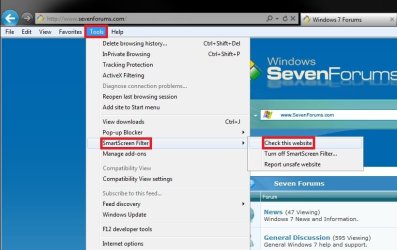
2. Click/tap on Tools on the Menu bar, SmartScreen Filter, and Check this website, then go to step 4 below. (see screenshot below)
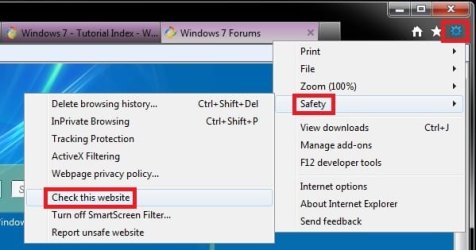
3. Click/tap on the gear icon at the top right, click/tap on Safety, and Check this website, then go to step 4 below. (see screenshot below)
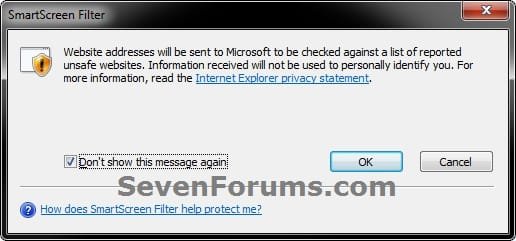
4. If prompted, click/tap on OK to submit the website address to be checked. (see screenshot below)
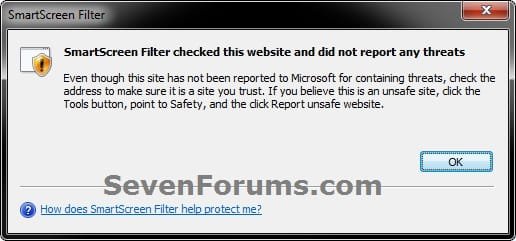
5. You will now get a report on the safety of that website. When finished, click/tap on OK. (see screenshot below)
That's it,
Shawn
Last edited:
