
How to Enable or Disable Internet Explorer Tabbed Browsing
Information
Tabbed browsing is a feature in Internet Explorer that enables you to open multiple websites in a single browser window. You can open webpages in new tabs, and switch between them by clicking the tabs you want to view.
This will show you how to enable or disable Internet Explorer tabbed browsing.
This will show you how to enable or disable Internet Explorer tabbed browsing.
Note
This does not apply to Internet Explorer 11 (IE11).
Tabbed browsing cannot be disabled in Internet Explorer 11 (IE11).
Tabbed browsing cannot be disabled in Internet Explorer 11 (IE11).
EXAMPLE: Tabbed Browsing


EXAMPLE: Tabbed Browsing Settings
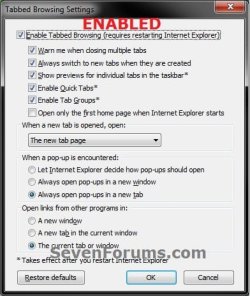
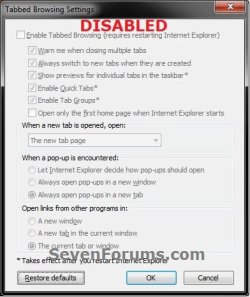
OPTION ONE
Enabled or Disable Tabbed Browsing for "Current User" Only
NOTE: This will only affect the user account that you are currently logged in when applied. 1. Open the Control Panel (icons view), and click on the Internet Options icon. A) Go to step 3.
OR
2. In Internet Explorer, click on Tools (Menu bar) and Internet Options.
3. In the General tab, click on the Settings button to the right of Tabs. (see screenshot below)

4. To Enable Tabbed Browsing A) Check the Enable Tabbed Browsing box, and click on OK. (see screenshot below)
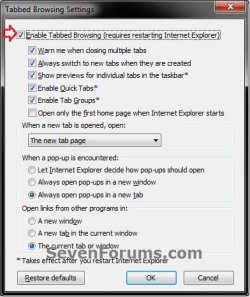
B) Go to step 6.
5. To Disable Tabbed Browsing A) Uncheck the Enable Tabbed Browsing box, and click on OK. (see screenshot above)
6. Click on OK. (see screenshot below step 3)
7. If open, close and reopen Internet Explorer to apply.
OPTION TWO
Enabled or Disable Tabbed Browsing for "All Users"
NOTE: This will affect all users on the computer including the user account that you are currently logged in when applied. You will need to be logged in as an administrator to be able to do this option.
METHOD ONE
Use a REG File Download
Download
B) Go to step 3.
2. To Disable Tabbed Browsing for All Users A) Click on the Download button below to download the file below. Disable_All_Users_IE_Tabbed_Browsing.reg
Download
3. Click on Save, and save the .reg file to the Desktop.
4. Right click on the downloaded .reg file and click on Merge.
5. Click on Run, Yes (UAC), Yes, and then OK when prompted.
6. Log off and log on, or restart the computer to apply the changes.
7. When done, you can delete the downloaded .reg file if you like.
METHOD TWO
Through Local Group Policy Editor
2. In the left pane, click on to expand User Configuration, Administrative Templates, Windows Components, and Internet Explorer. (see screenshot below)
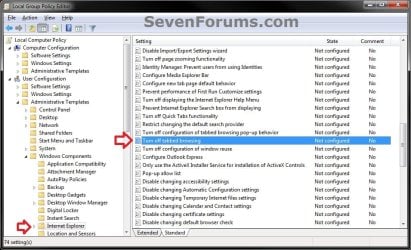
3. In the right pane, right click on Turn off tabbed browsing and click on Edit. (see screenshot above)
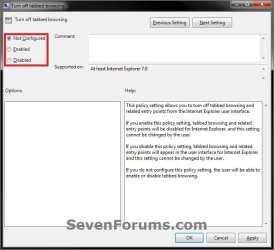
4. To Enable Tabbed Browsing for All Users A) Select (dot) either Not Configured or Disabled. (see screenshot below step 6)
B) Go to step 6.
5. To Disable Tabbed Browsing for All Users A) Select (dot) Enabled. (see screenshot below step 6)
6. Click on OK. (see screenshot below)
7. Close the Local Group Policy Editor window.
8. Log off and log on, or restart the computer to apply.
That's it,
Shawn
Related Tutorials
- How to Drag and Drop the Tabs in IE9 and IE10
- How to Open Recently Closed Tabs in IE9 and IE10
- How to Turn "Show tabs on a separate row" On or Off in IE9 and IE10
- How to Open Only the First or All Home Pages when Internet Explorer Starts
- How to Add or Change the Home Page in Internet Explorer
- How to Change What Page a "New Tab" Opens to in IE9 and IE10
- How to Show More Rows of Sites in "about:Tabs" in IE9 and IE10
- How to Turn the "Always close all tabs" Warning Message On or Off in Internet Explorer
- How to Set Internet Explorer 10 (IE10) to Start with Last Browsing Session or Home Page
Attachments
Last edited:


