Internet Options Shortcut - Create

How to Create "Internet Options" Shortcuts in Windows


   Information
Internet Options contains many settings to allow you to customize your browsing experience in Internet Explorer.

This will show you how to create or download Internet Options shortcuts that can open directly to the General, Security, Privacy, Content, Connections, Programs, and Advanced tabs in Vista, Windows 7, and Windows 8.


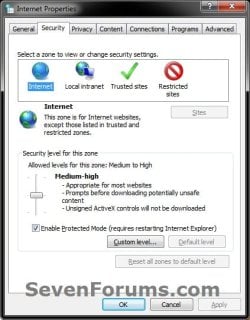
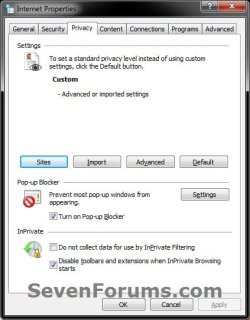
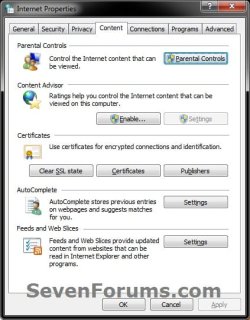
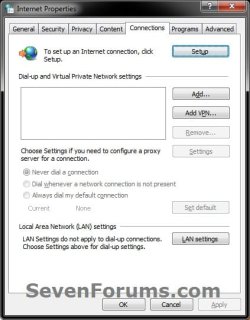
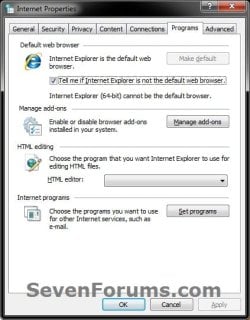
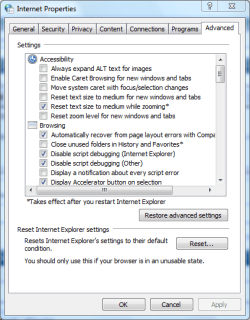
EXAMPLE: Internet Options - Internet Properties
NOTE: This is the same page despite the different names that Windows 7 uses for it when opened from the Control Panel vs Internet Explorer.
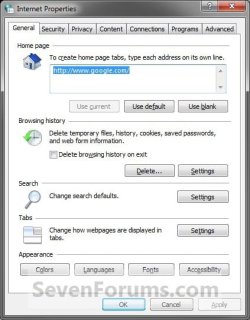
General.jpg

Security.jpgPrivacy.jpg

Content.jpgConnections.jpg

Programs.jpgAdvanced.jpg


OPTION ONE

To Download "Internet Options" Shortcuts


1. Do step 2 to 8 below for what tab(s) you want the Internet Options shortcut(s) to open to.


2. "Internet Properties" Shortcut that Opens to the General Tab
A) Click/tap on the download button below to download the file below, and go to step 9 below.
Internet_Options_General.zip

Download


3. "Internet Properties" Shortcut that Opens to the Security Tab
A) Click/tap on the download button below to download the file below, and go to step 9 below.
Internet_Options_Security.zip

Download


4. "Internet Properties" Shortcut that Opens to the Privacy Tab
A) Click/tap on the download button below to download the file below, and go to step 9 below.
Internet_Options_Privacy.zip

Download


5. "Internet Properties" Shortcut that Opens to the Content Tab
A) Click/tap on the download button below to download the file below, and go to step 9 below.
Internet_Options_Content.zip

Download


6. "Internet Properties" Shortcut that Opens to the Connections Tab
A) Click/tap on the download button below to download the file below, and go to step 9 below.
Internet_Options_Connections.zip

Download


7. "Internet Properties" Shortcut that Opens to the Programs Tab
A) Click/tap on the download button below to download the file below, and go to step 9 below.
Internet_Options_Programs.zip

Download


8. "Internet Properties" Shortcut that Opens to the Advanced Tab
A) Click/tap on the download button below to download the file below, and go to step 9 below.
Internet_Options_Advanced.zip

Download


9. Save the .zip file to your desktop.

10. Open the .zip file and extract (drag and drop) the Internet Options shortcut to your desktop.

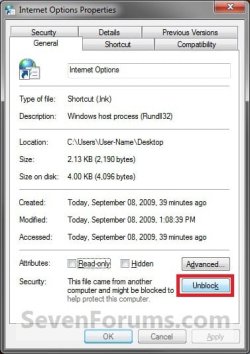
11. Unblock the Internet Options shortcut.

12. In Vista and Windows 7, you can now Pin to Taskbar (Windows 7 only) or Pin to Start Menu, add to Quick Launch, assign a keyboard shortcut to it, or move this shortcut to where you like for easy use.

13. In Windows 8, you can Pin to Taskbar on desktop, Pin to Start screen, add to Quick Launch, assign a keyboard shortcut to it, or move this shortcut to where you like for easy use.

14. When done, you can delete the downloaded .zip file if you like.


OPTION TWO

To Manually Create "Internet Options" Shortcuts


1. Right click on or press and hold on an empty area on your desktop, and click/tap on New and Shortcut.


2. Copy and paste the command below into the location area for what tab you want the Internet Options shortcut to open to, and click/tap on the Next button. (see screenshot below)
  • General Tab
    • %windir%\System32\rundll32.exe shell32.dll,Control_RunDLL inetcpl.cpl,,0
  • Security Tab
    • %windir%\System32\rundll32.exe shell32.dll,Control_RunDLL inetcpl.cpl,,1
  • Privacy Tab
    • %windir%\System32\rundll32.exe shell32.dll,Control_RunDLL inetcpl.cpl,,2
  • Content Tab
    • %windir%\System32\rundll32.exe shell32.dll,Control_RunDLL inetcpl.cpl,,3
  • Connections Tab
    • %windir%\System32\rundll32.exe shell32.dll,Control_RunDLL inetcpl.cpl,,4
  • Programs Tab
    • %windir%\System32\rundll32.exe shell32.dll,Control_RunDLL inetcpl.cpl,,5
  • Advanced Tab
    • %windir%\System32\rundll32.exe shell32.dll,Control_RunDLL inetcpl.cpl,,6
Step1.jpg
3. Type Internet Options for the name, and click/tap on the Finish button. (see screenshot below)
NOTE: You can name this anything you would like though.
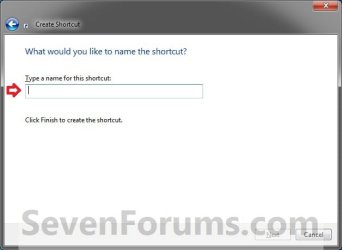
Step2.jpg
4. Right click or press and hold on the new Internet Options shortcut, and click/tap on Properties.

5. Click/tap on the Shortcut tab, then click/tap on the Change Icon button. (see screenshot below)
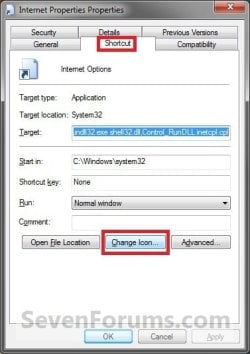
Step3.jpg
6. In the line under "Look for icons in this file", copy and past the location below and press Enter. (see screenshot below)
C:\Windows\System32\inetcpl.cpl
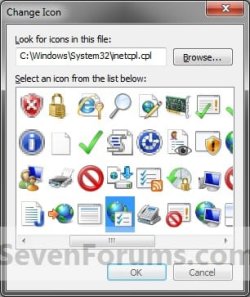
Step4.jpg
7. Select the icon highlighted in blue above, and click/tap on OK. (see screenshot above)
NOTE: You can use any icon that you would like instead though.

8. Click/tap on OK. (see screenshot below)
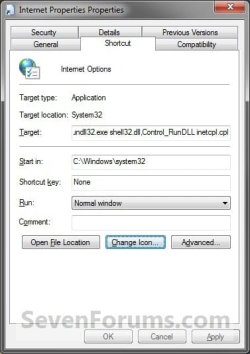
Step5.jpg
9. In Vista and Windows 7, you can now Pin to Taskbar (Windows 7 only) or Pin to Start Menu, add to Quick Launch, assign a keyboard shortcut to it, or move this shortcut to where you like for easy use.

10. In Windows 8, you can Pin to Taskbar on desktop, Pin to Start screen, add to Quick Launch, assign a keyboard shortcut to it, or move this shortcut to where you like for easy use.
That's it,
Shawn


Attachments

Last edited:
Hi shawn,

By the addition of an extra parameter you can open specific sub pages of the dialog

Not sure of the full range of numbers but I think it's 0 - 6 for the 7 tabs

Rundll32 Shell32.dll,Control_RunDLL Inetcpl.cpl,,6

for example opens the Advanced menu

InetCPL.PNG

Useful if you find yourself using one particular tab all the time
 

My Computers

System One System Two

  • Computer type
    PC/Desktop
    Computer Manufacturer/Model Number
    ChillBlast - Custom to my design
    OS
    Windows 11 Pro x64 [Latest Release and Release Preview]
    CPU
    Ryzen 9 5950X, 3.8 - 5.2 MHz
    Motherboard
    Asus Prime X570-Pro
    Memory
    64GB [2 x 32GB] DDR4 3200MHz
    Graphics Card(s)
    4GB NVIDIA GEFORCE GTX 1650 Ti
    Sound Card
    On-board SPDIF to 5.1 System + HDMI [5.1 system]
    Monitor(s) Displays
    32" UHD 32 Bit HDR Monitor + 43" UHD 4K 32Bit HDR TV
    Screen Resolution
    2 x 3840 x 2160 @60Hz
    Hard Drives
    1TB M2 SSD OS, 500GB Fast Access SSD, 2 x 8TB Data + Various Externals from 1TB to 4TB, 10TB NAS
    PSU
    NZXT C750 80 PLUS Gold 750W Modular PSU
    Case
    Workstation Case [Matt Black]
    Cooling
    NZXT Kraken X63 280mm CPU Cooler +2x Quiet Case fans
    Keyboard
    Logitech Wireless MX Keys & K400 + others
    Mouse
    Logitech Wireless MX Master 3S
    Internet Speed
    920 MB Down 50 MB Up
    Antivirus
    BitDefender Total Security Pro
    Browser
    Chrome (always run latest Non-Beta)
    Other Info
    Also run ...
    Laptop - Quad 8GB - Windows 10 Pro x64
    Nexus 7 Android tablet x2
    Samsung 10.2" tablet
    Blackview TAB 8 4G Android Tablet c/w Keyboard
    Wacom Intuos Pro Medium Pen Pad
    Wacom Intuos Pro Small Pen Pad
    Wacom Expresskeys Remote
    Loopdeck+ Graphics Controller
    Shuttle Pro v2 Control
  • Computer type
    Laptop
    System Manufacturer/Model Number
    Dell XPS 17 10750H
    OS
    Windows 11 Pro x64 Latest RP
    CPU
    Intel I7 10750H 5.0GHz
    Motherboard
    Dell XPS
    Memory
    32GB [2x16GB] DDR4 2933 MHz
    Graphics Card(s)
    nVidia GTX1650Ti 4 GB GDDR6
    Sound Card
    Stock [Realtek] 4 Speaker
    Monitor(s) Displays
    17" IPS UHD+ Infinity Edge Touchscreen
    Screen Resolution
    3840 x 2400
    Hard Drives
    2TB M2 NVMe, 4TB External + various 500GB & 1TB External NVMe (also have access to spinner HDD from
    PSU
    Stock
    Case
    Stock XPS Aluminium & Carbon Fibre
    Cooling
    Stock - Active Fan Control
    Keyboard
    Backlit + Various Logitech
    Mouse
    Stock Track Pad + Logitech MX Trackball
    Internet Speed
    72 MB Down 18MB Up
    Browser
    Chrome
    Other Info
    Also run ...
    Laptop - Quad 8GB - Windows 10 Pro x64
    Nexus 7 Android tablet x2
    10.2" tablet
    Sony Z3 Android Smartphone
    Wacom Intuos Pro Medium Pen Pad
    Wacom Intuos Pro Small Pen Pad
    Wacom Expresskeys Remote
    Loopdeck+ Graphics Controller
    Shuttle Pro v2 Control Pad
    10TB NAS
Thank you Nigel. :)
 

My Computer

Computer type
PC/Desktop
Computer Manufacturer/Model Number
Self built custom
OS
64-bit Windows 11 Pro for Workstations
CPU
Intel i7-8700K OC'd to 5 GHz
Motherboard
ASUS ROG Maximus XI Formula Z390
Memory
64 GB (4x16GB) G.SKILL TridentZ RGB DDR4 3600 MHz
Graphics Card(s)
ASUS ROG-STRIX-GTX1080TI-O11G-GAMING
Sound Card
Integrated
Monitor(s) Displays
2 x Samsung Odyssey G7 27"
Screen Resolution
2560x1440
Hard Drives
1TB Samsung 990 PRO M.2,
4TB Samsung 990 PRO PRO M.2,
TerraMaster F8 SSD Plus NAS
PSU
Seasonic Prime Titanium 850W
Case
Thermaltake Core P3
Cooling
Corsair Hydro H115i
Keyboard
Logitech wireless K800
Mouse
Logitech MX Master 4
Internet Speed
2 Gb/s Download and 100 Mb/s Upload
Antivirus
Malwarebyte Anti-Malware Premium
Browser
Google Chrome
Other Info
Logitech Z625 speaker system,
Logitech BRIO 4K Pro webcam,
HP Color LaserJet Pro MFP M477fdn,
APC SMART-UPS RT 1000 XL - SURT1000XLI,
Galaxy S23 Plus phone
Code:
"E:\Windows\system32\rundll32.exe" shell32.dll,Control_RunDLL inetcpl.cpl,,5

Opens to the Programs tab but does anyone know of a way to directly open the Manage add-ons dialog?
 

My Computer

Computer Manufacturer/Model Number
Averatec 6130HS-20
OS
Windows 7 Professional 32-bit (6.1, Build 7600)
CPU
Intel(R) Pentium(R) 4 3.00 GHz HT
Memory
2.0 GB
Graphics Card(s)
ATI Mobility Radeon 9600 64MB
Sound Card
Realtek AC'97 Audio
Screen Resolution
1280 x 800
Hard Drives
Seagate 96023A 60GB 7200RPM -
Seagate FreeAgentDesktop 250GB
Cooling
20 Inch Box Fan
Mouse
Targus PAWM10 Wireless Optical Laptop Mouse
You guys ROCK

I have to switch from Proxy to no proxy when I'm on my VPN at work. These shortcuts will save me a TON of time. Thank you so much!!!
 

My Computer

Computer type
PC/Desktop
Computer Manufacturer/Model Number
Dell latitude E6330
OS
Win 7 32bit
CPU
i5
I'm happy to hear that they will help Gene. Welcome to Seven Forums. :)
 

My Computer

Computer type
PC/Desktop
Computer Manufacturer/Model Number
Self built custom
OS
64-bit Windows 11 Pro for Workstations
CPU
Intel i7-8700K OC'd to 5 GHz
Motherboard
ASUS ROG Maximus XI Formula Z390
Memory
64 GB (4x16GB) G.SKILL TridentZ RGB DDR4 3600 MHz
Graphics Card(s)
ASUS ROG-STRIX-GTX1080TI-O11G-GAMING
Sound Card
Integrated
Monitor(s) Displays
2 x Samsung Odyssey G7 27"
Screen Resolution
2560x1440
Hard Drives
1TB Samsung 990 PRO M.2,
4TB Samsung 990 PRO PRO M.2,
TerraMaster F8 SSD Plus NAS
PSU
Seasonic Prime Titanium 850W
Case
Thermaltake Core P3
Cooling
Corsair Hydro H115i
Keyboard
Logitech wireless K800
Mouse
Logitech MX Master 4
Internet Speed
2 Gb/s Download and 100 Mb/s Upload
Antivirus
Malwarebyte Anti-Malware Premium
Browser
Google Chrome
Other Info
Logitech Z625 speaker system,
Logitech BRIO 4K Pro webcam,
HP Color LaserJet Pro MFP M477fdn,
APC SMART-UPS RT 1000 XL - SURT1000XLI,
Galaxy S23 Plus phone
"%windir%\System32\rundll32.exe shell32.dll,Control_RunDLL inetcpl.cpl,,4" Where can I search for this file in my computer? I've looked through "Windows\System32" but only saw "rundll32.exe" and "shell32.dll". Just want to know how to manually get the location.
.
 

My Computer

Computer type
PC/Desktop
OS
Windows 8 64-bit
Hello knightbld098, and welcome to Seven Forums. :)

It's to run a command to open the Internet Options control panel applet instead. There's not just a single file to run for Internet Options.
 

My Computer

Computer type
PC/Desktop
Computer Manufacturer/Model Number
Self built custom
OS
64-bit Windows 11 Pro for Workstations
CPU
Intel i7-8700K OC'd to 5 GHz
Motherboard
ASUS ROG Maximus XI Formula Z390
Memory
64 GB (4x16GB) G.SKILL TridentZ RGB DDR4 3600 MHz
Graphics Card(s)
ASUS ROG-STRIX-GTX1080TI-O11G-GAMING
Sound Card
Integrated
Monitor(s) Displays
2 x Samsung Odyssey G7 27"
Screen Resolution
2560x1440
Hard Drives
1TB Samsung 990 PRO M.2,
4TB Samsung 990 PRO PRO M.2,
TerraMaster F8 SSD Plus NAS
PSU
Seasonic Prime Titanium 850W
Case
Thermaltake Core P3
Cooling
Corsair Hydro H115i
Keyboard
Logitech wireless K800
Mouse
Logitech MX Master 4
Internet Speed
2 Gb/s Download and 100 Mb/s Upload
Antivirus
Malwarebyte Anti-Malware Premium
Browser
Google Chrome
Other Info
Logitech Z625 speaker system,
Logitech BRIO 4K Pro webcam,
HP Color LaserJet Pro MFP M477fdn,
APC SMART-UPS RT 1000 XL - SURT1000XLI,
Galaxy S23 Plus phone
Hello knightbld098, and welcome to Seven Forums. :)

It's to run a command to open the Internet Options control panel applet instead. There's not just a single file to run for Internet Options.

Hi Brink, thanks for this thread. It is really convenient now because of this.

Yes, I know. Already have the shortcut in my desktop. I want to know where to look for the location because when I was looking for the location itself I can't find it.
 

My Computer

Computer type
PC/Desktop
OS
Windows 8 64-bit
It's not a location, but a command instead.
 

My Computer

Computer type
PC/Desktop
Computer Manufacturer/Model Number
Self built custom
OS
64-bit Windows 11 Pro for Workstations
CPU
Intel i7-8700K OC'd to 5 GHz
Motherboard
ASUS ROG Maximus XI Formula Z390
Memory
64 GB (4x16GB) G.SKILL TridentZ RGB DDR4 3600 MHz
Graphics Card(s)
ASUS ROG-STRIX-GTX1080TI-O11G-GAMING
Sound Card
Integrated
Monitor(s) Displays
2 x Samsung Odyssey G7 27"
Screen Resolution
2560x1440
Hard Drives
1TB Samsung 990 PRO M.2,
4TB Samsung 990 PRO PRO M.2,
TerraMaster F8 SSD Plus NAS
PSU
Seasonic Prime Titanium 850W
Case
Thermaltake Core P3
Cooling
Corsair Hydro H115i
Keyboard
Logitech wireless K800
Mouse
Logitech MX Master 4
Internet Speed
2 Gb/s Download and 100 Mb/s Upload
Antivirus
Malwarebyte Anti-Malware Premium
Browser
Google Chrome
Other Info
Logitech Z625 speaker system,
Logitech BRIO 4K Pro webcam,
HP Color LaserJet Pro MFP M477fdn,
APC SMART-UPS RT 1000 XL - SURT1000XLI,
Galaxy S23 Plus phone
Back
Top