Is My HDD Completely Dead? I/O Device Error

boweasel

New member
Power User
Local time
8:14 PM
Messages
678
We have a Dell laptop Running Windows 7 Professional that has been a real workhorse. Just the other day it refused to boot, taking us into the Repair screen. On the repair screen that displays Windows installations it did show Windows 7 Professional (as the D: drive), but after 'repairing' for at least 90 minutes it ultimately said that the computer could be fixed by this method. I then got out my 64 bit W7 Pro disk and tried again with identical results. This time I went to the advanced options command prompt. When I entered D: at the prompt I got the dreaded request could not be performed because of an I/O device error.

Undeterred, I removed the drive from the laptop and hooked it up as a slave to another computer. It popped up on other PC as the E: drive, but when I opened an administrative prompt and typed in E:, I got that same I/O error message.

Now I'm stumped. How is it that Windows shows up as a valid OS through the repairs, but the drive is inaccessible? I don't mind getting a new drive and reinstalling, but there's a fair amount of stuff that had never been backed up.

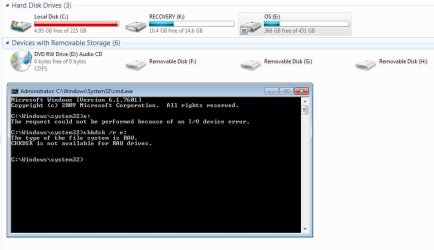
Additionally, I get this odd message when I try to perform a chkdsk without actually accessing the drive directly
 

Attachments
  • Dell E.JPG
    Dell E.JPG
    52 KB · Views: 1
  • RAW.JPG
    RAW.JPG
    78 KB · Views: 1
Last edited:

My Computer My Computer

Computer type
Laptop
OS
Windows 7 home premium 64 bit
CPU
AMD K10
Motherboard
Hewlett-Packard 1444 (Socket S1G4)
Memory
3.00GB Dual-Channel DDR3 @ 532MHz
Graphics Card(s)
ATI AMD M880G with ATI Mobility Radeon HD 4250 (HP)
Sound Card
Realtek
Screen Resolution
1366 x 768
Hard Drives
465GB Western Digital
Antivirus
MSE
It's saying it's raw which means it's lost the partition table you need specific partition recovery software which should get it back don't use file recovery nothing is deleted once partition is back fikes will be there. The io error can be disk,cable or port
 

My Computer My Computer

Computer type
PC/Desktop
OS
win 8 32 bit
Thanks! Any recommendations on partition recovery software? Preferably free?
 

My Computer My Computer

Computer type
Laptop
OS
Windows 7 home premium 64 bit
CPU
AMD K10
Motherboard
Hewlett-Packard 1444 (Socket S1G4)
Memory
3.00GB Dual-Channel DDR3 @ 532MHz
Graphics Card(s)
ATI AMD M880G with ATI Mobility Radeon HD 4250 (HP)
Sound Card
Realtek
Screen Resolution
1366 x 768
Hard Drives
465GB Western Digital
Antivirus
MSE

My Computers My Computers

System One System Two

  • Computer type
    PC/Desktop
    Computer Manufacturer/Model Number
    custom build
    OS
    Windows 7 HP 64
    CPU
    i5 6600K - 800MHz to 4200MHz
    Motherboard
    GA-Z170-HD3P
    Memory
    4+4G GSkill DDR4 3000
    Graphics Card(s)
    IG - Intel 530
    Monitor(s) Displays
    Samsung 226BW
    Screen Resolution
    1680x1050
    Hard Drives
    (1) -1 SM951 – 128GB M.2 AHCI PCIe SSD drive for Windows 7 and Lubuntu
    (2) -1 WD SATA 3 - 1T for Data
    (3) -1 WD SATA 3 - 1T for backup
    PSU
    Thermaltake 450W TR2 gold
    Keyboard
    Old and good Chicony mechanical keyboard
    Mouse
    Logitech mX performance - 9 buttons (had to disable some)
    Internet Speed
    500Mb/s
    Browser
    Firefox 64
    Other Info
    TinyWall firewall
  • Computer type
    Laptop
    System Manufacturer/Model Number
    Asus Q550LF
    OS
    Windows 7 Pro
    CPU
    i7-4500U 800MHz to 3.0GHz
    Motherboard
    Asus Q550LF
    Memory
    (4+4)G DDR3 1600
    Graphics Card(s)
    IG intel 4400 + NVIDIA GeForce GT 745M
    Sound Card
    Realtek
    Monitor(s) Displays
    LG Display LP156WF4-SPH1
    Screen Resolution
    1920 x 1080
    Hard Drives
    BX500 120G SSD for Windows and programs +
    1T HDD for data
    Internet Speed
    500 Mb/s
    Browser
    Firefox
    Other Info
    TinyWall firewall
Hold on. It is definitely not a partition lost problem. If the partition is lost, it won't show your 450GB partition as healthy primary . It would appear that either the VBR or MFT has gone corrupt.

Just do not do anything now. Today I am little busy after a 3 day holiday trip. Just wait till I pickup steam and give further instructions.

@Samuria, RAW does not necessarily mean that the partition table has been lost. ( It could be one reason but in this case it is not.)
 

My Computer My Computer

OS
Windows 7 Home Premium 32 bit
Is yout local time shown 23:48 correct?

If so you can go to sleep and see my instructions your tomorrow morning.
 

My Computer My Computer

OS
Windows 7 Home Premium 32 bit
OK. here we go.

You have now hooked up your 500 GB laptop drive as an internal drive on another desktop. Right?

On that desktop - which I presume is running Windows 7 - please plugout all other external drives/pendrives /USB hubs/external card readers/ printers with USB ports etc,. In short, nothing connected to the USB ports except your USB Keyboard/mouse.

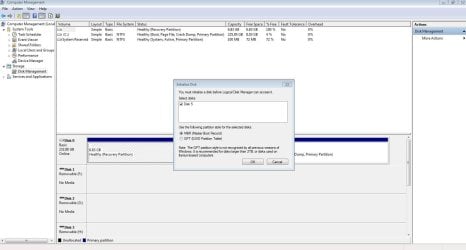
Now would you mind posting an untruncated screenshot of Windows Disk Management? Follow the guidelines here Disk Management - Post a Screen Capture Image

Next download TestDisk for Windows from here TestDisk Download - CGSecurity the second one in the list and extract it to the root of C: ( you can also extract it to any other partition on your system drive). You will be running testdisk_win.exe in the folder testdisk-7.0.

Do you have an external drive with sufficient space to copy all data from the faulty drive in case we decide to do that when running Test Disk?

If yes then create a folder named recovery in that external drive which will be your destination to back up the data.

When you are ready let me know.

Note: Do not experiment with TestDisk on your own. Please wait for my step by step instructions, TestDisk is highly interactive and we may have to decide what command should be given based on what TestDisk shows in each screen as we proceed.
 

My Computer My Computer

OS
Windows 7 Home Premium 32 bit
OK. here we go.

You have now hooked up your 500 GB laptop drive as an internal drive on another desktop. Right?
I don't know how specific you are with your language - I took the drive from the laptop and used one of those little USB caddies, attaching a power cable from a working W7 tower to the power connector on the drive, and the data part to a cable plugged into a USB port on that tower. Whether that makes it an internal or an external drive, I dunno, I just know that after I plugged it into the USB port two new drives displayed on the W7 tower - one was labeled K: and was the recovery partition from the laptop Hard drive, while the other was the E: drive which corresponded to the C: drive on the laptop.
On that desktop - which I presume is running Windows 7 - please plugout all other external drives/pendrives /USB hubs/external card readers/ printers with USB ports etc,. In short, nothing connected to the USB ports except your USB Keyboard/mouse.

Now would you mind posting an untruncated screenshot of Windows Disk Management? Follow the guidelines here Disk Management - Post a Screen Capture Image
Assuming that I have the laptop's drive hooked up to the tower okay, I have to get off this laptop, go upstairs to that W7 tower with the USB caddy and navigate to this forum. Once I do that I'll attach another screenshot.

I can unplug everything from the tower except for the USB wireless adapter. It has no internal adapter and the router is on a different floor.
 

My Computer My Computer

Computer type
Laptop
OS
Windows 7 home premium 64 bit
CPU
AMD K10
Motherboard
Hewlett-Packard 1444 (Socket S1G4)
Memory
3.00GB Dual-Channel DDR3 @ 532MHz
Graphics Card(s)
ATI AMD M880G with ATI Mobility Radeon HD 4250 (HP)
Sound Card
Realtek
Screen Resolution
1366 x 768
Hard Drives
465GB Western Digital
Antivirus
MSE
Ok, you have some contraption and connecting the laptop drive through an USB port on a tower. That makes it an externally connected drive. Anyway it hardly matters.

With only that laptop drive connected to your Tower, take a Full screenshot of Windows Disk Management and post.. You can have your wireless adapter , USB Mouse and Keyboard. Only no other storage devices, card readers and USB hubs. Your Windows Disk Management will show your System drive and any other internal drives plus your external USB connected laptop drive ( and of course the optical drives ). If I know the configuration from that I can draft my instructions more precisely.

As stated earlier download and extract TestDisk on to your tower.

Also please note my local time in the post and try to come early on so that a dialog can be maintained.. It is bedtime for me now and you will see me again only after another 8 to 10 hours, that is my tomorrow morning. I just peeped in before hitting the sack.
 

My Computer My Computer

OS
Windows 7 Home Premium 32 bit
@ boweasel

I'm just a watcher, jumanji is the expert. I watch many of jumanji post.

You can be assured that jumanji posting using English is excellent. He gives very precise instruction. Take your time reading them. They must be completed precisely as they are stated or you could loose your data.

Where do you live Boweasel? As you can see jumanji lives in India. It would be handy if your flag was under your avatar also.
 

My Computer My Computer

Computer type
PC/Desktop
Computer Manufacturer/Model Number
Home made Desktop
OS
Windows 10 Pro. 64/ version 1709 Windows 7 Pro/64
CPU
Intel i7-6800K @ 4.3
Motherboard
ASUS X-99 Deluxe II
Memory
Corsair Platinum 16 gig @2400
Graphics Card(s)
EVGA GTX 1070 OC
Monitor(s) Displays
Asus 27" LED LCD/VE278Q
Screen Resolution
1920-1080 or 1280-720 HDMI
Hard Drives
INTEL SSD 730-240 Gb Sata 3.0/
PSU
EVGA Platium 1200W
Case
Phanteks Luxe Tempered Glass 8 fans/ one radiator
Cooling
XSPC/ Water Cooled CPU
Keyboard
Das 4 Professional
Mouse
Logitech M705/MX Anywhere 2-S
Internet Speed
100 mbits
Antivirus
Microsoft Security Essentials/ Malwarebytes Premium 3.0/ SAS
Browser
I.E. 11 default/Firefox/ ISP Time Warner Cable/Spectrum
Other Info
LG BluRay Burner/
Sound system-KLipsch-THX/
Icy Dock ssd Hot Swap bays.
With only that laptop drive connected to your Tower, take a Full screenshot of Windows Disk Management and post.. You can have your wireless adapter , USB Mouse and Keyboard. Only no other storage devices, card readers and USB hubs. Your Windows Disk Management will show your System drive and any other internal drives plus your external USB connected laptop drive ( and of course the optical drives ). If I know the configuration from that I can draft my instructions more precisely.
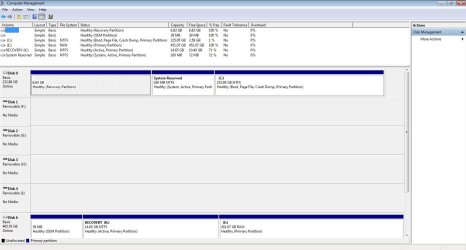
Full screenshot enclosed after removal of USB connectors for the printer and the speakers.
As stated earlier download and extract TestDisk on to your tower.
Done. Extracted to root directory.
Also please note my local time in the post and try to come early on so that a dialog can be maintained.. It is bedtime for me now and you will see me again only after another 8 to 10 hours, that is my tomorrow morning. I just peeped in before hitting the sack.
I did alter my profile to display my flag. I live in The Eastern Time Zone of the US. My current time is 6:48PM.

And I have an external drive with about 50GB of free space. Should be WAY more than enough to get the pictures, music, favorites, desktop and documents
 

Attachments

  • Disk Mgmt.JPG
    Disk Mgmt.JPG
    111.5 KB · Views: 6
Last edited:

My Computer My Computer

Computer type
Laptop
OS
Windows 7 home premium 64 bit
CPU
AMD K10
Motherboard
Hewlett-Packard 1444 (Socket S1G4)
Memory
3.00GB Dual-Channel DDR3 @ 532MHz
Graphics Card(s)
ATI AMD M880G with ATI Mobility Radeon HD 4250 (HP)
Sound Card
Realtek
Screen Resolution
1366 x 768
Hard Drives
465GB Western Digital
Antivirus
MSE
Hi boweasel,

I see you hanging around here. Good. I have seen your post. You may now go to sleep. When you get up in the morning 6 hours from now you can see my post with instructions. I will also be online mostly after that.
 

My Computer My Computer

OS
Windows 7 Home Premium 32 bit
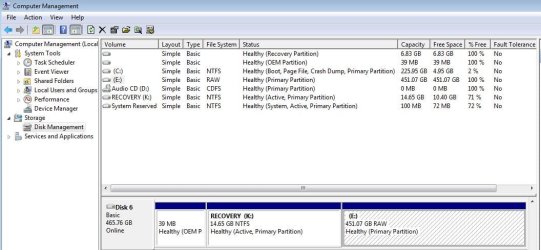
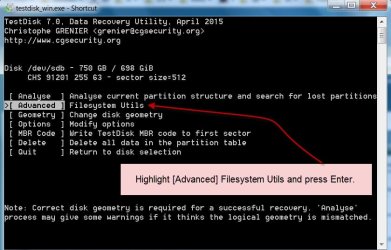
The screenshot below shows my trial 750 GB drive on which I had deliberately made my fourth partition RAW. It has data on it.

A 03-11-2016 11-40-55.jpg

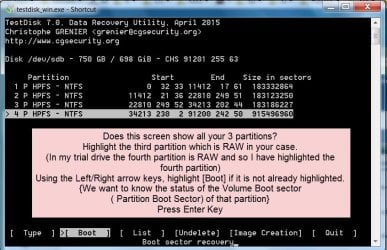
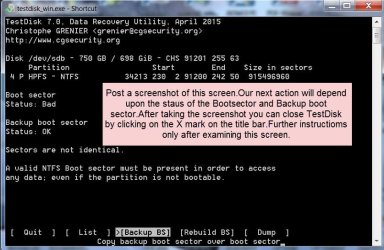
I made it RAW by corrupting the Volume Boot Sector ( Partition Boot Sector) of that partition. You may note that it exactly replicates your laptop disk except that your disk has only three partitions and the third partition is RAW. For the present I am assuming that the VBR for that partition has been corrupted. A corrupt MFT also can make the drive RAW. We shall come to know which one is corrupt as we proceed.

For the time being you need not connect another external drive to copy the data from your external 500 GB laptop drive. We shall reserve it for later, in case we are unable to make the boot sector good and restore the drive.

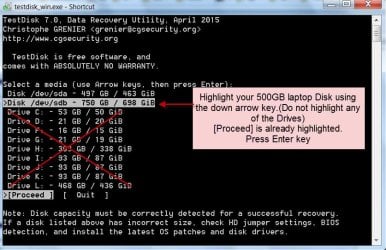
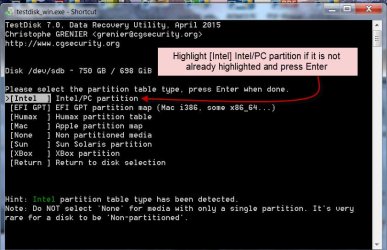
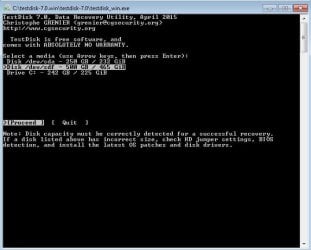
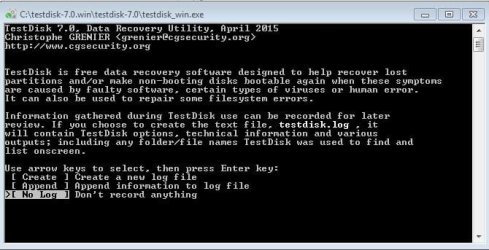
You will now run testdisk_win.exe with your laptop drive USB connected to the tower. Follow the instructions given in the following Screenshots

First Screen:

B 03-11-2016 11-48-14.jpg

Second Screen:

C 03-11-2016 12-12-26.jpg

Third Screen:

D 03-11-2016 13-22-05.jpg

Fourth Screen:

E 03-11-2016 12-39-02.jpg

Fifth Screen:

F 03-11-2016 12-45-14.jpg

Sixth Screen:

G03-11-2016 13-26-39.jpg

At any point you have any doubt, stop , post the screenshot and close TestDisk by hitting on X in the title bar of TestDisk Window. You can run it again after clarifying such doubts.

Also if you get any screen other than what is shown above, stop, post the screenshot and close TestDisk.

Do not make any assumptions and move forward if in doubt.

There is no need to hurry up things. You can do it at your own pace and time. During my daytime I keep peeping into the forum every now and then ( unless I have gone out on a short errand) and will catch you.
 
Last edited:

My Computer My Computer

OS
Windows 7 Home Premium 32 bit
Apparently I am going to require further interaction. Enclosed are snapshots of screens 2, 3 and 5. Obviously screen 5 is the one troubling me, but I've included 2 & 3 simply to ensure that I have (hopefully) followed your directions. Screen 2 had given me some pause since you specifically instructed me not to highlight the obvious choice - drive E:.

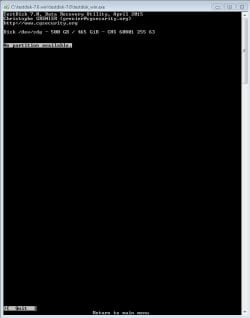
After navigating back to screen 2 to take the screenshots I again proceeded. Screen 5 now gives me something different - different but not positive.
 

Attachments

  • scr5.JPG
    scr5.JPG
    28.4 KB · Views: 0
  • scr4.JPG
    scr4.JPG
    43.4 KB · Views: 0
  • scr3.JPG
    scr3.JPG
    43.9 KB · Views: 0
  • scr5-2.JPG
    scr5-2.JPG
    33.3 KB · Views: 0

My Computer My Computer

Computer type
Laptop
OS
Windows 7 home premium 64 bit
CPU
AMD K10
Motherboard
Hewlett-Packard 1444 (Socket S1G4)
Memory
3.00GB Dual-Channel DDR3 @ 532MHz
Graphics Card(s)
ATI AMD M880G with ATI Mobility Radeon HD 4250 (HP)
Sound Card
Realtek
Screen Resolution
1366 x 768
Hard Drives
465GB Western Digital
Antivirus
MSE
Shut down and restart your PC. Run Test Disk again. Post all screenshots 1,2,3,4,and 5 in sequence.

Take the screenshot of each screen before you press Enter and go to next screen. Save it. No going back to take any missed screen.

This is just to confirm and put it in order.

Since your drive gave an I/O error there is more to it than what I have assumed. Let me think about it and decide upon the next course of action if TestDisk still does not find the partitions.

So go ahead repeat and put the screenshots in order. I shall see it tomorrow morning.
 

My Computer My Computer

OS
Windows 7 Home Premium 32 bit
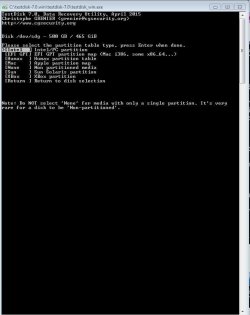
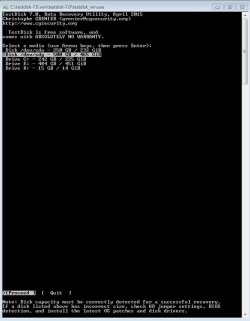
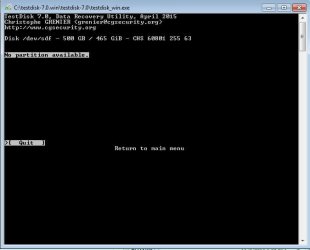
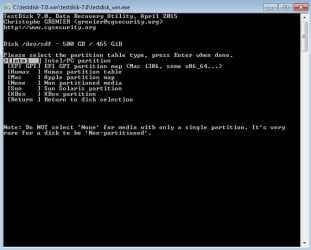
Here are the screenshots in order, after rebooting. And FYI, I screwed up on the 2nd run of Test Disk, referenced at the end of my previous post. On Screen 4 I just hit <Enter>, so that last image from post #15 represented Analyze, not Advanced. Sorry.
 

Attachments

  • scr5.JPG
    scr5.JPG
    27.4 KB · Views: 25
  • scr4.JPG
    scr4.JPG
    41.8 KB · Views: 24
  • scr3.JPG
    scr3.JPG
    37.9 KB · Views: 24
  • scr2.JPG
    scr2.JPG
    41 KB · Views: 24
  • scr1.JPG
    scr1.JPG
    49.5 KB · Views: 24

My Computer My Computer

Computer type
Laptop
OS
Windows 7 home premium 64 bit
CPU
AMD K10
Motherboard
Hewlett-Packard 1444 (Socket S1G4)
Memory
3.00GB Dual-Channel DDR3 @ 532MHz
Graphics Card(s)
ATI AMD M880G with ATI Mobility Radeon HD 4250 (HP)
Sound Card
Realtek
Screen Resolution
1366 x 768
Hard Drives
465GB Western Digital
Antivirus
MSE
When I noticed that screen 2 looked different I went back to Explorer, and quickly noticed that drives E: and K: were no longer showing up. Here are the latest Disk Management screens
 

Attachments

  • Disk Mgmt2.JPG
    Disk Mgmt2.JPG
    100.3 KB · Views: 3
  • Disk Mgmt3.JPG
    Disk Mgmt3.JPG
    17.3 KB · Views: 0

My Computer My Computer

Computer type
Laptop
OS
Windows 7 home premium 64 bit
CPU
AMD K10
Motherboard
Hewlett-Packard 1444 (Socket S1G4)
Memory
3.00GB Dual-Channel DDR3 @ 532MHz
Graphics Card(s)
ATI AMD M880G with ATI Mobility Radeon HD 4250 (HP)
Sound Card
Realtek
Screen Resolution
1366 x 768
Hard Drives
465GB Western Digital
Antivirus
MSE
Yes, I noticed it while going through the screenshots in post #17 ( even before I read your post #18) and my heart missed a beat :). Yes smile and laugh when you are in trouble.
The partitions are lost. The worst has happened. Sector 0 which holds the MBR and partition table has gone bad.

Since the partitions were shown in your first try, TestDisk should have shown all the three partitions in the fifth screen.. But inbetween the second screen which showed your drives E, and K ( meaning the partition table in Sector 0 is intact and readable) and fifth screen which should show the partitions so read , sector 0 had killed itself.

We have lost the race. Please unplug your laptop drive and keep it under rest.

Now you have a decision to make.

1. Clone your drive with ddrescue and attempt data recovery on the cloned drive. Best method/tool for cloning a failing HDD for Data Recovery?

2. Run Photorec on the failing drive and hope to get as much data as possible. You will only get a bunch of files but without the original file name and folder structure. Guide to using PhotoRec recovery software.

EDIT: If you really need the data and can afford to spend, then the best course will be to seek Professional Data Recovery Service rather than trying it yourself.
 
Last edited:

My Computer My Computer

OS
Windows 7 Home Premium 32 bit
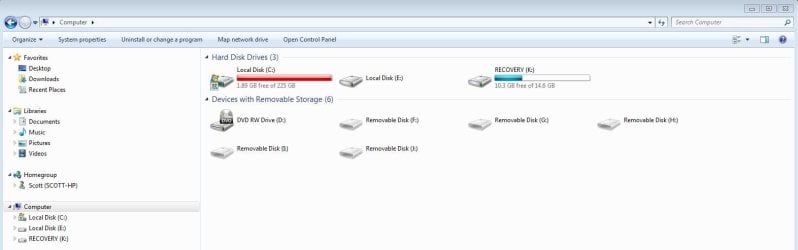
I unplugged the drive overnight. Today I plugged it back in and the E: and K: drives are back. I went through the Test Disk application again, and it was identical to the first time I ran it - Screen 2 shows the E: and K:. The screenshot is identical to the first image from post 15, Disk Management is identical to the image from post 12. Unfortunately Screen 5 still says 'No Partition Available'. It is identical to the 3rd screen from post 15. I quit the application and checked rechecked 'Computer' and Disk Management. These are the images.
 

Attachments

  • Comp-11-04.JPG
    Comp-11-04.JPG
    54 KB · Views: 2
  • Disk Mgmt11-04.JPG
    Disk Mgmt11-04.JPG
    108.8 KB · Views: 2

My Computer My Computer

Computer type
Laptop
OS
Windows 7 home premium 64 bit
CPU
AMD K10
Motherboard
Hewlett-Packard 1444 (Socket S1G4)
Memory
3.00GB Dual-Channel DDR3 @ 532MHz
Graphics Card(s)
ATI AMD M880G with ATI Mobility Radeon HD 4250 (HP)
Sound Card
Realtek
Screen Resolution
1366 x 768
Hard Drives
465GB Western Digital
Antivirus
MSE
Back
Top