Solved Large Discrepancy Found In Disk Size.

bendipa

New member
Member
Local time
10:43 PM
Messages
49
I have an external 500GB used for back-ups. Recently, I noticed that the amount of disk space usage shown by Windows Explorer was far greater than I expected. It's shown as 264 GB.


However when I highlight all folders and files and check the properties I then see usage as 175 GB which is what I'd roughly expect.


Chkdsk G: showed no issues. So why is there such a large discrepancy?
 
Last edited:

My Computer

Computer type
PC/Desktop
Computer Manufacturer/Model Number
Dell Vostro
OS
Windows 7 Pro 64 Bit, Windows 10 Pro 64 Bit, Linux Mint 20.1 LTS
CPU
Intel Core i5-3470 3.2 GHz
Motherboard
Intel 7 Series C/216 Chipset
Memory
6GB RAM
Graphics Card(s)
Intel HD Graphics
Monitor(s) Displays
Asus VC239 (23.5")
Hard Drives
Western Digital WD10EZEX 1TB
Western Digital WD3200AAKS 320GB
PSU
Corsair 500W
Antivirus
Microsoft Essentials, Malwarebytes, Kapersky Rescue Disk
Browser
Firefox 87 64 Bit
Try this. WinDirStat - Windows Directory Statistics Also look to see if system restore points are turned on for that drive. If so there could be shadow copies of your files and if you have large files that could be a lot of wasted space. Also check your cluster size.
 

My Computers

System One System Two

Thanks for that. I've managed to pin down the issue. There's a hidden folder on my back-up drive called System Volume Information. It contains a few files with names made up of long alphanumeric strings, all a few KB in size, except for one which looks the same as the others, but was 75 GB in size. I don't know where it came from.


I could not delete it from Win 7, not even using the Administrator account as authorization was still refused. Tried to change the ownership of the file to Administrator but that was refused too. Nor could I change its attributes from system/hidden to delete it. It seemed the only way I was going to get rid of it was to clean the drive and do a full back-up, which seemed a bit drastic. Then I decided to use my other system (Linux) to see if I would have better luck there. And sure enough it read the offending file and allowed me to delete it. So I now have my space back with no problems accessing all my existing back-up folders and files.
 

My Computer

Computer type
PC/Desktop
Computer Manufacturer/Model Number
Dell Vostro
OS
Windows 7 Pro 64 Bit, Windows 10 Pro 64 Bit, Linux Mint 20.1 LTS
CPU
Intel Core i5-3470 3.2 GHz
Motherboard
Intel 7 Series C/216 Chipset
Memory
6GB RAM
Graphics Card(s)
Intel HD Graphics
Monitor(s) Displays
Asus VC239 (23.5")
Hard Drives
Western Digital WD10EZEX 1TB
Western Digital WD3200AAKS 320GB
PSU
Corsair 500W
Antivirus
Microsoft Essentials, Malwarebytes, Kapersky Rescue Disk
Browser
Firefox 87 64 Bit
Hi bendipa,

Glad that you could delete the System Voume Information folder using Linux.

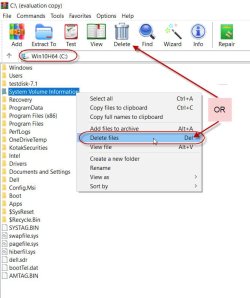
One could use WinRar too in Windows itself. WinRar can show hidden and even superhidden folders/files.

Navigate to the disk, select the folder to be deleted , Right click > Delete files or click on Delete icon in the Menu bar.

If you delete System Volume Folder and Recycle Bin, these will be automatically recreated when you boot next with zero files/folders in it.

21-06-2020 23-00-43.jpg
 
Last edited:

My Computer

OS
Windows 7 Home Premium 32 bit
That's the restore points and that was what I suspected what causing that increased file size. You might want to disable restore points on that hard drive or it could happen again. External hard drives don't need restore points as long as your main drive has it enabled. Disabling System Restore | McAfee Free Tools

FYI disabling restore points would have deleted that file.
 

My Computers

System One System Two

I make System Restore points regularly. Only keep one recent one. Always have done, and it's dug me out of a hole on a number of occasions. I would never consider switching it off. BUT as you can see from the image, only my C: drive is system protected, and AFAIK that's always been the case. The size of that partition is 56 GB.


Furthermore there's a 1.77 GB limit that I reserved for System Restore on my C: drive, so presumably it wouldn't grow bigger than that. So still not sure where this 75 GB came from in the first place. Anyway it's deleted now so thanks for your suggestion.
 

My Computer

Computer type
PC/Desktop
Computer Manufacturer/Model Number
Dell Vostro
OS
Windows 7 Pro 64 Bit, Windows 10 Pro 64 Bit, Linux Mint 20.1 LTS
CPU
Intel Core i5-3470 3.2 GHz
Motherboard
Intel 7 Series C/216 Chipset
Memory
6GB RAM
Graphics Card(s)
Intel HD Graphics
Monitor(s) Displays
Asus VC239 (23.5")
Hard Drives
Western Digital WD10EZEX 1TB
Western Digital WD3200AAKS 320GB
PSU
Corsair 500W
Antivirus
Microsoft Essentials, Malwarebytes, Kapersky Rescue Disk
Browser
Firefox 87 64 Bit
I wonder why that file was there. If you re-read my post I didn't say disable restore points, just to disable it on the external drive.
 

My Computers

System One System Two

I believe Volume Shadow Copy also stores stuff in the System Volume Information folder. Even though this is not the C: drive, you could still have old versions of files kept by VSS. Disabling system restore on that particular partition ("turn off system protection", move max usage to 0 and click Delete) as townsbg has suggested would likely get rid of VSS in the "supported" way.
https://en.wikipedia.org/wiki/Shadow_Copy
 

My Computer

Computer type
PC/Desktop
OS
Windows 7 Ultimate x64 (single boot)
Antivirus
Cryptoprevent
Browser
Pale Moon
howdy! I'm having a very similar issue on a new build and figured this would be a good thread to keep current.

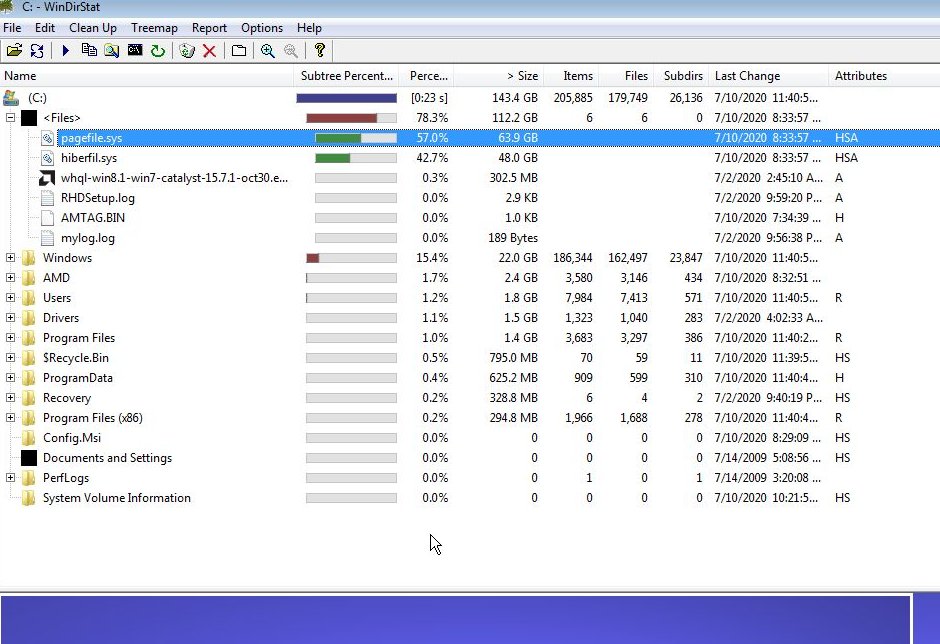
My current build is a Ryzen 3900x, MSI x570 Gaming plus, 64 gigs Gskill ram, and a new 240 gig SSD. I read through this thread and downloaded WinDirStat and snapped this result:

wfHAXTT.jpg


So nearly half my sdd is these two files. Some mention backing up the pagefile, which I could do on an external hdd if that would help. I do have a 2tb nvme drive I'm hoping to use as my primary but I'm still not able to get the proper drivers for that, but that's another issue. Thanks!
 

My Computer

Computer type
PC/Desktop
Computer Manufacturer/Model Number
Self-build
OS
Windows 7 Premium 64bit
CPU
Ryzen 3900x
Motherboard
MSA x570 Gaming Plus
Memory
64gigs G.SKILL Trident ddr4 3200
Graphics Card(s)
Radeon R9 290a
Hard Drives
240 gig SSD, 2 tb nvme
Antivirus
hah
Browser
Opera

My Computers

System One System Two

  • Computer type
    PC/Desktop
    OS
    7 X64
    CPU
    i5 8400
    Motherboard
    gigabyte b365m ds3h
    Memory
    2x8gb 3200mhz
    Hard Drives
    various
    PSU
    pure power 11 400w cm
    Case
    Coolermaster
    Cooling
    cryorig m9i
  • Computer type
    PC/Desktop
    OS
    7x64
    CPU
    g5400
    Motherboard
    ga b365m ds3h
    Memory
    8gb ddr4 2400
    PSU
    xfx pro 450w

My Computers

System One System Two

My Computer

Computer type
PC/Desktop
Computer Manufacturer/Model Number
Self-build
OS
Windows 7 Premium 64bit
CPU
Ryzen 3900x
Motherboard
MSA x570 Gaming Plus
Memory
64gigs G.SKILL Trident ddr4 3200
Graphics Card(s)
Radeon R9 290a
Hard Drives
240 gig SSD, 2 tb nvme
Antivirus
hah
Browser
Opera
LeonSpinx, disable the pagefile. I don't know what you're running on a 64GB system but I'll bet the computer never uses up the RAM. To disable the pagefile, go to Control Panel > System > Advanced system settings (in the sidebar) > Advanced tab > Performance/Settings... > Advanced tab > Virtual memory/Change... > Remove "automatically manage" and set everything to no paging file. That will do away with pagefile.sys

Hiberfil.sys is the hibernation file. It lets your computer go to hibernation/hybrid-sleep. That way, the computer is fully turned off when it sleeps, although you can still start it by clicking the mouse or using the keyboard. You can even send the computer to sleep, unplug it from the outlet, then plug it back in and resume the system.

If this is disabled, when you send the computer to sleep, it will remain turned on with fans humming and PSU in a low power state to keep the RAM powered, and if the power goes out you can't resume and the computer has to do a normal boot.

The natural issue here is that during hibernation and hybrid sleep, RAM has to be saved on a storage device (usually your C: drive). If this feature isn't important to you or worth up to 64GB space on your C: drive, you can disable hibernation and hybrid sleep in Control Panel > Power Options
 

My Computer

Computer type
PC/Desktop
OS
Windows 7 Ultimate x64 (single boot)
Antivirus
Cryptoprevent
Browser
Pale Moon
LeonSpinx, disable the pagefile. I don't know what you're running on a 64GB system but I'll bet the computer never uses up the RAM. To disable the pagefile, go to Control Panel > System > Advanced system settings (in the sidebar) > Advanced tab > Performance/Settings... > Advanced tab > Virtual memory/Change... > Remove "automatically manage" and set everything to no paging file. That will do away with pagefile.sys

Hiberfil.sys is the hibernation file. It lets your computer go to hibernation/hybrid-sleep. That way, the computer is fully turned off when it sleeps, although you can still start it by clicking the mouse or using the keyboard. You can even send the computer to sleep, unplug it from the outlet, then plug it back in and resume the system.

If this is disabled, when you send the computer to sleep, it will remain turned on with fans humming and PSU in a low power state to keep the RAM powered, and if the power goes out you can't resume and the computer has to do a normal boot.

The natural issue here is that during hibernation and hybrid sleep, RAM has to be saved on a storage device (usually your C: drive). If this feature isn't important to you or worth up to 64GB space on your C: drive, you can disable hibernation and hybrid sleep in Control Panel > Power Options

And a hearty thanks for that! I solved the hibernation issue after my first post but your pagefile info was spot on and I now have a much nicer 180 gigs free rather than the 75 I started with. Thanks again!
 

My Computer

Computer type
PC/Desktop
Computer Manufacturer/Model Number
Self-build
OS
Windows 7 Premium 64bit
CPU
Ryzen 3900x
Motherboard
MSA x570 Gaming Plus
Memory
64gigs G.SKILL Trident ddr4 3200
Graphics Card(s)
Radeon R9 290a
Hard Drives
240 gig SSD, 2 tb nvme
Antivirus
hah
Browser
Opera
Don't mention it :)
 

My Computer

Computer type
PC/Desktop
OS
Windows 7 Ultimate x64 (single boot)
Antivirus
Cryptoprevent
Browser
Pale Moon
@LeonSpinx, disable the pagefile. I don't know what you're running on a 64GB system but I'll bet the computer never uses up the RAM. To disable the pagefile, go to Control Panel > System > Advanced system settings (in the sidebar) > Advanced tab > Performance/Settings... > Advanced tab > Virtual memory/Change... > Remove "automatically manage" and set everything to no paging file. That will do away with pagefile.sys

Hiberfil.sys is the hibernation file. It lets your computer go to hibernation/hybrid-sleep. That way, the computer is fully turned off when it sleeps, although you can still start it by clicking the mouse or using the keyboard. You can even send the computer to sleep, unplug it from the outlet, then plug it back in and resume the system.

If this is disabled, when you send the computer to sleep, it will remain turned on with fans humming and PSU in a low power state to keep the RAM powered, and if the power goes out you can't resume and the computer has to do a normal boot.

The natural issue here is that during hibernation and hybrid sleep, RAM has to be saved on a storage device (usually your C: drive). If this feature isn't important to you or worth up to 64GB space on your C: drive, you can disable hibernation and hybrid sleep in Control Panel > Power Options


No. Disabling pagefile is a bad idea. Some programs use it. However the OP can vastly decrease it. Again there is a nice discussion on this in the thread I linked.
 

My Computers

System One System Two

No. Disabling pagefile is a bad idea. Some programs use it. However the OP can vastly decrease it. Again there is a nice discussion on this in the thread I linked.

I did only hugely decrease it, so to speak. Thankfully it was enough to install GTA V. Runs like a champ at 4k now! My old octo-core couldn't hack it, although it's a wonderful side machine that I'm using to type this.

Thank you all for the help! I'm trying to make a rather complicated build so I'll be sticking around here for sure.

Now if only I could get the nvme drive to be recognized...
 

My Computer

Computer type
PC/Desktop
Computer Manufacturer/Model Number
Self-build
OS
Windows 7 Premium 64bit
CPU
Ryzen 3900x
Motherboard
MSA x570 Gaming Plus
Memory
64gigs G.SKILL Trident ddr4 3200
Graphics Card(s)
Radeon R9 290a
Hard Drives
240 gig SSD, 2 tb nvme
Antivirus
hah
Browser
Opera
Back
Top