
Libraries Folder - Add or Remove from Navigation Pane

How to Add or Remove "Libraries" Folder from the Navigation Pane in Windows 7

   Information
Libraries let you access and arrange items from one or more folders quickly without moving them from their original location. Libraries themselves don't store your files or folders. Instead, they point to different locations on a hard disk or external drive attached to your computer. This gives you easy access to a category of files no matter where they are stored. For instance, if you have music files on your hard disk and on an external drive, you can access all of your music files from within the "Music" library.


For more information about Windows 7 Libraries see:
This will show you how to add or remove the Libraries folder and all Library folders in the Windows Explorer Navigation Pane in Windows 7.

   Note
When Libraries is removed from the Navigation Pane, the pinned Windows Explorer icon on the taskbar will still open to the Libaries location by default unless you change the default open to target location for the pinned Windows Explorer taskbar icon.
Taskbar_Windows_Explorer.jpg
   Tip
The default Libaries folders are located at the hidden locations below.

For all users
C:\Users\Public\Libraries

For current user only
C:\Users\(user-name)\AppData\Roaming\Microsoft\Windows\Libraries

   Warning

  • You can only do this while logged into an administrator account.
  • This will affect all user account's on the computer.

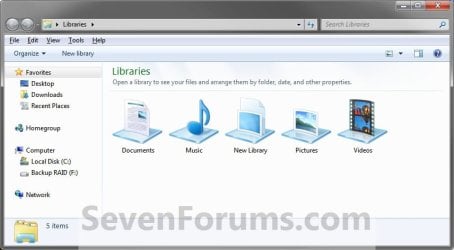
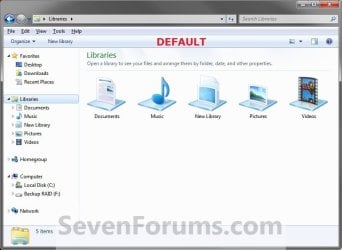
EXAMPLE: Libraries in Navigation Pane
NOTE: This is the Libraries group added (default) (left screenshot below) and removed (right screenshot below) from the Navigation Pane. Default.jpg
Libraries_Removed.jpg

Here's How: 1. Open the Start Menu and type regedit.exe in the search line, then press enter.

2. If prompted by UAC, then click on Yes.

3. In Regedit, go to the location below: (See screenshot below step 4)
Code:
HKEY_CLASSES_ROOT\CLSID\{031E4825-7B94-4dc3-B131-E946B44C8DD5}\ShellFolder
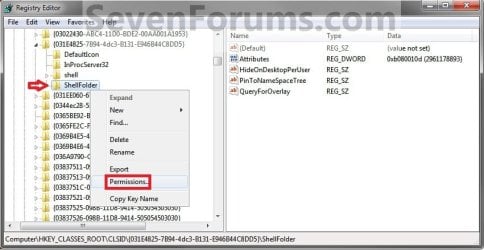
4. In the left pane of regedit, right click on the ShellFolder key and click on Permissions. (See screenshot below) Step1.jpg
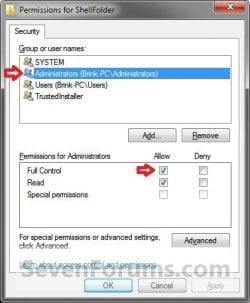
5. At the top, select the Administrators group. At the bottom, check the Allow box to the right of Full Control and click on OK. (See screenshot below) Step2.jpg
6. In the right pane of regedit, right click on Attributes and click on Modify. (See screenshot below) Step3.jpg
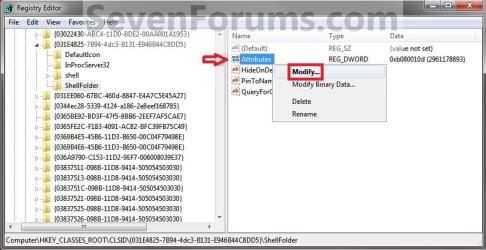
7. To Add All Libraries Back to the Navigation Pane
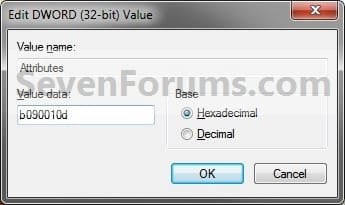
NOTE: This is the default setting. A) Type in b080010d and click on OK. (see screenshot below) Step4B.jpg
B) Go to step 9.
8. To Remove All Libraries from the Navigation Pane A) Type in b090010d and click on OK. (see screenshot below) Step4A.jpg
9. If you have 64-bit Windows 7 Installed
   Note

To also add or remove Libraries from the "Open" and "Save as" type windows as well in 64-bit Windows 7, you will also need to do this step.

If you have a 32-bit Windows 7 installed, then skip this step since doing steps 1 to 7/8 will add or remove Libraries from the "Open" and "Save as" type windows as well.
A) In Regedit, go to the location below:

Code:
HKEY_LOCAL_MACHINE\SOFTWARE\Wow6432Node\Classes\CLSID\{031E4825-7B94-4dc3-B131-E946B44C8DD5}\ShellFolder
B) Repeat steps 4 to 7/8 above.
10. Close regedit.

11. Log off and log on, or restart the computer to apply.


   Tip
If you removed Libraries, then you may also would like to use the tutorial below to have the user folders in the Start Menu to open to your C:\Users\(user-name) location instead of it's library folder location.

How to Make Windows 7 Start Menu User Folder Buttons Open to Users Instead of Libraries Location


That's it,
Shawn


Related Tutorials

 
Last edited:
remove Homegroup, Computer & Network

Thanks for posting this, it works… I was looking for this information months...
Any idea how I can also remove the Homegroup, Computer & Network from the navigation pane?
 

My Computer

Computer Manufacturer/Model Number
Built to order
OS
Windows 7 Pro x64
CPU
Intel(R) Core(TM)2 Quad CPU Q6600 @ 2.40GHz
Motherboard
Gigabyte P35-DQ6
Memory
mushkin DDR2 PC2-8000 Total 8.00 GB RAM
Graphics Card(s)
NVIDIA GeForce 9800 GX2
Monitor(s) Displays
Eizo FlexScan S1910
Hello Entropy, and welcome to Seven Forums.

I'll work on getting a tutorial for them tonight if possible, but since you want all of them off you could just turn off the Navigation Pane instead. (Organize (toolbar), Layout, uncheck Navigation Pane)
 

My Computer

Computer type
PC/Desktop
Computer Manufacturer/Model Number
Self built custom
OS
64-bit Windows 11 Pro for Workstations
CPU
Intel i7-8700K OC'd to 5 GHz
Motherboard
ASUS ROG Maximus XI Formula Z390
Memory
64 GB (4x16GB) G.SKILL TridentZ RGB DDR4 3600 MHz
Graphics Card(s)
ASUS ROG-STRIX-GTX1080TI-O11G-GAMING
Sound Card
Integrated
Monitor(s) Displays
2 x Samsung Odyssey G7 27"
Screen Resolution
2560x1440
Hard Drives
1TB Samsung 990 PRO M.2,
4TB Samsung 990 PRO PRO M.2,
TerraMaster F8 SSD Plus NAS
PSU
Seasonic Prime Titanium 850W
Case
Thermaltake Core P3
Cooling
Corsair Hydro H115i
Keyboard
Logitech wireless K800
Mouse
Logitech MX Master 4
Internet Speed
2 Gb/s Download and 100 Mb/s Upload
Antivirus
Malwarebyte Anti-Malware Premium
Browser
Google Chrome
Other Info
Logitech Z625 speaker system,
Logitech BRIO 4K Pro webcam,
HP Color LaserJet Pro MFP M477fdn,
APC SMART-UPS RT 1000 XL - SURT1000XLI,
Galaxy S23 Plus phone
remove Homegroup, Computer & Network

Hello and thank you for answering.

I need the navigation pane because I can add my own shortcuts (29 shortcuts currently) under favorites. However, I do not have a network in my house therefore I do not need homegroup and network in navigation pane. These items, along with computer shortcut, consume a lot of vertical space and by adding my own shortcuts under favorites I get a scroll bar, which I do not want to have. I can add a shortcut for my computer under favorites or for network if I wish so in the future.

Thanks again.
 

My Computer

Computer Manufacturer/Model Number
Built to order
OS
Windows 7 Pro x64
CPU
Intel(R) Core(TM)2 Quad CPU Q6600 @ 2.40GHz
Motherboard
Gigabyte P35-DQ6
Memory
mushkin DDR2 PC2-8000 Total 8.00 GB RAM
Graphics Card(s)
NVIDIA GeForce 9800 GX2
Monitor(s) Displays
Eizo FlexScan S1910
Ok. I'll see if I can't get a tutorial for them late tonight or sometime tommorrow for them. I'll post back when they're ready. :)
 

My Computer

Computer type
PC/Desktop
Computer Manufacturer/Model Number
Self built custom
OS
64-bit Windows 11 Pro for Workstations
CPU
Intel i7-8700K OC'd to 5 GHz
Motherboard
ASUS ROG Maximus XI Formula Z390
Memory
64 GB (4x16GB) G.SKILL TridentZ RGB DDR4 3600 MHz
Graphics Card(s)
ASUS ROG-STRIX-GTX1080TI-O11G-GAMING
Sound Card
Integrated
Monitor(s) Displays
2 x Samsung Odyssey G7 27"
Screen Resolution
2560x1440
Hard Drives
1TB Samsung 990 PRO M.2,
4TB Samsung 990 PRO PRO M.2,
TerraMaster F8 SSD Plus NAS
PSU
Seasonic Prime Titanium 850W
Case
Thermaltake Core P3
Cooling
Corsair Hydro H115i
Keyboard
Logitech wireless K800
Mouse
Logitech MX Master 4
Internet Speed
2 Gb/s Download and 100 Mb/s Upload
Antivirus
Malwarebyte Anti-Malware Premium
Browser
Google Chrome
Other Info
Logitech Z625 speaker system,
Logitech BRIO 4K Pro webcam,
HP Color LaserJet Pro MFP M477fdn,
APC SMART-UPS RT 1000 XL - SURT1000XLI,
Galaxy S23 Plus phone
i have successful remove the libraries from the explorer but not in a "Open..." or "Save as..." dialog window...how i remove this?!

PS: In italian "Libraries" is "Raccolte"
 
Last edited by a moderator:

My Computer

OS
Windows 7
Hello Brunosso, and welcome to Seven Forums.

I'm afraid that I cannot find the location for these in the "Open" or "Save as.." type windows to remove them from. If I run accross them, I'll be sure to let you know. :(

Sorry,
Shawn
 

My Computer

Computer type
PC/Desktop
Computer Manufacturer/Model Number
Self built custom
OS
64-bit Windows 11 Pro for Workstations
CPU
Intel i7-8700K OC'd to 5 GHz
Motherboard
ASUS ROG Maximus XI Formula Z390
Memory
64 GB (4x16GB) G.SKILL TridentZ RGB DDR4 3600 MHz
Graphics Card(s)
ASUS ROG-STRIX-GTX1080TI-O11G-GAMING
Sound Card
Integrated
Monitor(s) Displays
2 x Samsung Odyssey G7 27"
Screen Resolution
2560x1440
Hard Drives
1TB Samsung 990 PRO M.2,
4TB Samsung 990 PRO PRO M.2,
TerraMaster F8 SSD Plus NAS
PSU
Seasonic Prime Titanium 850W
Case
Thermaltake Core P3
Cooling
Corsair Hydro H115i
Keyboard
Logitech wireless K800
Mouse
Logitech MX Master 4
Internet Speed
2 Gb/s Download and 100 Mb/s Upload
Antivirus
Malwarebyte Anti-Malware Premium
Browser
Google Chrome
Other Info
Logitech Z625 speaker system,
Logitech BRIO 4K Pro webcam,
HP Color LaserJet Pro MFP M477fdn,
APC SMART-UPS RT 1000 XL - SURT1000XLI,
Galaxy S23 Plus phone
Hello and thank you for answering.

I need the navigation pane because I can add my own shortcuts (29 shortcuts currently) under favorites. However, I do not have a network in my house therefore I do not need homegroup and network in navigation pane. These items, along with computer shortcut, consume a lot of vertical space and by adding my own shortcuts under favorites I get a scroll bar, which I do not want to have. I can add a shortcut for my computer under favorites or for network if I wish so in the future.

Thanks again.

Ok. I'll see if I can't get a tutorial for them late tonight or sometime tommorrow for them. I'll post back when they're ready. :)

Entropy,

Here you go mate: :)

How to Add or Remove Homegroup from the Windows 7 Navigation Pane

How to Add or Remove Computer from the Windows 7 Navigation Pane

How to Add or Remove Network from the Windows 7 Navigation Pane
 

My Computer

Computer type
PC/Desktop
Computer Manufacturer/Model Number
Self built custom
OS
64-bit Windows 11 Pro for Workstations
CPU
Intel i7-8700K OC'd to 5 GHz
Motherboard
ASUS ROG Maximus XI Formula Z390
Memory
64 GB (4x16GB) G.SKILL TridentZ RGB DDR4 3600 MHz
Graphics Card(s)
ASUS ROG-STRIX-GTX1080TI-O11G-GAMING
Sound Card
Integrated
Monitor(s) Displays
2 x Samsung Odyssey G7 27"
Screen Resolution
2560x1440
Hard Drives
1TB Samsung 990 PRO M.2,
4TB Samsung 990 PRO PRO M.2,
TerraMaster F8 SSD Plus NAS
PSU
Seasonic Prime Titanium 850W
Case
Thermaltake Core P3
Cooling
Corsair Hydro H115i
Keyboard
Logitech wireless K800
Mouse
Logitech MX Master 4
Internet Speed
2 Gb/s Download and 100 Mb/s Upload
Antivirus
Malwarebyte Anti-Malware Premium
Browser
Google Chrome
Other Info
Logitech Z625 speaker system,
Logitech BRIO 4K Pro webcam,
HP Color LaserJet Pro MFP M477fdn,
APC SMART-UPS RT 1000 XL - SURT1000XLI,
Galaxy S23 Plus phone
Computer - Add or Remove from Navigation Pane

Shawn you are my hero… thanks a million… not only you were accurate but your instructions were so clear that even a retarded could easily follow…

However, I have a question. To remove the computer from the navigation pane you need to create a key DWORD (32-bit) Value. I am running x64 bit Windows 7. Do I need to follow different instructions?

Thank you again.
 

My Computer

Computer Manufacturer/Model Number
Built to order
OS
Windows 7 Pro x64
CPU
Intel(R) Core(TM)2 Quad CPU Q6600 @ 2.40GHz
Motherboard
Gigabyte P35-DQ6
Memory
mushkin DDR2 PC2-8000 Total 8.00 GB RAM
Graphics Card(s)
NVIDIA GeForce 9800 GX2
Monitor(s) Displays
Eizo FlexScan S1910
You're most welcome Entropy.

Yeah, you would still need to create the same DWORD (32-bit) value. It's the same in both the 32-bit and 64-bit Windows 7 for that. :)
 

My Computer

Computer type
PC/Desktop
Computer Manufacturer/Model Number
Self built custom
OS
64-bit Windows 11 Pro for Workstations
CPU
Intel i7-8700K OC'd to 5 GHz
Motherboard
ASUS ROG Maximus XI Formula Z390
Memory
64 GB (4x16GB) G.SKILL TridentZ RGB DDR4 3600 MHz
Graphics Card(s)
ASUS ROG-STRIX-GTX1080TI-O11G-GAMING
Sound Card
Integrated
Monitor(s) Displays
2 x Samsung Odyssey G7 27"
Screen Resolution
2560x1440
Hard Drives
1TB Samsung 990 PRO M.2,
4TB Samsung 990 PRO PRO M.2,
TerraMaster F8 SSD Plus NAS
PSU
Seasonic Prime Titanium 850W
Case
Thermaltake Core P3
Cooling
Corsair Hydro H115i
Keyboard
Logitech wireless K800
Mouse
Logitech MX Master 4
Internet Speed
2 Gb/s Download and 100 Mb/s Upload
Antivirus
Malwarebyte Anti-Malware Premium
Browser
Google Chrome
Other Info
Logitech Z625 speaker system,
Logitech BRIO 4K Pro webcam,
HP Color LaserJet Pro MFP M477fdn,
APC SMART-UPS RT 1000 XL - SURT1000XLI,
Galaxy S23 Plus phone
Now that we have disabled the libraries, is there a way to make the "Documents, Pictures, Music, etc" link in the start menu point to the actual user folders and not the libraries?
 

My Computer

OS
Windows 7 Professional x64 SP1
CPU
Intel Core2 Quad Q6600 @3.2 Ghz
Motherboard
Gigabyte GA-EP45-UD3R
Memory
4x Kingston HyperX DDR2 1066 1GB
Graphics Card(s)
ATI Radeon HD 3650 512MB
Sound Card
Realtek HD Audio ALC889A Onboard
Monitor(s) Displays
19" Acer X193w+
Screen Resolution
1680 x 1050
Hard Drives
Western Digital Caviar Blue WD6400AAKS 640GB SATAII
PSU
Rosewill Stallion Series RD500-2SB 500W
Case
Thermaltake Armor Series VA8003BWS Black Full Tower Case
Cooling
Arctic Cooling Freezer 7 Pro
Keyboard
Logitech LX310 Cordless Desktop
Mouse
Logitech LX310 Cordless Desktop
Internet Speed
AT&T DSL Extreme 6.0
Other Info
Lite-On iHAS220-06 DVD Burner with LightScribe,
Koutech IO-PU520 PCI to USB2.0 Card,
AZiO BTD-V201 USB 2.0 Micro Bluetooth Adapter,
Rosewill RCR-IC001 USB 2.0 Card Reader,
Logitech X-230 2.1 Speaker System
SanDisk Cruzer 8GB ReadyBoost Drive
Hello Connor, and welcome to Seven Forums.

You could set your user folder (Personal folder) in the Start Menu to "display as a menu" and open the user folders from there to have them open at the C:\Users\(user-name) folders location instead.

Hope this helps,
Shawn
 

My Computer

Computer type
PC/Desktop
Computer Manufacturer/Model Number
Self built custom
OS
64-bit Windows 11 Pro for Workstations
CPU
Intel i7-8700K OC'd to 5 GHz
Motherboard
ASUS ROG Maximus XI Formula Z390
Memory
64 GB (4x16GB) G.SKILL TridentZ RGB DDR4 3600 MHz
Graphics Card(s)
ASUS ROG-STRIX-GTX1080TI-O11G-GAMING
Sound Card
Integrated
Monitor(s) Displays
2 x Samsung Odyssey G7 27"
Screen Resolution
2560x1440
Hard Drives
1TB Samsung 990 PRO M.2,
4TB Samsung 990 PRO PRO M.2,
TerraMaster F8 SSD Plus NAS
PSU
Seasonic Prime Titanium 850W
Case
Thermaltake Core P3
Cooling
Corsair Hydro H115i
Keyboard
Logitech wireless K800
Mouse
Logitech MX Master 4
Internet Speed
2 Gb/s Download and 100 Mb/s Upload
Antivirus
Malwarebyte Anti-Malware Premium
Browser
Google Chrome
Other Info
Logitech Z625 speaker system,
Logitech BRIO 4K Pro webcam,
HP Color LaserJet Pro MFP M477fdn,
APC SMART-UPS RT 1000 XL - SURT1000XLI,
Galaxy S23 Plus phone
Thanks. Like win7, but really dislike some of these thingyies)
 

My Computer

OS
Windows 7 x86
CPU
E6600
Motherboard
Asus p5v-vm ultra
Memory
2gb
Graphics Card(s)
asus 8800gts
Sound Card
ac'97
Monitor(s) Displays
Nec 195wxm
Hard Drives
WD st3500630a sata 500gb
WD mybook 1tb
WD passport 160gb
Maxtor onetouch II 300gb
Case
ATX
Cooling
2x 120mm coolers
Keyboard
Mitsumi classic keyboard w/t 14 extra multi-media keys
Mouse
MS Wheel mouse optical
Internet Speed
i pay for 4mbps channel but really doesn't get that high ;)
Restore Libraries to Original Position in Nav Pane?

Good, succinct instructions, but I have a slightly different problem which I haven't found anywhere online yet.

Somehow my Libraries folder wound up in my Desktop folder in the Nav Pane (and I have an unremovable Libraries icon on my desktop to prove it!) I think I tried to put a shortcut to it on the desktop, but moved the actual metafolder there instead. (Seemed like a good idea at the time, but then realized I don't need or want it there.) I checked the registry, and the Attributes value you described is already xb080010d.

How do I get it back in the default location, on its own between Favorites and Desktop? (And off my desktop!)

Thanks.
 

My Computer

Computer Manufacturer/Model Number
Dell StudioXPS 8000
OS
Windows 7
CPU
Core i5 750
Memory
6GB ddr3
Graphics Card(s)
Nvidia GeForce GT220
Sound Card
on MB
Monitor(s) Displays
acer X213W
Hard Drives
750GB
Hello Nick, and welcome to Seven Forums.

You should be able to do a system restore using a restore point dated before this happened to undo and fix them.

Hope this helps,
Shawn
 

My Computer

Computer type
PC/Desktop
Computer Manufacturer/Model Number
Self built custom
OS
64-bit Windows 11 Pro for Workstations
CPU
Intel i7-8700K OC'd to 5 GHz
Motherboard
ASUS ROG Maximus XI Formula Z390
Memory
64 GB (4x16GB) G.SKILL TridentZ RGB DDR4 3600 MHz
Graphics Card(s)
ASUS ROG-STRIX-GTX1080TI-O11G-GAMING
Sound Card
Integrated
Monitor(s) Displays
2 x Samsung Odyssey G7 27"
Screen Resolution
2560x1440
Hard Drives
1TB Samsung 990 PRO M.2,
4TB Samsung 990 PRO PRO M.2,
TerraMaster F8 SSD Plus NAS
PSU
Seasonic Prime Titanium 850W
Case
Thermaltake Core P3
Cooling
Corsair Hydro H115i
Keyboard
Logitech wireless K800
Mouse
Logitech MX Master 4
Internet Speed
2 Gb/s Download and 100 Mb/s Upload
Antivirus
Malwarebyte Anti-Malware Premium
Browser
Google Chrome
Other Info
Logitech Z625 speaker system,
Logitech BRIO 4K Pro webcam,
HP Color LaserJet Pro MFP M477fdn,
APC SMART-UPS RT 1000 XL - SURT1000XLI,
Galaxy S23 Plus phone
Wish I'd thought of that when I first noticed it. A lot of water has flowed under the bridge since then, and I can't remember when I noticed it anyway. Happened while setting up new computer. during past week. Any other ideas?

Dell tech suggested repair install, then gave me bum directions on how to do it. I saw good info on this site, tho.

Thanks.
Nick
 

My Computer

Computer Manufacturer/Model Number
Dell StudioXPS 8000
OS
Windows 7
CPU
Core i5 750
Memory
6GB ddr3
Graphics Card(s)
Nvidia GeForce GT220
Sound Card
on MB
Monitor(s) Displays
acer X213W
Hard Drives
750GB

My Computer

Computer type
PC/Desktop
Computer Manufacturer/Model Number
Self built custom
OS
64-bit Windows 11 Pro for Workstations
CPU
Intel i7-8700K OC'd to 5 GHz
Motherboard
ASUS ROG Maximus XI Formula Z390
Memory
64 GB (4x16GB) G.SKILL TridentZ RGB DDR4 3600 MHz
Graphics Card(s)
ASUS ROG-STRIX-GTX1080TI-O11G-GAMING
Sound Card
Integrated
Monitor(s) Displays
2 x Samsung Odyssey G7 27"
Screen Resolution
2560x1440
Hard Drives
1TB Samsung 990 PRO M.2,
4TB Samsung 990 PRO PRO M.2,
TerraMaster F8 SSD Plus NAS
PSU
Seasonic Prime Titanium 850W
Case
Thermaltake Core P3
Cooling
Corsair Hydro H115i
Keyboard
Logitech wireless K800
Mouse
Logitech MX Master 4
Internet Speed
2 Gb/s Download and 100 Mb/s Upload
Antivirus
Malwarebyte Anti-Malware Premium
Browser
Google Chrome
Other Info
Logitech Z625 speaker system,
Logitech BRIO 4K Pro webcam,
HP Color LaserJet Pro MFP M477fdn,
APC SMART-UPS RT 1000 XL - SURT1000XLI,
Galaxy S23 Plus phone
Hello, I too tired of having Libraries and Homegroup taking up realestate in my explorer view. I searched for and found a registry hack to get rid of them (actually "homegroup" was just settings, no reg hack). Then I discovered the downside of my boldness. For me it is that "my documents" does NOT appear by default in"open" or "save as" dialogue boxes. I have to go searching down through the whole tree for them. For example, to save a playlist from Media Player 11 I have to drill to, "C:\Users\John\Music\Playlists", and it won't return there by default the next time. (Why I'm useing MP11 is a whole 'nother story!!) I didn't save a registry backup so I don't know how to undo my "fix". If I could, Then I'd youse your registry change instead. Maybe you can help? Below is the registry hack I applied. If you can tell me how to undo it. I'll use yours. If not, well, guess I'll live with it.

[-HKEY_LOCAL_MACHINE\SOFTWARE\Microsoft\Windows\CurrentVersion\Explorer\Desktop\NameSpace\{031E4825-7B94-4dc3-B131-E946B44C8DD5}]
[-HKEY_CLASSES_ROOT\CLSID\{031E4825-7B94-4dc3-B131-E946B44C8DD5}]
[-HKEY_LOCAL_MACHINE\SOFTWARE\Classes\CLSID\{031E4825-7B94-4dc3-B131-E946B44C8DD5}]
[-HKEY_LOCAL_MACHINE\SOFTWARE\Microsoft\Windows\CurrentVersion\Explorer\FolderDescriptions\{2112AB0A-C86A-4ffe-A368-0DE96E47012E}]
[-HKEY_LOCAL_MACHINE\SOFTWARE\Microsoft\Windows\CurrentVersion\Explorer\FolderDescriptions\{491E922F-5643-4af4-A7EB-4E7A138D8174}]
[-HKEY_LOCAL_MACHINE\SOFTWARE\Microsoft\Windows\CurrentVersion\Explorer\FolderDescriptions\{7b0db17d-9cd2-4a93-9733-46cc89022e7c}]
[-HKEY_LOCAL_MACHINE\SOFTWARE\Microsoft\Windows\CurrentVersion\Explorer\FolderDescriptions\{A302545D-DEFF-464b-ABE8-61C8648D939B}]
[-HKEY_LOCAL_MACHINE\SOFTWARE\Microsoft\Windows\CurrentVersion\Explorer\FolderDescriptions\{A990AE9F-A03B-4e80-94BC-9912D7504104}]
[HKEY_LOCAL_MACHINE\SOFTWARE\Microsoft\Windows\CurrentVersion\Explorer\HideDesktopIcons\NewStartPanel]
“{031E4825-7B94-4dc3-B131-E946B44C8DD5}”=-
 

My Computer

OS
Windows 7RC
Hello John,

Are you able to do a system restore using a restore point dated before this was applied to undo and fix them?

If not, then the REG file in the ZIP download below should restore the default settings of these for you.

Hope this helps,
Shawn
 

Attachments

My Computer

Computer type
PC/Desktop
Computer Manufacturer/Model Number
Self built custom
OS
64-bit Windows 11 Pro for Workstations
CPU
Intel i7-8700K OC'd to 5 GHz
Motherboard
ASUS ROG Maximus XI Formula Z390
Memory
64 GB (4x16GB) G.SKILL TridentZ RGB DDR4 3600 MHz
Graphics Card(s)
ASUS ROG-STRIX-GTX1080TI-O11G-GAMING
Sound Card
Integrated
Monitor(s) Displays
2 x Samsung Odyssey G7 27"
Screen Resolution
2560x1440
Hard Drives
1TB Samsung 990 PRO M.2,
4TB Samsung 990 PRO PRO M.2,
TerraMaster F8 SSD Plus NAS
PSU
Seasonic Prime Titanium 850W
Case
Thermaltake Core P3
Cooling
Corsair Hydro H115i
Keyboard
Logitech wireless K800
Mouse
Logitech MX Master 4
Internet Speed
2 Gb/s Download and 100 Mb/s Upload
Antivirus
Malwarebyte Anti-Malware Premium
Browser
Google Chrome
Other Info
Logitech Z625 speaker system,
Logitech BRIO 4K Pro webcam,
HP Color LaserJet Pro MFP M477fdn,
APC SMART-UPS RT 1000 XL - SURT1000XLI,
Galaxy S23 Plus phone
No, by the time I realized the limitations of my registry hack I didn't have a system restore back that far. Whats with windows 7 anyway and their extreme limitation on available system restores?? The "restore previous version" for individual files is useless!

Oh, yes, and thanks for the fix in the zip file. Hope it works, I haven't applied it yet!
 

My Computer

OS
Windows 7RC
Back
Top