
How to Restore the Default Libraries in Windows 7 and Windows 8
Information
In case you have a missing Library, this will show you how to restore all of the default Libraries in Windows 7.
Note
Libraries let you access and arrange items from one or more folders quickly without moving them from their original location. Libraries themselves don't store your files or folders. Instead, they point to different locations on a hard disk or external drive attached to your computer. This gives you easy access to a category of files no matter where they are stored. For instance, if you have music files on your hard disk and on an external drive, you can access all of your music files from within the "Music" library.
Here's a list of the default libraries, as well as the folders you can access in each library:
Here's a list of the default libraries, as well as the folders you can access in each library:
- Documents library -Use this library to access the Personal Documents folder, where you can store word-processing documents, spreadsheets, presentations, and other text-related files. By default, files that you move, copy, or save to the Documents library are stored in the Personal Documents folder.
- Pictures library - Use this library to access the Personal Pictures folder, where you can store digital pictures, whether you get them from your camera, scanner, or in e‑mail from other people. By default, files that you move, copy, or save to the Pictures library are stored in the Personal Pictures folder.
- Music library - Use this library to access your Personal Music folder, where you can store digital music, such as songs that you copy from an audio CD or download from the Internet. By default, files that you move, copy, or save to the Music library are stored in the Personal Music folder.
- Videos library - Use this library to access your Personal Videos folder, where you can store videos, such as clips from your digital camera or camcorder, or video files that you download from the Internet. By default, files that you move, copy, or save to the Videos library are stored in the Personal Videos folder.
Tip
The full path to the hidden Libraries folder is below.
C:\Users\(User-Name)\AppData\Roaming\Microsoft\Windows\Libraries
OR
%AppData%\Microsoft\Windows\Libraries
C:\Users\(User-Name)\AppData\Roaming\Microsoft\Windows\Libraries
OR
%AppData%\Microsoft\Windows\Libraries
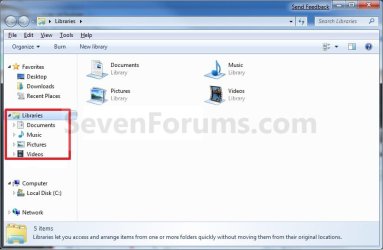
EXAMPLE: Default Libraries
OPTION ONE
To Restore Default Libraries using "Restore Default Libraries"
1. Open Windows Explorer.
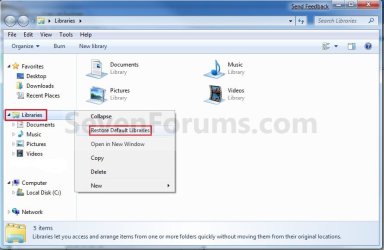
2. Right click or press and hold on Libraries in the navigation pane, and click/tap on Restore Default Libraries. (see screenshot below)
OPTION TWO
To Restore Default Libraries by Unhiding them
Note
This option is only helpful if your library or libraries have been hidden.
1. For how, see: How to Fix Libraries when Hidden and Empty in Windows 7 and Windows 8
OPTION THREE
To Restore Default Libraries using a REG File
Note
This option will restore the default registry entries for the default libraries of all users.
You must be logged in as an administrator to be able to do this option.
You must be logged in as an administrator to be able to do this option.
1. If OPTION ONE and OPTION TWO above didn't help, then click/tap on the download button below to download the below.
Restore_Default_Libraries.reg
Download
2. Save the .reg file to your desktop.
3. Double click/tap on the .reg file to merge it.
4. If prompted, click/tap on Run, Yes (UAC), Yes, and OK to approve merging the .reg file.
5. Restart the computer to apply.
6. You can now delete the downloaded .reg file if you like.
That's it,
Shawn
Related Tutorials
- How to Fix Libraries when Hidden and Empty in Windows 7 and Windows 8
- How to Fix the "Library-ms is no longer working" Error in Windows 7 and Windows 8
- User Folders in Windows 7 Libraries
- How to Hide or Show a Library in the Navigation Pane in Windows 7 and Windows 8
- How to Create a New Library in Windows 7
- How to Include a Folder in a Library in Windows 7
- How to Include a Network Drive or Folder in a Library in Windows 7
- How to Remove a Included Folder from a Library in Windows 7
- How to Set the Default Save Folder for a Library in Windows 7
- How to Change the Windows 7 Pinned Windows Explorer Taskbar Icon Open To Target
- How to Change a Library Icon in Windows 7
- How to Create a Windows 7 Downloads Library with the Correct Icon
- How to Create a Windows 7 Games Library with the Correct Icon
- How to Create a Windows 7 Favorites Library with the Correct Icon
- How to Create a Windows 7 "Searches" Library with the Correct Icon
- How to Create a Windows 7 "Links" Library with the Correct Icon
- How to Add or Remove the Windows 7 Libraries Folder from the Navigation Pane
- How to Turn the Library Pane On or Off in Windows 7
Attachments
Last edited:


