
How to Create a "Links" Library with Correct Icon in Windows 7 and Windows 8
Information
This will show you how to create a Links library that has the correct Links folder icon on a glass plate for it's library icon in Windows 7 and Windows 8.
The included folder C:\Users\(user-name)\Links is also the folder that the Favorites in the navigation pane of Windows Explorer are saved at.
The included folder C:\Users\(user-name)\Links is also the folder that the Favorites in the navigation pane of Windows Explorer are saved at.
EXAMPLE: Links Library with Correct Icon
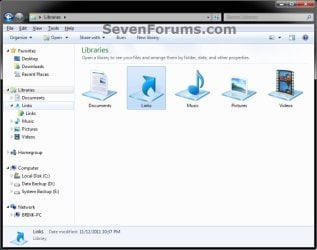
Here's How:
1. To Download the Links Library Icon
A) Click/tap on the Download button below to download the Links_Library.zip file that contains the correct Searches library icon.
Download
B) Save the ZIP file to your desktop.
C) Double click/tap on the ZIP file to open it, then extract (drag and frop) the Links_Library.ico file to the location that you want to keep it at.
WARNING: The icon file will need to remain at this location while it is being used (step 3) for the library. If you move it, then the icon will no longer be displayed for the library.
D) Right click or press and hold on the Links_Library.ico file, and click/tap on Properties, General tab, on the Unblock button, and on OK. (see screenshot below)
NOTE: If you do not have a Unblock button under the General tab, then the shortcut is already unblocked and you can continue on to step 2.
2. To Create the Links Library
A) In Windows Explorer, navigate to your C:\Users\(user-name) folder, then create a new library with the Links folder. (see screenshot below)
NOTE: If you like, you could include any other folder location(s) that you would like to also be included inside the Links library as well.
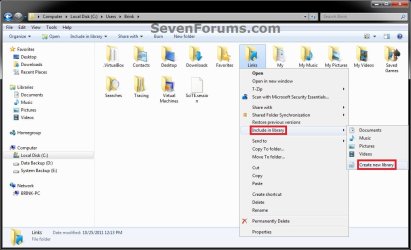
3. To Change the Links Library Icon
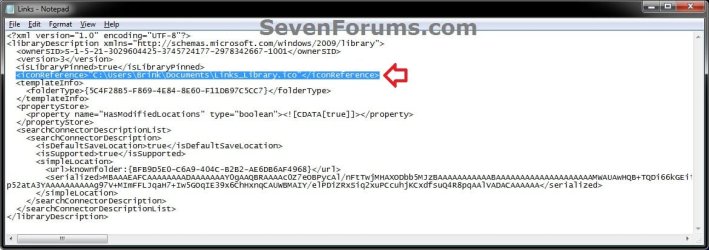
A) Change the Links library icon to use the Links_Library.ico icon file at the location you have saved it to in step 1. (see screenshots below)
Note
For example, I saved my icon from step 1 to C:\Users\Brink\My Documents, so I would add the line below (right screenshot below) while changing the icon if using step 5 OPTION TWO at that link.
<iconReference>"C:\Users\Brink\Documents\Links_Library.ico"</iconReference>
You would substitute the path in red to the full path of where you saved the Links_Library.ico file instead in step 1.
<iconReference>"C:\Users\Brink\Documents\Links_Library.ico"</iconReference>
You would substitute the path in red to the full path of where you saved the Links_Library.ico file instead in step 1.
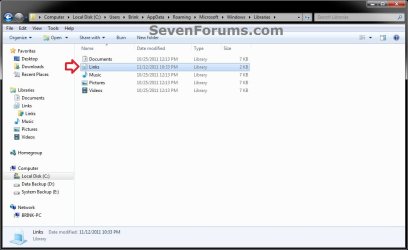
4. You will now notice that the Links library icon has changed.
NOTE: See example screenshot at the top of the tutorial.
That's it,
Shawn
Related Tutorials
- How to Add or Remove Favorites from the Windows 7 Navigation Pane
- How to Create a Windows 7 Downloads Library with the Correct Icon
- How to Create a Windows 7 Games Library with the Correct Icon
- How to Create a Windows 7 Favorites Library with the Correct Icon
- How to Create a Windows 7 "Searches" Library with the Correct Icon
- How to Change a Library Icon in Windows 7
- How to Create a New Library in Windows 8
- How to Hide or Show a Library in the Windows 7 Navigation Pane
- How to Restore the Default Libraries in Windows 7
- How to Fix Libraries when Hidden and Empty in Windows 7
- How to Create a New Library in Windows 7
- How to Include a Folder in a Library in Windows 7
- How to Remove a Included Folder from a Library in Windows 7
- How to Set the Default Save Folder for a Library in Windows 7
- How to Add or Remove the Libraries Desktop Icon in Windows 7
- User Folders in Windows 7 Libraries
- How to Turn the Library Pane On or Off in Windows 7
Attachments
Last edited:


