
How to Enable or Disable the Windows 7 Log On Screen Saver
Information
By default the log on screen saver is disabled in Windows 7. This will show you how to enable a blank screen saver to run at the log on screen after an amount of idle time that you specify. This affects all log on screens in Windows 7 including the Welcome, Lock computer, Log off, and Switch User log on screens.
Note
Enabling the log on screen saver will add these registry entries, and disabling it will remove them.
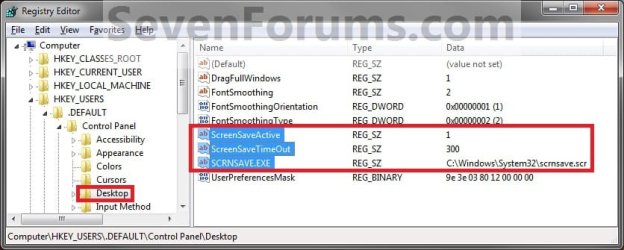
This will only work using the blank black C:\Windows\System32\scrnsave.scr screen saver as the value for SCRNSAVE.EXE. Using any other screen saver will result in this error below when it tries to run from the log on screen.
This will only work using the blank black C:\Windows\System32\scrnsave.scr screen saver as the value for SCRNSAVE.EXE. Using any other screen saver will result in this error below when it tries to run from the log on screen.
Warning
You can only do this tutorial while logged on as an administrator.
EXAMPLE: Log On Screen Saver in Windows 7
NOTE: This is the log on screen (left screenshot below) and the blank log on screen saver (right screenshot below).


STEP ONE
Enable or Disable the Log On Screen Saver
NOTE: This will enable the log on screen saver with a 300 second (5 minute) idle wait time. If you would like to change this wait time to what you would like instead, then see the STEP TWO section below after finishing this STEP ONE section to change it. A) Click on the Download button below to download the file below. Enable_Log_on_Screen_Saver.reg
Download
B) Go to step 3.
2. To Disable the Log On Screen Saver A) Click on the Download button below to download the file below. Disable_Log_on_Screen_Saver.reg
Download
3. Click on Save, and save the .reg file to the desktop.
4. Right click on the downloaded .reg file and click on Merge.
5. Click on Run, Yes, Yes, and OK when prompted.
6. Log off to test the screen saver.
7. When done, you can delete the downloaded .reg file on the desktop if you like.
STEP TWO
Change the Log On Screen Saver Wait Time
NOTE: After you have enabled the log on screen saver in the STEP ONE section above, you can change the 300 second (5 minutes) idle wait time to what you would like it to be instead if you would like to. 1. Open the Start Menu, and type regedit in the search box and press enter.
2. If prompted by UAC, then click on Yes.
3. In regedit, navigate to: (see screenshot below) HKEY_USERS\.DEFAULT\Control Panel\Desktop
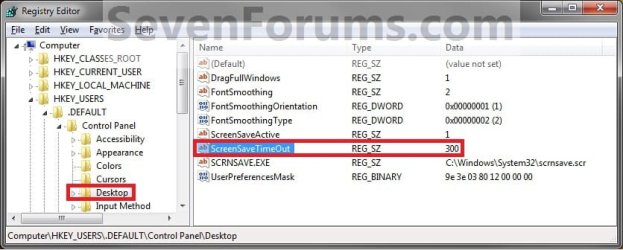
4. In the right pane, right click on ScreenSaveTimeOut and click on Modify. (see screenshot above)
5. Type in how long you want the idle wait time to be for in seconds (60 seconds = 1 minute) before the screen saver will run, then click on OK. (see screenshot below)
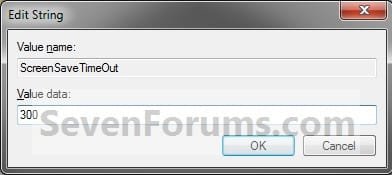
6. Close regedit.
7. Log off to test the screen saver.
That's it,
Shawn
Related Tutorials
- How to Change the Windows 7 Log On Screen Text Shadow
- How to Change the Windows 7 Log On Screen Text Shadow
- How to Change the Windows 7 Log On Screen Background
- How to Change the Screen Saver in Windows 7
- How to Turn Screen Saver On or Off in Windows 7
- How to Make Windows 7 Require a User Name and Password at Log On
- How to Add or Remove Ease of Access Center from Windows 7 Log On Screen
- How to Set or Change the Screen Saver Timeout Period in Windows 7
- How to Specify a Default Screen Saver for All Users in Windows 7
Attachments
Last edited:


