Solved Lost File Type Icons in Windows Explorer

IveyLeaguer

New member
Local time
3:16 AM
Messages
27
Location
Dahlonega, Georgia
I keep losing the icons in Explorer, even with a fresh install of W7. It takes some time, but sooner or later they disappear. It's always Internet Explorer first (associated with .mht files) and now I've lost Chrome (associated with .htm).

Any ideas as to why this happens? Is there any fix you guys know of?

Rebuilding the W7 icon cache has not worked in the past.

Thanks.
 

My Computer

Computer Manufacturer/Model Number
HP dv7-2277cl Notebook PC
OS
Windows 7 Home Premium x64 v6.1.7600
CPU
2.26 GHz Intel Core2 Duo Processor P7550, 3MB L2 Cache
Memory
4096MB DDR3 System Memory
Graphics Card(s)
ATI Mobility Radeon HD 4650 (M96); 1 GB dedicated memory
Sound Card
Altec Lansing with SRS Premium Sound and Sub-Woofer
Monitor(s) Displays
17.3” HD+ LED BrightView Widescreen Display
Screen Resolution
1600 x 900
Hard Drives
640 GB Western Digital 7200 rpm WD3200BEKT-60F3T1 Dual HDD (320 GB x 2)
Keyboard
Microsoft eHome MCIR 109 Keyboard
Hello IveyLeaguer,

The icon cache would have no affect on file associations. They are two different animals.

The most common reason for file association issues is folks changing them using Open with.

If you like, you could use the tutorial below to quickly restore the default association of any file extension.
If you are sure that you or another user is not changing the file associations, then I would recommend to do a full scan of your system with Malwarebytes Anti-Malware Free to help make sure that your system is clean.

Hope this helps, :)
Shawn
 

My Computer

Computer type
PC/Desktop
Computer Manufacturer/Model Number
Self built custom
OS
64-bit Windows 11 Pro for Workstations
CPU
Intel i7-8700K OC'd to 5 GHz
Motherboard
ASUS ROG Maximus XI Formula Z390
Memory
64 GB (4x16GB) G.SKILL TridentZ RGB DDR4 3600 MHz
Graphics Card(s)
ASUS ROG-STRIX-GTX1080TI-O11G-GAMING
Sound Card
Integrated
Monitor(s) Displays
2 x Samsung Odyssey G7 27"
Screen Resolution
2560x1440
Hard Drives
1TB Samsung 990 PRO M.2,
4TB Samsung 990 PRO PRO M.2,
TerraMaster F8 SSD Plus NAS
PSU
Seasonic Prime Titanium 850W
Case
Thermaltake Core P3
Cooling
Corsair Hydro H115i
Keyboard
Logitech wireless K800
Mouse
Logitech MX Master 4
Internet Speed
2 Gb/s Download and 100 Mb/s Upload
Antivirus
Malwarebyte Anti-Malware Premium
Browser
Google Chrome
Other Info
Logitech Z625 speaker system,
Logitech BRIO 4K Pro webcam,
HP Color LaserJet Pro MFP M477fdn,
APC SMART-UPS RT 1000 XL - SURT1000XLI,
Galaxy S23 Plus phone
Shawn,

Thanks for the reply, but it isn't file association. All the files open with the proper programs, i.e., .htm with Chrome, .mht with Internet Explorer, etc..

We can rule that out.

One thing, just in case it gives a hint ... when I save a webpage .htm or .mht file from any browser, the 'save' explorer-type box that opens shows the icons, at least in the type of the file designated to be saved.

Here are some pics that I hope will better give you guys an idea ....

Windows%207%20Save%20As%20Window%20%28.htm%29.jpg


You can see that the Chrome icon shows in this Save As window, as it should for htm files.

Windows%207%20Save%20As%20Window%20%28.mht%29.jpg


Same here for Internet Explorer, as the correct icon shows for mht files.

Windows%207%20Explorer%20Window.jpg


Now here is my Explorer window, which shows the problem. Note the only files without icons are web/browser files, both htm and mht, all the missing icons are exclusive to those files. All other file icons display as they should (in this case, pdf and rtf files).

Thanks for any help you guys may be able to give. This is an annoying problem for several reasons, primarily because I'm constantly delayed when I can't tell what type file it is (without taking Explorer to full screen, which is even more of a delay).
 
Last edited:

My Computer

Computer Manufacturer/Model Number
HP dv7-2277cl Notebook PC
OS
Windows 7 Home Premium x64 v6.1.7600
CPU
2.26 GHz Intel Core2 Duo Processor P7550, 3MB L2 Cache
Memory
4096MB DDR3 System Memory
Graphics Card(s)
ATI Mobility Radeon HD 4650 (M96); 1 GB dedicated memory
Sound Card
Altec Lansing with SRS Premium Sound and Sub-Woofer
Monitor(s) Displays
17.3” HD+ LED BrightView Widescreen Display
Screen Resolution
1600 x 900
Hard Drives
640 GB Western Digital 7200 rpm WD3200BEKT-60F3T1 Dual HDD (320 GB x 2)
Keyboard
Microsoft eHome MCIR 109 Keyboard
Here are some pics that I hope will better give you guys an idea ....
Unfortunately, none of your screenshots actually appear in your post.

Did you upload them as attachments? Did you post them on some Internet posting site and then plant the links to them here in your post?

http://www.sevenforums.com/tutorials/9733-screenshots-files-upload-post-seven-forums.html

However you did it, I'm afraid it was unsuccessful. So we still can't see what you want us to see.
 

My Computer

Computer type
PC/Desktop
Computer Manufacturer/Model Number
Home-built, two systems (1) and (2)
OS
Windows 7 Pro x64 (1), Win7 Pro X64 (2)
CPU
i5-3350p 3.1Ghz/6MB-cache (1); E8400 3.0Ghz/6MB-cache (2)
Motherboard
ASUS P8Z77-V Pro (1); ASUS P5Q3 (2)
Memory
8GB PC3-12800 DDR3 (1); 4GB PC3-10600 DDR3 (2)
Graphics Card(s)
ATI HD7750 (1), (see TV cards); ATI R7 250 (2)
Sound Card
Realtek ALC892 HD Audio (1); Realtek ALC1200 HD Audio (2)
Monitor(s) Displays
Eizo HD2441W LCD, Eizo S2433W (1); Eizo 24" S2433W (2)
Screen Resolution
1920x1200, 1920x1200 (1); 1920x1200 (2)
Hard Drives
(1) 1TB SATA-II (7200RPM), 2x2TB SATA-III (7200RPM), 250GB SATA-III (10000RPM) for OS; 2x2TB external USB 3.0

(2) 320GB SATA-II (7200RPM), 750GB SATA-II (7200RPM), 150GB SATA-II (10000RPM) for OS; 2TB external USB 3.0
PSU
Nesteq ECS-6001 600W (1); Nesteq ECS-5001 500W (2)
Case
Acousti-Case 360 (1) and (2)
Cooling
Noctua NH-U12P SE2 for CPU, 2x120mm case fans (1) and (2)
Keyboard
IBM PS/2 (1) and (2)
Mouse
Logitech MX Revolution wireless (1); Microsoft wired (2)
Internet Speed
100mbps down / 10mbps up
Antivirus
Microsoft Security Essentials; Malwarebyte Anti-Malware Pro
Browser
Firefox
Other Info
Ceton InfiniTV 4-tuner cablecard-enabled TV card as well as Hauppauge HVR-2250 OTA/ATSC 2-tuner TV card in (1), running under Win7 WMC
Rebuilding the W7 icon cache has not worked in the past.
You say that the default file associations for the files are still in effect, so that double-click launching of any of these problem files (which are missing their mini-icons when looked at with Windows Explorer) actually DOES launch the correct program. So it's not a file association issue, as you've commented.

In that case I am really surprised that rebuilding the icon cache has not worked. It's ALWAYS worked for me when this kind of an issue (which is typically preceded by installing some random media player program which has its own file association logic for assorted file types it can support, hence why I am very careful about these installs for any new program I've not worked with before).

There are really two different ways that both work to rebuild the icon cache:

http://www.sevenforums.com/tutorials/49819-icon-cache-rebuild.html

(1) from an Administrator command prompt, enter
taskkill /IM explorer.exe /F
cd /d %userprofile%\AppData\Local
del IconCache.db /a
shutdown /r /t 0
None of these commands should present any kind of error, but of course the most crucial command is the "del IconCache.db /a" command which is what will delete all current valid/invalid icons in the cache and force Windows to reconstruct it from scratch at the next re-boot.

The last command will trigger a re-boot and upon the reappearance of the desktop all of your mini-icons should now once again appear properly in Windows Explorer.

(2) Another way to actually accomplish the same result without involving entry of commands is simply to change the "color depth" on your Windows desktop properties, from 32-bit (true color) to 16-bit (high color) and then re-boot. This re-boot will also trigger the complete rebuild of your icon cache, at the new 16-bit color depth, but of course you really wanted this to happen while at the original true 32-bit color depth.

So, you do this again, a second time, this time changing the "color depth" again from the unwanted 16-bit setting back to the original 32-bit setting. And again, re-boot. Once again Windows will rebuild the complete icon cache but now back at your original desired 32-bit setting.

And we're done. Icon cache rebuilt, and you're still at original 32-bit color. Took two reboots, but the end result is the same as the command-prompt method and one boot.


Either of these approaches has always worked for me to restore all the mini-icons as they should look both in Windows Explorer folder view as well as in the Start Menu (where those icons were also previously corrupted).

You're absolutely positive this does not work for you?
 

My Computer

Computer type
PC/Desktop
Computer Manufacturer/Model Number
Home-built, two systems (1) and (2)
OS
Windows 7 Pro x64 (1), Win7 Pro X64 (2)
CPU
i5-3350p 3.1Ghz/6MB-cache (1); E8400 3.0Ghz/6MB-cache (2)
Motherboard
ASUS P8Z77-V Pro (1); ASUS P5Q3 (2)
Memory
8GB PC3-12800 DDR3 (1); 4GB PC3-10600 DDR3 (2)
Graphics Card(s)
ATI HD7750 (1), (see TV cards); ATI R7 250 (2)
Sound Card
Realtek ALC892 HD Audio (1); Realtek ALC1200 HD Audio (2)
Monitor(s) Displays
Eizo HD2441W LCD, Eizo S2433W (1); Eizo 24" S2433W (2)
Screen Resolution
1920x1200, 1920x1200 (1); 1920x1200 (2)
Hard Drives
(1) 1TB SATA-II (7200RPM), 2x2TB SATA-III (7200RPM), 250GB SATA-III (10000RPM) for OS; 2x2TB external USB 3.0

(2) 320GB SATA-II (7200RPM), 750GB SATA-II (7200RPM), 150GB SATA-II (10000RPM) for OS; 2TB external USB 3.0
PSU
Nesteq ECS-6001 600W (1); Nesteq ECS-5001 500W (2)
Case
Acousti-Case 360 (1) and (2)
Cooling
Noctua NH-U12P SE2 for CPU, 2x120mm case fans (1) and (2)
Keyboard
IBM PS/2 (1) and (2)
Mouse
Logitech MX Revolution wireless (1); Microsoft wired (2)
Internet Speed
100mbps down / 10mbps up
Antivirus
Microsoft Security Essentials; Malwarebyte Anti-Malware Pro
Browser
Firefox
Other Info
Ceton InfiniTV 4-tuner cablecard-enabled TV card as well as Hauppauge HVR-2250 OTA/ATSC 2-tuner TV card in (1), running under Win7 WMC
This is an annoying problem for several reasons, primarily because I'm constantly delayed when I can't tell what type file it is (without taking Explorer to full screen, which is even more of a delay).
Well, even without the mini-icons visible in Explorer you should still be able to see what "type" of file it is from the extension on the file name.

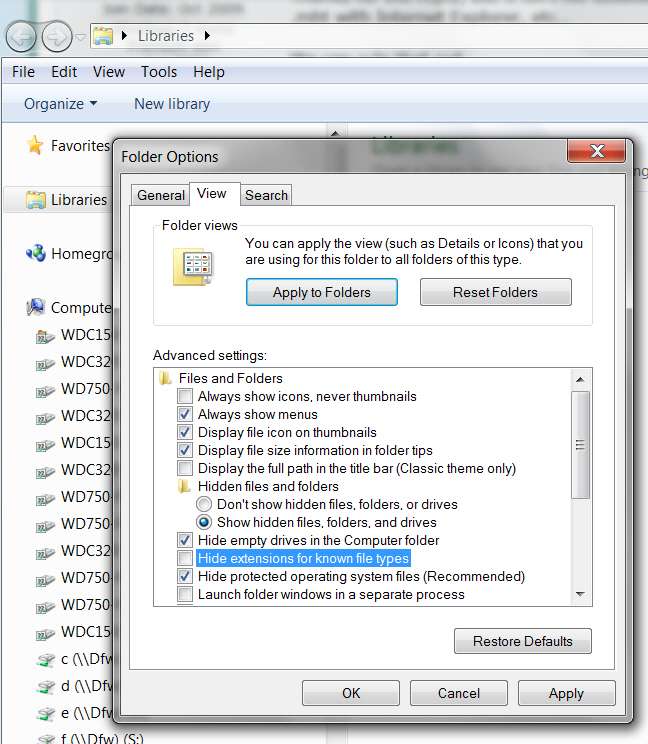
Of course, by default Windows installs so as to HIDE those extensions (perhaps not to confuse newbies who aren't too computer savvy), so you must UN-CHECK that "hide common extensions" option using the Organize -> Folder options -> View tab in order to now present extensions with all file names, rather than suppressing them. So that is one way to make your life easier if/when this icon issue reappears.

http://www.sevenforums.com/tutorials/10570-file-extensions-hide-show.html


5lmq.jpg
 
Last edited by a moderator:

My Computer

Computer type
PC/Desktop
Computer Manufacturer/Model Number
Home-built, two systems (1) and (2)
OS
Windows 7 Pro x64 (1), Win7 Pro X64 (2)
CPU
i5-3350p 3.1Ghz/6MB-cache (1); E8400 3.0Ghz/6MB-cache (2)
Motherboard
ASUS P8Z77-V Pro (1); ASUS P5Q3 (2)
Memory
8GB PC3-12800 DDR3 (1); 4GB PC3-10600 DDR3 (2)
Graphics Card(s)
ATI HD7750 (1), (see TV cards); ATI R7 250 (2)
Sound Card
Realtek ALC892 HD Audio (1); Realtek ALC1200 HD Audio (2)
Monitor(s) Displays
Eizo HD2441W LCD, Eizo S2433W (1); Eizo 24" S2433W (2)
Screen Resolution
1920x1200, 1920x1200 (1); 1920x1200 (2)
Hard Drives
(1) 1TB SATA-II (7200RPM), 2x2TB SATA-III (7200RPM), 250GB SATA-III (10000RPM) for OS; 2x2TB external USB 3.0

(2) 320GB SATA-II (7200RPM), 750GB SATA-II (7200RPM), 150GB SATA-II (10000RPM) for OS; 2TB external USB 3.0
PSU
Nesteq ECS-6001 600W (1); Nesteq ECS-5001 500W (2)
Case
Acousti-Case 360 (1) and (2)
Cooling
Noctua NH-U12P SE2 for CPU, 2x120mm case fans (1) and (2)
Keyboard
IBM PS/2 (1) and (2)
Mouse
Logitech MX Revolution wireless (1); Microsoft wired (2)
Internet Speed
100mbps down / 10mbps up
Antivirus
Microsoft Security Essentials; Malwarebyte Anti-Malware Pro
Browser
Firefox
Other Info
Ceton InfiniTV 4-tuner cablecard-enabled TV card as well as Hauppauge HVR-2250 OTA/ATSC 2-tuner TV card in (1), running under Win7 WMC
Thanks dsperger. The screenshots should be working now. Not sure what happened.

dsperger said:
Well, even without the mini-icons visible in Explorer you should still be able to see what "type" of file it is from the extension on the file name.

I can, of course, but I'm in Explorer so much that even the smallest delay is either time-consuming, annoying, or both. I use half-size windows for Explorer because that is significantly faster when saving and titling web pages.

Titling is important in my work and and I have a lot of long titles as you can hopefully now see in the screenshots above. So most of the time I can't see the extension unless I maximize the Explorer window which is a big time-killer and distraction.

Anyway, thanks for the help. I'm executing your procedure for rebuilding the icon cache shortly.
~~~
 

My Computer

Computer Manufacturer/Model Number
HP dv7-2277cl Notebook PC
OS
Windows 7 Home Premium x64 v6.1.7600
CPU
2.26 GHz Intel Core2 Duo Processor P7550, 3MB L2 Cache
Memory
4096MB DDR3 System Memory
Graphics Card(s)
ATI Mobility Radeon HD 4650 (M96); 1 GB dedicated memory
Sound Card
Altec Lansing with SRS Premium Sound and Sub-Woofer
Monitor(s) Displays
17.3” HD+ LED BrightView Widescreen Display
Screen Resolution
1600 x 900
Hard Drives
640 GB Western Digital 7200 rpm WD3200BEKT-60F3T1 Dual HDD (320 GB x 2)
Keyboard
Microsoft eHome MCIR 109 Keyboard
Thanks dsperger. The screenshots should be working now. Not sure what happened.
Yes, I see they now appear. But they are VERY VERY TINY (225x400?). I cannot make out anything on my 1920x1200 monitor. Did you use the URL links for the "thumbnails" maybe? Hard to believe those would be your screenshots of an open Explorer window.

Anyway, I truly cannot make out what you want to show...although I'm sure it's there.


dsperber said:
Well, even without the mini-icons visible in Explorer you should still be able to see what "type" of file it is from the extension on the file name.

I can, of course, but I'm in Explorer so much that even the smallest delay is either time-consuming, annoying, or both. I use half-size windows for Explorer because that is significantly faster when saving and titling web pages.
You're missing the point. I didn't expect you to dynamically change anything on-the-fly just to see the extensions.

The Folder Options -> View tab -> do not suppress known extensions option is a PERMANENT setting (at least for as long as you have it checked or un-checked). From that point on you will ALWAYS either see or not see the extensions.

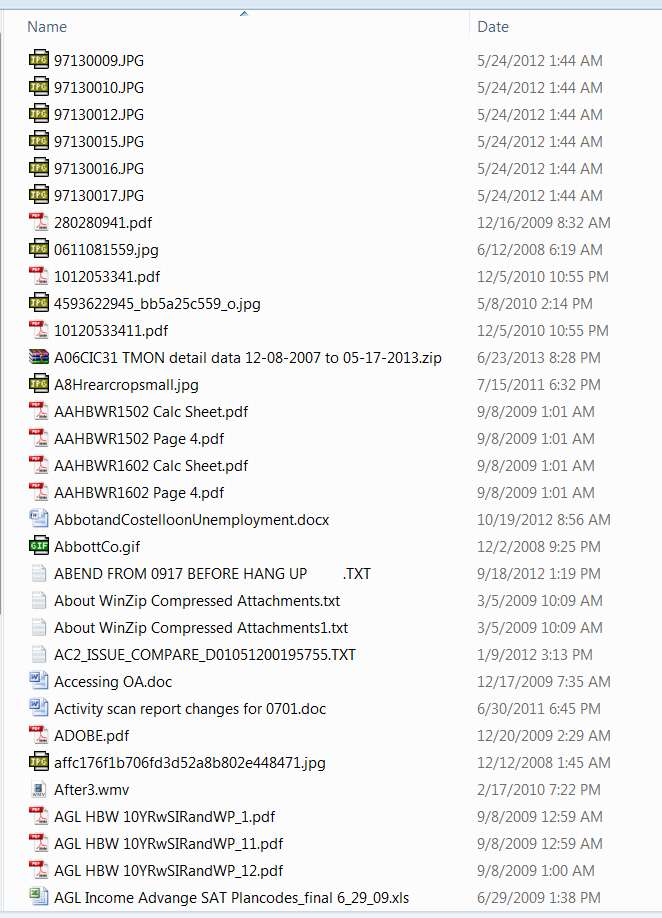
For example, here's a "list" Explorer sample from one of my folders. Of course my mini-icons are showing, but also the extensions are showing next to each file name.

5l3v.jpg


If your filenames are long, you can just use "details" mode and spread the first column so that the entire name and extension is completely visible, if that works better for you.


... as you can hopefully now see in the screenshots above.
As I said above, your screenshots (or thumnbnails) are too small for me to read.


So most of the time I can't see the extension unless I maximize the Explorer window which is a big time-killer and distraction.
Just stretch your window on that folder. Its size and location will be remembered when you close the window, and it will be the at the same place and with the same size when you next re-open that folder.

Also, if you spread the column heading separators so that the column detail data in each cell is fully visible, again that will be remembered by Windows when you close the Explorer window. Next time you re-open that folder the separators will be just where you last spread them.

If you want to be in "details" mode just set it, and spread the columns appropriately. Again, the extension will be easily visible after each file name... even if the mini-icons are not shown.

czr1.jpg


Anyway, thanks for the help. I'm executing your procedure for rebuilding the icon cache shortly.
You mean the recipe I provided above was NOT how you presumably rebuilt the icon cache? I don't know what alternate technique you had used, but the above command sequence is the right way to do it (as documented by the tutorial on this forum).
 

My Computer

Computer type
PC/Desktop
Computer Manufacturer/Model Number
Home-built, two systems (1) and (2)
OS
Windows 7 Pro x64 (1), Win7 Pro X64 (2)
CPU
i5-3350p 3.1Ghz/6MB-cache (1); E8400 3.0Ghz/6MB-cache (2)
Motherboard
ASUS P8Z77-V Pro (1); ASUS P5Q3 (2)
Memory
8GB PC3-12800 DDR3 (1); 4GB PC3-10600 DDR3 (2)
Graphics Card(s)
ATI HD7750 (1), (see TV cards); ATI R7 250 (2)
Sound Card
Realtek ALC892 HD Audio (1); Realtek ALC1200 HD Audio (2)
Monitor(s) Displays
Eizo HD2441W LCD, Eizo S2433W (1); Eizo 24" S2433W (2)
Screen Resolution
1920x1200, 1920x1200 (1); 1920x1200 (2)
Hard Drives
(1) 1TB SATA-II (7200RPM), 2x2TB SATA-III (7200RPM), 250GB SATA-III (10000RPM) for OS; 2x2TB external USB 3.0

(2) 320GB SATA-II (7200RPM), 750GB SATA-II (7200RPM), 150GB SATA-II (10000RPM) for OS; 2TB external USB 3.0
PSU
Nesteq ECS-6001 600W (1); Nesteq ECS-5001 500W (2)
Case
Acousti-Case 360 (1) and (2)
Cooling
Noctua NH-U12P SE2 for CPU, 2x120mm case fans (1) and (2)
Keyboard
IBM PS/2 (1) and (2)
Mouse
Logitech MX Revolution wireless (1); Microsoft wired (2)
Internet Speed
100mbps down / 10mbps up
Antivirus
Microsoft Security Essentials; Malwarebyte Anti-Malware Pro
Browser
Firefox
Other Info
Ceton InfiniTV 4-tuner cablecard-enabled TV card as well as Hauppauge HVR-2250 OTA/ATSC 2-tuner TV card in (1), running under Win7 WMC
I'll try again on the screenshots ....
 

Attachments

  • Windows 7 Save As Window (.htm).jpg
    Windows 7 Save As Window (.htm).jpg
    411.7 KB · Views: 6
  • Windows 7 Save As Window (.mht).jpg
    Windows 7 Save As Window (.mht).jpg
    486.7 KB · Views: 6
  • Windows 7 Explorer Window.jpg
    Windows 7 Explorer Window.jpg
    300.3 KB · Views: 5

My Computer

Computer Manufacturer/Model Number
HP dv7-2277cl Notebook PC
OS
Windows 7 Home Premium x64 v6.1.7600
CPU
2.26 GHz Intel Core2 Duo Processor P7550, 3MB L2 Cache
Memory
4096MB DDR3 System Memory
Graphics Card(s)
ATI Mobility Radeon HD 4650 (M96); 1 GB dedicated memory
Sound Card
Altec Lansing with SRS Premium Sound and Sub-Woofer
Monitor(s) Displays
17.3” HD+ LED BrightView Widescreen Display
Screen Resolution
1600 x 900
Hard Drives
640 GB Western Digital 7200 rpm WD3200BEKT-60F3T1 Dual HDD (320 GB x 2)
Keyboard
Microsoft eHome MCIR 109 Keyboard
I have now tried both procedures for rebuilding the Icon Cache, with no success. so we can rule that out as a cause and solution.
~~~
 

My Computer

Computer Manufacturer/Model Number
HP dv7-2277cl Notebook PC
OS
Windows 7 Home Premium x64 v6.1.7600
CPU
2.26 GHz Intel Core2 Duo Processor P7550, 3MB L2 Cache
Memory
4096MB DDR3 System Memory
Graphics Card(s)
ATI Mobility Radeon HD 4650 (M96); 1 GB dedicated memory
Sound Card
Altec Lansing with SRS Premium Sound and Sub-Woofer
Monitor(s) Displays
17.3” HD+ LED BrightView Widescreen Display
Screen Resolution
1600 x 900
Hard Drives
640 GB Western Digital 7200 rpm WD3200BEKT-60F3T1 Dual HDD (320 GB x 2)
Keyboard
Microsoft eHome MCIR 109 Keyboard
You're missing the point. I didn't expect you to dynamically change anything on-the-fly just to see the extensions.

The Folder Options -> View tab -> do not suppress known extensions option is a PERMANENT setting (at least for as long as you have it checked or un-checked). From that point on you will ALWAYS either see or not see the extensions.
If your filenames are long, you can just use "details" mode and spread the first column so that the entire name and extension is completely visible, if that works better for you.

I should have been more clear. I do both those things and always have. I can't get to first base doing anything if I can't see the extension. And always use 'details'. Never used anything else even when I'm not researching. :)

Just stretch your window on that folder. Its size and location will be remembered when you close the window, and it will be the at the same place and with the same size when you next re-open that folder.

Also, if you spread the column heading separators so that the column detail data in each cell is fully visible, again that will be remembered by Windows when you close the Explorer window. Next time you re-open that folder the separators will be just where you last spread them.

If you want to be in "details" mode just set it, and spread the columns appropriately. Again, the extension will be easily visible after each file name... even if the mini-icons are not shown.

Again, I should have been more clear. I use both of those techniques all the time. Stretching the folder isn't a good option because I need to see at least half the web page I'm on, while scanning the Explorer file simultaneously.

There should be a screenshot below ...

Anyway, it's hard to explain, but I really need to see half of the webpage at the same time as Explorer. And after much experimentation, stretching so I can see more than half of Explorer window, doesn't work.

But that's why the icons are so important to me. I need to be able to see the file type icons at all times, or it slows me down. And of course that annoys me, as I do this many hours every day.

You mean the recipe I provided above was NOT how you presumably rebuilt the icon cache? I don't know what alternate technique you had used, but the above command sequence is the right way to do it (as documented by the tutorial on this forum).
Can't recall. But I did both this time. I thought the command sequence was going to work for sure, but it didn't. It's something else.

Thanks again for your time on this.
~~~
 

Attachments

  • Windows 7 Webpage + Explorer.jpg
    Windows 7 Webpage + Explorer.jpg
    585.1 KB · Views: 7

My Computer

Computer Manufacturer/Model Number
HP dv7-2277cl Notebook PC
OS
Windows 7 Home Premium x64 v6.1.7600
CPU
2.26 GHz Intel Core2 Duo Processor P7550, 3MB L2 Cache
Memory
4096MB DDR3 System Memory
Graphics Card(s)
ATI Mobility Radeon HD 4650 (M96); 1 GB dedicated memory
Sound Card
Altec Lansing with SRS Premium Sound and Sub-Woofer
Monitor(s) Displays
17.3” HD+ LED BrightView Widescreen Display
Screen Resolution
1600 x 900
Hard Drives
640 GB Western Digital 7200 rpm WD3200BEKT-60F3T1 Dual HDD (320 GB x 2)
Keyboard
Microsoft eHome MCIR 109 Keyboard
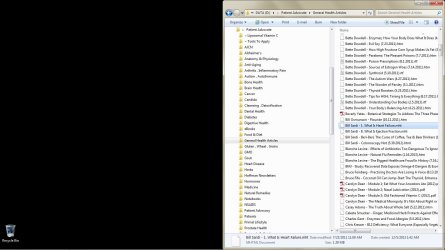
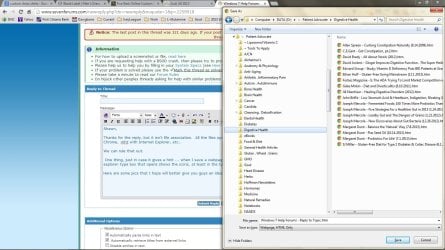
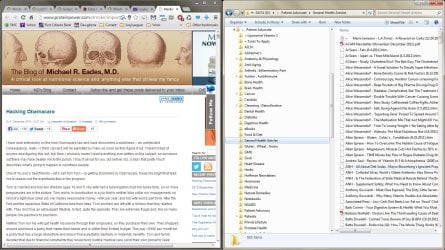
Here's a better screenshot of my general work layout, better demonstrating the long title issue, which I need to see as I'm reading through articles and studies. Often I need to know the filetype, to help determine if and how to archive new info. That's the best I can explain it.

There's a few other things, like for some strange reason the file type icon triggers my memory as to the content of the file.

Just didn't want you guys thinking I'm somehow too stubborn to spread a folder or a column heading separator. Believe me, I've tried those things. I need to see the icons.

BTW, I've tried nuking the HD and reinstalling W7. But within weeks, the same thing happens. Makes me think it could be something in the registry. I'm comfortable working in the registry but I don't go in there tweaking or fooling around. So that's not it.

I do use a registry cleaner by Iobit, which has never caused a problem. And I use Ultimate Defrag and CCleaner, all excellent software, AFAIK. I never let anything install, and never get malware. All those bases are covered.

I suppose it's possible one of these utilities caused the problem. But it's only been recent, within the last year, and I've run W7 on this machine since it's release.

Here's the shot ........
 

Attachments

  • Windows 7 Webpage + Explorer 2.jpg
    Windows 7 Webpage + Explorer 2.jpg
    679 KB · Views: 5

My Computer

Computer Manufacturer/Model Number
HP dv7-2277cl Notebook PC
OS
Windows 7 Home Premium x64 v6.1.7600
CPU
2.26 GHz Intel Core2 Duo Processor P7550, 3MB L2 Cache
Memory
4096MB DDR3 System Memory
Graphics Card(s)
ATI Mobility Radeon HD 4650 (M96); 1 GB dedicated memory
Sound Card
Altec Lansing with SRS Premium Sound and Sub-Woofer
Monitor(s) Displays
17.3” HD+ LED BrightView Widescreen Display
Screen Resolution
1600 x 900
Hard Drives
640 GB Western Digital 7200 rpm WD3200BEKT-60F3T1 Dual HDD (320 GB x 2)
Keyboard
Microsoft eHome MCIR 109 Keyboard
Just sticking my nose in ....... but the "iobit" raises red flags to me. Have you tried a system restore to a point before you first used it on the last install? Do you have a back-up of any files your registry "cleaner" deleted?

Here's a tutorial that includes a way to restore your registry to pristine conditions, just click on the link :) : http://www.sevenforums.com/tutorials/139576-startup-repair-infinite-loop-recovery.html
 

My Computer

Computer type
Laptop
Computer Manufacturer/Model Number
MSI GE72VR Apache Pro-416
OS
Windows 10x64 Build 1709
CPU
Intel i7 7700HQ Kaby Lake
Motherboard
Micro-Star Intl. MS-179B (U3C1)
Memory
16 GB DDR4 @2400
Graphics Card(s)
Nvidia Geforce GTX 1060
Screen Resolution
1920x1080 120Hz
Hard Drives
256 GB Nvme M.2 SSD

1TB HDD@7200
Cooling
Cooler Blast 4
Keyboard
Steel Series
Antivirus
Bit Defender Free
Browser
Edge
Just sticking my nose in ....... but the "iobit" raises red flags to me. Have you tried a system restore to a point before you first used it on the last install? Do you have a back-up of any files your registry "cleaner" deleted?

Here's a tutorial that includes a way to restore your registry to pristine conditions, just click on the link :) : http://www.sevenforums.com/tutorials/139576-startup-repair-infinite-loop-recovery.html
Thanks, all ideas appreciated. It's been over a year since the last install, so those points are long gone. Same with the registry cleaner thing, this current problem began in January .. I've just tried to live with it, but have run out of patience. Installs are hard for me, because it takes so long to reset everything like I need it to be. And not just Windows, all kinds of complex software that I need.

So it's been a long time since the last install and many good and necessary changes have been made to the registry. Would the registry restoration affect those? Or would it repair just the errors that have affected Windows? If it'll do only that, that might be great.

But as I said earlier, I run a clean machine, using RAM only, and it runs lightning fast all the time. But that is not accomplished by registry tweaks or tweak software .. simply turning off and disabling processes and services which aren't necessary .. streamlining W7, if you will.

So I'm nervous about doing any sort of broad operation to the registry. If I knew how to do a single, or several, manual registry changes that might fix the icon problem, I would certainly give that a try, as I could easily revert back if it didn't work. But I don't know which registry entry(s) might be affected.
~~~
 

My Computer

Computer Manufacturer/Model Number
HP dv7-2277cl Notebook PC
OS
Windows 7 Home Premium x64 v6.1.7600
CPU
2.26 GHz Intel Core2 Duo Processor P7550, 3MB L2 Cache
Memory
4096MB DDR3 System Memory
Graphics Card(s)
ATI Mobility Radeon HD 4650 (M96); 1 GB dedicated memory
Sound Card
Altec Lansing with SRS Premium Sound and Sub-Woofer
Monitor(s) Displays
17.3” HD+ LED BrightView Widescreen Display
Screen Resolution
1600 x 900
Hard Drives
640 GB Western Digital 7200 rpm WD3200BEKT-60F3T1 Dual HDD (320 GB x 2)
Keyboard
Microsoft eHome MCIR 109 Keyboard
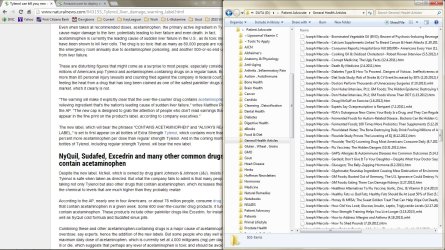
Something to try

Hi IveyLeaguer

I've had a few icon related problems in the past (blank icons appear) and here's what seems to work for me.

When icons are displaying properly I use Nirsoft's Icons Extract to back up all icons to a folder on a non windows partition.

IconsExtract - Extract icon/cursor stored in EXE, DLL, OCX, CPL files

Security programs tend to flag up Nirsoft products though as a lot of their software could potentially be used as hacking tools so your AV might not like this software!


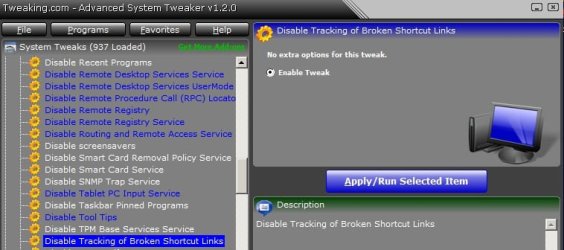
I believe that your problem is related to broken shortcuts and the windows maintenance troubleshooter. As a temporary fix try disabling it in Task Scheduler. Then try disabling broken shortcut link tracking in windows.


Then try installing the hotfix (choose 32bit or 64bit) and create the registry entries as mentioned by "Anon12345" near the end of this thread:

Case of the Missing Desktop Shortcut Icons | chentiangemalc

I've found that this tends to fix the problem but it's obviously not a good idea to keep the windows maintenance troubleshooter disabled on a permanent basis.

If you decide that this might be helpful I'd suggest making a system image backup before going ahead as you can then undo any changes.
 

Attachments

  • 2013-12-07 18_03_31-Search For Icons.jpg
    2013-12-07 18_03_31-Search For Icons.jpg
    97.6 KB · Views: 21
  • 2013-12-07 18_14_13-Tweaking.jpg
    2013-12-07 18_14_13-Tweaking.jpg
    155.3 KB · Views: 2

My Computer

Computer type
Laptop
Computer Manufacturer/Model Number
ASUS
OS
Microsoft Windows 7 Home Premium 64-bit 7601 Multiprocessor Free Service Pack 1
CPU
AMD C-60 APU with Radeon(tm) HD Graphics
Motherboard
ASUSTeK COMPUTER INC. X501U
Memory
4.00 GB
Graphics Card(s)
AMD Radeon HD 6290 Graphics
Sound Card
(1) AMD High Definition Audio Device (2) Realtek High Defi
Screen Resolution
1366 x 768 x 32 bits (4294967296 colors) @ 60 Hz
Hard Drives
Hitachi HTS545050A7E380 SATA Disk Device
Antivirus
Comodo CIS & FW, SecureAplus App Whitelisting, Threatfire
Browser
Cyberfox 64bit, Opera 64bit, Airfox
Other Info
Spy-The-Spy, HitmanPro.Alert, Norton Connect Safe, MJRegWatcher, BitDefender TrafficLight, Voodoo Shield, Zemana AntiMalware
BTW, I've tried nuking the HD and reinstalling W7. But within weeks, the same thing happens. Makes me think it could be something in the registry. I'm comfortable working in the registry but I don't go in there tweaking or fooling around. So that's not it.

I do use a registry cleaner by Iobit, which has never caused a problem. And I use Ultimate Defrag and CCleaner, all excellent software, AFAIK.
Not to point suspicious fingers at software I know nothing about and have never ever used on any of my machines ever, and have never had all but the occasional random loss of icons which can be 100% successfully restored by the "rebuild icon cache" technique I posted earlier... but perhaps these software products are related to your problem?

Have you ever tried nuking/reinstalling and NOT installing these additional Registry-related products?


One more thought about your "long filename" issue, so that you can't actually see the complete file name plus extension when you have your two side-by-side windows open simultaneously as you've shown in your screenshots...

What about reversing the two windows locations on your single monitor desktop, with the Explorer window ON THE LEFT and open in a bigger "stretched" size (but still as a window, not full-screen) so that you CAN see the complete file name if that window has the focus and is 100% visible. Then you position your WORD/browser window ON THE RIGHT side, overlaying the right part of the Explorer window. And be sure that some piece of the WORD/browser window or its title bar is still visible even when you have the Explorer window in focus, so that you can simply 1-click on the WORD window to get it back into focus when you need to work in it.

It would appear that your very long file names prevent your existing single monitor from satisfying having both windows open and fully adequately sized and visible simultaneously, which is your goal. So perhaps overlapping unequally sized windows with 1-click back-and-forth navigation is one possible alternative solution (having nothing to do with the loss of icons issue).

Also, have you ever thought about getting a second monitor, and thus extending your Windows desktop to be double-wide? Assuming your computer hardware supports this (or easily could with a simple video card upgrade if possible), I can assure you that having TWO MONITORS is a huge advantage if your work (or play) requires special situations like this where you'd really like to see two or more open windows simultaneously and in their entirety. Just a thought.
 

My Computer

Computer type
PC/Desktop
Computer Manufacturer/Model Number
Home-built, two systems (1) and (2)
OS
Windows 7 Pro x64 (1), Win7 Pro X64 (2)
CPU
i5-3350p 3.1Ghz/6MB-cache (1); E8400 3.0Ghz/6MB-cache (2)
Motherboard
ASUS P8Z77-V Pro (1); ASUS P5Q3 (2)
Memory
8GB PC3-12800 DDR3 (1); 4GB PC3-10600 DDR3 (2)
Graphics Card(s)
ATI HD7750 (1), (see TV cards); ATI R7 250 (2)
Sound Card
Realtek ALC892 HD Audio (1); Realtek ALC1200 HD Audio (2)
Monitor(s) Displays
Eizo HD2441W LCD, Eizo S2433W (1); Eizo 24" S2433W (2)
Screen Resolution
1920x1200, 1920x1200 (1); 1920x1200 (2)
Hard Drives
(1) 1TB SATA-II (7200RPM), 2x2TB SATA-III (7200RPM), 250GB SATA-III (10000RPM) for OS; 2x2TB external USB 3.0

(2) 320GB SATA-II (7200RPM), 750GB SATA-II (7200RPM), 150GB SATA-II (10000RPM) for OS; 2TB external USB 3.0
PSU
Nesteq ECS-6001 600W (1); Nesteq ECS-5001 500W (2)
Case
Acousti-Case 360 (1) and (2)
Cooling
Noctua NH-U12P SE2 for CPU, 2x120mm case fans (1) and (2)
Keyboard
IBM PS/2 (1) and (2)
Mouse
Logitech MX Revolution wireless (1); Microsoft wired (2)
Internet Speed
100mbps down / 10mbps up
Antivirus
Microsoft Security Essentials; Malwarebyte Anti-Malware Pro
Browser
Firefox
Other Info
Ceton InfiniTV 4-tuner cablecard-enabled TV card as well as Hauppauge HVR-2250 OTA/ATSC 2-tuner TV card in (1), running under Win7 WMC
Hi IveyLeaguer

I've had a few icon related problems in the past (blank icons appear) and here's what seems to work for me.

When icons are displaying properly I use Nirsoft's Icons Extract to back up all icons to a folder on a non windows partition.

IconsExtract - Extract icon/cursor stored in EXE, DLL, OCX, CPL files

Security programs tend to flag up Nirsoft products though as a lot of their software could potentially be used as hacking tools so your AV might not like this software!


I believe that your problem is related to broken shortcuts and the windows maintenance troubleshooter. As a temporary fix try disabling it in Task Scheduler. Then try disabling broken shortcut link tracking in windows.


Then try installing the hotfix (choose 32bit or 64bit) and create the registry entries as mentioned by "Anon12345" near the end of this thread:

Case of the Missing Desktop Shortcut Icons | chentiangemalc

I've found that this tends to fix the problem but it's obviously not a good idea to keep the windows maintenance troubleshooter disabled on a permanent basis.

If you decide that this might be helpful I'd suggest making a system image backup before going ahead as you can then undo any changes.

Thanks. Missing shortcuts really rings a bell for some reason. I bet that's it.

So even though the only icons missing are the .htm and .mht files in the Explorer window (and those only when in normal Explorer mode, as they show normally when in 'Save' mode), and not the desktop icons and other Windows icons (as all other icons in Windows, including the desktop icons, are fine) .. you think this might be a fix?

Just checking to be sure, because if you think so, I think I'd be willing to give it a go.
~~~
 

My Computer

Computer Manufacturer/Model Number
HP dv7-2277cl Notebook PC
OS
Windows 7 Home Premium x64 v6.1.7600
CPU
2.26 GHz Intel Core2 Duo Processor P7550, 3MB L2 Cache
Memory
4096MB DDR3 System Memory
Graphics Card(s)
ATI Mobility Radeon HD 4650 (M96); 1 GB dedicated memory
Sound Card
Altec Lansing with SRS Premium Sound and Sub-Woofer
Monitor(s) Displays
17.3” HD+ LED BrightView Widescreen Display
Screen Resolution
1600 x 900
Hard Drives
640 GB Western Digital 7200 rpm WD3200BEKT-60F3T1 Dual HDD (320 GB x 2)
Keyboard
Microsoft eHome MCIR 109 Keyboard
BTW, I've tried nuking the HD and reinstalling W7. But within weeks, the same thing happens. Makes me think it could be something in the registry. I'm comfortable working in the registry but I don't go in there tweaking or fooling around. So that's not it.

I do use a registry cleaner by Iobit, which has never caused a problem. And I use Ultimate Defrag and CCleaner, all excellent software, AFAIK.
Not to point suspicious fingers at software I know nothing about and have never ever used on any of my machines ever, and have never had all but the occasional random loss of icons which can be 100% successfully restored by the "rebuild icon cache" technique I posted earlier... but perhaps these software products are related to your problem?

Have you ever tried nuking/reinstalling and NOT installing these additional Registry-related products?


One more thought about your "long filename" issue, so that you can't actually see the complete file name plus extension when you have your two side-by-side windows open simultaneously as you've shown in your screenshots...

What about reversing the two windows locations on your single monitor desktop, with the Explorer window ON THE LEFT and open in a bigger "stretched" size (but still as a window, not full-screen) so that you CAN see the complete file name if that window has the focus and is 100% visible. Then you position your WORD/browser window ON THE RIGHT side, overlaying the right part of the Explorer window. And be sure that some piece of the WORD/browser window or its title bar is still visible even when you have the Explorer window in focus, so that you can simply 1-click on the WORD window to get it back into focus when you need to work in it.

It would appear that your very long file names prevent your existing single monitor from satisfying having both windows open and fully adequately sized and visible simultaneously, which is your goal. So perhaps overlapping unequally sized windows with 1-click back-and-forth navigation is one possible alternative solution (having nothing to do with the loss of icons issue).

Also, have you ever thought about getting a second monitor, and thus extending your Windows desktop to be double-wide? Assuming your computer hardware supports this (or easily could with a simple video card upgrade if possible), I can assure you that having TWO MONITORS is a huge advantage if your work (or play) requires special situations like this where you'd really like to see two or more open windows simultaneously and in their entirety. Just a thought.

Thanks for those ideas. I'm going to think about them soon, when I'm not so tired.
~~~
 

My Computer

Computer Manufacturer/Model Number
HP dv7-2277cl Notebook PC
OS
Windows 7 Home Premium x64 v6.1.7600
CPU
2.26 GHz Intel Core2 Duo Processor P7550, 3MB L2 Cache
Memory
4096MB DDR3 System Memory
Graphics Card(s)
ATI Mobility Radeon HD 4650 (M96); 1 GB dedicated memory
Sound Card
Altec Lansing with SRS Premium Sound and Sub-Woofer
Monitor(s) Displays
17.3” HD+ LED BrightView Widescreen Display
Screen Resolution
1600 x 900
Hard Drives
640 GB Western Digital 7200 rpm WD3200BEKT-60F3T1 Dual HDD (320 GB x 2)
Keyboard
Microsoft eHome MCIR 109 Keyboard
BTW, I've tried nuking the HD and reinstalling W7. But within weeks, the same thing happens. Makes me think it could be something in the registry. I'm comfortable working in the registry but I don't go in there tweaking or fooling around. So that's not it.

I do use a registry cleaner by Iobit, which has never caused a problem. And I use Ultimate Defrag and CCleaner, all excellent software, AFAIK.
Not to point suspicious fingers at software I know nothing about and have never ever used on any of my machines ever, and have never had all but the occasional random loss of icons which can be 100% successfully restored by the "rebuild icon cache" technique I posted earlier... but perhaps these software products are related to your problem?

Have you ever tried nuking/reinstalling and NOT installing these additional Registry-related products?
There's only one registry-related product that wasn't used before this problem began. And it's not a registry cleaner, I've been using those since the '90's. It's a shortcut fixer that comes with the Iobit program.

I now suspect that's what did it. So I'll refrain from using that. Is there any way to restore the shortcuts, as just the .mht and .htm (.html) shortcuts are missing (because apparently the icons are there), without nuking?

What about reversing the two windows locations on your single monitor desktop, with the Explorer window ON THE LEFT and open in a bigger "stretched" size (but still as a window, not full-screen) so that you CAN see the complete file name if that window has the focus and is 100% visible. Then you position your WORD/browser window ON THE RIGHT side, overlaying the right part of the Explorer window. And be sure that some piece of the WORD/browser window or its title bar is still visible even when you have the Explorer window in focus, so that you can simply 1-click on the WORD window to get it back into focus when you need to work in it.

I'm going to try that, it might just work. Thanks for the idea. The two monitor thing is out, I need everything on my laptop screen, which is 17".
~~~
 

My Computer

Computer Manufacturer/Model Number
HP dv7-2277cl Notebook PC
OS
Windows 7 Home Premium x64 v6.1.7600
CPU
2.26 GHz Intel Core2 Duo Processor P7550, 3MB L2 Cache
Memory
4096MB DDR3 System Memory
Graphics Card(s)
ATI Mobility Radeon HD 4650 (M96); 1 GB dedicated memory
Sound Card
Altec Lansing with SRS Premium Sound and Sub-Woofer
Monitor(s) Displays
17.3” HD+ LED BrightView Widescreen Display
Screen Resolution
1600 x 900
Hard Drives
640 GB Western Digital 7200 rpm WD3200BEKT-60F3T1 Dual HDD (320 GB x 2)
Keyboard
Microsoft eHome MCIR 109 Keyboard
Back
Top