Low Disk D Space

star59

New member
Local time
1:46 PM
Messages
8
Hello All,

I have been reading the posts about the above mentioned problem, but having a problem understanding the "how to's". Also, I will include more info for my situation.

I was using a Western Digital external hard drive for backup purposes. I left it plugged into my computer for a long period of time. I'm assuming that is the cause of my "Low Disk Space" message constantly appearing? I have no idea how to use that Western Digital contraption; I have tried to read the instructions, but can't understand those either.

As you might be able to tell, I am pretty clueless about this problem. Sorry to be a numb nut with this, but I hope someone out there has the patience to deal with me!

Thanks in Advance!
 

My Computer

Computer type
PC/Desktop
OS
Windows 7 Home Premium / 64
Antivirus
Windows Essentials
Browser
Google Chrome
Hello star59, welcome to Seven Forums!


I'm not around here to-much anymore but I can get you started.

So you can get the correct advice, please post a maximized snip / screen-shot of Windows 7 disk management, making sure the Status column in the top section is clearly readable, have a look at this tutorial linked below.


My Computer

Computer Manufacturer/Model Number
* BFK Customs *
OS
W 7 64-bit Ultimate
CPU
Intel Q9550 Yorkfield
Motherboard
ASUS P5Q Pro
Memory
8GB Dominator 8500C5D
Graphics Card(s)
ATI : XFX 5870
Sound Card
Realtek HD Audio 7-1
Monitor(s) Displays
1x 47" LCD HDMI & 3x 26" LCD HDMI
Screen Resolution
1920x1080P & 1920x1200
Hard Drives
1x 80GB Intel X25-M G2 SSD : 1x 500GB & 1x 640GB WD Caviar Black(s)
PSU
Corsair 620HX
Case
Cooler Master RC-690
Cooling
Tuniq Tower 120, 2x 140mm and 3x 120mm case fans
Keyboard
Microsoft 500
Mouse
Razer Diamondback 3G
Internet Speed
14 Mb/s
Other Info
1x Koutech 3Gb/s SATA HDD Hot Swap Rack
  • Like
Reactions: Arc
Thank you so much for replying; I'll get that screen shot to you asap!
 

My Computer

Computer type
PC/Desktop
OS
Windows 7 Home Premium / 64
Antivirus
Windows Essentials
Browser
Google Chrome
Hello star59, welcome to Seven Forums!


I'm not around here to-much anymore but I can get you started.

So you can get the correct advice, please post a maximized snip / screen-shot of Windows 7 disk management, making sure the Status column in the top section is clearly readable, have a look at this tutorial linked below.


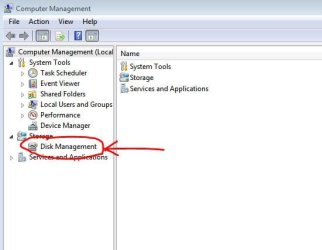
Ok.....already I don't know how to find the disk management, but I do, however, know how to get you that screen shot! Sorry for my cluelessness.......new word....
 

My Computer

Computer type
PC/Desktop
OS
Windows 7 Home Premium / 64
Antivirus
Windows Essentials
Browser
Google Chrome

My Computer

Computer type
PC/Desktop
Computer Manufacturer/Model Number
Self assembled
OS
Windows 10 Home 64Bit
CPU
Intel Core i5 10400 @ 2.90GHz
Motherboard
Intel Corporation DG41WV (PROCESSOR)
Memory
8.00GB Single-Channel Unknown @ 1329MHz (16-20-20-38)
Sound Card
Realtek High Definition Audio
Monitor(s) Displays
DELL E170S
Screen Resolution
1280x1024 pixels
Hard Drives
931GB TOSHIBA DT01ACA100 (SATA)
238GB TEAM TM8PS7256G (SATA SSD)
Case
Nothing Fancy
Cooling
Fans
Keyboard
A4 Tech Co LTD
Mouse
A4 Tech Co Ltd/Logitech
Internet Speed
25 Mbps
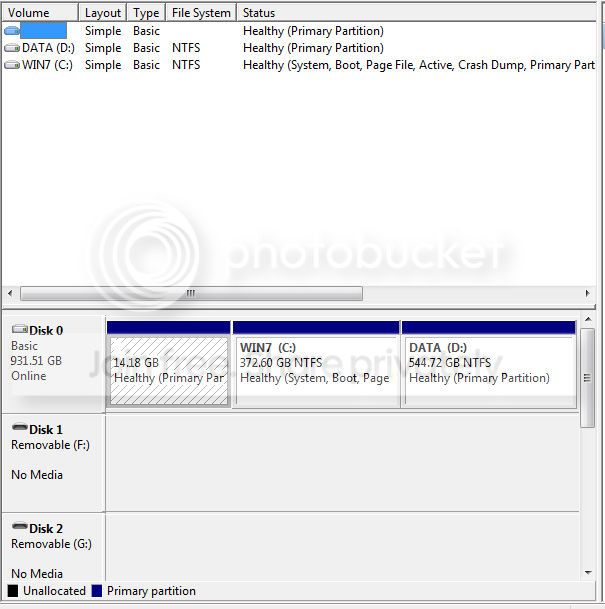
Ok, got the screen shot........


DiskManagement_zps79ef3646.jpg
 

My Computer

Computer type
PC/Desktop
OS
Windows 7 Home Premium / 64
Antivirus
Windows Essentials
Browser
Google Chrome
How much space do you have free on both on C: and D: respectively?

:ar: Right click on the 14.18 GB box you see (marked with "Healthy (primary partition)") > Click "Change Drive letter and Paths" > Now click "Add" in the dialog box that appears > Select "Assign the following drive letter" and select any letter (let's say Z) from the drop down list ahead > Click OK

Now go to Computer, you'll find Z: drive there if you assigned the letter Z. Open it, check the contents. Also check the free space on the drive by right-clicking it and selecting properties. Is there very little free space there? If yes, this can be reason for the warnings. Either free up Z drive a bit or follow the instructions below:

You can disable low disk space messages this way:

1. Click Start :orb:

2. Type "regedit" [without quotes] and hit Enter.

3. Navigate to
HKEY_CURRENT_USER\Software\Microsoft\Windows\CurrentVersion\Policies\Explorer

  • If "Explorer" doesn't exist (as was my case), right click "Policies" on the left > Click New > Key
  • Enter the name as "Explorer" and hit enter.

4. Make sure Explorer is selected on the left pane.

5. On the right pane, right click > New > DWORD (32 bit) value > Name the value as "NoLowDiskSpaceChecks"

6. Double click it and set the value to "1".

7. Once done, log off and log back on. Now you won't ever be bugged by Low disk space warnings.
 
Change drive letter and paths is grayed out...is is possible my WD external drive is using D to put the backup files on? If so, can I delete those files since Windows does it's own backup? It doesn't help that I can't understand how the Western Digital drive works; I thought once you plug it in, the back up goes on THAT drive. Very confused....
 

My Computer

Computer type
PC/Desktop
OS
Windows 7 Home Premium / 64
Antivirus
Windows Essentials
Browser
Google Chrome
I don't know about the backup thing, but if you just want to stop the warning messages, just follow the second half of my previous post.

If you do have the free space on your internal and external drives that's supposed to be there, then why worry unless you think something hidden is taking up your valuable space?
 
I don't know about the backup thing, but if you just want to stop the warning messages, just follow the second half of my previous post.

If you do have the free space on your internal and external drives that's supposed to be there, then why worry unless you think something hidden is taking up your valuable space?


Well, I'd like to find out exactly what files are taking up the D drive; can I do that? Basically, I have no idea how it got so full. The message isn't a bother to me.
 

My Computer

Computer type
PC/Desktop
OS
Windows 7 Home Premium / 64
Antivirus
Windows Essentials
Browser
Google Chrome
I don't know about the backup thing, but if you just want to stop the warning messages, just follow the second half of my previous post.

If you do have the free space on your internal and external drives that's supposed to be there, then why worry unless you think something hidden is taking up your valuable space?


Well, I'd like to find out exactly what files are taking up the D drive; can I do that? Basically, I have no idea how it got so full. The message isn't a bother to me.

Well that's your job to do. Make sure first you unhide everything and then you need to manually check if there's something extraterrestrial taking up your space. :rolleyes:

If you find anything that's not yours, you could ask here before deleting so that we can confirm if it's safe to delete. :)
 
Could you post a full shot of disk management showing everything, free space etc. Can`t tell what`s what with that shot. I don`t see any external drive hooked up. I wouldn`t mess with the 14 Gig partition, it`s probably your recovery partition. Disk 0 is 1 drive.
 

My Computer

Computer type
PC/Desktop
Computer Manufacturer/Model Number
Skylake Special #666
OS
Windows 10 Pro x64
CPU
Intel Core i7 6700K
Motherboard
Asus Sabertooth Z170 Mark 1
Memory
GSkill TridentZ RGB 16GB 3600 16-16-16-36
Graphics Card(s)
EVGA GTX 980 Ti SC x2
Sound Card
Realtek High Definition
Monitor(s) Displays
AOC G2460PG
Screen Resolution
1920 x 1080 144Hz
Hard Drives
Samsung 860 Pro 256GB, Seagate Barracuda 4TB x2
PSU
EVGA 1000 P2, EVGA White Custom Braided Cables
Case
Corsair Vengeance C70 Gunmetal Black
Cooling
Corsair H100i v2, Corsair ML120 x2, Thermal Grizzly Kryonaut
Keyboard
Logitech G910 Orion Spectrum
Mouse
Logitech G700s
Internet Speed
Verizon Fios Quantum Gateway 75/75
Antivirus
Windows Defender, Malwarebytes Free 3.8.3
Browser
Chrome
Other Info
Corsair SP120 x4, LG Blu-ray Drive, Durabrand HT-395 100 Watt Dolby Digital Amp, Corsair H2100 Wireless 7.1 Headset
Could you post a full shot of disk management showing everything, free space etc. Can`t tell what`s what with that shot. I don`t see any external drive hooked up. I wouldn`t mess with the 14 Gig partition, it`s probably your recovery partition. Disk 0 is 1 drive.


I'll be glad to; not sure how to show the info you want though. Let me know, and I'll have it to you asap!

Thanks!


PS....I did have my external drive hooked up until recently. I thought the WD was for backing up my computer on THAT device.
 

My Computer

Computer type
PC/Desktop
OS
Windows 7 Home Premium / 64
Antivirus
Windows Essentials
Browser
Google Chrome
Back
Top