Major problems copying and moving files

eldongr

New member
Local time
1:46 AM
Messages
4
What good is an operating system if you can't safely move and copy files? I have had this (and similar problems) happen several times in Windows 7. I am trying to move large (video) files. I dragged the files into a sub folder. Windows Explorer indicated move into x folder. But Windows then shows the files in both the source and destination folders. (So I thought they must have been copied instead.) So I deleted the files from the source area, but then they were gone from both places. (I always do shift-delete, so they were gone, gone!) Now I'm looking at the folder/directory from a command prompt and it doesn't match what I see in Windows explorer. (There seems to be some confusion with moving verses copying and also--especially--updating or refreshing what is contained in folders.) This is not the first time. I have been burned with this several times. My only solution is to not trust what I am seeing and reboot my computer. Come on guys! This is a basic operating system function that I'm attempting here!!! I am an old DOS guy from way back. I am using an i7 processor and Windows 7 Home Premium (64-bit).
 

My Computer My Computer

OS
windows 7
Problem Duplicated

I can consistently duplicate this. Move a file to subfolder. File still shows in source folder. Delete from source folder. File is deleted from subfolder (and then also disappears from source folder).
 

My Computer My Computer

OS
windows 7
Are you using Libraries to move those files back and forth?
 

My Computer My Computer

Computer type
PC/Desktop
Computer Manufacturer/Model Number
Home built
OS
Windows 7 Ult, Windows 8.1 Pro,
CPU
Q9650-4.275GHz, E8600 4.5GHz, E6750-3.8GHz
Motherboard
Evga 780i FTW
Memory
G.Skill PC2 9600 1200Mhz 5 5 5 15 2T
Graphics Card(s)
GTX480
Sound Card
Asus Xonar D2
Monitor(s) Displays
HannsG
Screen Resolution
1680X1050
Hard Drives
GSkill Phoenix Pro 120GB SSD
PSU
ThermalTake Toughpower 1000Watt modular
Case
ThermalTake XaserV
Cooling
Xigmatek S1283
Keyboard
Logitech G15
Mouse
Logitech G9
Internet Speed
T1
Eldongr, welcome to the Seven Forums.

I tried, three different rigs, two Ultimates and a Home Premium, and can not reproduce this issue.

If you drag and drop with left mouse button, the file is immediately moved to target folder and disappears from original folder when move is finished. With larger files, moving can take some time; during this time, the file is shown on both folders.

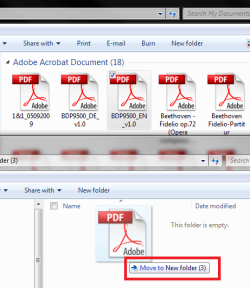
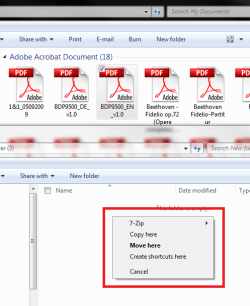
Dragging and dropping with the right mouse button is my method. When you do this, a tooltip tells Moving to (target) folder, but when you relese right mouse button in target folder, you get a context menu which let you choose between Move, Copy or Create shortcut.

Right button Drag:

MoveCopy_1.png

Right button released:

MoveCopy_2.png

Kari
 

My Computer My Computer

Computer type
Laptop
Computer Manufacturer/Model Number
HP ENVY 17-1150eg
OS
Windows 10 Pro x64 EN-GB
CPU
1.6 GHz Intel Core i7-720QM Processor
Memory
6 GB
Graphics Card(s)
ATI Mobility Radeon HD 5850 Graphics
Sound Card
Beats sound system with integrated subwoofer
Monitor(s) Displays
17" laptop display, 22" LED and 32" Full HD TV through HDMI
Screen Resolution
1600*900 (1), 1920*1080 (2&3)
Hard Drives
Internal: 2 x 500 GB SATA Hard Disk Drive 7200 rpm
External: 2TB for backups, 3TB USB3 network drive for media
Cooling
As Envy runs a bit warm, I have it on a Cooler Master pad
Keyboard
Logitech diNovo Media Desktop Laser (bluetooth)
Mouse
Logitech Performance Mouse MX
Internet Speed
50/10 Mbps VDSL
Antivirus
Windows Defender 4.3.9431.0
Browser
Maxthon 3.5.2., IE11
Yes. This appears to be an issue with accessing folders through libraries. When I navigate using libraries I get different results than when looking at the same folder without libraries. Perhaps this is a user error, but I think not. Shouldn't copy, move, and viewing folder contents be the same regardless of how you navigated to the folder?
 

My Computer My Computer

OS
windows 7
Libraries are not the actual file, they just represent files in other locations, thats what those pretty pictures are about. There is a setting to allow Libraries for moving files around but you would be far better served by simply going into the User folders to move those larger files around. It works more consistantly that way.

For instance, instead of going into Libraries to perform your file transfers, you should go into the "User name" User files, then use the My picture,My music, My documents, any of the User folders in order to move those files around.

Then also use the little blue Network icon, lower left after clicking on the file icon, then choose the> User name icon to transfer those files to other machines. It should work better for you after that. You will need to share the User folders on all machines for access to all the User folders.

There is also a way to enable file transfers using Libraries but it needs to be enabled on all machines.
 

My Computer My Computer

Computer type
PC/Desktop
Computer Manufacturer/Model Number
Home built
OS
Windows 7 Ult, Windows 8.1 Pro,
CPU
Q9650-4.275GHz, E8600 4.5GHz, E6750-3.8GHz
Motherboard
Evga 780i FTW
Memory
G.Skill PC2 9600 1200Mhz 5 5 5 15 2T
Graphics Card(s)
GTX480
Sound Card
Asus Xonar D2
Monitor(s) Displays
HannsG
Screen Resolution
1680X1050
Hard Drives
GSkill Phoenix Pro 120GB SSD
PSU
ThermalTake Toughpower 1000Watt modular
Case
ThermalTake XaserV
Cooling
Xigmatek S1283
Keyboard
Logitech G15
Mouse
Logitech G9
Internet Speed
T1
Wow. This is a dangerous "feature." I see that doing file transfers/maintenance while in libraries is a bad thing. So much for their usefulness if you ask me. Unfortunately when you delete files from a library, it also deletes them from the original folder (and what you see is NOT what you get) as far as file status/location...
Thanks
 

My Computer My Computer

OS
windows 7
Oh yes, I didn't think OP might be moving files inside the library. Then, of course, this can happen.

Let's say your Videos library contains two folders, X:\Videos and Y:\Videos. You open Libraries > Videos and Y:\Videos side by side, dragging a file from Video library (actual location X:\Videos) to Y:\Videos.

Because Y:\Videos is included in Video library, the file is of course shown on both also after the move. Only its actual de facto location is changed; opening X:\Videos don't show it any more because it was moved.

Conclusion: Library function is working as it was planned to work, as it is supposed to work. It shows the file, wherever it is actually located, as long as the location folder is included in library.

I can not see what is so difficult in this kind of behavior. Just remember library shows the content of all included folders.

Kari
 

My Computer My Computer

Computer type
Laptop
Computer Manufacturer/Model Number
HP ENVY 17-1150eg
OS
Windows 10 Pro x64 EN-GB
CPU
1.6 GHz Intel Core i7-720QM Processor
Memory
6 GB
Graphics Card(s)
ATI Mobility Radeon HD 5850 Graphics
Sound Card
Beats sound system with integrated subwoofer
Monitor(s) Displays
17" laptop display, 22" LED and 32" Full HD TV through HDMI
Screen Resolution
1600*900 (1), 1920*1080 (2&3)
Hard Drives
Internal: 2 x 500 GB SATA Hard Disk Drive 7200 rpm
External: 2TB for backups, 3TB USB3 network drive for media
Cooling
As Envy runs a bit warm, I have it on a Cooler Master pad
Keyboard
Logitech diNovo Media Desktop Laser (bluetooth)
Mouse
Logitech Performance Mouse MX
Internet Speed
50/10 Mbps VDSL
Antivirus
Windows Defender 4.3.9431.0
Browser
Maxthon 3.5.2., IE11

My Computer My Computer

OS
Windows 7 64-bit
CPU
AMD Athlon II X4 620 Propus @ 2.6ghz
Motherboard
GIGABYTE GA-MA785GM-US2H
Memory
OCZ Platinum 4GB (2 x 2GB) 240-Pin DDR2 SDRAM DDR2 1066 (PC2
Graphics Card(s)
ATI Radeon HD 4200 [on board]
Sound Card
Realtek ALC889A [on board]
Case
APEVIA X-QPACK-NW-BK/420 Black Aluminum
Let me suggest you try TerraCopy, it has a built-in verifyer and ignores issues like the library one in my experience. On the plus side, you move/copy speed will (in theory) improve.
Code:
http://www.codesector.com/teracopy.php
 

My Computer My Computer

Computer type
PC/Desktop
Computer Manufacturer/Model Number
Custom Build/Mod
OS
Windows 7 Home Premium x64
CPU
Intel QX9650 Extreme 4.0 GHz
Motherboard
ASUS Rampage Extreme Rev2
Memory
8GB (4x2) Corsair Dominator DDR3
Graphics Card(s)
2x Radeon R390X [8GB]
Sound Card
SupremeFX X-Fi
Monitor(s) Displays
Dell 2408WFP 26" Panel
Screen Resolution
1920x1200
Hard Drives
4x WD 2TB (8TB+ Total)
2x Crucial SSD 128GB (RAID-0)
1x LG Blu-ray read/write
1x Phillips LightScribe DVD read/write
PSU
Corsair HX1000
Case
CoolerMaster - Cosmos S
Cooling
Custom Liquid - 320mm rad w/ 3x 80mm fans, CPU/NB/SB Blocks
Keyboard
Logitech Illuminater Pro
Mouse
Logitech
Internet Speed
Fractional T1 - 125Mbps
Antivirus
ESET Security Suite / Microsoft Security Essentials
Browser
Cyberfox Intel x64
Other Info
OC'd to 5.0GHz @ 44c under full load
1. Instead of using drag/drop or copy/paste I suggest to use Move to folder/Copy to folder. Then you cannot make the mistake of moving stuff to the Lbrary for which it is not designed.

2. A library is an index of folders - not a file or folder. If you have only a single folder in the library, it may appear that Library = Folder. But that is not the itent and maybe considered a design flaw - because if you have several folders in a library (which is probably the more frequent case) moving or copying something to the "library" is definitely not going to accomplish the intent.
 

My Computer My Computer

Computer Manufacturer/Model Number
HP, Dell, Gateway, Toshiba - 4 laptops and 2 desktops
OS
Vista, Windows7, Mint Mate, Zorin, Windows 8
CPU
from 1.6GHz Duo to i7
Monitor(s) Displays
2x HP w2207
Hard Drives
5x HDD, 7x SSD, 12x Externals
Keyboard
with trackball - no mices
Mouse
Trackball mice
Internet Speed
DSL 6000
Wow. This is a dangerous "feature." I see that doing file transfers/maintenance while in libraries is a bad thing. So much for their usefulness if you ask me. Unfortunately when you delete files from a library, it also deletes them from the original folder (and what you see is NOT what you get) as far as file status/location...
Thanks

Yes it's a bit confusing at first I agree but there are reasons it's done this way. It's easy once you figure out how Library's actaully work and I find them to be very useful.

There is also a setting that will allow you to move files around from Library to Library but I can't remember where it is. I'll keep looking for it because I know I saw it somewhere. In the mean time using the User folders works fine once you get used to it. Glad that I could help solve your problem. ;)

You are correct about this whs. In case anyone wants to know how to send or copy files to and from Homegroups there is an easy way. One problem is that the Menu pane doesn't show up by default but thats easy enough to change. You can also go to folder options then view tab and select the "always show menus" option but that isn't checked by default either.

I'll go over the steps needed to access the copy to and move to folder options just so it's very clear for anyone who reads this.

With a Library open as in Library>Documents look to the left and click on Organize> scroll down to > Layout then click to make sure the Menu pane is showing. Now that you have the Menu pane checked you will see file,edit,view,tools,help at the top of the page on the left.

Next highlight the Library folder or file you need to move or copy, then click on the edit button in the Menu pane and choose copy to or move to folder option, click on Homegroup then choose the persons name, then choose the Homegroup folder you want to sent it too and hit the copy button at the bottom of the page.

It's different from the standard drag and drop method which doesn't work for Homegroups.
 
Last edited:

My Computer My Computer

Computer type
PC/Desktop
Computer Manufacturer/Model Number
Home built
OS
Windows 7 Ult, Windows 8.1 Pro,
CPU
Q9650-4.275GHz, E8600 4.5GHz, E6750-3.8GHz
Motherboard
Evga 780i FTW
Memory
G.Skill PC2 9600 1200Mhz 5 5 5 15 2T
Graphics Card(s)
GTX480
Sound Card
Asus Xonar D2
Monitor(s) Displays
HannsG
Screen Resolution
1680X1050
Hard Drives
GSkill Phoenix Pro 120GB SSD
PSU
ThermalTake Toughpower 1000Watt modular
Case
ThermalTake XaserV
Cooling
Xigmatek S1283
Keyboard
Logitech G15
Mouse
Logitech G9
Internet Speed
T1
Back
Top