Xcopy command and FastCopy are not copying all files

Odelot

New member
Local time
10:19 AM
Messages
12
Is anyone familiar with a particular type of problem I'm having when trying to copy files from an old hard drive (HDD) to an external drive (ED). The old drive is in an enclosure and using both FastCopy (the most robust copier I've found) and Xcopy to do the copying I notice the source and destination directories don't match up after the copying is complete.

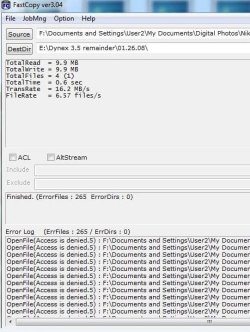
Using FastCopy, a large (and seemingly miscellaneous) quantity of the files end up not being copied, with some of the following errors appearing in the FastCopy log:
OpenFile(Access is denied.5) : F:\Documents and Settings\All Users\Documents\filename
FindFirstFile(Access is denied.5) : F:\Documents and Settings\LocalService\*

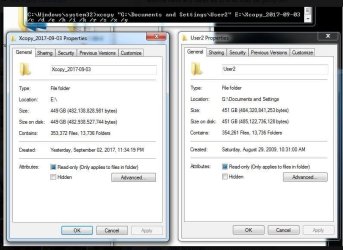
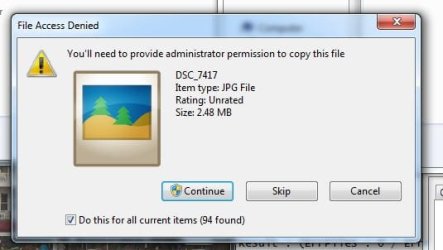
If I browse the HDD, some of the files are not displayed properly (e.g. the thumbnails of photos don't show previews of the photos). These files seem to be in alignment with the files listed in the Fast Copy log as 'Access id denied' However, if I try to copy these files via drag and drop, I can, but am presented with a dialog box of "You'll need to provide administrator permission to copy this file", which depending on the size of the folder appears at what seems like an arbitrary point in the copying process. I click OK and it then copies the files without incident (via drag and drop). Then if I right click and select properties for both the source and destination directories, they don't show the same size. Upon looking further, I see that the files have been copied, but performing right click & properties on the destination folder misreports the folder size. I was able to verify this by both opening the destination folder, ctrl+A on the files then right click/properties and comparing it with the source and find they're in alignment. I can also verify this by creating a new folder, moving the contents from the previously mentioned destination folder into the new folder, right click on the new folder and select properties. Then the sizes match up.

Given the size of the HDD, I'm faced with a bunch of very tedious work if I wish to copy everything. If anyone can offer some tips on what I might want to try to get the contents of the drive copied properly AND be able to easily verify that the copy was 100% successful, please let me know.

Using XCopy I compared the source and destination and they don't match up. Attached are both the comparison screen captures as well as a screen capture showing what I typed in the CMD window.

Since some of the files were indicating 'You'll need administrator privileges to copy this file', might I want to leave out the -x part? From Xcopy Command - Examples, Options, Switches, More I also want to make sure I maintain any ownership and audit settings in the files I'm copying
 

Attachments
  • administrator required.JPG
    administrator required.JPG
    28.1 KB · Views: 36
  • Xcopy 2017-09-03-a.JPG
    Xcopy 2017-09-03-a.JPG
    65.1 KB · Views: 1
  • Fast copy fails2.JPG
    Fast copy fails2.JPG
    62.7 KB · Views: 36

My Computer My Computer

Computer type
PC/Desktop
OS
Windows7
Welcome to the forum. Your copying files from a user profile and you won't have rights to the folder you need to go-to the folder and take ownership of all the folders then they will copy OK. Try built in robocopy it's very fast built for servers and you can just mirror the folders
 

My Computer My Computer

Computer type
PC/Desktop
OS
win 8 32 bit
Welcome to the forum. Your copying files from a user profile and you won't have rights to the folder you need to go-to the folder and take ownership of all the folders then they will copy OK. Try built in robocopy it's very fast built for servers and you can just mirror the folders
I'm currently trying another copy using Xcopy but leaving out the -x part.

I also want to make sure I maintain any ownership and audit settings in the files I'm copying

I could try robocopy, but my understanding is FastCopy and robocopy are the same, just different GUIs. So if it's not working with FastCopy, I'd be skeptical it would work with robocopy.

As soon as the current attempt at copying it (without the -x part in xcopy) is complete, I'll do some comparisons of the owners on the HDD per Take Ownership of a File or Folder

If there is consistency between who the owner is of the problem files and the non-problem files, then it appears as if I can do a global change of the owners. I would think that likely would fix the problem. But what if it doesn't?
 

My Computer My Computer

Computer type
PC/Desktop
OS
Windows7
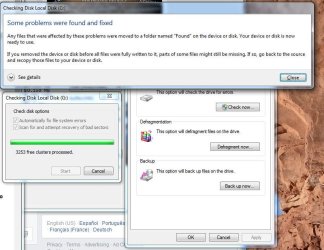
Update: I ran CHKDSK on the HDD

For files which are copying OK, it shows a user name ending in 500 and in some cases User\Administrator; For files which it prompts me to take ownership when I try to drag and drop, it shows a user name ending in 1004. If I change the ownership of one which possesses the characteristics of the latter to either Administrators (User\Administrators) or User (User\username), the file still won't transfer without requiring me to respond to the 'take ownership' dialog box. There doesn't seem to be an option for me to change the owner to the name ending in 500.
 

Attachments

  • CheckDisk CHKDSK results.JPG
    CheckDisk CHKDSK results.JPG
    79.1 KB · Views: 0

My Computer My Computer

Computer type
PC/Desktop
OS
Windows7
When you run XCOPY, you could set it up to keep track of what it has copied, so that you could make sure that all files get copied:

Step 1: Flip the archive bits to 'on' for all files you want to copy:
ATTRIB +A *.* /S
--> '+A' flips all archive bits to 'on'
--> '/S' makes it happen in all subdirectories
To verify that the archive bits got flipped to 'on', run the following command:
ATTRIB *.* /S
You will see an 'A' to the left of each file name displayed if the archive bit is on for that file.

Step 2: Copy all files, flipping the archive bit to 'off' on each file as it is successfully copied.
XCOPY *.* /M /S
--> '/M' flips the archive bits to 'off' as the files are successfully copied, effectively checking them off of the list.
--> '/S' makes it happen in all subdirectories

Step 3: See if there were any files which didn't get copied.
ATTRIB *.* /S
--> Shows how the archive attribute is set for each file
--> '/S' makes it happen in all subdirectories
--> If there is an 'A' in the far left column, then the archive bit is still on, i.e. that file didn't get successfully copied.
Or, you could run the command like this:
ATTRIB *.* /S > C:\temp\filelisting.txt
--> '> C:\temp\filelisting.txt' causes the output of the command to be redirected to a text file called 'filelisting.txt'; the text file will be written to the 'c:\temp' folder. (Make sure there is a c:\temp folder before running this command!) If there are a lot of files, it will be easier to look at the list if it is in a text file.
 

My Computer My Computer

Computer type
PC/Desktop
Computer Manufacturer/Model Number
Dell
OS
Linux Mint 18.2 xfce 64-bit (VMWare host) / Windows 8.1 Pro 32-bit (VMWare guest)
CPU
Haswell
Memory
4 GB
Monitor(s) Displays
Acer 23"
Screen Resolution
1920 x 1080
Hard Drives
Two hard drives, 1TB each: One for Linux, one for my data.
Keyboard
IBM Model M
Antivirus
Sophos (Linux), Trend Micro (Windows)
Browser
Firefox, Opera
Other Info
I use Samba to share my data drive with the other computers at my house and with my guest session in VMWare Workstation Player.
I'm still looking for a robust copying tool which will copy all files from a set of directories to an external drive. I've tried numerous things such as XCopy, Robocopy, FastCopy as well as a few others - and none of these can be counted on to copy all the files. I then have to run Total Commander or right click (and select properties) on directories in both the source and destination to find the culprit files. In the most recent instance of using XCopy, I was able to find a culprit file using the right click method and was then able to simply drag and drop it in the destination directory. It seems as if it didn't copy because of a long file name. But why would it copy easily in drag and drop and not in XCopy?

Does anyone know of a robust copying tool which will just merely duplicate the directories onto the external drive? I repeatedly run into this issue and find it difficult to imagine that such a tool doesn't exist.
 

My Computer My Computer

Computer type
PC/Desktop
OS
Windows7
As per your other pst on the same problem by default anything in a users profile has access denied even to admin on the same pc some folders will be owned by system which is above admin. as its an old drive all ownership will be to a number of the old SID not the admin of the new pc.
If there were errors on the disk some files may be corrupt which would lock them.
files sizes may not be the same as that depends on sector size which may be different it could take 4 sectors for a file on one pc but if th eother has bigger sectors it may fit in 3.

There is no problems with the copiers all have the same problem.

The simple answer is to convert the disk from ntfs to fat32 without loosing data that removes all permisions Macrorit NTFS to FAT32 Converter - Free download and software reviews - CNET Download.com
 

My Computer My Computer

Computer type
PC/Desktop
OS
win 8 32 bit
As per your other pst on the same problem by default anything in a users profile has access denied even to admin on the same pc some folders will be owned by system which is above admin. as its an old drive all ownership will be to a number of the old SID not the admin of the new pc.
If there were errors on the disk some files may be corrupt which would lock them.
files sizes may not be the same as that depends on sector size which may be different it could take 4 sectors for a file on one pc but if th eother has bigger sectors it may fit in 3.

There is no problems with the copiers all have the same problem.

The simple answer is to convert the disk from ntfs to fat32 without loosing data that removes all permisions Macrorit NTFS to FAT32 Converter - Free download and software reviews - CNET Download.com
When there isn't a permission issue and the source and destinations don't match up, what is the best way to find the culprit files?
A) Right click & do properties (for both source and destination) until I find the files which didn't copy (or didn't retain their properties). This is very tedious
B) Run Total Commander on both the source and destination. This locates the culprit files which I can then copy using a different means
C) Something else?
 

My Computer My Computer

Computer type
PC/Desktop
OS
Windows7
Did you try XCOPY using the options that I put in post #5 above? By using those options, you are using the archive bit as a marker of what has or has not been copied, so it is easy to tell what you still need to copy, if anything.
 

My Computer My Computer

Computer type
PC/Desktop
Computer Manufacturer/Model Number
Dell
OS
Linux Mint 18.2 xfce 64-bit (VMWare host) / Windows 8.1 Pro 32-bit (VMWare guest)
CPU
Haswell
Memory
4 GB
Monitor(s) Displays
Acer 23"
Screen Resolution
1920 x 1080
Hard Drives
Two hard drives, 1TB each: One for Linux, one for my data.
Keyboard
IBM Model M
Antivirus
Sophos (Linux), Trend Micro (Windows)
Browser
Firefox, Opera
Other Info
I use Samba to share my data drive with the other computers at my house and with my guest session in VMWare Workstation Player.
Back
Top