Solved Migrating Windows 7 installation from Sata SSD (MBR) to NVME. How to?

gattovicentino

New member
Member
Local time
10:32 AM
Messages
13
Hello!

I'm trying to migrate my Windows 7 Ultimate x64 installation to a new NVME SSD disk (Western Digital Blue SN550).
The system is currently installed on a Samsung Sata SSD, drive letter "C", but unfortunately the boot partition is on a mechanical WD Caviar HD, drive letter "D". Both of them use MBR partitioning scheme.
(Motherboard Asus X99-A/USB 3.1).

Using Macrium Reflect I cloned the Windows partition from the Samsung SSD and the boot partition from the WD Mechanical HD and restored them on the new NVME drive.
(Before cloning, I installed the NVME SSD, so Windows could load and install its proper driver "stornvme.sys", and then the NVME showed up in Windows, as drive G).

After cloning, I tried to reboot my PC (disconnecting all other disk except the NVME), but it is not bootable... so I'd like to know how to make it bootable. (I have already tried to convert NVME from MBR to GPT too).
I've also tried to boot the PC from a Windows UEFI bootable DVD and selecting the option to repair existing system, but the NVME doesn't show up (no disk available, not even using a modified Windows installation DVD with the stornvme driver integrated, neither manually trying to "add driver" when the Windows installation ask: nothing happens, the stornvme driver apparently loads but the NVME doesn't show up).

So, my questions are:

(1) Is there actually a way to restore my current Windows 7 installation on the new NVME and use it as Windows boot disk?

(2) If yes, should I absolutely convert the NVME partition scheme from MBR to GPT or is it not mandatory? (And what would be the best software to do it?)

(3) Should I change any specific setting in the Bios of my MB (UEFI /CSM yes or not? / Secureboot yes or not?). What are the Bios correct settings?

Thank you!
 

My Computers My Computers

  • At a glance

    Windows 7 Ultimate x64Intel I7 5820k32 GB DDR4
    Computer type
    PC/Desktop
    Computer Manufacturer/Model Number
    custom build
    OS
    Windows 7 Ultimate x64
    CPU
    Intel I7 5820k
    Motherboard
    Asus X99-A/USB 3.1
    Memory
    32 GB DDR4
    Hard Drives
    SSD Samsung 850 EVO Sata 256GB
    HDD Western Digital Sata 2TB

    SSD WD SN550 NVME 500GB
  • Computer type
    PC/Desktop
1. does your motherboard bios support booting from nvme devices ?
(For mobos without nvme support, modded bios is often available from win raid forum. OR clover boot manager can be used which does not require bios mod.)

2. To boot windows from that Nvme disk it should be gpt partition style.

(Some of the very early and expensive nvme disks had oproms that allowed bios boot, but not anything recent as far a I know)

3. Bios setting efi ( or Both if you have a Both option)
If your bios has a Boot from PCI-E expansion devices selection, set it to UEFI first.

4. CSM on.

5. Secure boot off.

6. Windows 7 does not natively boot from nvme. The two nvme updates from MS can be pre-integrated into the installation media. OR they can be manually installed using the .msu files prior to cloning/imaging. OR they can be injected into an already applied image using dism++


(2) If yes, should I absolutely convert the NVME partition scheme from MBR to GPT or is it not mandatory? (And what would be the best software to do it?)

Yes. You can use diskgenius free version. Like this:
convert to gpt with diskgenius

special boot media includes diskgenius and other tools 17514x64v30.iso
extract the i7514x64v30.iso to create bootable usb using this: View attachment Usb7ice.zip

7. if you want to fix boot issues using win7 installation media/ special boot media - boot the installation media/special boot media in efi mode.
command
bcdboot d:\windows /s z:
( where d is the windows partition and z is the esp [efi system] partition )
 
Last edited:

My Computers My Computers

  • At a glance

    7 X64i5 84002x8gb 3200mhz
    Computer type
    PC/Desktop
    OS
    7 X64
    CPU
    i5 8400
    Motherboard
    gigabyte b365m ds3h
    Memory
    2x8gb 3200mhz
    Hard Drives
    various
    PSU
    pure power 11 400w cm
    Case
    Coolermaster
    Cooling
    cryorig m9i
  • At a glance

    7x64g54008gb ddr4 2400
    Computer type
    PC/Desktop
    OS
    7x64
    CPU
    g5400
    Motherboard
    ga b365m ds3h
    Memory
    8gb ddr4 2400
    PSU
    xfx pro 450w
Thank you!

(1) I can't find this information, 100% sure about the MB, but I have the last firmware, from 2019, and it should be compatible.

(2) OK, so I can forget MBR scheme in NVME, since it would not work as boot device (it works in MBR as secondary storage device only).

(3) Yes, the bios has this setting.

(4) OK.

(5) OK.

(6) Pre-integrating NVME stuff with NTlite didn't work (Windows installation from DVD still couldn't see the NVME drive), so I will try with DISM++ ... and DiskGenius to convert to GPT.

(7) OK.

I'll try to do it in the next few days.
 

My Computers My Computers

  • At a glance

    Windows 7 Ultimate x64Intel I7 5820k32 GB DDR4
    Computer type
    PC/Desktop
    Computer Manufacturer/Model Number
    custom build
    OS
    Windows 7 Ultimate x64
    CPU
    Intel I7 5820k
    Motherboard
    Asus X99-A/USB 3.1
    Memory
    32 GB DDR4
    Hard Drives
    SSD Samsung 850 EVO Sata 256GB
    HDD Western Digital Sata 2TB

    SSD WD SN550 NVME 500GB
  • Computer type
    PC/Desktop
(6) Pre-integrating NVME stuff with NTlite didn't work

If you are pre integrating manually into the installation media , you need to do this:

Integrate the two nvme updates into boot.wim image 2

Copy the sources folder from the updated boot.wim image 2 into the distribution folder - that overwrites the distribtion sources folder with the new setup files . ( If you miss this step, the updated setup.exe run from boot.wim will not recognize the installation media with the old setup files and will strangely ask for a driver. )

Then integrate the two nvme updates into the install.wim image.

Or you can use one of the mobo manufacturers tools to do it for you. For example the biostar windowstool. I have a modded version somewhere if I can find it.
for intel
biostar-intel-windowstool.zip
for new amd 400-500 series gigabyte, msi, asus ( not asrock 500 - that doesnt support win7 acpi )
biostar-AMD-windowstool.zip

Or you can use my updater to do the job ( not necessary to use simplix update pack - that is optional)
Update your Win 7 installation media

My special boot media has both versions of windows setup files included.
 
Last edited:

My Computers My Computers

  • At a glance

    7 X64i5 84002x8gb 3200mhz
    Computer type
    PC/Desktop
    OS
    7 X64
    CPU
    i5 8400
    Motherboard
    gigabyte b365m ds3h
    Memory
    2x8gb 3200mhz
    Hard Drives
    various
    PSU
    pure power 11 400w cm
    Case
    Coolermaster
    Cooling
    cryorig m9i
  • At a glance

    7x64g54008gb ddr4 2400
    Computer type
    PC/Desktop
    OS
    7x64
    CPU
    g5400
    Motherboard
    ga b365m ds3h
    Memory
    8gb ddr4 2400
    PSU
    xfx pro 450w
To understand what is the drive layout you have, please post a Disk Manager Image
Disk Management - Post a Screen Capture Image

This is what I would do:
- Repair the SSD to boot without the HDD
- Convert the SSD from Legacy-MBR to UEFI-GPT
- Clone the SSD to the NVMe

1) Repair the SSD to boot without the HDD
- Make a disk image of your Windows drive (Samsung SSD). (Better be safe than sorry)
- Copy the System Partition from the HDD to the SSD.
- Detach the HDD (power or SATA cable)
- Boot the Win 7 installation drive as Legacy, not UEFI
- Do a boot repair.
- Try to boot from the SSD (HDD remains detached)

2) Convert the SSD from Legacy-MBR to UEFI-GPT
When you succeed on booting from the SSD, convert it using MBRtoGPT.exe from a Win 10 installation drive.
- Create a Win 10 installation drive using MCT
- Boot from the Win 10 installation drive and launch a CMD window (Shift+F10)
- type the command
MBR2GPT /validate

If validate is OK, type:
MBR2GPT /convert

If successful, reboot, enter BIOS and set it to work as UEFI (see SIW2 instructions)
Boot the SSD as UEFI

3) Clone the SSD to the NVMe
- If the SSD succeed to boot as UEFI, clone the SSD to the NVMe
- Remove the SSD and boot from the NVMe
- Attach the HDD
 
Last edited:

My Computers My Computers

  • At a glance

    Windows 7 HP 64i5 6600K - 800MHz to 4200MHz4+4G GSkill DDR4 3000IG - Intel 530
    Computer type
    PC/Desktop
    Computer Manufacturer/Model Number
    custom build
    OS
    Windows 7 HP 64
    CPU
    i5 6600K - 800MHz to 4200MHz
    Motherboard
    GA-Z170-HD3P
    Memory
    4+4G GSkill DDR4 3000
    Graphics Card(s)
    IG - Intel 530
    Monitor(s) Displays
    Samsung 226BW
    Screen Resolution
    1680x1050
    Hard Drives
    (1) -1 SM951 – 128GB M.2 AHCI PCIe SSD drive for Windows 7 and Lubuntu
    (2) -1 WD SATA 3 - 1T for Data
    (3) -1 WD SATA 3 - 1T for backup
    PSU
    Thermaltake 450W TR2 gold
    Keyboard
    Old and good Chicony mechanical keyboard
    Mouse
    Logitech mX performance - 9 buttons (had to disable some)
    Internet Speed
    500Mb/s
    Browser
    Firefox 64
    Other Info
    TinyWall firewall
  • At a glance

    Windows 7 Proi7-4500U 800MHz to 3.0GHz(4+4)G DDR3 1600IG intel 4400 + NVIDIA GeForce GT 745M
    Computer type
    Laptop
    System Manufacturer/Model Number
    Asus Q550LF
    OS
    Windows 7 Pro
    CPU
    i7-4500U 800MHz to 3.0GHz
    Motherboard
    Asus Q550LF
    Memory
    (4+4)G DDR3 1600
    Graphics Card(s)
    IG intel 4400 + NVIDIA GeForce GT 745M
    Sound Card
    Realtek
    Monitor(s) Displays
    LG Display LP156WF4-SPH1
    Screen Resolution
    1920 x 1080
    Hard Drives
    BX500 120G SSD for Windows and programs +
    1T HDD for data
    Internet Speed
    500 Mb/s
    Browser
    Firefox
    Other Info
    TinyWall firewall
Thank you SIW2 and obrigado Megahertz07 for your precious suggestions.

But I’m afraid this matter is beyond my ability, I suppose.
i couldn't even get the two partitions on the same (booting) disk.
The pic below shows my disks:
Cattura.PNG

Summarizing, as mentioned in my first post, my system boots from D (mechanical HDD) but Windows is on C (SSD).

Since I didn't want to mess with my disks, first of all I cloned C (SSD) to another disk. I used Macrium Reflect (activating forensic copy, sector by sector). I'm sure Macrium works fine because some weeks ago I have cloned a supposedly more complex MacBook SSD with bot OSX and Windows, and the cloned one worked as a charme.

Today, after cloning, I turned off the PC, then I detached the SSD and replaced it with the cloned one (same Sata port). But... at boot the surprise was "the requested system device cannot be found"...
So my question is: does the "system reserved" partition on D (that does the boot) "feel" that the cloned disk is not the "original" SSD disk? How can it do, if it was cloned sector by sector? A matter of hardware serial number or what? It surprised me.

I have made many other attemps to copy system partition (from HHD "D") and Windows partition (from SSD "C")... cloning them or copying them using various softwares (Macrium Reflect, Paragon Partition Manager, Minitool Partition Wizard).
No luck... the system is never bootable.
It only boots if I put my "original" SSD combined with the mechanical HDD.

I tried also using Windows installation DVD. But "Repair system" did not work: "startup repair cannot repair this computer"; not even commands (from command prompt) as bootsect /nt60 or bootrec /fixmbr or /fixboot worked.

Finally... I'm stuck in the first step: I can't even get both partition on the same disk with a working boot in MBR... so the next steps: (2) - convert it to GPT keeping it bootable / (3) - change necessary BIOS settings / (4) - clone everything to the NVME disk... are a mere illusion at the moment.

I don't know what to do...
 

My Computers My Computers

  • At a glance

    Windows 7 Ultimate x64Intel I7 5820k32 GB DDR4
    Computer type
    PC/Desktop
    Computer Manufacturer/Model Number
    custom build
    OS
    Windows 7 Ultimate x64
    CPU
    Intel I7 5820k
    Motherboard
    Asus X99-A/USB 3.1
    Memory
    32 GB DDR4
    Hard Drives
    SSD Samsung 850 EVO Sata 256GB
    HDD Western Digital Sata 2TB

    SSD WD SN550 NVME 500GB
  • Computer type
    PC/Desktop
Have you done this:

(6) Pre-integrating NVME stuff with NTlite didn't work (Windows installation from DVD still couldn't see the NVME drive), so I will try with DISM++ ... and DiskGenius to convert to GPT.

Instructions in posts 2&3 of this thread.

first of all I cloned C (SSD) to another disk.

Why? What has that to do with your original question?
 

My Computers My Computers

  • At a glance

    7 X64i5 84002x8gb 3200mhz
    Computer type
    PC/Desktop
    OS
    7 X64
    CPU
    i5 8400
    Motherboard
    gigabyte b365m ds3h
    Memory
    2x8gb 3200mhz
    Hard Drives
    various
    PSU
    pure power 11 400w cm
    Case
    Coolermaster
    Cooling
    cryorig m9i
  • At a glance

    7x64g54008gb ddr4 2400
    Computer type
    PC/Desktop
    OS
    7x64
    CPU
    g5400
    Motherboard
    ga b365m ds3h
    Memory
    8gb ddr4 2400
    PSU
    xfx pro 450w
I will give you step by step instructions
Good to know you have a spare drive you can use.
Can you clean all partitions on it?
 

My Computers My Computers

  • At a glance

    Windows 7 HP 64i5 6600K - 800MHz to 4200MHz4+4G GSkill DDR4 3000IG - Intel 530
    Computer type
    PC/Desktop
    Computer Manufacturer/Model Number
    custom build
    OS
    Windows 7 HP 64
    CPU
    i5 6600K - 800MHz to 4200MHz
    Motherboard
    GA-Z170-HD3P
    Memory
    4+4G GSkill DDR4 3000
    Graphics Card(s)
    IG - Intel 530
    Monitor(s) Displays
    Samsung 226BW
    Screen Resolution
    1680x1050
    Hard Drives
    (1) -1 SM951 – 128GB M.2 AHCI PCIe SSD drive for Windows 7 and Lubuntu
    (2) -1 WD SATA 3 - 1T for Data
    (3) -1 WD SATA 3 - 1T for backup
    PSU
    Thermaltake 450W TR2 gold
    Keyboard
    Old and good Chicony mechanical keyboard
    Mouse
    Logitech mX performance - 9 buttons (had to disable some)
    Internet Speed
    500Mb/s
    Browser
    Firefox 64
    Other Info
    TinyWall firewall
  • At a glance

    Windows 7 Proi7-4500U 800MHz to 3.0GHz(4+4)G DDR3 1600IG intel 4400 + NVIDIA GeForce GT 745M
    Computer type
    Laptop
    System Manufacturer/Model Number
    Asus Q550LF
    OS
    Windows 7 Pro
    CPU
    i7-4500U 800MHz to 3.0GHz
    Motherboard
    Asus Q550LF
    Memory
    (4+4)G DDR3 1600
    Graphics Card(s)
    IG intel 4400 + NVIDIA GeForce GT 745M
    Sound Card
    Realtek
    Monitor(s) Displays
    LG Display LP156WF4-SPH1
    Screen Resolution
    1920 x 1080
    Hard Drives
    BX500 120G SSD for Windows and programs +
    1T HDD for data
    Internet Speed
    500 Mb/s
    Browser
    Firefox
    Other Info
    TinyWall firewall
Why? What has that to do with your original question?
It's because I prefer to use a spare disk to do those tests, keeping my original SSD intact and my current Windows installation working, if I need to go back to use it, at any time.

I haven't been able to try Dism++ method etc. yet, because, first of all, I need to get over the first step: having a working (bootable) exact copy of my current Windows installation, with both of its partitions on the same disk, not SSD for Windows and mechanical HDD for booting like now.

- - - Updated - - -

I will give you step by step instructionsGood to know you have a spare drive you can use.Can you clean all partitions on it?
Thank you!
Yes I can use the spare disk, at will.
I already completely cleaned it up yesterday when I cloned sector by sector the "original" SSD to it, but for some reason the PC did not boot when I replaced the SSD disk with the spare one.
In the boot phase from the mechanical HDD, it seems to "notice" that the cloned (spare) disk is not the original SSD.
 

My Computers My Computers

  • At a glance

    Windows 7 Ultimate x64Intel I7 5820k32 GB DDR4
    Computer type
    PC/Desktop
    Computer Manufacturer/Model Number
    custom build
    OS
    Windows 7 Ultimate x64
    CPU
    Intel I7 5820k
    Motherboard
    Asus X99-A/USB 3.1
    Memory
    32 GB DDR4
    Hard Drives
    SSD Samsung 850 EVO Sata 256GB
    HDD Western Digital Sata 2TB

    SSD WD SN550 NVME 500GB
  • Computer type
    PC/Desktop
It's because I prefer to use a spare disk to do those tests, keeping my original SSD intact and my current Windows installation working, if I need to go back to use it, at any time.

I am not sure how "those tests" help you with your nvme.

I need to get over the first step: having a working (bootable) exact copy of my current Windows installation, with both of its partitions on the same disk, not SSD for Windows and mechanical HDD for booting like now.

I would suggest that first you ensure that windows on disk0 partition2 knows where it is.

It is quite complicated to do it yourself, so I made a thing to do it.

In the dropdown select the non booting windows partition - in your case, select D:\windows . Then click FIX

View attachment nt6repair9x86.zip

nt6repair6-FIXOSLETTER.jpg


Secondly, add a boot menu entry pointing at disk0 partition2.
From an admin cmd prompt, type:
bcdboot d:\windows
(then press enter)

Then when you reboot you should have two boot menu entries.
 
Last edited:

My Computers My Computers

  • At a glance

    7 X64i5 84002x8gb 3200mhz
    Computer type
    PC/Desktop
    OS
    7 X64
    CPU
    i5 8400
    Motherboard
    gigabyte b365m ds3h
    Memory
    2x8gb 3200mhz
    Hard Drives
    various
    PSU
    pure power 11 400w cm
    Case
    Coolermaster
    Cooling
    cryorig m9i
  • At a glance

    7x64g54008gb ddr4 2400
    Computer type
    PC/Desktop
    OS
    7x64
    CPU
    g5400
    Motherboard
    ga b365m ds3h
    Memory
    8gb ddr4 2400
    PSU
    xfx pro 450w
I am not sure how "those tests" help you with your nvme.

Because if I mess, doing something wrong with my current (working) disk and its Windows installation, i will no longer have a working Windows version to work on, and I need to have.
For this purpose I want to use a spare (cloned) disk working exactly as my current installation does, before doing potentially "dangerous" operations, so if something goes wrong, it's in the spare disk.
In the dropdown select the non booting windows partition - in your case, select D:\windows . Then click FIX


Cattura2.png

There is no D:\Windows in my system, as shown in the picture above, but I'll try to fix today or tomorrow with your program (if I can boot from the spare disk).
 

My Computers My Computers

  • At a glance

    Windows 7 Ultimate x64Intel I7 5820k32 GB DDR4
    Computer type
    PC/Desktop
    Computer Manufacturer/Model Number
    custom build
    OS
    Windows 7 Ultimate x64
    CPU
    Intel I7 5820k
    Motherboard
    Asus X99-A/USB 3.1
    Memory
    32 GB DDR4
    Hard Drives
    SSD Samsung 850 EVO Sata 256GB
    HDD Western Digital Sata 2TB

    SSD WD SN550 NVME 500GB
  • Computer type
    PC/Desktop
1. mark c active.

2. Open an elevated cmd and type bcdboot c:\windows /s c:

3. In bios set the samsung ssd first in the bios boot order.

4. Reboot and you will see in disk management that your samsung ssd C: is system,boot,active

Job done.


explanation for the curious:

Bios will pass control to the mbr code on the first disk it sees that has an active partition.

The mbr code at the start of the disk then chains to the pbr code on the active partition.

The active partition must contain the boot critical files ( which you created with the bcdboot command ).
Bootmgr on the active partition has a look at the bcd store (also on the active partition) to find out where he is supposed to go to start windows loading via winload.exe.

bios firmware >mbr>pbr>bootmgr>looks in bcd>winload.exe

For bios boot and mbr partition style, it is not necessary to have a separate system partition.

For efi boot, there is a separate system partition and optionally a small msr partition as well as the windows partition.

It is quite similar. The efi firmware will look for the efi system partition ( esp ) and on there should be the boot critical files.
 
Last edited:

My Computers My Computers

  • At a glance

    7 X64i5 84002x8gb 3200mhz
    Computer type
    PC/Desktop
    OS
    7 X64
    CPU
    i5 8400
    Motherboard
    gigabyte b365m ds3h
    Memory
    2x8gb 3200mhz
    Hard Drives
    various
    PSU
    pure power 11 400w cm
    Case
    Coolermaster
    Cooling
    cryorig m9i
  • At a glance

    7x64g54008gb ddr4 2400
    Computer type
    PC/Desktop
    OS
    7x64
    CPU
    g5400
    Motherboard
    ga b365m ds3h
    Memory
    8gb ddr4 2400
    PSU
    xfx pro 450w
As you have a spare drive to work on, this is what you have to do:
- Clean the drive deleting all partitions
Open a CMD window as administrator and type:

diskpart
list disk (it will list all drives. Identify the spare drive number)
select disk n (replace n by the USB drive number obtained with list disk)
clean
exit (to exit Diskpart)
Exit (to exit CMD)

- with Macrium reflect, copy the System partition from the HDD to your spare drive and the Windows partition of the SSD to the spare drive (don't use sector by sector. Use intelligent copy).
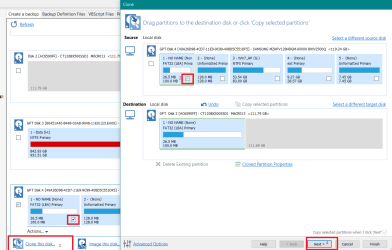
To illustrate, I'm going yo copy the first partition of my disk 4 (system partition) and the Windows partition of drive 1 to drive two.
- Select the system partition box of the HDD and hit clone . On the window that opens, select the target drive (the spare drive).
Macrium1.PNG
Drag and drop the System partition from Hdd drive to the spare drive
Hit next to clone the system partition of the HDD to the spare drive first partition

- Select the Windows partition box of the SSD and hit clone . On the window that opens, select the target drive (the spare drive).
Macrium2.PNG
Drag and drop the Windows partition from SSD drive to the spare drive
Hit next to clone the system partition of the HDD to the spare drive first partition

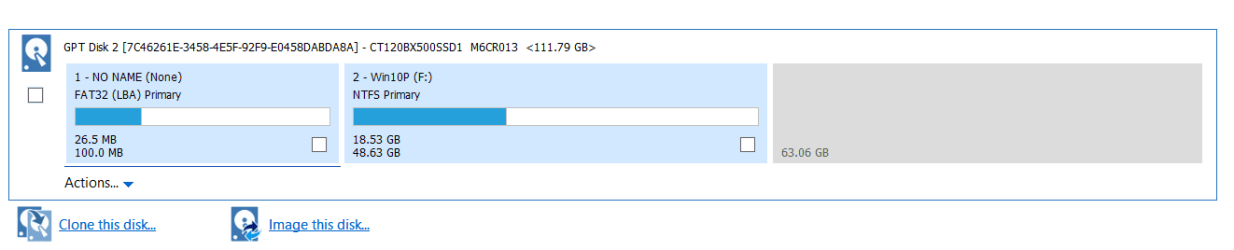
You should end with the System partition of the HDD and the Windows partition of the SSD on the spare drive.
Macrium3.PNG

Now lets make sure that the first partition is set as active

Open a CMD window as administrator and type:

diskpart
list disk (it will list all drives. Identify the spare drive number)
select disk n (replace n by the USB drive number obtained with list disk)
select part 1
active
assign letter=k
exit (to exit diskpart)
bcdboot X:\windows /s k: (replace X with Windows partition letter assigned to the windows partition on the spare drive)
exit


Now it should boot from the spare drive.
Detach (SATA or power cable) of the HDD and the SSD.
Try to boot from the spare drive

Report
 
Last edited:

My Computers My Computers

  • At a glance

    Windows 7 HP 64i5 6600K - 800MHz to 4200MHz4+4G GSkill DDR4 3000IG - Intel 530
    Computer type
    PC/Desktop
    Computer Manufacturer/Model Number
    custom build
    OS
    Windows 7 HP 64
    CPU
    i5 6600K - 800MHz to 4200MHz
    Motherboard
    GA-Z170-HD3P
    Memory
    4+4G GSkill DDR4 3000
    Graphics Card(s)
    IG - Intel 530
    Monitor(s) Displays
    Samsung 226BW
    Screen Resolution
    1680x1050
    Hard Drives
    (1) -1 SM951 – 128GB M.2 AHCI PCIe SSD drive for Windows 7 and Lubuntu
    (2) -1 WD SATA 3 - 1T for Data
    (3) -1 WD SATA 3 - 1T for backup
    PSU
    Thermaltake 450W TR2 gold
    Keyboard
    Old and good Chicony mechanical keyboard
    Mouse
    Logitech mX performance - 9 buttons (had to disable some)
    Internet Speed
    500Mb/s
    Browser
    Firefox 64
    Other Info
    TinyWall firewall
  • At a glance

    Windows 7 Proi7-4500U 800MHz to 3.0GHz(4+4)G DDR3 1600IG intel 4400 + NVIDIA GeForce GT 745M
    Computer type
    Laptop
    System Manufacturer/Model Number
    Asus Q550LF
    OS
    Windows 7 Pro
    CPU
    i7-4500U 800MHz to 3.0GHz
    Motherboard
    Asus Q550LF
    Memory
    (4+4)G DDR3 1600
    Graphics Card(s)
    IG intel 4400 + NVIDIA GeForce GT 745M
    Sound Card
    Realtek
    Monitor(s) Displays
    LG Display LP156WF4-SPH1
    Screen Resolution
    1920 x 1080
    Hard Drives
    BX500 120G SSD for Windows and programs +
    1T HDD for data
    Internet Speed
    500 Mb/s
    Browser
    Firefox
    Other Info
    TinyWall firewall
1. mark c active.

2. Open an elevated cmd and type bcdboot c:\windows /s c:

3. In bios set the samsung ssd first in the bios boot order.

4. Reboot and you will see in disk management that your samsung ssd C: is system,boot,active

Job done.

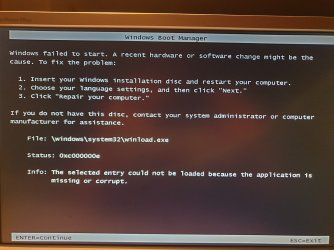
Done it, and this is what happens rebooting the system:
uno.jpg

- - - Updated - - -

... Now it should boot from the spare drive.
Detach (SATA or power cable) of the HDD and the SSD.
Try to boot from the spare drive

Report
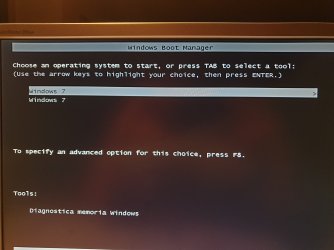
I've done everything EXACTLY and here's what happens after rebooting:

due.jpg
So I have two "Windows 7" options.

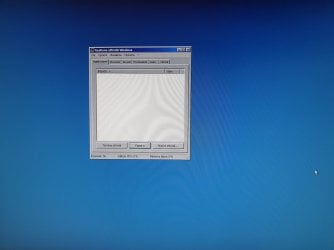
When I select the first one, Windows starts loading, but... here is the desktop:
tre.jpg
A "strange", empty and unusable desktop.

And if I select the second "Windows 7" option at boot:
uno.jpg

(I obviously made two different attempts, one with SIW2's suggestions and other with Megahertz07's ones, cleaning the spare disk, between the two attempts)
 

My Computers My Computers

  • At a glance

    Windows 7 Ultimate x64Intel I7 5820k32 GB DDR4
    Computer type
    PC/Desktop
    Computer Manufacturer/Model Number
    custom build
    OS
    Windows 7 Ultimate x64
    CPU
    Intel I7 5820k
    Motherboard
    Asus X99-A/USB 3.1
    Memory
    32 GB DDR4
    Hard Drives
    SSD Samsung 850 EVO Sata 256GB
    HDD Western Digital Sata 2TB

    SSD WD SN550 NVME 500GB
  • Computer type
    PC/Desktop
Did you detach the other drives (HDD and SSD)?
 

My Computers My Computers

  • At a glance

    Windows 7 HP 64i5 6600K - 800MHz to 4200MHz4+4G GSkill DDR4 3000IG - Intel 530
    Computer type
    PC/Desktop
    Computer Manufacturer/Model Number
    custom build
    OS
    Windows 7 HP 64
    CPU
    i5 6600K - 800MHz to 4200MHz
    Motherboard
    GA-Z170-HD3P
    Memory
    4+4G GSkill DDR4 3000
    Graphics Card(s)
    IG - Intel 530
    Monitor(s) Displays
    Samsung 226BW
    Screen Resolution
    1680x1050
    Hard Drives
    (1) -1 SM951 – 128GB M.2 AHCI PCIe SSD drive for Windows 7 and Lubuntu
    (2) -1 WD SATA 3 - 1T for Data
    (3) -1 WD SATA 3 - 1T for backup
    PSU
    Thermaltake 450W TR2 gold
    Keyboard
    Old and good Chicony mechanical keyboard
    Mouse
    Logitech mX performance - 9 buttons (had to disable some)
    Internet Speed
    500Mb/s
    Browser
    Firefox 64
    Other Info
    TinyWall firewall
  • At a glance

    Windows 7 Proi7-4500U 800MHz to 3.0GHz(4+4)G DDR3 1600IG intel 4400 + NVIDIA GeForce GT 745M
    Computer type
    Laptop
    System Manufacturer/Model Number
    Asus Q550LF
    OS
    Windows 7 Pro
    CPU
    i7-4500U 800MHz to 3.0GHz
    Motherboard
    Asus Q550LF
    Memory
    (4+4)G DDR3 1600
    Graphics Card(s)
    IG intel 4400 + NVIDIA GeForce GT 745M
    Sound Card
    Realtek
    Monitor(s) Displays
    LG Display LP156WF4-SPH1
    Screen Resolution
    1920 x 1080
    Hard Drives
    BX500 120G SSD for Windows and programs +
    1T HDD for data
    Internet Speed
    500 Mb/s
    Browser
    Firefox
    Other Info
    TinyWall firewall
Did you detach the other drives (HDD and SSD)?

Yes, when the system booted from the spare disk, the SSD and the HDD were not connected.
 

My Computers My Computers

  • At a glance

    Windows 7 Ultimate x64Intel I7 5820k32 GB DDR4
    Computer type
    PC/Desktop
    Computer Manufacturer/Model Number
    custom build
    OS
    Windows 7 Ultimate x64
    CPU
    Intel I7 5820k
    Motherboard
    Asus X99-A/USB 3.1
    Memory
    32 GB DDR4
    Hard Drives
    SSD Samsung 850 EVO Sata 256GB
    HDD Western Digital Sata 2TB

    SSD WD SN550 NVME 500GB
  • Computer type
    PC/Desktop
With only the spare drive attached, boot from a Win 7 installation drive and do a boot repair.
 

My Computers My Computers

  • At a glance

    Windows 7 HP 64i5 6600K - 800MHz to 4200MHz4+4G GSkill DDR4 3000IG - Intel 530
    Computer type
    PC/Desktop
    Computer Manufacturer/Model Number
    custom build
    OS
    Windows 7 HP 64
    CPU
    i5 6600K - 800MHz to 4200MHz
    Motherboard
    GA-Z170-HD3P
    Memory
    4+4G GSkill DDR4 3000
    Graphics Card(s)
    IG - Intel 530
    Monitor(s) Displays
    Samsung 226BW
    Screen Resolution
    1680x1050
    Hard Drives
    (1) -1 SM951 – 128GB M.2 AHCI PCIe SSD drive for Windows 7 and Lubuntu
    (2) -1 WD SATA 3 - 1T for Data
    (3) -1 WD SATA 3 - 1T for backup
    PSU
    Thermaltake 450W TR2 gold
    Keyboard
    Old and good Chicony mechanical keyboard
    Mouse
    Logitech mX performance - 9 buttons (had to disable some)
    Internet Speed
    500Mb/s
    Browser
    Firefox 64
    Other Info
    TinyWall firewall
  • At a glance

    Windows 7 Proi7-4500U 800MHz to 3.0GHz(4+4)G DDR3 1600IG intel 4400 + NVIDIA GeForce GT 745M
    Computer type
    Laptop
    System Manufacturer/Model Number
    Asus Q550LF
    OS
    Windows 7 Pro
    CPU
    i7-4500U 800MHz to 3.0GHz
    Motherboard
    Asus Q550LF
    Memory
    (4+4)G DDR3 1600
    Graphics Card(s)
    IG intel 4400 + NVIDIA GeForce GT 745M
    Sound Card
    Realtek
    Monitor(s) Displays
    LG Display LP156WF4-SPH1
    Screen Resolution
    1920 x 1080
    Hard Drives
    BX500 120G SSD for Windows and programs +
    1T HDD for data
    Internet Speed
    500 Mb/s
    Browser
    Firefox
    Other Info
    TinyWall firewall
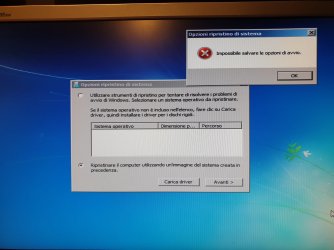
Booting from a Win 7 installation drive (only spare disk connected) and trying to repair:
da dvd windows.jpg
It's in italian but sounds like "unable to save boot options". It previously said something like "Windows found some problems, do you want to apply repair and reboot?". I clicked "yes" and the error of the picture above appeared.


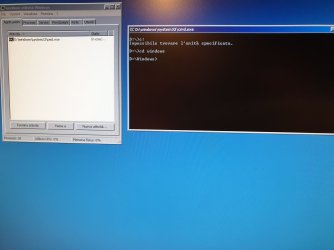
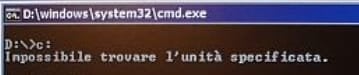
And I noticed another situation too: when Windows starts from the spare disk, and that strange and empty desktop appears, windows partition has become automatically D (pic below, cmd window) and C doesn't exist, even if I have previously assigned C to Windows partition, (booting from Win installation disk, using diskpart first, and then launching "bcdboot c:\windows /s K:" , where "K" was the system partition and "C" the windows partition).
So, why does Windows partition become D when system reboots and enters that "wrong" desktop?
windows strano.jpg

Is this crazy issue deeper and not only related to partitioning/booting? Maybe anything in bios? But everything is still in MBR, exactly like the original SSD... so it shouldn't cause any problems. (However disabling secure boot in bios has not changed the situation).

Or definitely this system is haunted!
 

My Computers My Computers

  • At a glance

    Windows 7 Ultimate x64Intel I7 5820k32 GB DDR4
    Computer type
    PC/Desktop
    Computer Manufacturer/Model Number
    custom build
    OS
    Windows 7 Ultimate x64
    CPU
    Intel I7 5820k
    Motherboard
    Asus X99-A/USB 3.1
    Memory
    32 GB DDR4
    Hard Drives
    SSD Samsung 850 EVO Sata 256GB
    HDD Western Digital Sata 2TB

    SSD WD SN550 NVME 500GB
  • Computer type
    PC/Desktop
fixthis.jpg

The answer is in post #10

To fix that you need to point nt6repair at the sick windows partition and click FIX.

You had better borrow this boot media so you can boot it from usb and point nt6repair at your sick windows partition.

17514x64v30.iso

nt6repair is on the desktop of the booted media.
 
Last edited:

My Computers My Computers

  • At a glance

    7 X64i5 84002x8gb 3200mhz
    Computer type
    PC/Desktop
    OS
    7 X64
    CPU
    i5 8400
    Motherboard
    gigabyte b365m ds3h
    Memory
    2x8gb 3200mhz
    Hard Drives
    various
    PSU
    pure power 11 400w cm
    Case
    Coolermaster
    Cooling
    cryorig m9i
  • At a glance

    7x64g54008gb ddr4 2400
    Computer type
    PC/Desktop
    OS
    7x64
    CPU
    g5400
    Motherboard
    ga b365m ds3h
    Memory
    8gb ddr4 2400
    PSU
    xfx pro 450w
To fix that you need to point nt6repair at the sick windows partition and click FIX.
I tried it, I burned your ISO into a DVD and I could repair it. Now the spare disk boots into Windows, so nt6repairs helped!
But... Windows copy on spare disk is not authentic (even if spare disk should be a perfect cloned copy of the original SSD that has an authentic copy of Windows installed). I have the key and I'll try to fix it.

I noticed that the way Windows starts (the loading phase before requesting the password to access the desktop) is different too (it's in italian in my original SSD, in english in spare disk) and I don't know if it has to do with the Windows authentication issue.

The big news is that I tried the same operation on the NVME disk (booting the system from the DVD generated by 17514x64v30.iso and repairing boot/windows folder in the NVME, as I did in the spare disk).
The result: it boots, even if it's using MBR!
But Windows behaviour on the NVME is the same of the spare disk: it starts (in english), it asks me the password, it enters the desktop (very slowly... 1 minute to show the icons, while the original SSD takes a few seconds) and it says me that the Windows copy is not authentic.

So I need to understand if the language when Windows begins to load (english instead of italian) and the incredible slowness loading the desktop have both to do with the authentication of Windows or not. (First of all I'll try to fix it with the original Windows serial, if I can find it here at home or extract it from the original installed copy).
 

My Computers My Computers

  • At a glance

    Windows 7 Ultimate x64Intel I7 5820k32 GB DDR4
    Computer type
    PC/Desktop
    Computer Manufacturer/Model Number
    custom build
    OS
    Windows 7 Ultimate x64
    CPU
    Intel I7 5820k
    Motherboard
    Asus X99-A/USB 3.1
    Memory
    32 GB DDR4
    Hard Drives
    SSD Samsung 850 EVO Sata 256GB
    HDD Western Digital Sata 2TB

    SSD WD SN550 NVME 500GB
  • Computer type
    PC/Desktop
Back
Top