Solved Move OS from System Partition (Win XP & Win 7 Dual Boot)

Roxie2401

New member
Local time
1:53 AM
Messages
19
I currently have a functioning dual-boot system. WinXP was installed first on the first partition, which is marked "System, Active, Primary." Win7 was installed on the second partition, also a Primary. Using EasyBDC both OSs show up correctly in the Boot menu and I can selectively boot into either OS.

Now, the question. I want to either (1) move WinXP to a new partition and only have the boot information on the System Partition or (2) create a new System Partition, leaving WinXP & the associated legacy Apps where they are.

Bottom line: I want a System Partition with only the Boot information and what ever else is required on a System Partition, no OS; a Primary Partition with WinXP as it currently is installed with the Apps, and a Primary Partition with Win7 and those Apps.

At this point I don't know which is easier, leaving the existing WinXP where it is and create a System partition for boot or moving the WinXP to a new partition and leaving the existing System partition alone.

I'm not very comfortable with bootmgr and ntldr ----- I sure don't want to mess up my existing dual-boot which is working correctly. And when I look in the existing hidden BOOT folder and see all those sub-folders, I keep thinking maybe I should just leave this alone.

Also, I have read the Dual-Boot WinXP & Win7 tutorial on the forum - but that seems more for a new install of an additional OS. I don't want to have to reinstall either existing OS. It sure looks like leaving the existing System partition alone and moving WinXP would be best.

And, I should say that I am using Marcuim Reflect to create full images of all the existing partitions.

If this is not the correct place to post this, please let me know.

Thanks
 

My Computer My Computer

OS
Windows 7 Professional 64 bit
What you could do is create a small 200GB primary partition. Make sure though that you do not have already more than 3 primary partitions on that disk (check in Disk Management). Give that little partition a letter and copy the bootmgr there (see tutorial). Use the letter of this little partition in lieu of C:\.

http://www.sevenforums.com/tutorials/209885-bootmgr-move-c-easybcd.html

The bootmgr will be copied and the little partition will be activated and the XP partition will be deactivated. The original bootmgr will still remain on the XP partition, but it serves no function any more since the partition will be deactivated. Should anything ever happen to your little partition, you could reactivate the XP partition (and deactivate the little partition) and things would be as they are now.

Note: If you already have 4 primary partitions on that disk, post back and we will fix that first. Under no circumstance try to create any additional partition if you have already 4 primaries. You would end up in deep yogurt with all dynamic partitions.

And may I ask why you want to do that ??
 

My Computer My Computer

Computer Manufacturer/Model Number
HP, Dell, Gateway, Toshiba - 4 laptops and 2 desktops
OS
Vista, Windows7, Mint Mate, Zorin, Windows 8
CPU
from 1.6GHz Duo to i7
Monitor(s) Displays
2x HP w2207
Hard Drives
5x HDD, 7x SSD, 12x Externals
Keyboard
with trackball - no mices
Mouse
Trackball mice
Internet Speed
DSL 6000
Hi - thanks for the quick reply.

First, I do already have four partitions on that HDD:

1. Disk 0 - WinXP (Active, Primary, System)
2. Disk 0 - Win7 (Boot, Primary, Page File, Crash Dump) - I suspect it says "Boot" because I'm currently using Win7 and booted into this partition)
3. Disk 0 - Data (Primary)
4. Disk 0 - Media (Logical Drive)

Second, will using EasyBCD and following the instructions move the hidden BOOT folder, bootmgr. ntldr, boot.ini, etc. all to the small partition? And does this small partition become a System partition as well as being "Active?" And, since its currently not used, can I call this new partition "S" Drive?

Will the system boot up to the same black screen menu I currently see; with WinXP Drive D, Win7 Drive C? And, could I then delete the Boot and NST folders, etc. from the WinXP partition?

To answer you last question, at some point I suspect I may have to reformat that old original partition and knew all the boot information was "living" there and I was afraid I would not be able to boot, even into the Win7 side.
 
Last edited:

My Computer My Computer

OS
Windows 7 Professional 64 bit
Hmm, not good because you have 3 primaries and 1 extended (logical) partition. Do the following:

1. Download the .iso for the bootable CD of Partition Wizard from here (last box on the webpage)

2. Burn this .iso to CD - e.g. with ImgBurn

3. Boot your PC with this CD

4. Highlight the Data Partition (click on it) and click on the Partition tab above

5. Go to Modify and click on ' Set partition as logical'

6. Click on Apply (top left)

You will then be OK. You could do the same with the Windows 7 partition. No need to have any primary partitions except for the active partition.

You can chose any free letter for the little partition.

Once you copied the bootmgr, the boot sequence should be the same as now.

PS: you did not tell me why you are doing that - just curious.
 

My Computer My Computer

Computer Manufacturer/Model Number
HP, Dell, Gateway, Toshiba - 4 laptops and 2 desktops
OS
Vista, Windows7, Mint Mate, Zorin, Windows 8
CPU
from 1.6GHz Duo to i7
Monitor(s) Displays
2x HP w2207
Hard Drives
5x HDD, 7x SSD, 12x Externals
Keyboard
with trackball - no mices
Mouse
Trackball mice
Internet Speed
DSL 6000
Will the system boot up to the same black screen menu I currently see; with WinXP Drive D, Windows 7 Drive C? And, could I then delete the Boot and NST folders, etc. from the WinXP partition?

To answer you last question, at some point I suspect I may have to reformat that old original partition and knew all the boot information was "living" there and I was afraid I would not be able to boot, even into the Windows 7 side.
 

My Computer My Computer

OS
Windows 7 Professional 64 bit
Well, in that case I would just copy the bootmgr to the Windows 7 partition. Then you need not go thru all those procedures.
 

My Computer My Computer

Computer Manufacturer/Model Number
HP, Dell, Gateway, Toshiba - 4 laptops and 2 desktops
OS
Vista, Windows7, Mint Mate, Zorin, Windows 8
CPU
from 1.6GHz Duo to i7
Monitor(s) Displays
2x HP w2207
Hard Drives
5x HDD, 7x SSD, 12x Externals
Keyboard
with trackball - no mices
Mouse
Trackball mice
Internet Speed
DSL 6000
It`s a matter of choice Roxie, but whs will give you sound advice.

Primary partitions are all I ever use.
 
Last edited:

My Computer My Computer

Computer type
PC/Desktop
Computer Manufacturer/Model Number
Skylake Special #666
OS
Windows 10 Pro x64
CPU
Intel Core i7 6700K
Motherboard
Asus Sabertooth Z170 Mark 1
Memory
GSkill TridentZ RGB 16GB 3600 16-16-16-36
Graphics Card(s)
EVGA GTX 980 Ti SC x2
Sound Card
Realtek High Definition
Monitor(s) Displays
AOC G2460PG
Screen Resolution
1920 x 1080 144Hz
Hard Drives
Samsung 860 Pro 256GB, Seagate Barracuda 4TB x2
PSU
EVGA 1000 P2, EVGA White Custom Braided Cables
Case
Corsair Vengeance C70 Gunmetal Black
Cooling
Corsair H100i v2, Corsair ML120 x2, Thermal Grizzly Kryonaut
Keyboard
Logitech G910 Orion Spectrum
Mouse
Logitech G700s
Internet Speed
Verizon Fios Quantum Gateway 75/75
Antivirus
Windows Defender, Malwarebytes Free 3.8.3
Browser
Chrome
Other Info
Corsair SP120 x4, LG Blu-ray Drive, Durabrand HT-395 100 Watt Dolby Digital Amp, Corsair H2100 Wireless 7.1 Headset
It`s a matter of choice Roxie, but whs will give you sound advice.

Primary partitions are all I ever use.
That's OK if you have only 2 or 3 partitions on the disk. But there is really no need for primaries except for the active partition.

The OEMs have started that nuisance to make all partitions as primaries and usually 4 of them. That's why so many people end up with dynamic partitions if they want to create an extra partition.
 

My Computer My Computer

Computer Manufacturer/Model Number
HP, Dell, Gateway, Toshiba - 4 laptops and 2 desktops
OS
Vista, Windows7, Mint Mate, Zorin, Windows 8
CPU
from 1.6GHz Duo to i7
Monitor(s) Displays
2x HP w2207
Hard Drives
5x HDD, 7x SSD, 12x Externals
Keyboard
with trackball - no mices
Mouse
Trackball mice
Internet Speed
DSL 6000
Sorry to make this more confusing.

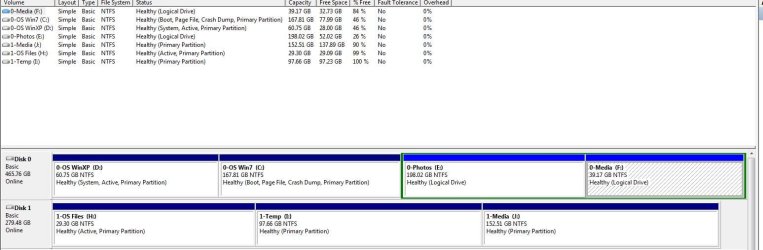
I want a System Partition with the boot information; a Primary partition with the existing WinXP; a Primary partition with the existing Win7; and (now) the two existing Logical partitions.

I'm a little confused - the fist reply seem to indicate all that was needed was a small Primary and copy the bootmgr with EasyBCD. But, now, the last post indicates this is more complicated.

My hope was that in making individual images of the new System partition, the existing WinXP, existing Win7, etc. I would be able to restore individually and keeping the boot data separate made sense.

Attached is the screen shot.
 

Attachments

  • Capture.JPG
    Capture.JPG
    88.7 KB · Views: 9

My Computer My Computer

OS
Windows 7 Professional 64 bit
There's no good reason to create a System boot partition for XP and Win7 when it's working fine now. No one has ever asked to do that before and we've handled every conceivable operation involving the two OS's since before Win7 was released.

If you want to remove XP now then we'll give you the steps to do that which cover all parameters and not just moving the boot files which loses functionality for WinRe.

Is there some good reason you want to move the boot files out of XP to another boot partition? Doing so would not be that easy but would likely require Repairs to both OS's, and XP is too old to allow its boot files to go anywhere during install or repair except itself.

Someone here may know how to do this successfully but its the most pointless operation I can imagine.
 
No need to be confused. Greg is just scaring you. He is a purist and does not like to move the bootmgr around. He does that in a different way.

Your Disk0 looks good now. I personally would not change anything. If one of your systems goes south, you just restore that partition. And if the disk breaks, you have to put everything back anyhow.

And if you plan to remove one day the XP system, you can copy the bootmgr now or at that time to the Windows 7 partition or do it the way Greg will advise.
 

My Computer My Computer

Computer Manufacturer/Model Number
HP, Dell, Gateway, Toshiba - 4 laptops and 2 desktops
OS
Vista, Windows7, Mint Mate, Zorin, Windows 8
CPU
from 1.6GHz Duo to i7
Monitor(s) Displays
2x HP w2207
Hard Drives
5x HDD, 7x SSD, 12x Externals
Keyboard
with trackball - no mices
Mouse
Trackball mice
Internet Speed
DSL 6000
Then how would you move the boot files for both XP and Win7 out of the XP partition into a boot partition and still have both of them bootable, Wolfgang - if all I'm doing is trying to scare her? :geek:
 
Now I'm totally confused.

Do I understand that what whs gave me initially will not work, is not preferred, or is a disagreement with what Greg is saying?
 

My Computer My Computer

OS
Windows 7 Professional 64 bit
The steps given to move the boot files off XP would almost definitely stop it from booting.

You have not said you're ready to get rid of XP. You said you want that option later.

But even if you were ready to get rid of XP you shouldn't move the boot files with EasyBCD which deletes the link for the Repair Console from F8 Boot tools, the reason that marking 7 Active and running Startup Repair - Run up to 3 Separate Times has been the Best Practice developed by these forums since before Win7 was even released - used thousands of times without failure.
 
Also, to add more confusion, why is H marked active, but you can attack that later. But Greg will tell you it shouldn`t be. And how to fix that.

I agree with Greg and you should leave it as is, it looks fine.

Except for H being marked active. Unless you put ( boot files ) on it on purpose.
 

My Computer My Computer

Computer type
PC/Desktop
Computer Manufacturer/Model Number
Skylake Special #666
OS
Windows 10 Pro x64
CPU
Intel Core i7 6700K
Motherboard
Asus Sabertooth Z170 Mark 1
Memory
GSkill TridentZ RGB 16GB 3600 16-16-16-36
Graphics Card(s)
EVGA GTX 980 Ti SC x2
Sound Card
Realtek High Definition
Monitor(s) Displays
AOC G2460PG
Screen Resolution
1920 x 1080 144Hz
Hard Drives
Samsung 860 Pro 256GB, Seagate Barracuda 4TB x2
PSU
EVGA 1000 P2, EVGA White Custom Braided Cables
Case
Corsair Vengeance C70 Gunmetal Black
Cooling
Corsair H100i v2, Corsair ML120 x2, Thermal Grizzly Kryonaut
Keyboard
Logitech G910 Orion Spectrum
Mouse
Logitech G700s
Internet Speed
Verizon Fios Quantum Gateway 75/75
Antivirus
Windows Defender, Malwarebytes Free 3.8.3
Browser
Chrome
Other Info
Corsair SP120 x4, LG Blu-ray Drive, Durabrand HT-395 100 Watt Dolby Digital Amp, Corsair H2100 Wireless 7.1 Headset
Ok - you have really confused me. Yes, he said it would not be active, but the Win7 is not active either. I thought "Active" was for the System partition and had nothing to do with which partition was booted. That was why I originally wanted a separate "System" partition, removed from the OS partitions.

So, taking a step back (but not what I really wanted to do), if we made the Win7 partition the System partition, would it then be "active" because (1) it was the System partition or (2) because it was the booted partition?
 

My Computer My Computer

OS
Windows 7 Professional 64 bit
To move the System boot files correctly takes more than moving the Active flag, you need to run Repairs to write the System boot files to the Active partition. That would only move the Win7 boot files, not the XP boot files which are sitting modified now on XP partition to Dual Boot Win7. Moving the Dual Boot files from XP would be nigh impossible and utterly pointless.

Again, when ready to remove XP mark Win7 partition Active and run 3 startup Repairs from Disk. When it starts and the System flag is on Win7 partition you can delete XP partition and recover its space using Partition Wizard Boot CD to Resize Partition - Video Help.
 
I am getting out of the loop. Although I have copied the bootmgr successfully many times, Greg may have a point in this special case. There are 2 bootmgrs and they may not both be moved by EasyBCD.

As already advised, I would leave it as is and take action when you want to get rid of the XP partition.
 

My Computer My Computer

Computer Manufacturer/Model Number
HP, Dell, Gateway, Toshiba - 4 laptops and 2 desktops
OS
Vista, Windows7, Mint Mate, Zorin, Windows 8
CPU
from 1.6GHz Duo to i7
Monitor(s) Displays
2x HP w2207
Hard Drives
5x HDD, 7x SSD, 12x Externals
Keyboard
with trackball - no mices
Mouse
Trackball mice
Internet Speed
DSL 6000

My Computer My Computer

OS
ME/XP/Vista/Win7
Back
Top