My Asus laptop's WiFi doesn't work

ineedhelp

New member
Local time
7:52 PM
Messages
7
Hi,

I have an Asus K53e-BBR7 laptop running Windows 7 Home Premium, 64 bit.
I've had it for 1.5 years. I didn't have trouble with the WiFi for a few months, but then it started acting up.
I of course factory reset many times, etc, and it didn't help.

There was a cycle: The built-in wasn't working so I put in the dongle. Then, after a while of using the dongle, the built-in WiFi took over/started working, and I could unplug. Anyway, this was a year ago. I took it to Best Buy and they apparently fixed it, but it acted up again the day after I got it, and then worked for a few months before I had trouble with it again. :(

My hard drive failed so I took it to another computer shop and got a new hard drive, and I think there might be something wrong with the drivers, even though I've installed/uninstalled, downloaded from website and updated, etc.

Now, here's what happens: When turn on my computer for the first time, or wake it up from sleep, the WiFi (built in) doesn't work, it can't connect to any networks. I have to turn off the WiFi antenna with Fn-F2, and then click troubleshoot where it says 'no connections are available' . It then goes through troubleshooting and and then has an option for "turn on wireless capability', I click on it and it turns on the antenna/wireless capability, and it works. This is consistent, I can always get it to work that way, though sometimes it takes more than 1 try.

Can you help me fix this? Thank you.
 

My Computer

OS
Windows 7 64 bit
Most tech enthusiasts would never run the corrupt factory preinstall with all of the bloatware that throttles Win7 native performance, but instead get the superior Clean Reinstall - Factory OEM Windows 7.

Follow the steps about putting your wireless driver in your backup so if it isn't provided by installer you can install it to connect to your netowrk and get online quickly.

Then if you stick with the tools and methods given in the tutorial only, you'll get and keep a perfect install for as long as you do.
 
Are you saying I should factory reset or make a clean reinstall? That's what I did a few months ago, I have a clean reinstall, I used a Windows 7 disk that I burned right after I got the new hard drive, or rather, the people at that company did. I didn't use the OEM, that's not on my computer anymore.

I suppose I could try it again though, it would be a hassle to get everything back together though like drivers, and it still might not be fixed.
 

My Computer

OS
Windows 7 64 bit
Compare the steps for getting and keeping a perfect Clean Reinstall - Factory OEM Windows 7 to see how close you came. If you weren't in the ballpark I'd do another and get it right this time. If you're still equating the grossly corrupt factory reset larded with sponsored bloatware and duplicate utilties with a Clean Reinstall then you're not getting the point.

Otherwise look in your Device Manager for any Devices in error (!) to install their driver from the Support Downloads webpage for your model PC or device. If WiFi has its driver, then click on connection icon in System Tray to see if it shows a network to connect to and do so. If not rightclick to Troubleshoot your connection.

If you can't get online with wireless plug in ethernet and connect that way to do all of your IMportant and Optional Windows Updates after enabling Automatically deliver drivers via Windows Update (Step 3).

Then work through these Troubleshooting Steps for Windows 7 to check the logs for repeat errors to resolve, utilize System Resources to solve problems, Generate A System health Report, establish a Clean Boot, test your hardware if necessary.
 
i bought a new asus k53e bbr23 in oct, first thing i did was reformat and do a clean install of windows 7. had one BSOD after i added my external HD, outside of that not one glitch or crash
 

My Computer

Computer Manufacturer/Model Number
asus k53e bbr23 laptop
OS
windows 7 x64 pro sp1
CPU
intel i5 2540m
Motherboard
asus
Memory
8 gig ddr3 12800
Graphics Card(s)
intel hd 3000
Sound Card
realtek hd audio
Screen Resolution
1366*768 hd
Hard Drives
(1) ST3250312AS ATA Device (2) TOSHIBA External USB 3.0 USB Device
Mouse
lenovo usb mouse
Internet Speed
20Mbps/1Mbps
Ok, I'm backing up everything now. It's just a hassle to do such, when it might not even fix the problem.
 

My Computer

OS
Windows 7 64 bit
It's not a hassle if you use it as the opportunity to get the one great Win7 Clean Reinstall of a lifetime. You'll get and keep a perfect install to the exact extent you stick with the tools and methods in the tutorial.

Then once it's setup and running perfectly save a Win7 backup image so you never have to reinstall again, just reimage your HD or its replacement in 20 minutes.

You can even transfer your perfect customized install to other PC's if you have a license for the same version using SysPrep to move HD/Image to another computer
 
Ok, gregrocker.

I love you.
This has worked perfectly, I was a bit skeptical as I had done this before, but it everything seems to be working now. :D But let's see how this works over the long run. :/
 

My Computer

OS
Windows 7 64 bit
Nope. I am typing this as I am tethered to my smartphone. It worked for two days, then boom! Not working anymore. This time it's worse, bcause I can't get it to connect if I turn off the WiFi and press troubleshoot. Any help/advice? Don't tell me to do another Clean Reinstall, I've done 2.
 

My Computer

OS
Windows 7 64 bit
If you're sure you followed the steps closely - especially concerning drivers - in Clean Reinstall - Factory OEM Windows 7 then there's no reason to do it over.

Focus on the WiFi driver in Device Manager, run Update Driver, try another driver for the device from the PC or Adapter's Support Downloads webpage. Try it with the full adapter software package, and with only the drivers. You should have Updates set to Automatically deliver drivers via Windows Update (Step 3) if you followed the tutorial to get a perfect install.

If you cannot get the adapter to work it may have a short or be malfunctioning or dying. What I would do is find an inexpensive USB wireless dongle like the AirLink N nearly-flush model I have that works better than the built-in on my laptop. This cost me $8 free shipping on buy.com daily deals. It's the only spam email I read every day.
 
The Op mentioned they tried the USB dongle in the first post, maybe it's time to break it out again.

Updating the routers firmware and the wireless drivers would be my first choices but I'd have to see the ipconfig/all from this machine as well.

Lots of updated stuff bios/drivers etc. at the Asus site for this laptop.
http://support.asus.com/download.aspx?SLanguage=en&m=K53E
 

My Computer

Computer type
PC/Desktop
Computer Manufacturer/Model Number
Home built
OS
Windows 7 Ult, Windows 8.1 Pro,
CPU
Q9650-4.275GHz, E8600 4.5GHz, E6750-3.8GHz
Motherboard
Evga 780i FTW
Memory
G.Skill PC2 9600 1200Mhz 5 5 5 15 2T
Graphics Card(s)
GTX480
Sound Card
Asus Xonar D2
Monitor(s) Displays
HannsG
Screen Resolution
1680X1050
Hard Drives
GSkill Phoenix Pro 120GB SSD
PSU
ThermalTake Toughpower 1000Watt modular
Case
ThermalTake XaserV
Cooling
Xigmatek S1283
Keyboard
Logitech G15
Mouse
Logitech G9
Internet Speed
T1
Hi,

I have an Asus K53e-BBR7 laptop running Windows 7 Home Premium, 64 bit.
I've had it for 1.5 years. I didn't have trouble with the WiFi for a few months, but then it started acting up.
I of course factory reset many times, etc, and it didn't help.

There was a cycle: The built-in wasn't working so I put in the dongle. Then, after a while of using the dongle, the built-in WiFi took over/started working, and I could unplug. Anyway, this was a year ago. I took it to Best Buy and they apparently fixed it, but it acted up again the day after I got it, and then worked for a few months before I had trouble with it again. :(

My hard drive failed so I took it to another computer shop and got a new hard drive, and I think there might be something wrong with the drivers, even though I've installed/uninstalled, downloaded from website and updated, etc.

Now, here's what happens: When turn on my computer for the first time, or wake it up from sleep, the WiFi (built in) doesn't work, it can't connect to any networks. I have to turn off the WiFi antenna with Fn-F2, and then click troubleshoot where it says 'no connections are available' . It then goes through troubleshooting and and then has an option for "turn on wireless capability', I click on it and it turns on the antenna/wireless capability, and it works. This is consistent, I can always get it to work that way, though sometimes it takes more than 1 try.

Can you help me fix this? Thank you.

Did you try going into your network settings and Enable/Disable/Repair from there?

Control Panel -> All Control Panel Items -> Network and Sharing Center -> Change Adapter Settings

From there, you can enable and disable it (which always worked for me) and use the repair functions which sometimes work as well.

Hope this helps
 

My Computer

Computer Manufacturer/Model Number
CUSTOM
OS
Windows 7 Home Premium 64 bit
CPU
Intel i7 3770k @ 3.5GHz Ivy Bridge
Motherboard
MSI Z77a
Memory
Corsair Vengeance 16 GB (1600MHz) (4x4GB)
Graphics Card(s)
Asus Nvidia GeForce GTX 660
Monitor(s) Displays
22" Samsung LED + 22" Samsung LCD
Screen Resolution
1920x1080
Hard Drives
Seagate 1 TB
PSU
750W
Case
CoolerMaster HAF 932
Keyboard
Logitech G510
Mouse
Logitech G9
Internet Speed
25 MB/s Down, 1 MB/s Up
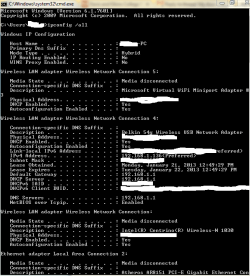
Here's Ipconfig /all, joechuckny

I did ipconfig all, chev65. I don't know how to interpret it. Capture and capture2. This was before joechuckny's advice.

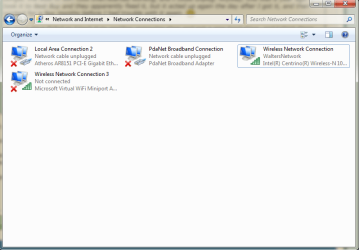
Joechuckny, I disconnected and connected, and disabled and enabled. It is in one of it's working states right now, doubtless going to disconnect again, and I will have to use the dongle. Capture 3 is the picture of what happened right after i took out the usb wifi dongle after I had disabled and disconnected and connected.
 

Attachments

  • Capture.PNG
    Capture.PNG
    16.2 KB · Views: 7
  • Capture2.PNG
    Capture2.PNG
    7.1 KB · Views: 12
  • Capture3.PNG
    Capture3.PNG
    24.6 KB · Views: 7

My Computer

OS
Windows 7 64 bit
I did ipconfig all, chev65. I don't know how to interpret it. Capture and capture2. This was before joechuckny's advice.

Joechuckny, I disconnected and connected, and disabled and enabled. It is in one of it's working states right now, doubtless going to disconnect again, and I will have to use the dongle. Capture 3 is the picture of what happened right after i took out the usb wifi dongle after I had disabled and disconnected and connected.

There really isn't any reason to white out those addresses, none of them can be used to track your location. The WAN IP is the one you need to worry about but it doesn't show up in ipconfig.

You should first try going into Device Manager and find the Microsoft Virtual WiFi miniport adaptor under Network Adaptors, and right click to disable it. It appears to be enabled and connected for some reason, did you set up a hosted wireless network?

The reason I ask is because this Virtual adaptor has been known to cause connection problems on rare occasions.

Is the Belkin adaptor the USB wireless NIC device?

Is the problematic built in wireless NIC the Atheros AR 8151?

Have you tried installing the drivers and using the Intel wireless NIC which also appears as a wireless device in the ipconfig? This NIC may work better for you than then Atheros.

Have you tried updating the wireless NIC drivers "Both Intel and Atheros" from the Asus website that I posted earlier?

It takes quite a while to load that Asus page so stick with it and install those two drivers when you get there.
 

My Computer

Computer type
PC/Desktop
Computer Manufacturer/Model Number
Home built
OS
Windows 7 Ult, Windows 8.1 Pro,
CPU
Q9650-4.275GHz, E8600 4.5GHz, E6750-3.8GHz
Motherboard
Evga 780i FTW
Memory
G.Skill PC2 9600 1200Mhz 5 5 5 15 2T
Graphics Card(s)
GTX480
Sound Card
Asus Xonar D2
Monitor(s) Displays
HannsG
Screen Resolution
1680X1050
Hard Drives
GSkill Phoenix Pro 120GB SSD
PSU
ThermalTake Toughpower 1000Watt modular
Case
ThermalTake XaserV
Cooling
Xigmatek S1283
Keyboard
Logitech G15
Mouse
Logitech G9
Internet Speed
T1
Ok, I didn't do anything since someone told me to go to Network connections and disable it, and it started working. It seems to be working now, and I'm scared to touch anything because I might revert it, chev65. No doubt it will disconnect again soon and I can try your advice.
 

My Computer

OS
Windows 7 64 bit
Ok, I didn't do anything since someone told me to go to Network connections and disable it, and it started working. It seems to be working now, and I'm scared to touch anything because I might revert it, chev65. No doubt it will disconnect again soon and I can try your advice.

Good luck with that. Having to manually enable and disable the connection just to get it working isn't really a solution for me.

I'd also disable the Msoft Virtual WiFi miniport adaptor in Device Manger> Network Adaptors, as it appears to be active and could easily be the cause of the wireless won't connect on start up problem.

Although going to the Asus site and updating the drivers for your two onboard wireless NIC's would probably be the best course of action.

You should also turn off the power saving feature for this NIC by going into the Network and Sharing Center, then on the left choose "Change Adaptor Settings" find the active wireless connection, right click to properties then choose configure, then choose the Power Management tab, uncheck to save power and hit OK. This may be the source of your waking from sleep problem.

You have many more options to fix this problem for good should the need arise. :geek:
 
Last edited:

My Computer

Computer type
PC/Desktop
Computer Manufacturer/Model Number
Home built
OS
Windows 7 Ult, Windows 8.1 Pro,
CPU
Q9650-4.275GHz, E8600 4.5GHz, E6750-3.8GHz
Motherboard
Evga 780i FTW
Memory
G.Skill PC2 9600 1200Mhz 5 5 5 15 2T
Graphics Card(s)
GTX480
Sound Card
Asus Xonar D2
Monitor(s) Displays
HannsG
Screen Resolution
1680X1050
Hard Drives
GSkill Phoenix Pro 120GB SSD
PSU
ThermalTake Toughpower 1000Watt modular
Case
ThermalTake XaserV
Cooling
Xigmatek S1283
Keyboard
Logitech G15
Mouse
Logitech G9
Internet Speed
T1
Hi I read your post and its really similar to the problem I had. I got a new hard drive and my WiFi wouldn't work after that. I found a solution from this link I'm posting below.

"Network Controller" driver solution - YouTube

I see its been over a year so I'm not sure how much use this will be to you but I thought I'd just pass this solution on.
 

My Computer

Computer type
PC/Desktop
Computer Manufacturer/Model Number
Toshiba
OS
windows 7 home premium 64bit
Ok, I didn't do anything since someone told me to go to Network connections and disable it, and it started working. It seems to be working now, and I'm scared to touch anything because I might revert it, chev65. No doubt it will disconnect again soon and I can try your advice.

Hi I read your post and its really similar to the problem I had. I got a new hard drive and my WiFi wouldn't work after that. I found a solution from this link I'm posting below.

"Network Controller" driver solution - YouTube

I see its been over a year so I'm not sure how much use this will be to you but I thought I'd just pass this solution on.
 

My Computer

Computer type
PC/Desktop
Computer Manufacturer/Model Number
Toshiba
OS
windows 7 home premium 64bit
Back
Top